
1. Киришүү
The GMKtec NucBox K10 is a high-performance mini PC designed for a wide range of applications, from demanding computing tasks to immersive entertainment. It features an Intel Core i9-13900HK processor, DDR5 RAM, and versatile connectivity options, all within a compact form factor. This manual provides essential information for setting up, operating, maintaining, and troubleshooting your NucBox K10.

Figure 1: The GMKtec NucBox K10 Mini PC, a compact and powerful computing device.
2. Орнотуу колдонмосу
2.1 Пакеттин мазмуну
Баштоодон мурун, пакетте бардык элементтер бар экенин текшериңиз:
- GMKtec K10 Mini PC Main Unit
- Кубаттуу адаптер
- HDMI кабели
- User Manual (Japanese, for reference)

Figure 2: Contents of the GMKtec NucBox K10 Mini PC package, including the main unit, power adapter, and HDMI cable.
2.2 Перифериялык түзүлүштөрдү туташтыруу
Connect your monitor, keyboard, and mouse to the appropriate ports on the mini PC. The NucBox K10 supports multiple display outputs, including HDMI and DisplayPort, for up to four screens.

Figure 3: Detailed diagram of the GMKtec NucBox K10 Mini PC's various ports and interfaces, including USB, HDMI, DP, Type-C, RJ45, and COM ports.
2.3 Кубат күйгүзүлдү
Connect the power adapter to the DC IN port on the mini PC and then plug it into a power outlet. Press the power button located on the front of the device to turn it on. The system will boot into Windows 11 Pro.
3. Иштөө нускамалары
3.1 Initial Setup and Windows 11 Pro
Your NucBox K10 comes with Windows 11 Pro pre-installed. Follow the on-screen instructions for initial setup, including language, region, and network configuration. Windows Defender is pre-installed for real-time protection.
3.2 Тармакка туташуу
The mini PC supports both wired and wireless network connections:
- Зымдуу LAN: Connect an Ethernet cable to the 2.5G RJ45 port for high-speed internet access.
- Wi-Fi 6: The device is equipped with Wi-Fi 6 for fast and stable wireless communication up to 2.4Gbps. Connect to your preferred Wi-Fi network through Windows settings.
- Bluetooth 5.2: Use Bluetooth 5.2 to connect wireless peripherals such as mice, keyboards, and headphones.

Figure 4: The GMKtec NucBox K10 Mini PC features advanced WiFi 6 and 2.5G LAN for high-speed and stable network connectivity.
3.3 Multi-Display Output
The NucBox K10 supports up to four displays simultaneously, with resolutions up to 4K@60Hz via HDMI 2.0 and 8K@60Hz via DisplayPort 1.4. Connect your monitors to the available HDMI, DisplayPort, and Type-C (DP/DATA) ports. Configure display settings within Windows to extend or duplicate your desktop.

Figure 5: A user operating the GMKtec NucBox K10 Mini PC with a multi-monitor setup, demonstrating its 4K/8K display output capabilities.
4. Техникалык тейлөө
4.1 Муздатуу системасы
The NucBox K10 is equipped with an efficient cooling fan system to maintain optimal operating temperatures. Ensure proper airflow around the device and keep ventilation openings clear of obstructions. Regular cleaning of dust from the vents can help maintain cooling performance.
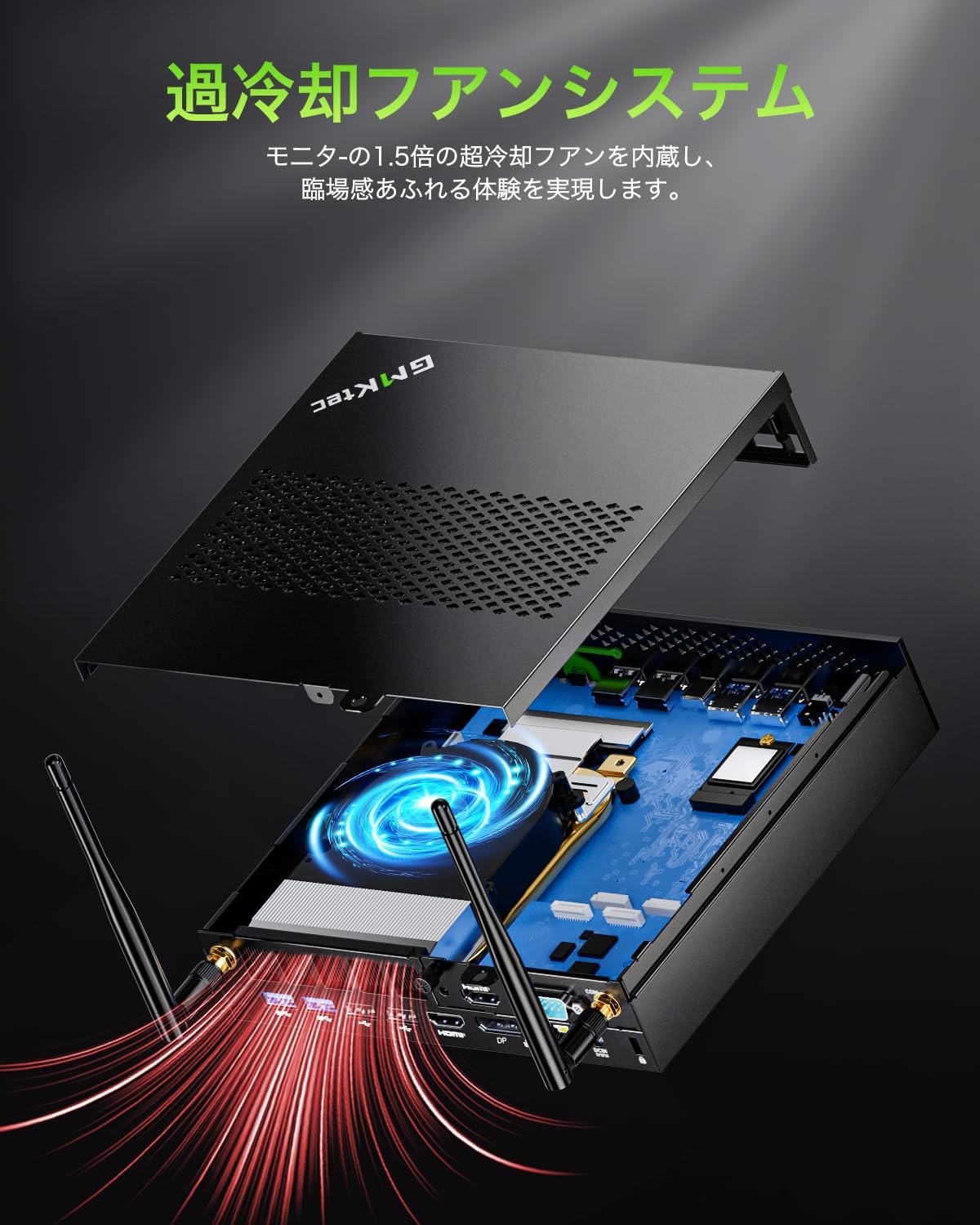
6-сүрөт: Ички view of the GMKtec NucBox K10 Mini PC, highlighting its integrated cooling fan system for efficient heat dissipation.
4.2 Сактоо жана эс тутумду кеңейтүү
The NucBox K10 supports expansion of both RAM and SSD storage:
- RAM: The device comes with 32GB DDR5 RAM (2x16GB) and can be expanded up to 96GB.
- SSD: It includes a 1TB M.2 2280 PCIe 4.0 SSD. Storage can be expanded up to 12TB using additional M.2 2280 slots.
For expansion, consult a qualified technician or refer to detailed upgrade guides available online to avoid damaging the device.

Figure 7: Diagram illustrating the expandable RAM (DDR5 SO-DIMM) and SSD (NVMe M.2 2280) slots within the GMKtec NucBox K10 Mini PC.
5. Кыйынчылыктарды
5.1 Жалпы маселелер жана чечимдер
- Кубат жок: Ensure the power adapter is securely connected to both the mini PC and a working power outlet. Check if the power button light is on.
- Дисплей жок: Verify that the HDMI or DisplayPort cable is firmly connected to both the mini PC and the monitor. Ensure the monitor is powered on and set to the correct input source. Try a different cable or monitor if possible.
- Тармакка туташуу маселелери: For Wi-Fi, check if the Wi-Fi adapter is enabled in Windows settings and if you are connected to the correct network. For wired LAN, ensure the Ethernet cable is properly connected and your router is functioning.
- Перифериялык таанылбайт: If a USB device (keyboard, mouse, external drive) is not working, try connecting it to a different USB port. Ensure device drivers are up to date in Windows Device Manager.
- Жай аткаруу: Close unnecessary applications. Check Task Manager for high CPU or RAM usage. Ensure sufficient free space on the SSD.
5.2 Keyboard Layout (Japanese Specific)
If you are using a Japanese keyboard, the initial Windows setup might default to an English keyboard layout. To change this, navigate to Windows Settings > Time & Language > Language & Region, and add or adjust the Japanese keyboard layout to ensure correct character input.
6. Техникалык шарттар
| Өзгөчөлүк | Спецификация |
|---|---|
| Бренд | GMKtec |
| Модел | NucBox K10 |
| Процессор | Intel Core i9-13900HK (14 Cores, 20 Threads, up to 5.4 GHz) |
| Графика | Intel Iris Xe Graphics eligible (up to 1.5GHz) |
| RAM | 32GB DDR5 (2x16GB), expandable up to 96GB |
| Сактагыч | 1TB M.2 2280 PCIe 4.0 SSD, expandable up to 12TB |
| Операция системасы | Windows 11 Pro (also supports Linux, Ubuntu, Windows 10) |
| Video Output | 2x HDMI 2.0 (4K@60Hz), 1x DisplayPort 1.4 (8K@60Hz), 1x Type-C (DP/DATA) - Supports up to 4 displays |
| USB порттору | 8x USB-A ports (mix of USB 3.2 and USB 2.0), 1x Type-C (USB 3.2 Gen2) |
| Network | 2.5G RJ45 LAN, Wi-Fi 6, Bluetooth 5.2 |
| Башка порттор | 3.5mm Audio Jack (Headphone/Mic), COM Port (Serial), Kensington Lock Slot |
| Өлчөмдөр | 18.8 x 17.8 x 3.89 см |
| Салмагы | 1.06 кг |

Figure 8: The GMKtec NucBox K10 features integrated Intel Iris Xe Graphics for efficient visual processing.
7. Кепилдик жана колдоо
7.1 Кепилдик маалыматы
The GMKtec NucBox K10 Mini PC is PSE (Electrical Appliance and Material Safety Act) certified and has undergone strict quality tests. It comes with a 1-year manufacturer's warranty. In the unlikely event of a malfunction, repair or replacement services will be provided.
7.2 Кардарларды колдоо
For technical assistance, warranty claims, or any product-related inquiries, please contact GMKtec customer support. Refer to the contact information provided on the official GMKtec webсайт же сатып алуу документтери.