
1. Киришүү
This manual provides detailed instructions for the setup, operation, and maintenance of your WAVLINK 13-in-1 USB-C Triple Display Docking Station. Please read this manual thoroughly before using the product to ensure proper functionality and to prevent damage.
2. Продукт бүтүп калдыview
The WAVLINK 13-in-1 USB-C Triple Display Docking Station expands your laptop's connectivity, offering multiple ports for displays, peripherals, network, and power delivery. It is designed to enhance productivity by supporting various display configurations.
Пакеттин мазмуну
- WAVLINK 13-in-1 USB-C Triple Display Docking Station
- USB-C-C кабели
- 130W Power адаптер
- AC кубат кабели
- Quick Start Guide

Image: Contents of the WAVLINK 13-in-1 USB-C Triple Display Docking Station package, including the docking station, cables, power adapter, and quick start guide.
Port Layout
The docking station features a comprehensive array of ports to connect various devices:

Image: Diagram showing the front and rear ports of the WAVLINK 13-in-1 USB-C Triple Display Docking Station, with each port clearly labeled.
- Кубат порту (DC 20V): Комплекттеги 130 Вт кубат адаптерине туташтырылат.
- Upstream USB-C Port: Connects to your host laptop for data, video, and power delivery.
- HDMI порту: Connects to an HDMI display.
- 2 x DisplayPort: Connects to DisplayPort displays.
- Гигабит Ethernet порту (RJ45): Туруктуу зымдуу тармак байланышын камсыз кылат.
- 4 x USB 3.0 порттору: For connecting USB peripherals, with one supporting BC 1.2 fast charging.
- SD картаны окугуч: For reading standard SD cards.
- Микро SD картаны окугуч: For reading Micro SD cards.
- 4-уюлдуу телефон уячасы (3.5 мм аудио): Наушниктерди же динамиктерди туташтыруу үчүн.
- Кубат баскычы: Док-станцияны күйгүзүү/өчүрүү үчүн.
3. Орнотуу нускамалары
Follow these steps to set up your WAVLINK docking station:
- Туташуу кубаты: Connect the included 130W power adapter to the DC 20V power port on the docking station, then plug the AC power cable into a wall outlet.
- Хост ноутбугуна туташуу: Use the provided USB-C to C cable to connect the upstream USB-C port on the docking station to a compatible USB-C port on your laptop. Ensure your laptop's USB-C port supports DisplayPort Alternate Mode and Power Delivery.
- Туташуу дисплейлери: Connect your external monitors to the HDMI and DisplayPort outputs on the docking station using appropriate cables.
- Перифериялык түзүлүштөрдү туташтыруу: Connect your USB devices (keyboard, mouse, external drives), Ethernet cable, and audio devices to the corresponding ports on the docking station.
- Күйгүзүү: Press the power button on the docking station. Your laptop should detect the connected devices and displays automatically.
4. Иштөө нускамалары
Дисплей режимдери
The docking station supports various display configurations depending on your operating system.
Windows системалары
Windows systems support both Mirror and Extend modes for multiple displays.

Image: Illustration of Windows multi-display modes, showing a laptop connected to three external monitors in both Extend Mode (each monitor displays unique content) and Mirror Mode (all monitors display the same content).
- Узартуу режими: Each external monitor can display different content, extending your desktop workspace.
- MirrorMode: All external monitors will display the same content as your primary display.
macOS Systems
macOS systems support Mirror mode and a non-mirror mode. They do not support Multi-Stream Transport (MST) for extended displays with unique content on each external monitor.
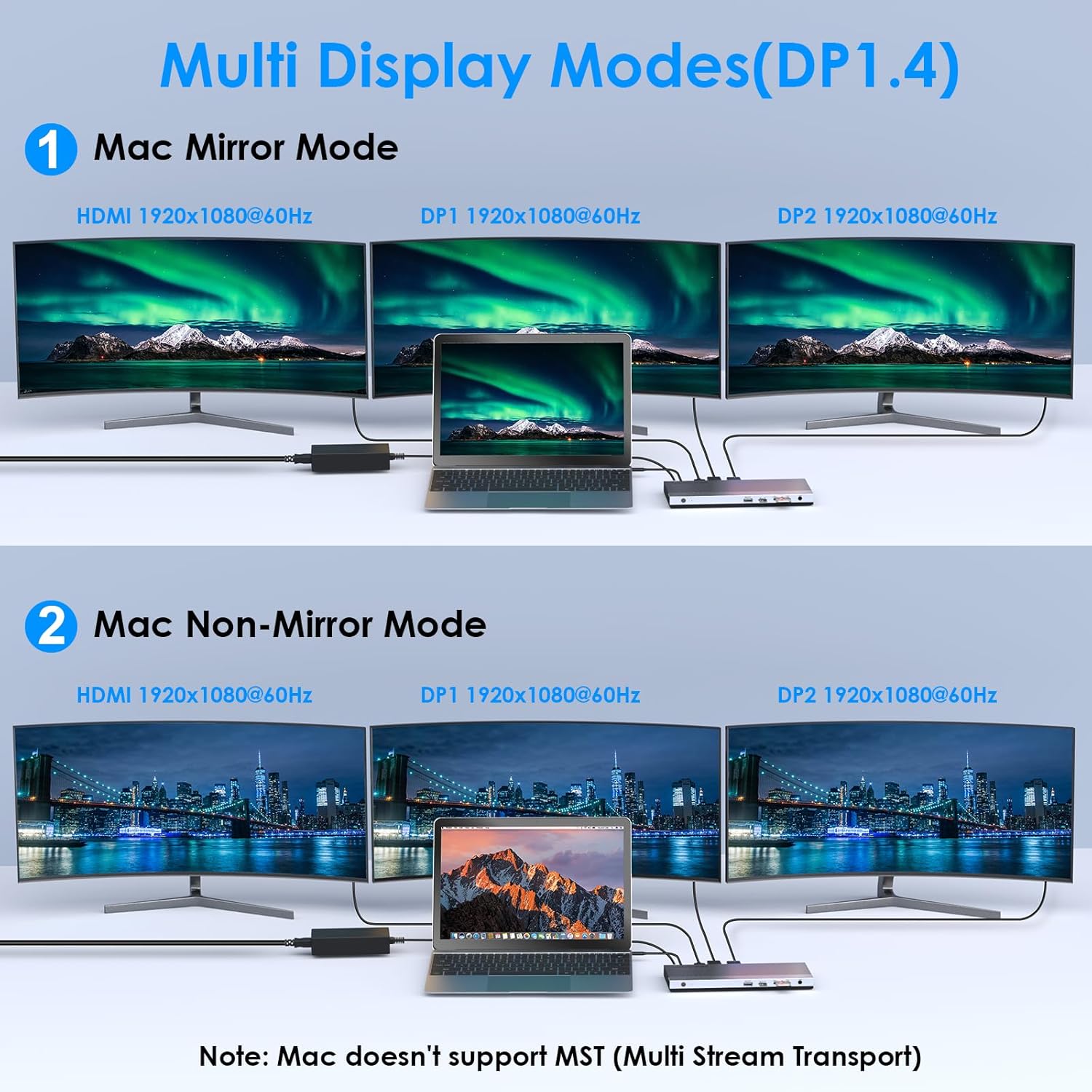
Image: Illustration of Mac multi-display modes, showing a laptop connected to three external monitors in both Mirror Mode (all monitors display the same content) and Non-Mirror Mode (all external monitors display the same content, but different from the laptop screen).
- MirrorMode: All external monitors will display the same content as your primary display.
- Non-Mirror Mode: The three external monitors (HDMI+DP+DP) will display the same content, which is different from the laptop's built-in screen.
Resolution Capabilities
- Single HDMI/DP display: Up to 4K@60Hz (with DP1.3/DP1.4 source).
- Dual displays simultaneously: Up to 2K@60Hz.
- Triple displays (HDMI + DP + DP) simultaneously: Up to 1920x1080@60Hz.
Power Delivery (PD) заряддоо
The upstream USB-C port provides up to 100W Power Delivery 3.0 to charge your connected laptop. Additionally, one USB 3.0 port supports BC 1.2 fast charging, delivering up to 7.5W for mobile devices.

Image: A laptop and a smartphone connected to the docking station, illustrating 100W Power Delivery to the laptop and BC 1.2 fast charging to the smartphone.
Маалыматтарды өткөрүү
The docking station features four USB 3.0 ports, offering data transfer speeds up to 5Gbps. The built-in SD and Micro SD card readers support speeds up to 104MBps and can operate simultaneously.

Image: A laptop connected to the docking station, with USB flash drives and an SD card inserted, highlighting 5Gbps USB 3.0 speeds and 104MB/s SD/TF card reader speeds.
Гигабит Ethernet
The RJ45 Ethernet port provides a stable and high-speed wired network connection up to 1000Mbps, ideal for reliable internet access.
5. Шайкештик
This docking station is compatible with most Type-C and Thunderbolt 3/4 devices running Windows, macOS, Chrome OS, Linux, and Android.

Image: Visual representation of the docking station's compatibility with various devices like smartphones, tablets, laptops, desktops, and cameras, as well as operating systems including Windows, Chrome OS, Mac OS, Linux, and Android.
Маанилүү шайкештик эскертүүлөрү
Сатып алуудан мурунasing or using, ensure your host system's USB-C interface supports:
- DisplayPort Alternate Mode (Alt Mode): Essential for video output.
- USB Power Delivery (PD) Protocol: Required for laptop charging via the docking station.
- Маалыматтарды өткөрүү: For USB peripheral functionality.
If your USB-C port only supports data transfer or charging without DisplayPort Alt Mode, video output will not function.

Image: A visual guide showing various types of USB-C ports (Thunderbolt 3, Data+DisplayPort+Power Delivery, Data Transfer only, Data+Power Delivery only, Data+DisplayPort only, Charging only) and indicating which are compatible with the docking station for full functionality.
6. Техникалык шарттар
| Өзгөчөлүк | Деталь |
|---|---|
| Модел | B0DXF92DL1 |
| Бренд | WAVLINK |
| Аппараттык интерфейс | Ethernet, HDMI, USB 3.0, DisplayPort, USB-C, SD/TF Card Reader, 3.5mm Audio Jack |
| Порттардын саны | 13 |
| Жалпы USB порттору | 4 3.0 (USB XNUMX) |
| Маалыматтарды өткөрүү ылдамдыгы | 5 Gbps (USB 3.0), 104 MBps (SD/TF Card Reader) |
| Power Delivery | Up to 100W (Host Charging), 7.5W (BC 1.2 USB 3.0 Port) |
| Video Output | 1x HDMI (4K@60Hz), 2x DisplayPort (4K@60Hz) |
| Ethernet | Gigabit (10/100/1000 Mbps) |
| Операциялык системанын шайкештиги | Windows, macOS, Chrome OS, Linux, Android |
| Коргоочу материал | Пластик |
Өлчөмдөр

Image: Technical drawing showing the dimensions of the WAVLINK 13-in-1 USB-C Triple Display Docking Station: 8.15 inches (207mm) length, 3.27 inches (83mm) width, and 0.71 inches (18mm) height.
7. Кыйынчылыктарды
Эгерде сиз док-станцияңыз менен көйгөйлөргө туш болсоңуз, төмөнкү кеңири таралган көйгөйлөрдү жана чечимдерди караңыз:
- Дисплей чыгышы жок:
- Ensure your laptop's USB-C port supports DisplayPort Alternate Mode.
- Verify all display cables are securely connected to both the docking station and monitors.
- Check monitor input settings to ensure the correct input source (HDMI/DisplayPort) is selected.
- Ноутбугуңузду жана док станциясын өчүрүп-күйгүзүңүз.
- For triple display, ensure your graphics card supports at least 4 displays (including your laptop's screen).
- Ноутбук заряддалбай жатат:
- Confirm the 130W power adapter is correctly connected to the docking station and a working power outlet.
- Ensure your laptop's USB-C port supports USB Power Delivery (PD) protocol.
- Verify the USB-C cable connecting the laptop to the docking station is capable of PD.
- USB түзмөктөрү таанылбайт:
- Ensure the docking station is powered on and connected to your laptop.
- USB түзмөгүн док станциясындагы башка USB 3.0 портуна туташтырып көрүңүз.
- USB түзмөгүн түз эле ноутбукка туташтырып, анын иштеп жатканын текшериңиз.
- Ethernet туташуусу жок:
- Ethernet кабелинин док станциясына да, роутериңизге/модемиңизге да бекем туташтырылганын текшериңиз.
- Ноутбугуңуздагы тармак жөндөөлөрүн текшериңиз.
- Роутериңиз/модемиңиз туура иштеп жатканын текшериңиз.
- Үзгүлтүктүү туташуу:
- Бардык кабелдер бекем туташтырылганын текшериңиз.
- Док станциясын күчтүү электромагниттик тоскоолдук булактарынын жанына койбоңуз.
- Update your laptop's USB-C port drivers if available.
8. Техникалык тейлөө
WAVLINK док станцияңыздын узак мөөнөттүү иштешин жана оптималдуу иштешин камсыз кылуу үчүн, төмөнкү техникалык тейлөө көрсөтмөлөрүн аткарыңыз:
- Тазалоо: Док станциясынын сыртын тазалоо үчүн жумшак, кургак чүпүрөктү колдонуңуз. Суюк тазалоочу каражаттарды же аэрозольдорду колдонбоңуз.
- Сактагыч: Док-станцияны салкын, кургак жерде, күндүн түз тийген нурларынан жана өтө жогорку температурадан алыс сактаңыз.
- Колдонуу: Аппаратты түшүрүүдөн же катуу таасирлерден сактаныңыз.
- Вентиляция: Ensure the docking station has adequate ventilation to prevent overheating, especially during prolonged use with multiple connected devices.
9. Кепилдик жана колдоо
Кепилдик маалымат
This WAVLINK product comes with an 18-month warranty from the date of purchase. An additional 6 months of warranty may be available for registered members. Please retain your proof of purchase for warranty claims.
Кардарларды колдоо
For technical assistance or support, please contact WAVLINK customer service:
- Телефон: +1 8889730883 (UTC -5) Monday - Friday, 9 AM - 6 PM
- Электрондук почта: Contact@wavlink.com