
1. Киришүү
The Delton F75 Foldable Bluetooth Keyboard with Touchpad is designed for portability and convenience, offering a full-sized typing experience in a compact form factor. This manual provides detailed instructions for setting up, operating, and maintaining your keyboard to ensure optimal performance across various devices.
2. Пакеттин мазмуну
Сураныч, пакетте төмөнкү нерселерди текшериңиз:
- 1 x Delton F75 Foldable Bluetooth Keyboard with Touchpad
- 1 х USB-C кубаттоо кабели
- 1 х Колдонуучунун колдонмосу (бул документ)
3. Продукт бүтүп калдыview
Familiarize yourself with the key components of your Delton F75 keyboard.
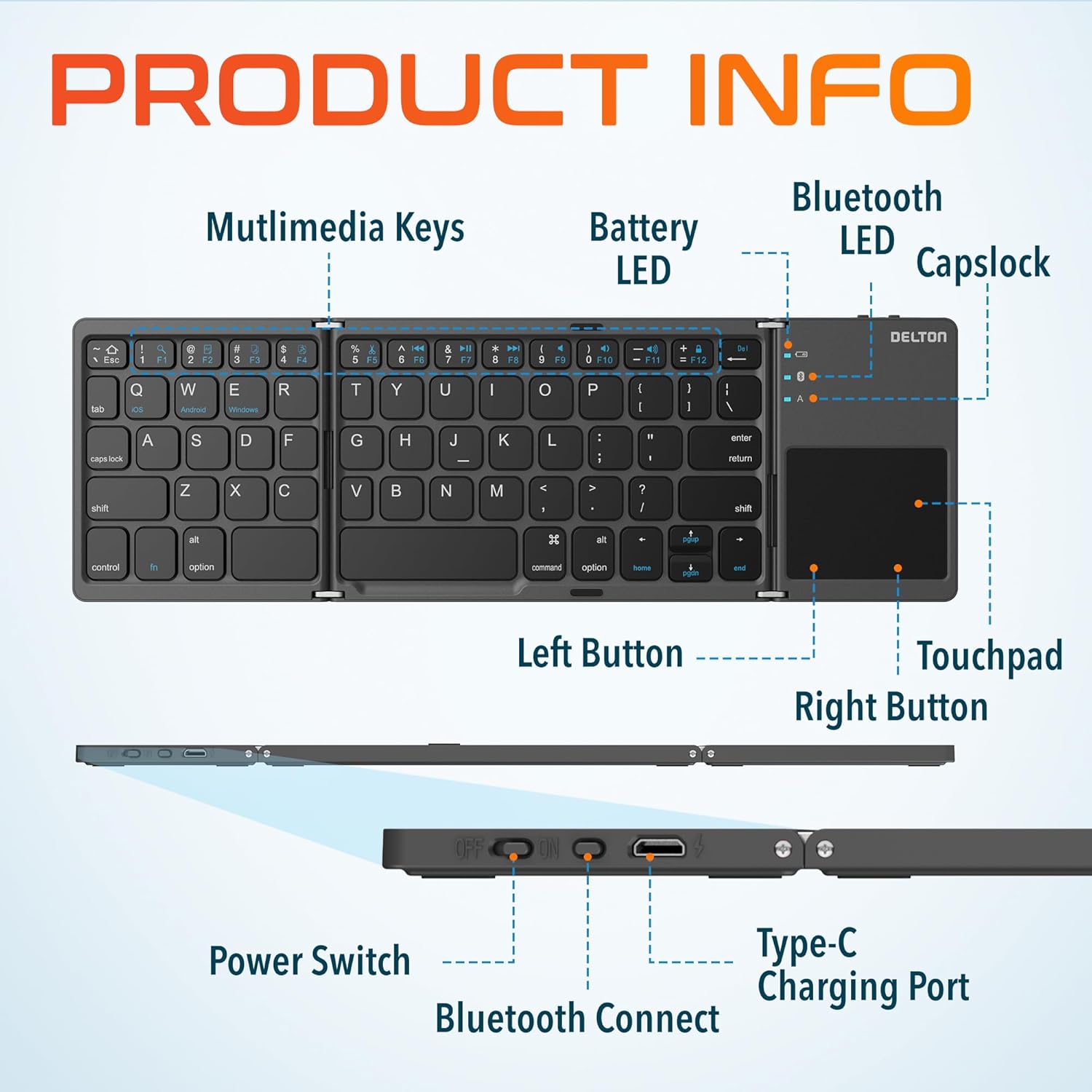
Image: Diagram showing multimedia keys, battery LED, Bluetooth LED, Capslock, Left/Right Touchpad Buttons, Touchpad, Power Switch, Bluetooth Connect button, and Type-C Charging Port.
- Мультимедиа ачкычтары: Access various functions like volume control, media playback, and more.
- Батарея LED: Батареянын абалын көрсөтөт.
- Bluetooth LED: Bluetooth байланыш абалын көрсөтөт.
- Capslock Indicator: Caps Lock активдүү болгондо көрсөтөт.
- Сенсордук такта: For navigation and gesture control.
- Left/Right Touchpad Buttons: Function as mouse clicks.
- Кубат которгучу: Баскычтопту күйгүзөт же өчүрөт.
- Bluetooth туташуу баскычы: Bluetooth жупташтыруу режимин баштайт.
- Type-C заряддоо порту: For recharging the keyboard's internal battery.
4. Орнотуу жана туташуу
4.1 Алгачкы заряддоо
Before first use, fully charge the keyboard. Connect the provided USB-C charging cable to the keyboard's Type-C port and the other end to a USB power source (e.g., computer, wall adapter). The Battery LED will indicate charging status.
4.2 Күйгүзүү/өчүрүү
To power on the keyboard, slide the Power Switch to the "ON" position. To power off, slide it to the "OFF" position.
4.3 Bluetooth жупташтыруу
- Unfold the keyboard completely. This action often automatically powers on the device.
- басыңыз Bluetooth туташтыргыч баскычы (usually indicated by a Bluetooth icon) to enter pairing mode. The Bluetooth LED will blink, indicating it is discoverable.
- On your device (PC, laptop, tablet, smartphone), go to Bluetooth settings.
- Издөө available Bluetooth devices and select "Delton F75" (or similar name).
- Follow any on-screen prompts to complete the pairing process. The Bluetooth LED will stop blinking and remain solid once connected.
The keyboard supports seamless integration across Windows, macOS, iOS, and Android operating systems.

Image: Visual representation of the Delton F75 keyboard's compatibility with various tablets, phones, and laptops/PCs, including iPad, Galaxy Tab, iPhone, Galaxy, Google Pixel, OnePlus, iMac, Macbook, Dell, and HP, and operating systems like Windows, macOS, and iOS.
5. Иштөө нускамалары
5.1 Терүү
The Delton F75 features an optimized key layout and scissor switch keys for comfortable and precise typing. The quiet keys minimize disturbance, making it suitable for various environments.
5.2 Сенсордук тактаны колдонуу
The integrated touchpad supports full gesture functions, eliminating the need for an additional mouse. It includes left and right-click buttons for standard mouse operations.

Image: Close-up of the Delton F75 keyboard's sensitive touchpad, highlighting its gesture control capabilities with a finger touching the pad.
Refer to your device's operating system documentation for specific touchpad gestures supported.
5.3 Мультимедиа баскычтары
The keyboard includes dedicated multimedia keys. These keys often require pressing the Fn (Function) key simultaneously with the desired multimedia key to activate their secondary functions (e.g., volume up/down, play/pause).
6. Заряддоо жана батареянын иштөө мөөнөтү
The Delton F75 keyboard is equipped with a rechargeable battery that provides up to 50 hours of continuous use on a single charge. When the battery is low, the Battery LED will indicate this status. Connect the keyboard to a power source using the USB-C cable for recharging.
7. Техникалык тейлөө
- Тергичти жумшак, кургак чүпүрөк менен сүртүп, аны таза кармаңыз.
- Клавиатураны өтө жогорку температурага, нымдуулукка же түз күн нуруна дуушар кылбаңыз.
- Катуу химиялык заттарды же абразивдүү тазалоочу каражаттарды колдонбоңуз.
- Store the keyboard in its folded, compact state when not in use to protect the keys and touchpad.
8. Кыйынчылыктарды
- Баскычтоп Bluetooth аркылуу туташпай жатат: Ensure the keyboard is charged and powered on. Make sure Bluetooth is enabled on your device and the keyboard is in pairing mode (Bluetooth LED blinking). Try unpairing and re-pairing the device.
- Ачкычтар жооп бербейт: Check if the keyboard is powered on and connected. Ensure the battery is not depleted.
- Сенсордук такта иштебейт: Verify the keyboard is connected. Some devices may require specific settings for external touchpads.
- Үзгүлтүксүз туташуу: Ensure there are no obstructions between the keyboard and your device. Move closer to your device. Avoid strong electromagnetic interference.
- Typing lag: This can sometimes be due to interference or a low battery. Try recharging the keyboard or moving closer to your device.
9. Техникалык шарттар
| Өзгөчөлүк | Спецификация |
|---|---|
| Модель номери | F75 |
| Продукциянын өлчөмдөрү (ачылган) | 11.9 x 6 x 0.7 дюйм (L x W x H) |
| Элемент Салмагы | 8.4 унция |
| Байланыш технологиясы | Bluetooth |
| Шайкеш түзмөктөр | Laptop, PC, Tablet, Smartphone (Windows, macOS, iOS, Android) |
| Keyboard Description | Ergonomic, Scissor Switch Keys |
| Өзгөчөлүктөр | Foldable, Portable, Touchpad, Rechargeable, Hotkeys and Media Keys, Lightweight, Compact |
| Батареянын иштөө мөөнөтү | 50 саатка чейин үзгүлтүксүз колдонуу |
| Заряддоо порту | Type-C |
| Материал | Пластик жана металл |
| Түс | Кара |
10. Кепилдик жана колдоо
For warranty information or technical support, please refer to the documentation included with your purchase or visit the official Delton webсайт. Кепилдик дооматтар үчүн сатып алганыңыздын далилин сактаңыз.