1. Киришүү
The Generic ISR4321/K9 is a high-performance, modular Integrated Services Router designed for small to medium-sized branch offices. This device provides a flexible and scalable solution for routing, security, and application services, supporting high-speed internet access, secure VPN connectivity, and seamless integration with cloud-based services. The K9 suffix denotes advanced security features, including encryption, firewalls, and VPN support, ensuring a secure and reliable network environment. Its modular design facilitates easy expansion of features such as additional network interfaces, storage, and services to adapt to evolving business requirements.
Негизги өзгөчөлүктөрү:
- High-Performance Routing: Delivers robust routing capabilities with support for static and dynamic protocols (e.g., OSPF, EIGRP, BGP) for efficient WAN performance.
- Өркүндөтүлгөн коопсуздук: Integrates IOS XE security features, including firewall protection, VPN (IPsec/SSL), intrusion prevention, and Umbrella integration for comprehensive threat defense.
- Кош WAN колдоосу: Offers primary and backup WAN links to ensure uninterrupted internet connectivity and automatic failover during network outages.
- Жогорку жеткиликтүүлүк: Supports High Availability (HA) configurations for redundancy, enhancing network reliability in the event of hardware failure.
2. Пакеттин мазмуну
Verify that all items are present in the package before proceeding with installation. If any items are missing or damaged, contact your vendor.
- ISR4321/k9 Router
- Accessories (e.g., power adapter, Ethernet cable)
- Menu Instruction (Quick Start Guide)
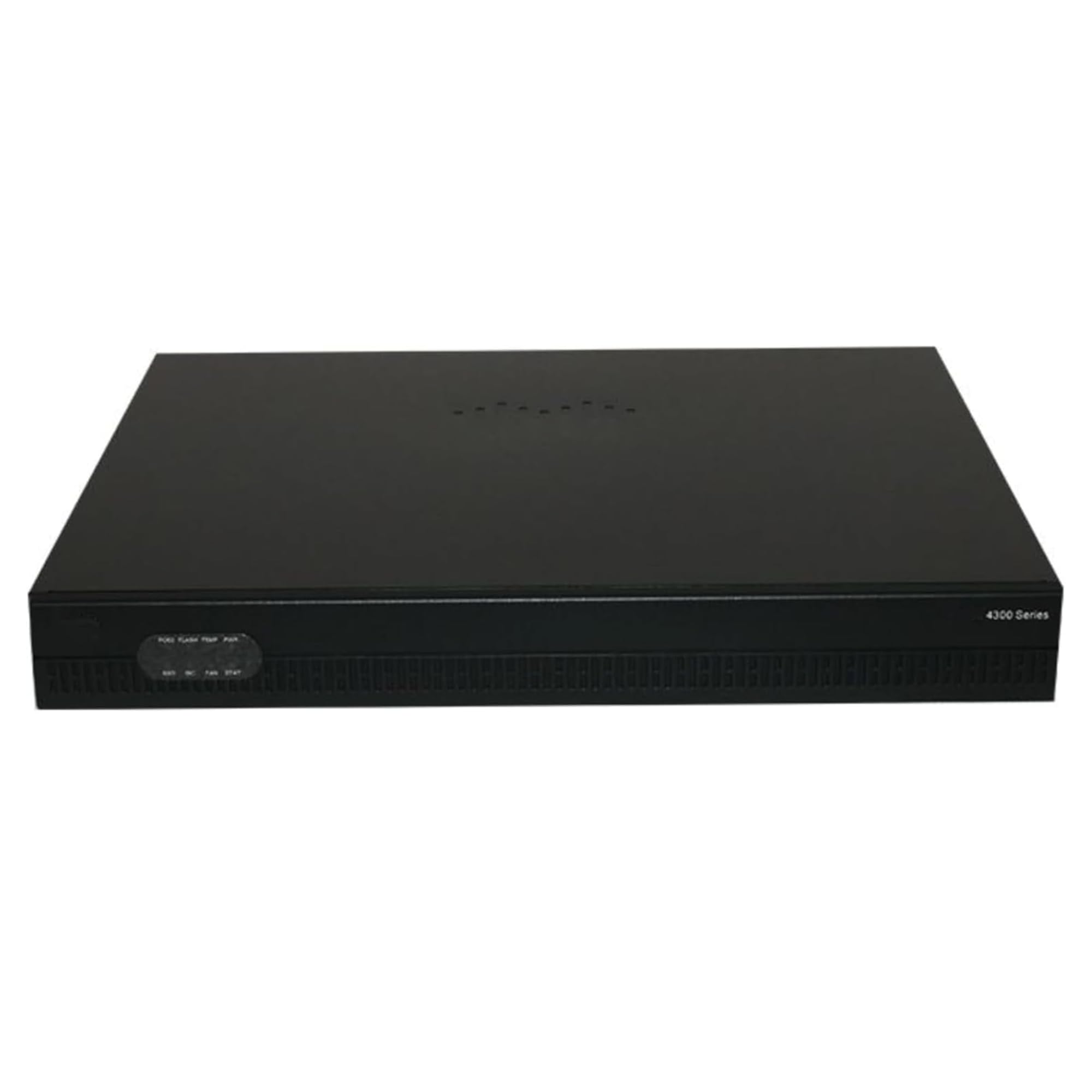
Image 1: Generic ISR4321/K9 Integrated Services Router. This image displays the front and side view of the router, highlighting its compact design and port layout.
3. Орнотуу нускамалары
Follow these steps to set up your ISR4321/K9 router.
3.1 Пакеттен чыгаруу жана жайгаштыруу
- Роутерди жана бардык аксессуарларды таңгактан этияттык менен алып салыңыз.
- Place the router on a stable, flat surface in a well-ventilated area, away from direct sunlight, heat sources, and moisture. Ensure adequate space around the device for airflow.
3.2 Кубатты туташтыруу
- Кубат адаптерин роутердин электр киргизүү портуна туташтырыңыз.
- Plug the power adapter into a suitable electrical outlet. The router will begin its power-on self-test (POST) sequence. Observe the system LED indicators for status.
3.3 Тармактык байланыштар
- WAN туташуу: Connect your Internet Service Provider's (ISP) modem or network device to the router's WAN port using an Ethernet cable.
- LAN байланыштары: Connect your local network devices (computers, switches, etc.) to the router's LAN ports using Ethernet cables.
- Консоль туташуусу (милдеттүү эмес): For initial configuration or advanced management, connect a console cable from your computer's serial port to the router's console port.
3.4 Баштапкы конфигурацияга кирүү
Access the router's management interface to perform initial configuration.
- Web Интерфейс: ачуу а web browser on a computer connected to the router's LAN. Enter the default IP address (refer to the Quick Start Guide or manufacturer's documentation for the default IP and login credentials).
- Буйрук сабынын интерфейси (CLI): If using a console connection, use a terminal emulator program (e.g., PuTTY, Tera Term) with appropriate serial port settings (e.g., 9600 baud, 8 data bits, no parity, 1 stop bit).
4. Иштөө нускамалары
This section covers basic operation and configuration tasks for your router.
4.1 Негизги тармак конфигурациясы
- WAN жөндөөлөрү: Configure your WAN connection type (e.g., DHCP, PPPoE, Static IP) according to your ISP's requirements.
- LAN IP дареги: Set the router's internal IP address and subnet mask for your local network.
- DHCP сервери: Enable and configure the DHCP server to automatically assign IP addresses to devices on your local network.
4.2 Коопсуздук өзгөчөлүктөрү
Utilize the router's security features to protect your network.
- Firewall: Configure firewall rules to control incoming and outgoing network traffic.
- VPN: Set up Virtual Private Network (VPN) connections for secure remote access or site-to-site connectivity.
- Кирүүнү башкаруу тизмелери (ACLs): Implement ACLs to filter traffic based on various criteria.
4.3 Dual WAN and High Availability
Leverage advanced features for network resilience.
- Dual WAN: Configure a secondary WAN connection for automatic failover, ensuring continuous internet access if the primary link fails.
- High Availability (HA): Implement HA configurations with a redundant router to provide network reliability and minimize downtime.
5. Техникалык тейлөө
Үзгүлтүксүз тейлөө сиздин роутериңиздин оптималдуу иштешин жана узак иштөөсүн камсыз кылат.
5.1 Микропрограмма жаңыртуулары
Мезгил-мезгили менен өндүрүүчүнүн текшерүү website for firmware updates. Firmware updates often include performance improvements, bug fixes, and security enhancements. Follow the provided instructions carefully when performing updates.
5.2 Үзгүлтүксүз текшерүүлөр
- Monitor system logs for unusual activity or errors.
- Verify network connectivity and performance regularly.
- Бардык кабелдер коопсуз туташтырылганын текшериңиз.
5.3 Тазалоо
Keep the router clean and free of dust. Use a soft, dry cloth to wipe the exterior. Do not use liquid cleaners or aerosols directly on the device. Ensure ventilation openings are not obstructed.
6. Кыйынчылыктарды
Бул бөлүмдө сиз кабылышы мүмкүн болгон жалпы маселелерди чечүү жолдору каралган.
6.1 Интернет байланышы жок
- Кабелдерди текшерүү: Бардык Ethernet кабелдери туура портторго (WAN, LAN) бекем туташтырылганын текшериңиз.
- Модем абалы: Verify that your ISP's modem is working correctly and has an active internet connection.
- Маршрутизатордун абалы: Check the router's indicator lights. Refer to the Quick Start Guide for LED interpretations.
- Түзмөктөрдү кайра жүктөө: Power cycle your modem, then the router, and then your connected devices.
- Конфигурация: Confirm that WAN settings are correctly configured in the router's management interface.
6.2 Тармактын жай иштеши
- Өткөрүү жөндөмдүүлүгүн колдонуу: Identify if any applications or devices are consuming excessive bandwidth.
- Кабелдин сапаты: Ensure you are using high-quality Ethernet cables.
- Микропрограмма: Роутердин микропрограммасы жаңыртылганын текшериңиз.
- Интерференция: If applicable, check for sources of interference if using wireless connections (though this model is primarily wired).
6.3 Башкаруу интерфейсине кирүү мүмкүн эмес
- IP дареги: Verify that your computer is on the same subnet as the router or is obtaining an IP address via DHCP from the router.
- Демейки IP: Confirm you are using the correct default IP address for the router.
- Firewall/Антивирус: Компьютериңиздеги кирүүгө бөгөт коюп жаткан брандмауэрди же антивирустук программаны убактылуу өчүрүңүз.
- Кайтаруу: As a last resort, perform a factory reset (refer to the Quick Start Guide for instructions), but be aware this will erase all configurations.
7. Техникалык шарттар
| Өзгөчөлүк | Description |
|---|---|
| Модель номери | ISR4321/k9 |
| Бренд | Жалпы |
| Өзгөчө өзгөчөлүк | Интернет коопсуздугу |
| Жыштык тилкесинин классы | Single-band |
| Зымсыз байланыш стандарты | 802.11ac |
| Шайкеш түзмөктөр | Иш такта |
| Продукт үчүн сунушталган колдонуу | Бизнес |
| Камтылган компоненттер | Accessories, ISR4321/k9 Router, Menu Instruction |
| Байланыш технологиясы | Ethernet |
8. Кепилдик жана колдоо
8.1 Кепилдик маалыматы
Warranty terms and conditions for the Generic ISR4321/K9 router are typically provided with the product documentation or can be found on the manufacturer's official webсайт. Кепилдиктин мөөнөтү, мөөнөтү жана дооматтардын жол-жоболору боюнча толук маалымат алуу үчүн ушул ресурстарды караңыз.
8.2 Техникалык колдоо
For technical assistance, troubleshooting beyond this manual, or inquiries about your product, please visit the official Generic support website or contact their customer service. Ensure you have your product model number (ISR4321/k9) and any relevant purchase information ready when seeking support.


