
GMKtec AD-GP1
GMKtec AD-GP1 External GPU Docking Station User Manual
Model: AD-GP1 | Brand: GMKtec
1. Киришүү
The GMKtec AD-GP1 is an advanced external GPU docking station designed to significantly enhance the graphics capabilities of compatible devices. Equipped with an AMD Radeon 7600M XT Graphics Card, it provides superior performance for gaming, content creation, and demanding applications. This manual provides essential information for setting up, operating, maintaining, and troubleshooting your AD-GP1 docking station.

Figure 1: GMKtec AD-GP1 External GPU Docking Station
2. Кутуда эмне бар
Төмөндө тизмеленген нерселердин баары пакетиңизге камтылганын текшериңиз:
- GMKtec AD-GP1 eGPU Dock
- Power Supply Adapter (20V 12A 240W)
- Oculink Cable
- Type-C кабели

Figure 2: Retail Boxed Packaging and Contents
3. Орнотуу колдонмосу
Өчүрүү түзмөктөрү:
Before connecting the AD-GP1, ensure both the docking station and your host device (Mini PC, laptop, game console, etc.) are completely powered off.
Кубат адаптерин туташтыруу:
Connect the provided 240W power supply adapter to the DC-in port on the AD-GP1 and then plug it into a power outlet.

Figure 3: Power Supply Connection
Хост түзмөккө туташуу:
Use either the Oculink Cable or the Type-C Cable (for USB4/Thunderbolt connections) to connect the AD-GP1 to your host device. The Oculink port offers higher bandwidth (PCIe x4) compared to Thunderbolt's x3, which can result in better performance.

Figure 4: Port Overview and Connection Points
Туташуу дисплейлери:
Connect your monitors to the AD-GP1 using the HDMI2.1 or DisplayPort2.0 outputs. The AD-GP1 supports up to four 8K@60Hz displays simultaneously.
Install Drivers (Windows):
For Windows users, it is crucial to install the latest AMD graphics drivers from the official AMD webсайт before plugging in the AD-GP1. Failure to do so may result in display issues. AMD series processors can automatically search for driver downloads, but Intel or other users need to download the drivers themselves to use it normally. Please be sure to check whether the driver has been installed before use.
Linux System Friendly Tips:
Linux users need to download the corresponding driver to run the system normally. Currently, GMKtec does not have any optimized Linux driver.
Mac System Note:
The entire M series does not support graphics card expansion docks. The Intel series needs to download the correct driver to use it (due to the lack of relevant technical personnel, GMKtec cannot provide more support for MAC users at present).

Figure 5: Driver and OS Compatibility Notes
4. Иштөө нускамалары
4.1 Күйгүзүү/өчүрүү
- After connecting all cables, power on your host device. The AD-GP1 will power on automatically.
- To power off, shut down your host device. The AD-GP1 will power off with it.
4.2 Enhancing Graphics Performance
The AD-GP1 instantly injects powerful graphics processing power into your laptop, Mini PC, or game console. This allows for smoother gameplay, faster rendering in professional graphics software, and an overall enhanced visual experience.
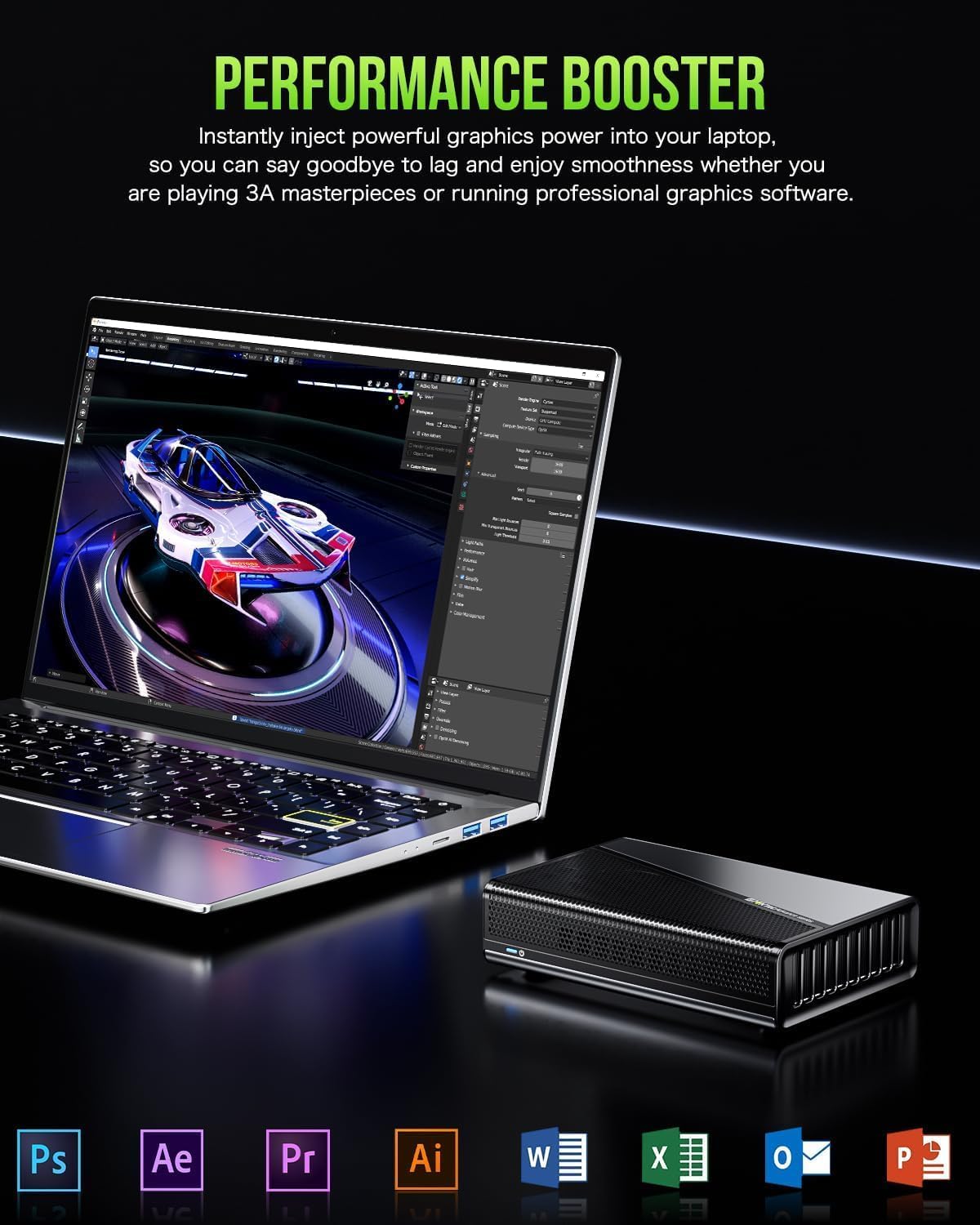
Figure 6: Performance Enhancement with AD-GP1
4.3 Көп дисплей орнотуу
The AD-GP1 supports connecting up to four displays simultaneously, offering a versatile setup for productivity or immersive gaming. Utilize the 2x HDMI2.1 and 2x DisplayPort2.0 outputs for a quad 8K@60Hz display experience.

Figure 7: Quad Display Connectivity
4.4 Шайкештик жана колдонуу сценарийлери
The versatile Oculink and USB4 ports ensure broad compatibility with various devices. The AD-GP1 is ideal for:
- Мини-компьютерлер: Boost graphics performance for compact systems.
- Laptops/Notebooks: Transform your portable device into a powerful gaming or workstation rig.
- Оюн консолдору: Enhance visual fidelity and frame rates.
- Handheld Consoles: Expand their capabilities for a desktop-like experience.

Figure 8: Diverse Compatibility and Applications
5. Техникалык шарттар
| Өзгөчөлүк | Деталь |
|---|---|
| Модель номери | AD-GP1 |
| Графикалык карта | AMD Radeon 7600M XT (GDRR6 8G) |
| GPU архитектурасы | RDNA 3.0 |
| Негизги саат | 1500 МГц |
| Оюн сааты | 2300 МГц |
| Video Outputs | 2x HDMI2.1 (8K@60Hz), 2x DisplayPort2.0 (8K@60Hz) |
| Байланыш | Oculink (PCIe x4), USB4 (supports Thunderbolt 3 & 4) |
| Электр камсыздоо | 240 Вт (20 В 12А) |
| USB-C чыгышы | 100W (USB4, External power supply 60W/100W) |
| Продукциянын өлчөмдөрү | 16.4 × 11.1 × 4.0 cm (6.46 x 1.57 x 0.1 inches) |
| Элемент Салмагы | 0.7 кг (4.51 фунт) |
| Түс | Кара |

9-сүрөт: Негизги функциялар жана мүнөздөмөлөрview
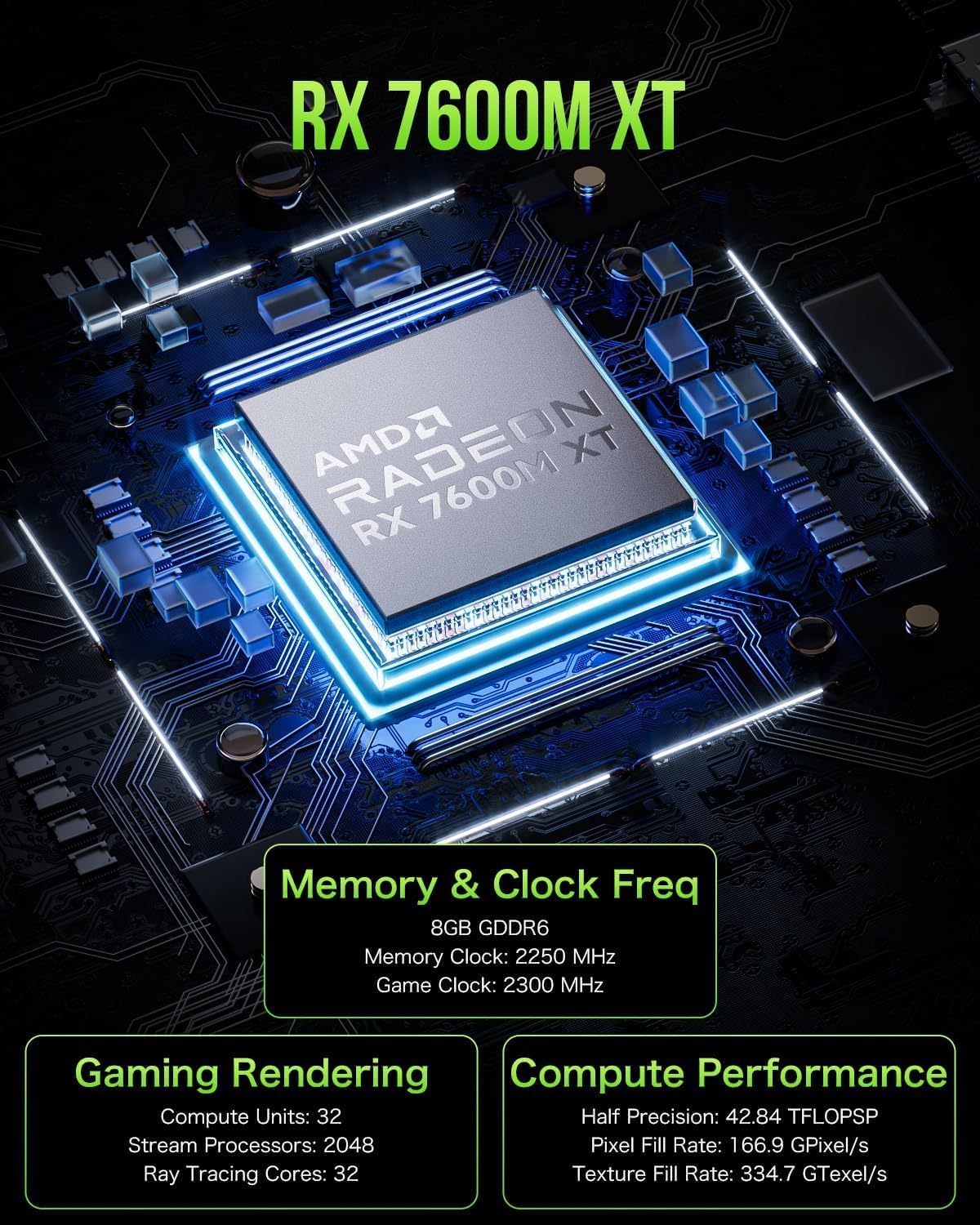
Figure 10: AMD Radeon RX 7600M XT GPU Details
6. Техникалык тейлөө
To ensure optimal performance and longevity of your GMKtec AD-GP1, follow these maintenance guidelines:
- Муздатуу: The AD-GP1 features an "Upgraded Super Ice Room 2.0" cooling system with pure copper heat dissipation. Ensure the cooling vents are not blocked. IMPORTANT: Do not stand the unit vertically as it will block the cooling vents.
- Тазалоо: Regularly clean the exterior of the unit with a soft, dry cloth. Avoid using liquid cleaners or abrasive materials.
- Сактагыч: Узак мөөнөткө колдонулбаганда, аспапты кургак, салкын жерде, тике күндүн нурунан жана өтө температурадан алыс сактаңыз.
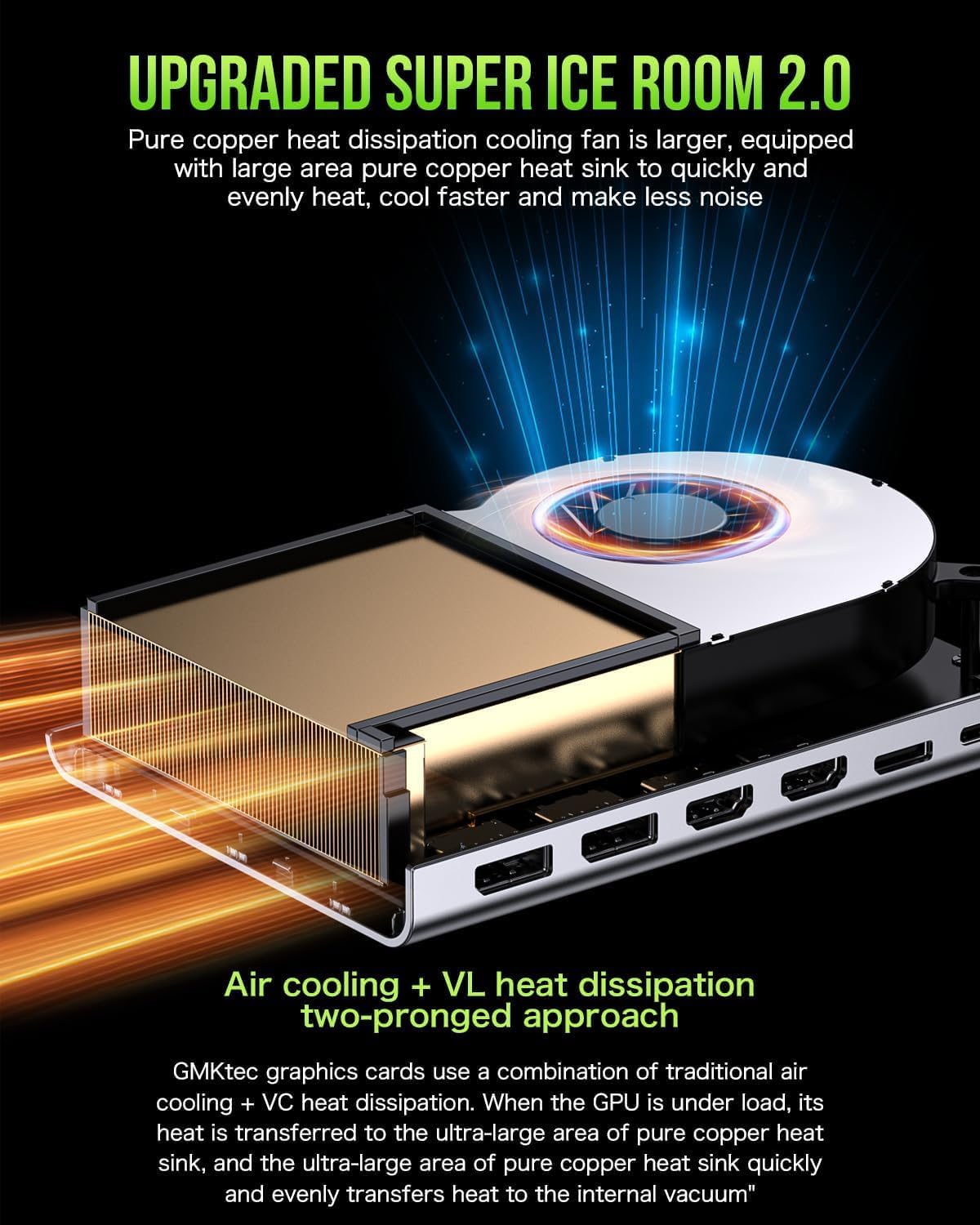
Figure 11: Advanced Cooling System
7. Кыйынчылыктарды
If you encounter issues with your AD-GP1, please refer to the following common solutions:
| Көйгөй | Мүмкүн болгон себеп / Чечим |
|---|---|
| Дисплейдин чыгышы жок. |
|
| Poor graphics performance. |
|
| Device overheating or loud fan noise. |
|
| Issues with Mac OS. |
|
8. Кепилдик жана колдоо
GMKtec provides a one-year limited warranty for each device from the date of purchase. All defects caused by design and workmanship are covered by the warranty.
Колдоо кызматы менен байланышуу:
- Amazon колдоо: Login to Amazon, go to Your Account -> Your Orders, and select "Ask Product Question" for the AD-GP1.
- Сатуудан кийинки колдоо: For direct assistance, you can send an email to the GMKtec After-Sales Team at support@gmktec.com. 24/7 customer support is available.
Ask a question about this manual
Ask about setup, troubleshooting, compatibility, parts, safety, or missing instructions. Manuals+ will review the question and use this page’s manual context to help answer it.