
1. Киришүү
This manual provides essential information for the safe and efficient operation of your Next YE-65GFSG8-QLED 65-inch UHD 4K Google QLED TV. Please read this manual thoroughly before using the television and retain it for future reference. Your new television combines QLED display technology with the Google TV operating system, offering a high-quality viewing experience and smart features.
2. Коопсуздук боюнча маанилүү маалымат
Always follow these basic safety precautions when operating your television:
- Кубат булагы: Сыналгы көрсөтүлгөн көлөмдө кубат булагына туташтырылганын текшериңизtage диапазону.
- Вентиляция: Вентиляция тешиктерин жаап албаңыз. Тийиштүү аба агымы үчүн сыналгынын айланасында жетиштүү орун калтырыңыз.
- Суу жана ным: Телевизорду жамгырга же нымга тийгизбеңиз. Сыналгыга ваза сыяктуу суюктуктар толтурулган нерселерди койбоңуз.
- Тазалоо: Тазалоодон мурун телевизорду розеткадан сууруп алыңыз. Жумшак, кургак чүпүрөктү колдонуңуз. Суюк тазалагычтарды же аэрозоль тазалагычтарды колдонбоңуз.
- Жайгашкан жери: Телевизорду туруктуу, түз жерге коюңуз. Аны күн тийген жерге же жылуулук булактарынын жанына коюудан алыс болуңуз.
- Чагылган: During lightning storms or when unused for long periods, unplug the TV from the power outlet and disconnect the antenna.
- Тейлөө: Бул продуктту өзүңүз тейлөөгө аракет кылбаңыз. Бардык тейлөөнү квалификациялуу тейлөө кызматкерлерине тапшырыңыз.
3. Пакеттин мазмуну
Verify that all items are present in your TV package:
- Next YE-65GFSG8-QLED 65-inch UHD 4K Google QLED TV
- Алыстан башкаруу
- Электр кабели
- Телевизордук стенд (2 даана) жана бурамалар
- Колдонуучунун Колдонмосу (бул документ)
- Quick Start Guide
4. Орнотуу
4.1 Физикалык орнотуу
You can install your TV on a stand or mount it on a wall. Ensure the TV is placed on a stable surface or securely mounted.

Сүрөт: TV Dimensions. This image illustrates the physical dimensions of the 65-inch television, including its width, height, and diagonal screen size of 164 cm (65 inches).
Стенд орнотуу:
- Экрандын бузулуп калышына жол бербөө үчүн, телевизорду бетин ылдый каратып жумшак, тегиз жерге этияттык менен коюңуз.
- Attach the two stand pieces to the designated slots on the bottom of the TV.
- Тирөөчтөрдү берилген бурамалар менен бекитиңиз.
- Сыналгыны этияттык менен туруктуу бетинде тик абалына көтөрүңүз.
Дубалга орнотуу:
For wall mounting, use a VESA-compatible wall mount kit (sold separately) that matches the TV's VESA pattern. Follow the instructions provided with your wall mount kit. It is recommended to have professional assistance for wall mounting.
4.2 Перифериялык түзүлүштөрдү туташтыруу
Connect your external devices to the appropriate ports on the back of your TV.
Сүрөт: Rear Panel Connections. This image displays the various input and output ports located on the back of the television, including HDMI, USB, DVB-S, DVB-T, CI Module, Mini AV-IN, Optical Out, and Ethernet.
- HDMI (ARC): Connect Blu-ray players, game consoles, or other HDMI devices. HDMI 1 supports Audio Return Channel (ARC).
- USB (2x): Медиа ойнотуу үчүн USB сактагыч түзмөктөрдү туташтырыңыз.
- DVB-S / DVB-T: Connect satellite (DVB-S) or terrestrial (DVB-T) antenna cables.
- CI Module: Insert a Common Interface (CI) module for encrypted digital channels.
- Мини AV-IN: Connect older devices using an AV adapter cable.
- Оптикалык чыгуу: Connect to an external audio system for digital audio output.
- Ethernet: Зымдуу интернет байланышы үчүн Ethernet кабелин туташтырыңыз.
- Күч: Электр кабелин сыналгыга, андан кийин розеткага туташтырыңыз.
4.3 Алгачкы күйгүзүү жана биринчи жолу орнотуу
- After connecting all cables, plug the power cord into an electrical outlet.
- Пульттагы же сыналгыдагы кубат баскычын басыңыз.
- The TV will guide you through the initial setup process, which includes:
- Тил тандоо
- Wi-Fi же Ethernet туташууда
- Signing in with your Google Account (required for Google TV features)
- Шарттарды жана шарттарды кабыл алуу
- Channel scanning (for DVB-S/T)
- Орнотууну аяктоо үчүн экрандагы нускамаларды аткарыңыз.
5. Сыналгыңызды иштетүү
5.1 Алыстан башкаруу функциялары
The remote control allows you to navigate the TV's features. Familiarize yourself with its buttons:
- Күч: Телевизорду күйгүзөт же өчүрөт.
- Google Жардамчысы: Үн буйруктарын иштетет.
- Навигация тактасы (өйдө/төмөн/сол/оң/ОК): Менюларды багыттоо жана тандоолорду тандайт.
- Артка: Мурунку экранга кайтат.
- Үй: Google TV башкы экранына жетет.
- Көлөм +/-: Үн деңгээлин тууралайт.
- Канал +/-: Телеканалдарды өзгөртөт.
- Киргизүү: Киргизүү булактарын тандайт (HDMI, AV ж.б.).
- Колдонмо баскычтары: Популярдуу агымдык тиркемелерге түз жетүү.
5.2 Google TV интерфейсинде багыттоо
Google TV organizes your entertainment with a personalized home screen. Content from your apps is brought together and organized for easy discovery.

Сүрөт: Google TV Interface. This image shows the main Google TV home screen with various streaming app icons and content recommendations, demonstrating the user interface.
- Башкы экран: Displays personalized recommendations, installed apps, and quick access to content.
- For You Tab: Provides tailored content suggestions based on your viewадаттар.
- Live Tab: Accesses live TV channels from integrated services.
- Apps Tab: Shows all installed applications. You can download more from the Google Play Store.
- Library Tab: Accesses your purchased or rented content from Google Play.
5.3 Сүрөт жана үн орнотуулары
Сүрөт жана үн жөндөөлөрүн тууралоо үчүн:
- басыңыз Орнотуулар button (usually a gear icon) on your remote.
- багыттоо Дисплей & Үн.
- Сүрөт жөндөөлөрү: Adjust brightness, contrast, color, sharpness, and select picture modes (e.g., Standard, Vivid, Movie, Game). Your QLED TV offers enhanced color saturation.
- Үн орнотуулары: Adjust bass, treble, balance, and select sound modes (e.g., Standard, Music, Movie, Speech).

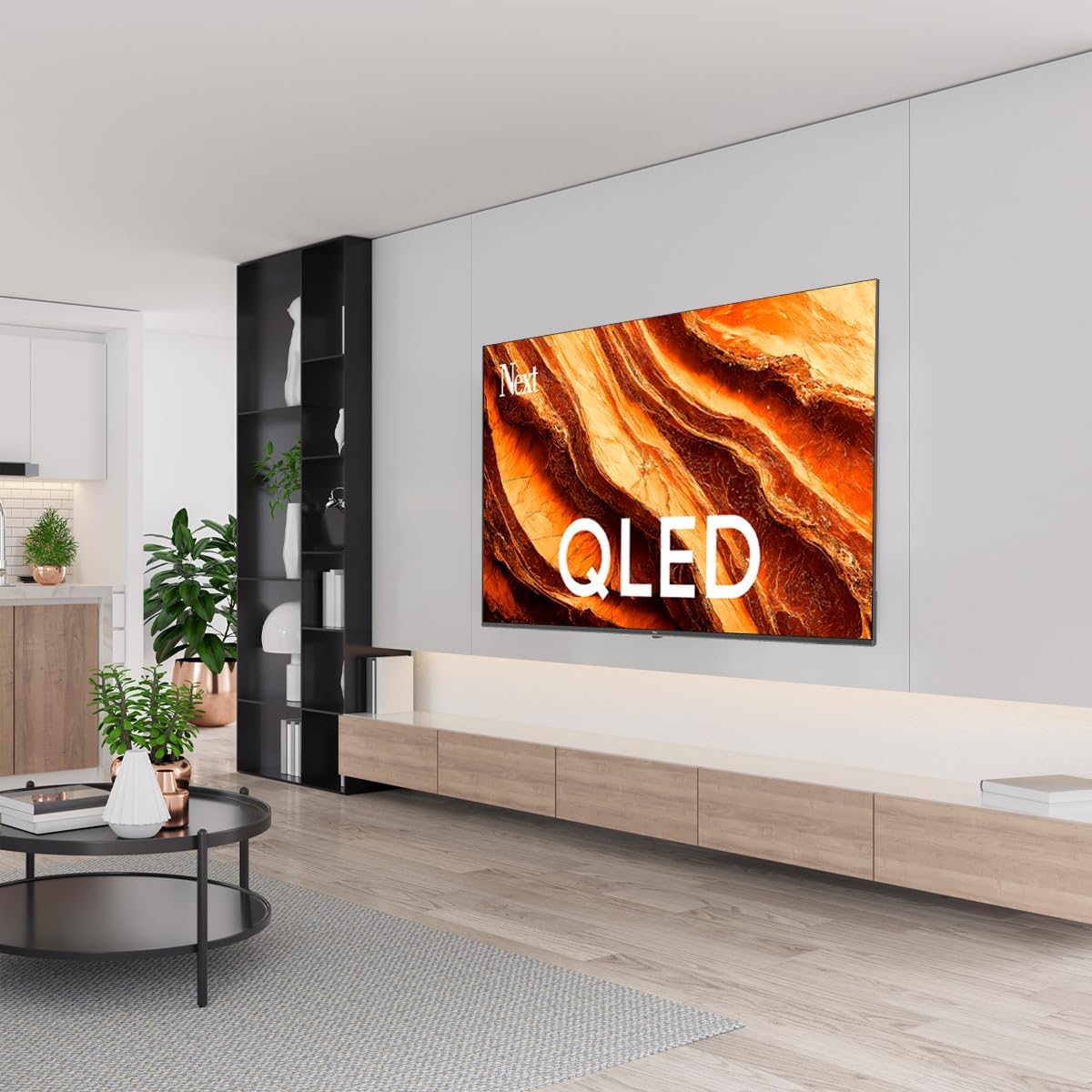
Сүрөт: QLED Color Saturation. This image visually demonstrates the high color saturation achieved with QLED technology, showing a vibrant and rich color display.

Сүрөт: HDR (High Dynamic Range). This image illustrates the visual impact of HDR, showcasing improved contrast and color detail in a scene when HDR is enabled versus when it is off.
5.4 Тармак орнотуулары
To connect your TV to the internet:
- басыңыз Орнотуулар пультуңуздагы баскыч.
- багыттоо Тармак жана Интернет.
- Тандоо Wi-Fi to connect to a wireless network or ensure Ethernet is connected for a wired connection.
- For Wi-Fi, select your network from the list and enter the password.
6. Техникалык тейлөө
6.1 Телевизорду тазалоо
- Тазалоодон мурун дайыма сыналгыдан ажыратыңыз.
- Телевизордун экранын жана корпусун акырын сүртүү үчүн жумшак, кургак, мамыксыз чүпүрөктү колдонуңуз.
- өжөр белгилери үчүн, жеңил гampen the cloth with water or a specialized screen cleaner (ensure it's safe for TV screens). Never spray cleaner directly onto the screen.
- Абразивдүү тазалагычтарды, момдорду же эриткичтерди колдонуудан алыс болуңуз.
6.2 Программалык камсыздоо жаңыртуулары
Your TV may receive software updates to improve performance and add new features. It is recommended to keep your TV's software updated.
- Сыналгыңыз интернетке туташып турганын текшериңиз.
- басыңыз Орнотуулар пультуңуздагы баскыч.
- багыттоо Система > Жөнүндө > Системаны жаңыртуу.
- Тандоо Жаңыртууну текшериңиз.
- Бардык жеткиликтүү жаңыртууларды жүктөп алуу жана орнотуу үчүн экрандагы көрсөтмөлөрдү аткарыңыз.
7. Кыйынчылыктарды
Телевизоруңузда көйгөйлөргө туш болсоңуз, төмөнкү жалпы көйгөйлөрдү жана аларды чечүү жолдорун караңыз:
| Көйгөй | Мүмкүн болгон себеп / Чечим |
|---|---|
| Күч жок | Check if the power cord is securely plugged into the TV and the wall outlet. Ensure the outlet is working. |
| Сүрөт жок, бирок үн бар | Check the input source. Ensure the connected device is turned on and functioning correctly. |
| Үн жок, бирок сүрөт бар | Check the volume level and mute status. Verify audio cable connections for external devices. Check TV sound settings. |
| Пульт иштебей жатат | Батареяларды алмаштырыңыз. Пульт менен сыналгынын IR сенсорунун ортосунда эч кандай тоскоолдуктар жок экенин текшериңиз. |
| Wi-Fi'га туташпай жатат | Ensure your Wi-Fi router is on and within range. Re-enter the Wi-Fi password carefully. Try restarting the TV and router. |
| Колдонмолор жай же тоңуп жатат | Close unused apps. Clear app cache (Settings > Apps > See all apps > [App Name] > Clear cache). Ensure a stable internet connection. |
Бул чечимдерди колдонуп көргөндөн кийин көйгөй чечилбесе, кардарларды колдоо менен байланышыңыз.
8. Техникалык шарттар
Technical specifications for the Next YE-65GFSG8-QLED 65-inch UHD 4K Google QLED TV:
- Бренд: Кийинки
- Модель жылы: 2025
- Чечим: 4K (3840x2160)
- Дисплей технологиясы: QLED
- Экрандын өлчөмү: 65 дюйм (165 см)
- Аспект катышы: 16:9
- Жаңыртуу ылдамдыгы: 60 Гц
- Негизги өзгөчөлүктөрү: Frameless Design
- Байланыш: Bluetooth, Ethernet, HDMI (ARC), USB (2x), Wi-Fi
- Продукциянын өлчөмдөрү: 27.8D x 144.6W x 88.9H см
- Салмагы: 16.3 килограмм
- Операция системасы: Google TV
- Камтылган компоненттер: Алыстан башкаруу
- Келип чыккан өлкө: Туркия
9. Кепилдик жана колдоо
Your Next YE-65GFSG8-QLED TV comes with a manufacturer's warranty. Please refer to the warranty card included in your package for specific terms and conditions, including the warranty period and coverage details.
For technical support, service requests, or further assistance, please contact Next customer service. Contact information can typically be found on the manufacturer's webсайтында же кепилдик документтеринде.
- Онлайн колдоо: Visit the official Next website for FAQs, troubleshooting guides, and support contact details.
- Тейлөө борборлору: For hardware issues, locate an authorized service center near you.