
1. Киришүү
Nero Recode is a comprehensive software designed for converting audio and video files, ripping DVDs and Blu-rays, and processing high-resolution video content. It supports a wide array of formats and offers tools for media management on Windows operating systems. This manual provides essential information for installing, operating, and troubleshooting the software.
2. Орнотуу
2.1 Системалык талаптар
- Операция системасы: Windows 11, Windows 10, Windows 8, Windows 7 (32-bit or 64-bit)
- Процессор: 2 GHz AMD or Intel processor
- RAM: 1 GB RAM (2 GB or more recommended for HD/8K video)
- Катуу диск мейкиндиги: 500 MB for typical installation of all components
- Графикалык карта: Microsoft DirectX 9.0 compatible graphics card with 3D acceleration, 16-bit color, and a minimum of 128 MB video memory (32-bit true color recommended)
- Интернет байланышы: Required for installation, license activation, and updates
2.2 Орнотуу процесси
- Жүктөп алуу: Obtain the Nero Recode installer from the official Nero website or your purchase source.
- Орноткучту иштетүү: Жүктөлгөн орнотуучуну эки жолу чыкылдатыңыз file to begin. Follow the on-screen prompts. The installation process is largely automated.
- Кошумча компоненттер: The installer may offer or require additional Nero components. Install these as prompted to ensure full functionality.
- Лицензияны активдештирүү: Upon first launch, you will be prompted to enter your lifetime license key. An active internet connection is required for activation.
3. Иштөө нускамалары
3.1 Негизги интерфейсview
Upon launching Nero Recode, you will see the main interface, which allows you to drag and drop files or select options for disc recoding and media file конверсия.
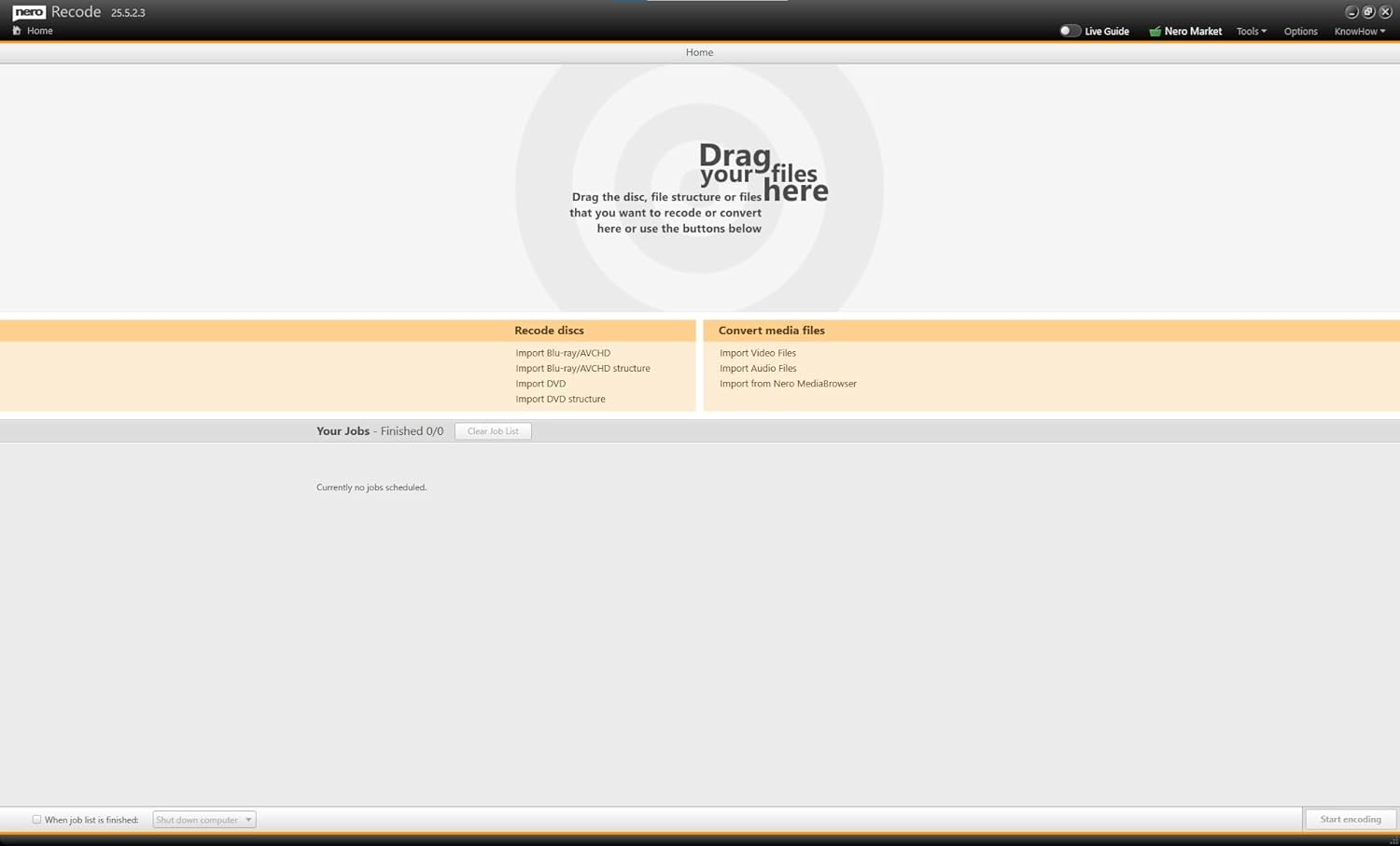
Figure 1: Nero Recode main interface, showing the 'Drag your files here' area and options for recoding discs or converting media files.
3.2 Converting Video Files
To convert video files, бул кадамдарды аткарыңыз:
- Import Video: Видеоңузду сүйрөп барып таштаңыз file(s) into the main interface, or click 'Import Video Files' under 'Convert media fileс'.
- Select Output Device/Format: On the left panel, choose the target device or desired output format (e.g., MPEG-4, AVI, MOV, HEVC/H.265). Nero Recode supports efficient processing of 8K video.
- Adjust Quality Settings: Under 'To which quality?', select your preferred output quality (Smallest size, Recommended setting, Best quality). You can also enable hardware acceleration (e.g., Intel QuickSync) for faster processing.
- Көздөгөн жерди тандаңыз: Choose the folder where the converted file сакталып калат.
- Start Conversion: Click the 'OK' or 'Start encoding' button to begin the conversion process.

Figure 2: Video conversion settings, allowing selection of output device or format.

Figure 3: Dropdown menu showing various video output formats like MPEG-4, AVI, HEVC, MKV, and WMV.
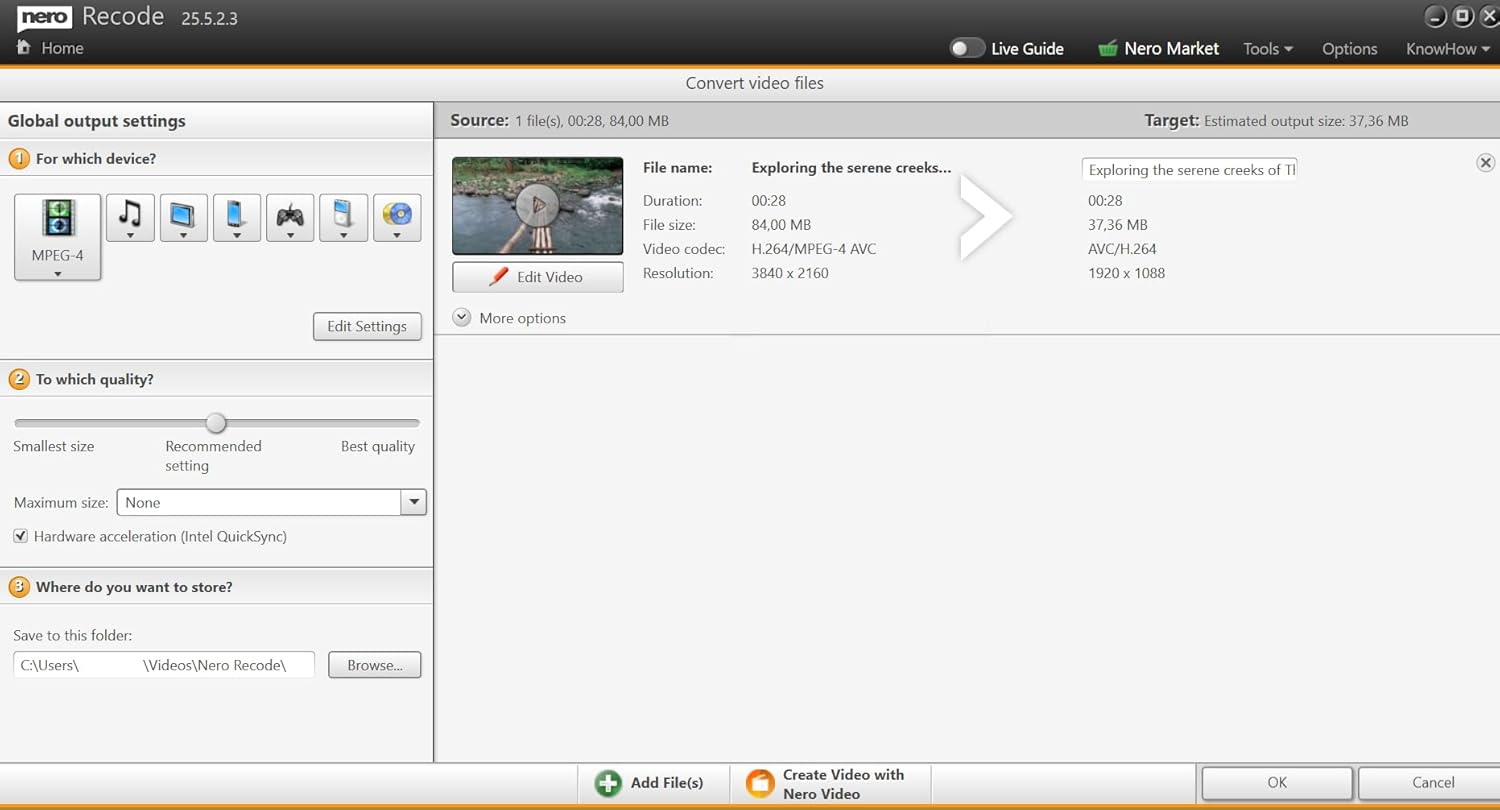
Figure 4: Quality settings panel, including options for output size, quality, and hardware acceleration.
3.3 Converting Audio Files
To convert audio files, бул кадамдарды аткарыңыз:
- Import Audio: Аудиоңузду сүйрөп барып таштаңыз file(s) into the main interface, or click 'Import Audio Files' under 'Convert media fileс'.
- Чыгаруу форматын тандаңыз: On the left panel, choose the desired output format (e.g., MP3, WAV, FLAC).
- Орнотууларды тууралоо: Modify bit rate, sampling rate, and audio channels as needed.
- Көздөгөн жерди тандаңыз: Choose the folder where the converted file сакталып калат.
- Start Conversion: Click the 'OK' or 'Start encoding' button to begin the conversion process.

Figure 5: Audio conversion settings, showing options for bit rate, sampling rate, and audio channels for MP3 output.
3.4 Ripping DVDs & Blu-rays
Nero Recode allows you to rip content from DVDs and Blu-ray discs for digital storage and playback.
- Диск салыңыз: Place the DVD or Blu-ray disc into your computer's optical drive.
- Import Disc: On the main interface, select 'Import Blu-ray/AVCHD structure' or 'Import DVD structure' under 'Recode discs'.
- Select Content and Format: Choose the titles you wish to rip and select your desired output format (e.g., MP4 for video, MP3 for audio).
- Кыйратууну баштоо: Follow the prompts to configure output settings and begin the ripping process.
3.5 Editing Features
Nero Recode includes basic editing tools for your media files:
- кесүү: Precisely cut unwanted sections from the beginning or end of your video or audio files.
- Кесүү: Adjust the visible area of your video.
- Айлантуу: Correct the orientation of videos shot incorrectly.
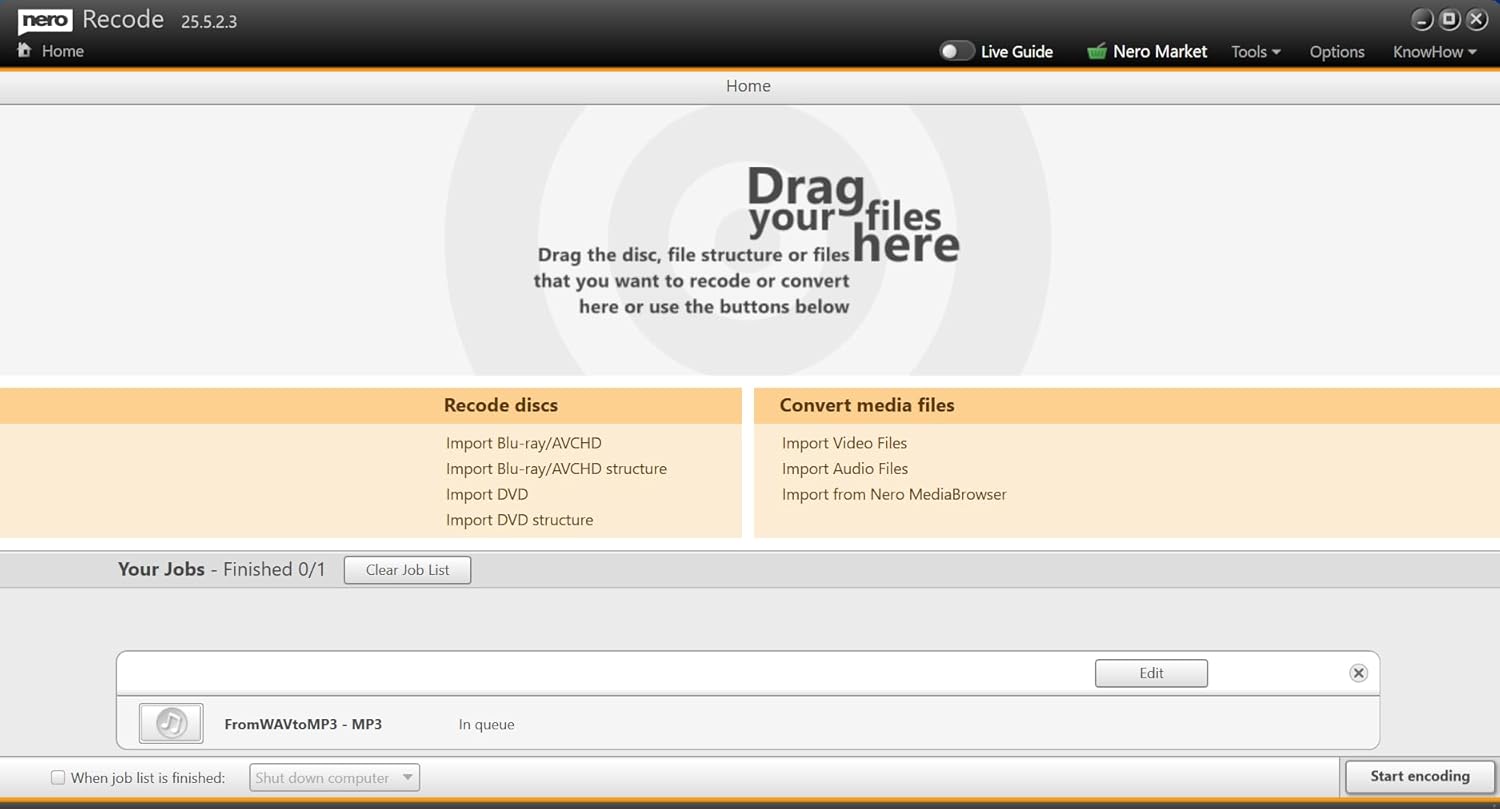
Figure 6: Video editing interface, showing options for cropping and trimming video segments.
3.6 Batch Conversion
Nero Recode supports batch conversion, allowing you to process multiple files simultaneously for increased efficiency. Once files are added to the queue, they will be processed sequentially.
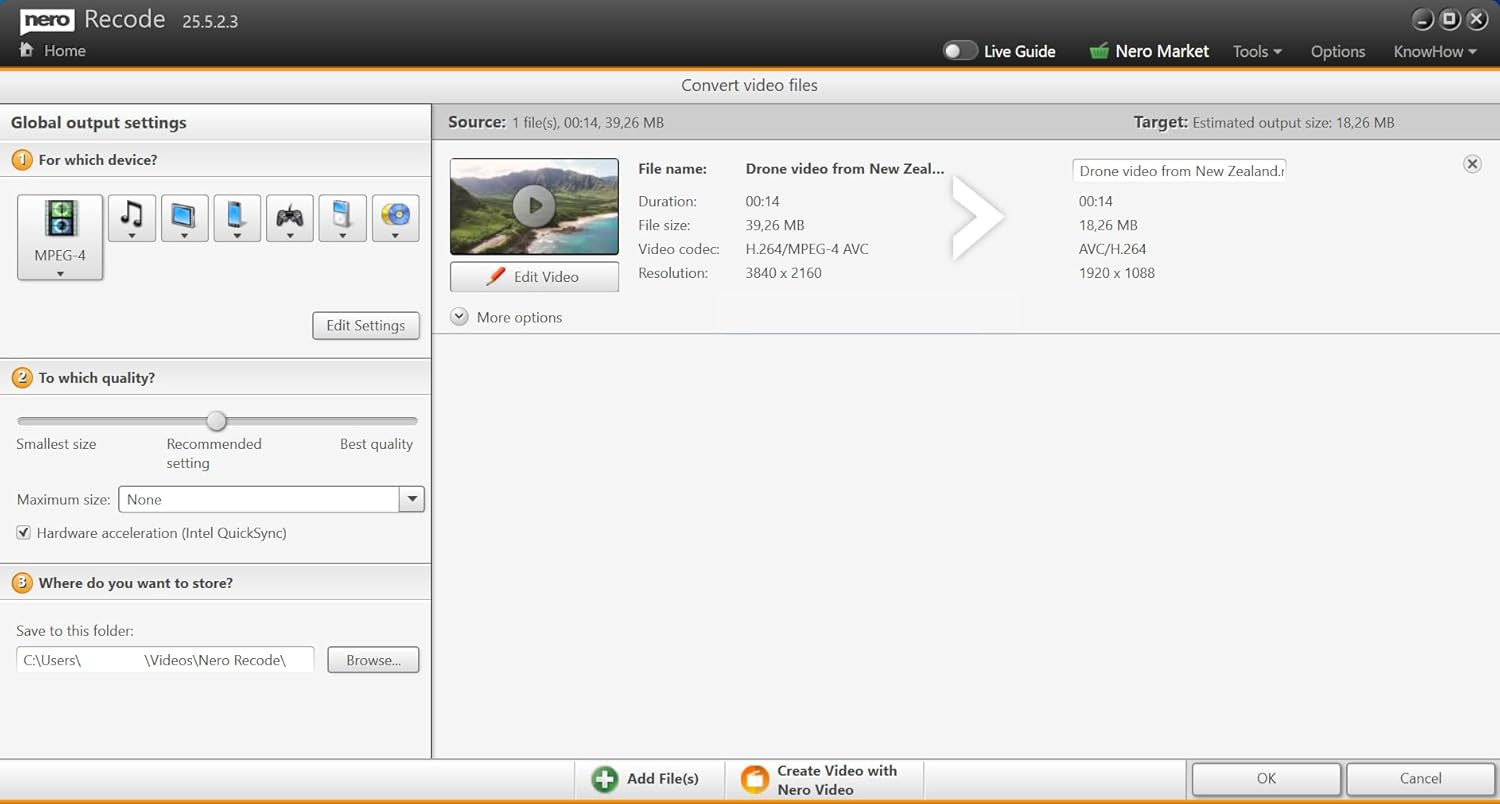
Figure 7: Main interface displaying a video conversion job in the queue, ready for processing.

Figure 8: Main interface displaying an audio conversion job in the queue, ready for processing.
4. Техникалык тейлөө
To ensure optimal performance and security of Nero Recode, consider the following maintenance practices:
- Программалык камсыздоо жаңыртуулары: Regularly check for and install software updates provided by Nero. Updates often include performance enhancements, bug fixes, and support for new formats or operating system versions.
- Системаны оптималдаштыруу: While Nero Recode is a dedicated conversion tool, ensuring your operating system is optimized can improve its performance. Tools like Nero TuneitUp (if installed) can assist with system cleaning and optimization.
- Диск мейкиндиги: Ensure sufficient free disk space, especially when converting large video files or ripping discs, as temporary files can consume significant storage.
5. Кыйынчылыктарды
If you encounter issues while using Nero Recode, refer to the following common problems and solutions:
- Орнотуудагы кыйынчылыктар: If the installation fails or seems complicated, ensure your system meets the minimum requirements and temporarily disable antivirus software during installation. Some installations may require additional Nero components; ensure these are installed as prompted.
- Software Not Converting Files:
- Verify the source file is not corrupted and is a supported format.
- Check that the output format and settings are compatible with your target device or player.
- Ensure sufficient disk space for the output file.
- Программалык камсыздоону өчүрүп-күйгүзүп, кайра аракет кылыңыз.
- Poor Output Quality or Audio Issues:
- Adjust the quality settings in the conversion options to a higher preset.
- For audio, check bit rate, sampling rate, and channel settings.
- Ensure the source file itself is of good quality.
- Licensing Prompts or Reconnection Issues: If the software frequently asks for license verification or requires reconnection to a server, ensure you have a stable internet connection. This can sometimes occur if the Nero Start launcher (if used) loses connection.
- Колдоого алынбайт File Formats (e.g., Apple MOV): While Nero Recode supports many formats, some specific codecs or proprietary file types (like certain Apple MOV files) might not be directly supported. Consider converting the source file to a more common intermediate format first, or consult Nero support for specific codec compatibility.
If these steps do not resolve your issue, please contact Nero technical support.
6. Техникалык шарттар
| Өзгөчөлүк | Деталь |
|---|---|
| Продукциянын өлчөмдөрү | 4.88 x 3.5 x 0.08 inches; 0.32 ounces (Software package) |
| Операциялык системанын шайкештиги | Windows 11, 10, 8, 7 |
| Колдоого алынган видео форматтары | MP4, AVI, MOV, HEVC/H.265, M2V, MMV, and more |
| Колдоого алынган аудио форматтары | MP3, WAV, FLAC, and more |
| Негизги өзгөчөлүктөрү | 8K Video Processing, DVD/Blu-ray Ripping, Batch Conversion, Hardware Acceleration, Trim/Crop/Rotate Editing |
| Лицензия түрү | Lifetime License for 1 PC |
| Өндүрүүчү | Nero Inc. |
7. Кепилдик
Specific warranty details for Nero Recode software are typically provided at the time of purchase or can be found on the official Nero webсайт. Сатып алуу документтерин же өндүрүүчүнүн webкепилдик жөнүндө толук маалымат алуу үчүн сайт.
8. Колдоо
For technical assistance, product inquiries, or further support regarding Nero Recode, please visit the official Nero support website or contact Nero Inc. directly.
Nero Official Webсайт: www.nero.com