
1. Киришүү
This manual provides detailed instructions for the installation, operation, and maintenance of your ANKEWAY XBH-8801 car radio. Please read this manual thoroughly before use to ensure proper functionality and safety.
1.1 Продукт бүттүview
The ANKEWAY XBH-8801 is an advanced car radio system designed for specific Opel models. It integrates modern features such as wireless Apple CarPlay, Android Auto, Bluetooth 5.0, FM/RDS radio, and supports a rearview camera. The system runs on an Android operating system, allowing for internet connectivity via Wi-Fi and installation of various applications.

Image 1.1: ANKEWAY XBH-8801 Car Radio and included accessories.
1.2 Унаа шайкештиги
This car radio is specifically designed for the following Opel models and years:
- Астра (2004-2009)
- Антара (2006-2011)
- Vectra (2003-2008)
- Corsa (2006-2011)
- Зафира (2005-2011)
- Meriva (2006-2011)
- Комбо (2004-2011)
- Signum (2003-2011)
- Tigra Twin Top (2004-2011)
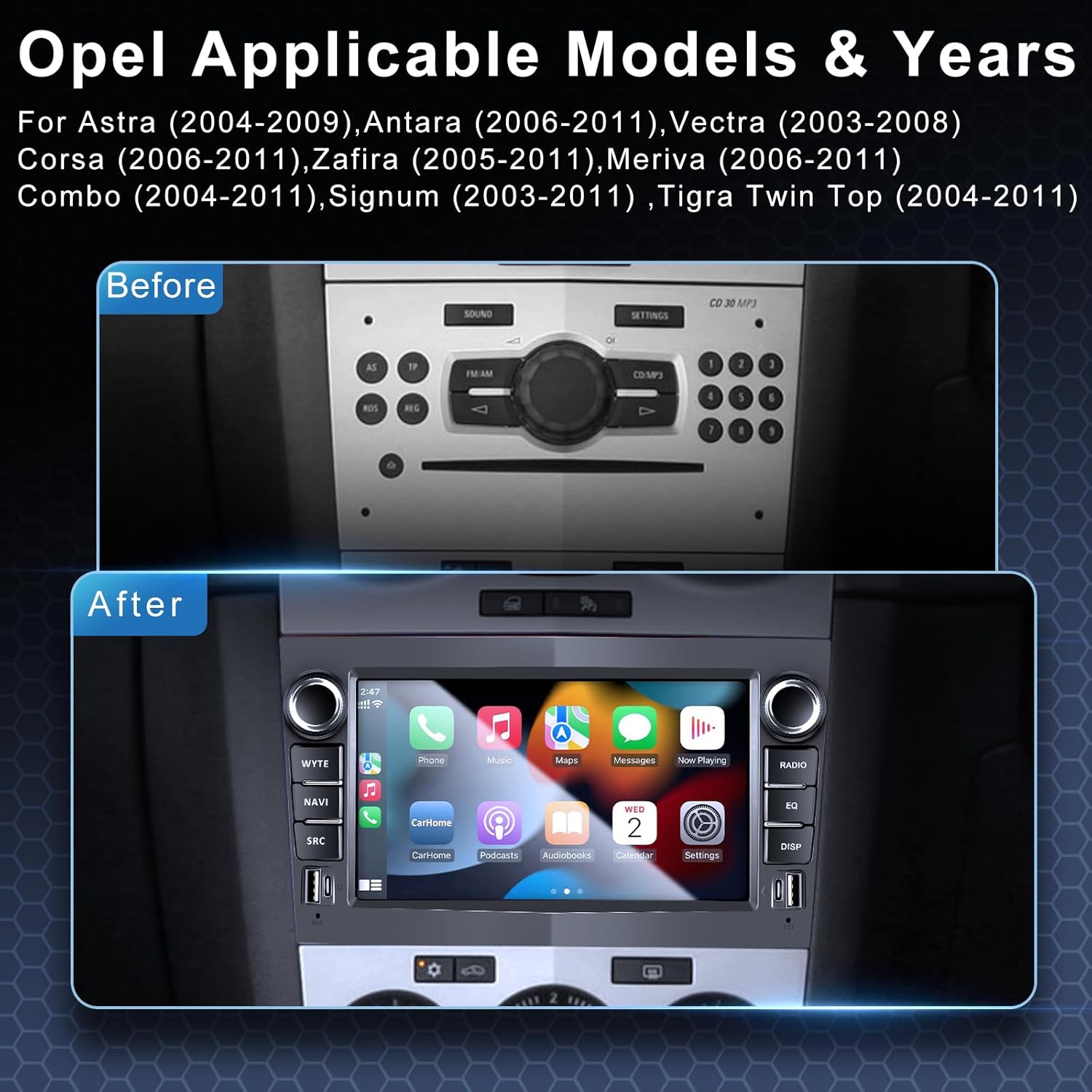
Image 1.2: Visual comparison of the original Opel dashboard and the ANKEWAY XBH-8801 installed.
2. Пакеттин мазмуну
Төмөндө тизмеленген нерселердин баары пакетиңизге камтылганын текшериңиз. Эгерде кандайдыр бир нерселер жок болсо же бузулса, кардарларды колдоо менен байланышыңыз.
- 1x ANKEWAY XBH-8801 Car Radio Unit
- 1x Арткыview Камера
- 1x Микрофон
- 1x CANBUS Decoder
- 2x Panel Removal Tools
- 2x камера кабелдери
- 2x Power кабелдери
- 1x Радио антенна адаптери
- 1x AHD Camera
- 1x GPS антеннасы
- 1x RCA кабели
- 1x USB кабели

Image 2.1: Product dimensions and a visual list of all included components.
3. Орнотуу
Professional installation is recommended. Ensure the vehicle's power is disconnected before beginning installation. The included CANBUS adapter ensures compatibility with original steering wheel controls.
3.1 Жалпы орнотуу кадамдары
- Carefully remove the original car radio using the provided panel removal tools.
- Connect the power cables, CANBUS decoder, and other necessary wiring harnesses to the vehicle's original connectors. The cables are pre-grouped for easier connection.
- GPS антеннасын ачык жерге орнотуңуз view асмандын.
- Арткы жагын туташтырыңызview camera cable and install the camera at the rear of the vehicle.
- Mount the ANKEWAY XBH-8801 unit into the dashboard opening.
- Унаанын кубатын кайра туташтырып, агрегатты сынап көрүңүз.
3.2 Арткыview Камера орнотуу
Киргизилген арткы бөлүгүview camera supports high-definition input and night vision. Connect the camera to the designated input on the car radio. The system will automatically display the camera feed when the vehicle is in reverse gear.

Сүрөт 3.1: Арткыview camera connection and display functionality.
4. Орнотуу
4.1 Баштапкы күйгүзүү жана тилди тандоо
Upon first power-on, the system may guide you through initial setup steps, including language selection. The system supports multiple languages, including Italian, Spanish, German, and French.
4.2 Wi-Fi туташуусу
To access internet-dependent features and install applications, connect the unit to a Wi-Fi network. This can be done by tethering to your mobile phone's hotspot or connecting to an available Wi-Fi network.
- Системанын жөндөөлөрүнө өтүңүз.
- "Тармак жана Интернет" же "Wi-Fi" тандаңыз.
- Wi-Fi күйгүзүп, каалаган тармакты тандаңыз.
- Эгер суралса, сырсөздү киргизиңиз.
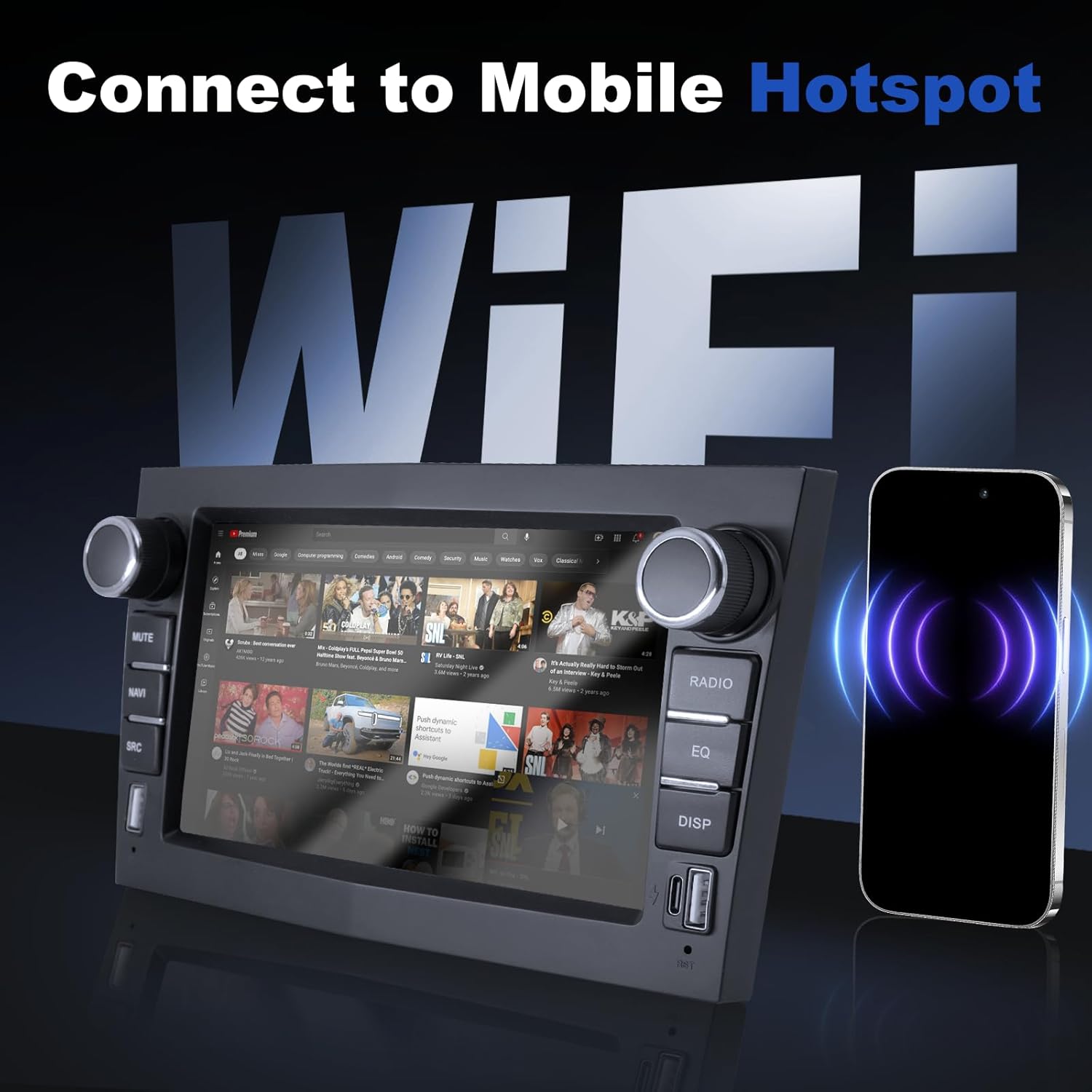
Image 4.1: Connecting the car radio to a mobile hotspot via Wi-Fi.
5. Иштөө нускамалары
5.1 CarPlay жана Android Auto
The unit supports both wireless and wired Apple CarPlay and Android Auto. This allows seamless integration with your smartphone for navigation, music, calls, and other applications.
- Смартфонуңузда Bluetooth жана Wi-Fi иштетилгенин текшериңиз.
- Унаа радиосунда CarPlay же Android Auto тиркемесин тандаңыз.
- Follow the on-screen prompts to connect your device. For wired connection, use a USB cable.

Image 5.1: Apple CarPlay interface displayed on the car radio.
5.2 Bluetooth функциялары
Bluetooth 5.0 колсуз чалууларды жана аудио агымын камсыз кылат.
- Унаа радиосундагы Bluetooth жөндөөлөрүнө өтүңүз.
- Смартфонуңузда Bluetooth'ду иштетип, жеткиликтүү түзмөктөрдү издеңиз.
- Select the car radio from your phone's list and pair.
- Жупташтырылгандан кийин, сиз чалууларды жасап/кабыл алып, аудиону агылта аласыз.
5.3 FM/RDS радиосу
The radio supports FM with RDS (Radio Data System) for displaying station information.
- Негизги менюдан "Радио" тиркемесин тандаңыз.
- Станцияларды издөө үчүн экрандагы башкаруу элементтерин же физикалык баскычтарды колдонуңуз.
- Adjust audio settings using the built-in DSP and equalizer.

Image 5.2: FM/RDS Radio interface and Equalizer settings.
5.4 USB порту
The unit features 2 USB-A ports and 1 USB-C port for charging devices and playing media from USB storage.
- Connect USB drives to play audio or video files.
- Use the ports to charge compatible electronic devices.
5.5 System Settings and UI
The Android system allows for customization, including split-screen functionality and various user interface themes.
- Access the 'Settings' menu to configure system preferences, display, sound, and network options.
- Эки тиркемени бир убакта иштетүү үчүн экранды бөлүү функциясын колдонуңуз.
- Explore different UI interfaces available in the system settings.

Сүрөт 5.3: Мисamples of various Android user interfaces.
6. Техникалык шарттар
| Өзгөчөлүк | Спецификация |
|---|---|
| Модел | XBH-8801 |
| Операция системасы | Android |
| Эстутум (RAM+ROM) | 2 ГБ RAM + 32 ГБ ROM |
| Байланыш | Wi-Fi, Bluetooth 5.0, USB, USB-C |
| Смартфон интеграциясы | Wireless CarPlay, Android Auto, Mirror-Link |
| Аудио өзгөчөлүктөрү | FM/RDS Radio, DSP, Equalizer |
| Камераны колдоо | Арткыview Camera (included), Front Camera (optional) |
| CANBUS Adapter | Included (for steering wheel controls) |
| Өлчөмдөрү (бирдик) | Болжол менен 20.3 см (туурасы) x 12 см (бийиктиги) x 1 см (тереңдиги) |
| Салмагы | 1.1 кг |
7. Кыйынчылыктарды
7.1 Жалпы маселелер жана чечимдер
- Кубат жок: Бардык электр туташууларын жана сактагычтарын текшериңиз. Унаанын от алдыруу системасы күйүк экенин текшериңиз.
- Үн жок: Verify speaker connections. Check volume levels and audio output settings. Ensure the correct audio source is selected.
- CarPlay/Android Auto туташпай жатат: Ensure Bluetooth and Wi-Fi are active on your phone and the car radio. Try restarting both devices. For wired connections, try a different USB cable.
- Рулдун башкаруу элементтери иштебейт: Confirm the CANBUS decoder is correctly installed and configured in the system settings.
- Радио кабыл алуу начар: Радио антеннасынын туташуусун текшериңиз. Антеннанын туура орнотулганын жана тосулуп калбаганын текшериңиз.
- Арткыview Камера көрүнбөйт: Камеранын кубат жана видео сигнал туташууларын текшериңиз. Унаанын артка жүрүү ылдамдыгында экенин текшериңиз.
8. Техникалык тейлөө
8.1 Тазалоо
Use a soft, dry cloth to clean the screen and exterior of the unit. Avoid abrasive cleaners or solvents that may damage the surface.
8.2 Программалык камсыздоо жаңыртуулары
The manufacturer regularly releases firmware updates to optimize system performance and add new features. To receive update packages, please contact customer support.
9. Кепилдик жана колдоо
For warranty information, please refer to the documentation provided with your purchase or contact the seller directly. For technical assistance, troubleshooting, or software updates, please reach out to ANKEWAY customer support. They are available to assist with installation and operational queries.