
1. Киришүү
This user manual provides detailed instructions for the operation and maintenance of your COMICA EJoy D10 D USB/XLR Dynamic Microphone. Designed for high-quality audio capture, this microphone features versatile connectivity, advanced noise reduction, and customizable lighting effects, making it ideal for gaming, streaming, podcasting, and recording across various platforms.

Figure 1: COMICA EJoy D10 D Dynamic Microphone
2. Продукт бүтүп калдыview
2.1. Пакеттин мазмуну
Пакетте бардык буюмдар бар экенин текшериңиз:
- Микрофон x 1
- 2 in 1 Audio Cable x 1
- Desktop Mic Stand x 1
- Колдонуучунун колдонмосу x 1
- Кепилдик картасы x 1
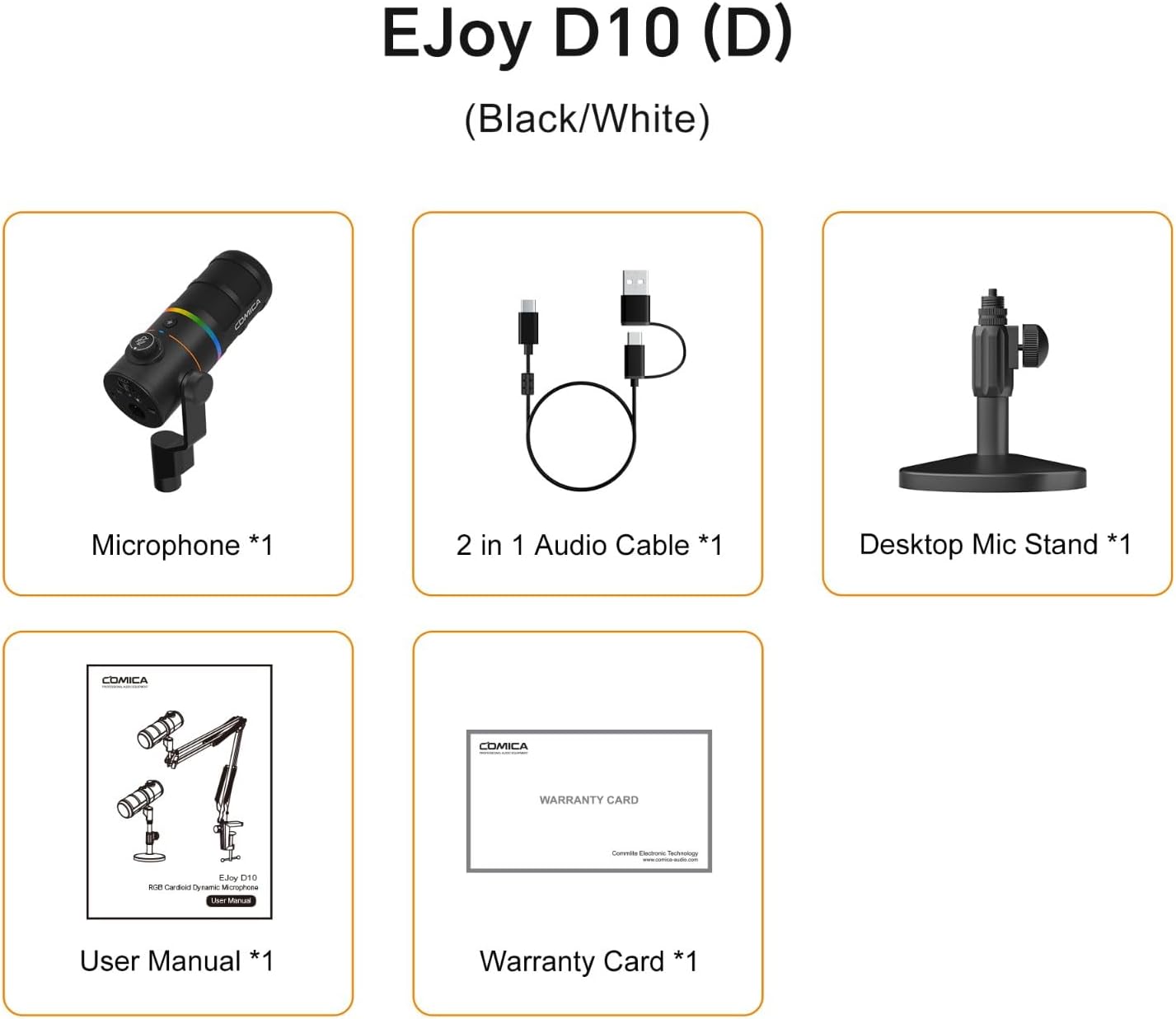
2-сүрөт: Пакеттин мазмуну
2.2. Негизги өзгөчөлүктөрү
- Кардиоиддик полярдык үлгү: Focuses on capturing sound sources directly in front of the microphone, effectively reducing ambient noise.
- Anti-noise Large Diaphragm Dynamic Mic: Designed to pick up a wide range of frequencies, delivering rich and delicate sound with clarity even in complex environments.
- XLR/USB-C Digital/Analog Outputs: Offers broad compatibility with smartphones, computers, and audio interfaces.
- 48kHz/24bit Recording: Provides lossless sound quality suitable for high-demand post-production.
- One-key CalMix Denoise: Utilizes Comica's audio processing algorithm to precisely identify human voice and filter out redundant noises.
- 4-level Gain Control: Allows adjustment of microphone input sensitivity.
- реалдуу убакыт мониторинг: Integrated 3.5mm headphone jack for direct audio monitoring.
- Dynamic Radiant RGB Light: Features 6 optional lighting effects to enhance live stream atmosphere.
- 3 EQ режимдери: Customizable equalization settings (Deep, Nature, Bright) to adapt to different recording styles.
2.3. Microphone Components
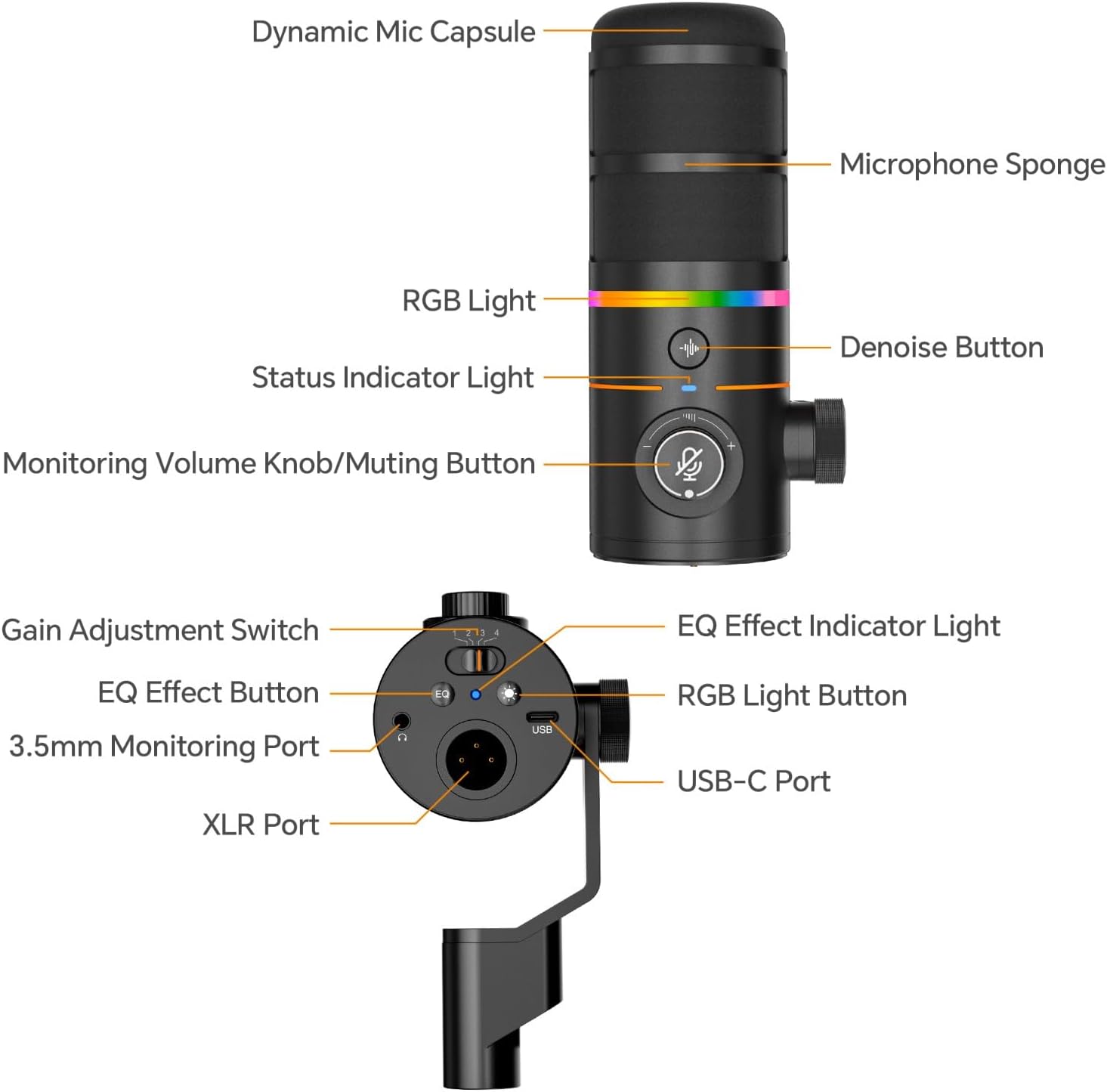
Figure 3: Microphone Component Diagram
3. Орнотуу
The COMICA EJoy D10 D microphone offers flexible connectivity options for various devices.
3.1. Connecting to a Computer (USB-C)
- Connect the USB-C end of the provided 2-in-1 audio cable to the USB-C port on the microphone.
- Connect the USB-A or USB-C end of the cable to an available USB port on your computer (PC or Mac).
- The microphone should be automatically recognized by your operating system.
- Select "COMICA EJoy D10 D" as your input device in your computer's sound settings or recording software.
3.2. Connecting to an Audio Interface/Mixer (XLR)
- Connect a standard XLR cable (not included) to the XLR port on the microphone.
- XLR кабелинин экинчи учун аудио интерфейсиңиздеги же миксериңиздеги XLR киргизүүсүнө туташтырыңыз.
- Ensure your audio interface or mixer is properly configured and powered.
- Adjust gain levels on your audio interface/mixer as needed.

Сүрөт 4: Байланыш параметрлери
4. Иштөө нускамалары
4.1. Gain Adjustment
The microphone features a 4-level gain adjustment switch. Move the switch to the left or right to select the desired gain level (1-4) to optimize your audio input.

Figure 5: Adjusting Gain Control
4.2. Реалдуу убакыттагы мониторинг
Plug your 3.5mm headphones into the 3.5mm monitoring port on the microphone to listen to your audio input in real-time without latency.
4.3. Monitoring Volume Adjustment and Muting
Rotate the Monitoring Volume Knob to increase or decrease the monitoring volume. In case of emergency or to temporarily silence the microphone, use the one-click muting function by pressing the knob.
Figure 6: Monitoring Volume and Mute Control
4.4. CalMix Denoise Function
Press the Denoise Button to activate or deactivate the CalMix Denoise function. This feature uses an advanced audio processing algorithm to reduce background noise and enhance vocal clarity.
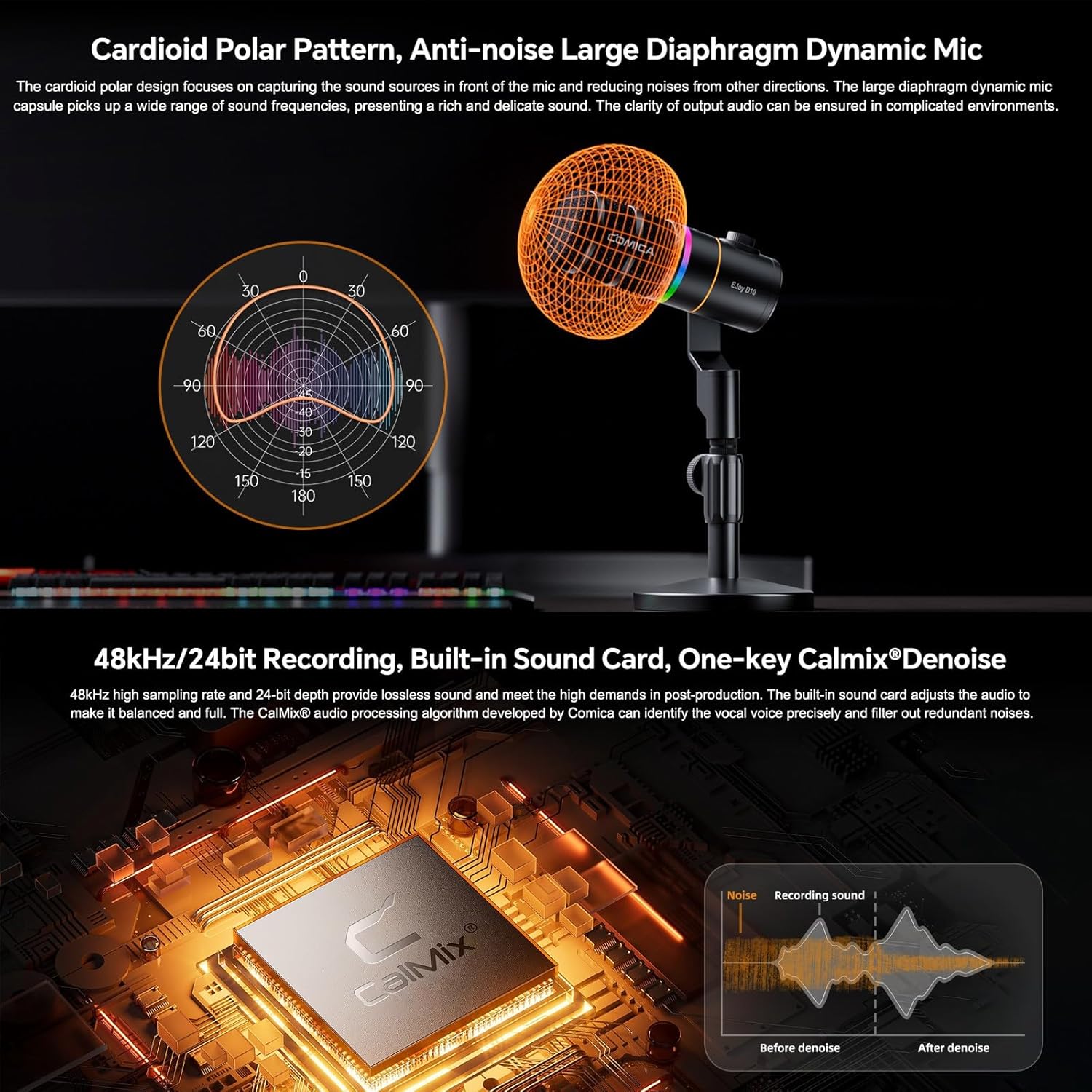
Figure 7: CalMix Denoise Feature
4.5. RGB жарыктандыруу эффекттери
Short press the RGB Light Button to cycle through 6 optional dynamic radiant RGB light effects: Audio Dynamic, Comica Orange, Sea Wave, Colorful Breathing Light, RGB Slow Wave, and Rotating Rainbow. These effects can enhance your streaming or gaming setup.

8-сүрөт: RGB жарыктандыруу эффекттери
4.6. EQ режимдери
Long press the EQ Effect Button to turn the EQ effect on or off. Short press to switch between three EQ effects: Deep, Nature, or Bright. These modes allow for customized audio adjustment to suit different recording styles.

Figure 9: EQ Modes for Customized Adjustment
5. Техникалык тейлөө
- Микрофонду таза, жумшак, кургак чүпүрөк менен сүртүңүз.
- Микрофонду экстремалдык температуранын, нымдуулуктун же тике күн нурунун таасиринен сактаңыз.
- Микрофонду колдонбогондо кургак, чаңсыз чөйрөдө сактаңыз.
- Do not use harsh chemicals or abrasive cleaners on the microphone.
6. Кыйынчылыктарды
| Көйгөй | Мүмкүн себеп | Чечим |
|---|---|---|
| Үн чыгышы жок | Incorrect input selection; Loose cable connection; Low gain setting | Ensure "COMICA EJoy D10 D" is selected as input; Check all cable connections; Increase microphone gain. |
| Audio is distorted or too loud | Gain setting too high; Proximity to sound source | Decrease microphone gain; Move microphone further from sound source. |
| Background noise present | Denoise function off; Environmental noise | Activate CalMix Denoise; Reduce ambient noise in recording environment. |
| RGB жарыктары иштебейт | RGB light function off | Press the RGB Light Button to activate or cycle effects. |
7. Техникалык шарттар
| Өзгөчөлүк | Деталь |
|---|---|
| Бренд | КОМИКА |
| Модел | Comica D10 D |
| Байланыш технологиясы | USB, XLR |
| Туташтыргыч түрү | XLR, USB-C |
| Шайкеш түзмөктөр | Жеке компьютер, оюн консолу |
| Полярдык үлгү | Бир багыттуу (Кардиоид) |
| Power Source | Электр зымдары |
| Ызы-чуунун катышы | 72 дБ |
| Frequency Response | 55 Hz (Lower limit, typical for dynamic mics) |
| Продукциянын өлчөмдөрү | 10.63 x 9.06 x 3.54 дюйм |
| Элемент Салмагы | 2.42 фунт (1.1 килограмм) |
| Түс | Кара |
8. Коопсуздук эскертүүлөрү
- Do not place the product near fire or flammable gases.
- Do not use in rain or humid environments.
- Продукцияны балдар жетпеген жерде сактаңыз.
- Do not disassemble at will. If repair is required, the product must be sent to an authorized repair center.

10-сүрөт: Коопсуздук боюнча эскертүүлөр
9. Кепилдик жана колдоо
This product comes with a warranty as detailed in the included Warranty Card. For technical support, service, or warranty claims, please contact COMICA customer service through their official channels or the retailer from whom you purchased the product. Protection plans may also be available for extended coverage.
Manufacturer: Comica