
1. Киришүү
Welcome to the user manual for your new DigiLand 10.1 Inch HD Octa-Core Android Tablet. This device is designed to provide a versatile and powerful experience for both productivity and entertainment. Featuring an Octa-Core processor, ample RAM and storage, and a vibrant HD display, your tablet is equipped for a wide range of tasks, from browsing and streaming to gaming and office work.
This manual will guide you through the initial setup, operation, maintenance, and troubleshooting of your tablet to ensure you get the most out of its capabilities.
2. Кутуда эмне бар
Сураныч, продуктуңуздун таңгагында бардык буюмдар бар экенин текшериңиз:
- DigiLand 10.1 Inch Android Tablet
- Коргоочу кап
- USB Type-C кубаттоочу кабель
- Кубат адаптери (5V/2A)
- Quick Start Guide

2.1-сүрөт: Пакеттин мазмуну
3. Продукт бүтүп калдыview
The DigiLand R10 Pro+ tablet combines powerful hardware with a user-friendly Android 14 operating system. Below are the key features and components of your device.
3.1 Негизги өзгөчөлүктөрү
- Процессор: MediaTek Helio G80 Octa-Core CPU (2x A75 2.0GHz + 6x A55 1.8GHz) for robust performance.
- Дисплей: 10.1-inch HD (800x1280) In-cell touchscreen with IPS clarity and 350cd/m² brightness.
- Эстутум жана сактоо: 12 ГБ оперативдүү эс тутум жана 128 ГБ ROM, TF картасы аркылуу 256 ГБ чейин кеңейтүүгө болот.
- Батарея: 6000mAh battery providing over 12 hours of runtime, with 10W fast-charging support.
- Камералар: 13MP rear camera and 8MP front camera for photography and video calls.
- Аудио: Dual 8Ω/1W speakers for clear sound.
- Байланыш: Bluetooth 5.0, 802.11n Wi-Fi, Type-C port, and headphone jack.
- Операция системасы: Android 14.
- Widevine L1 колдоосу: Enables high-definition streaming from platforms like Netflix, Hulu, and Amazon Prime Video.
3.2 Визуалдык кошумчаview
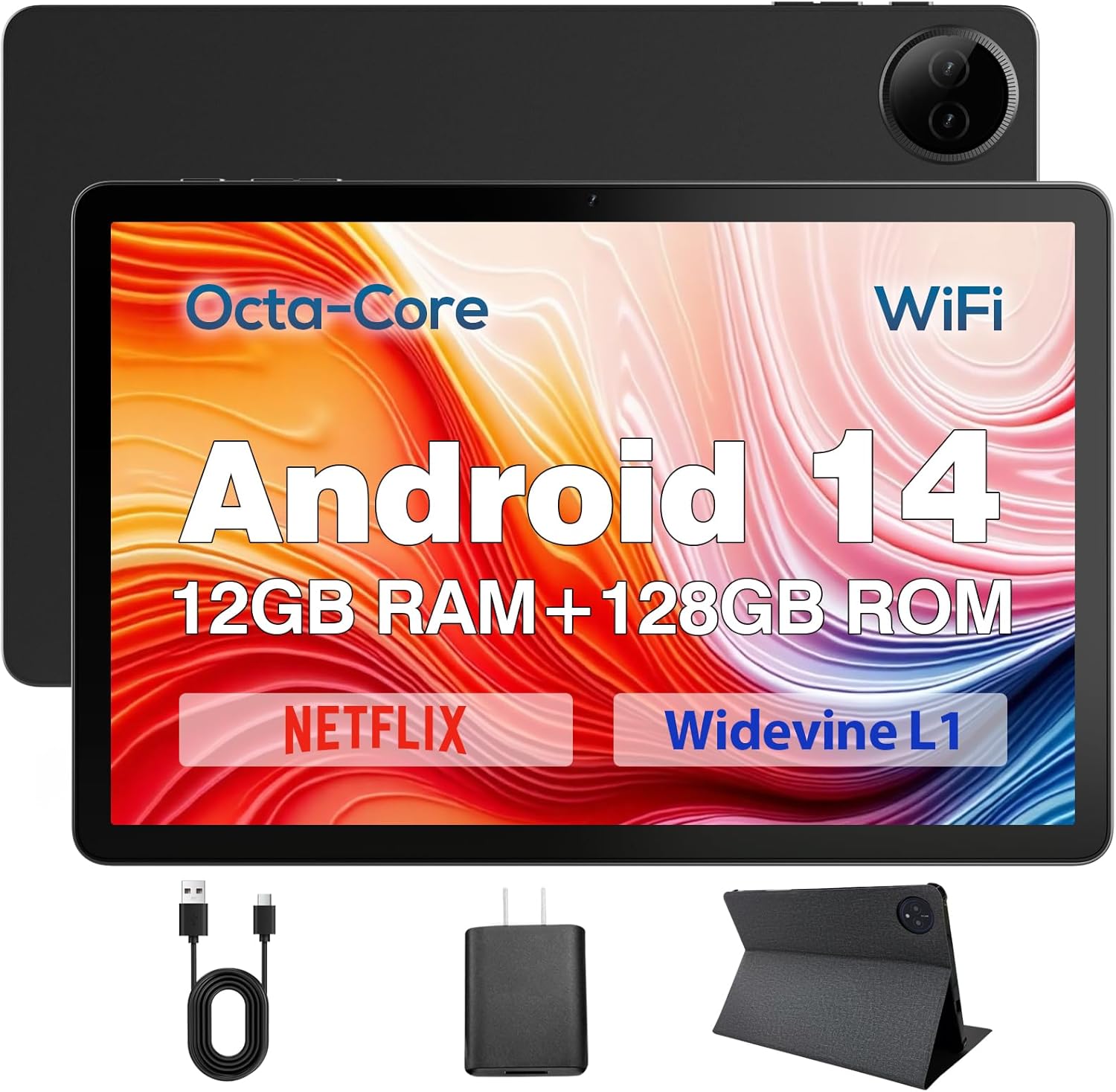
Figure 3.1: DigiLand Tablet Front and Rear View
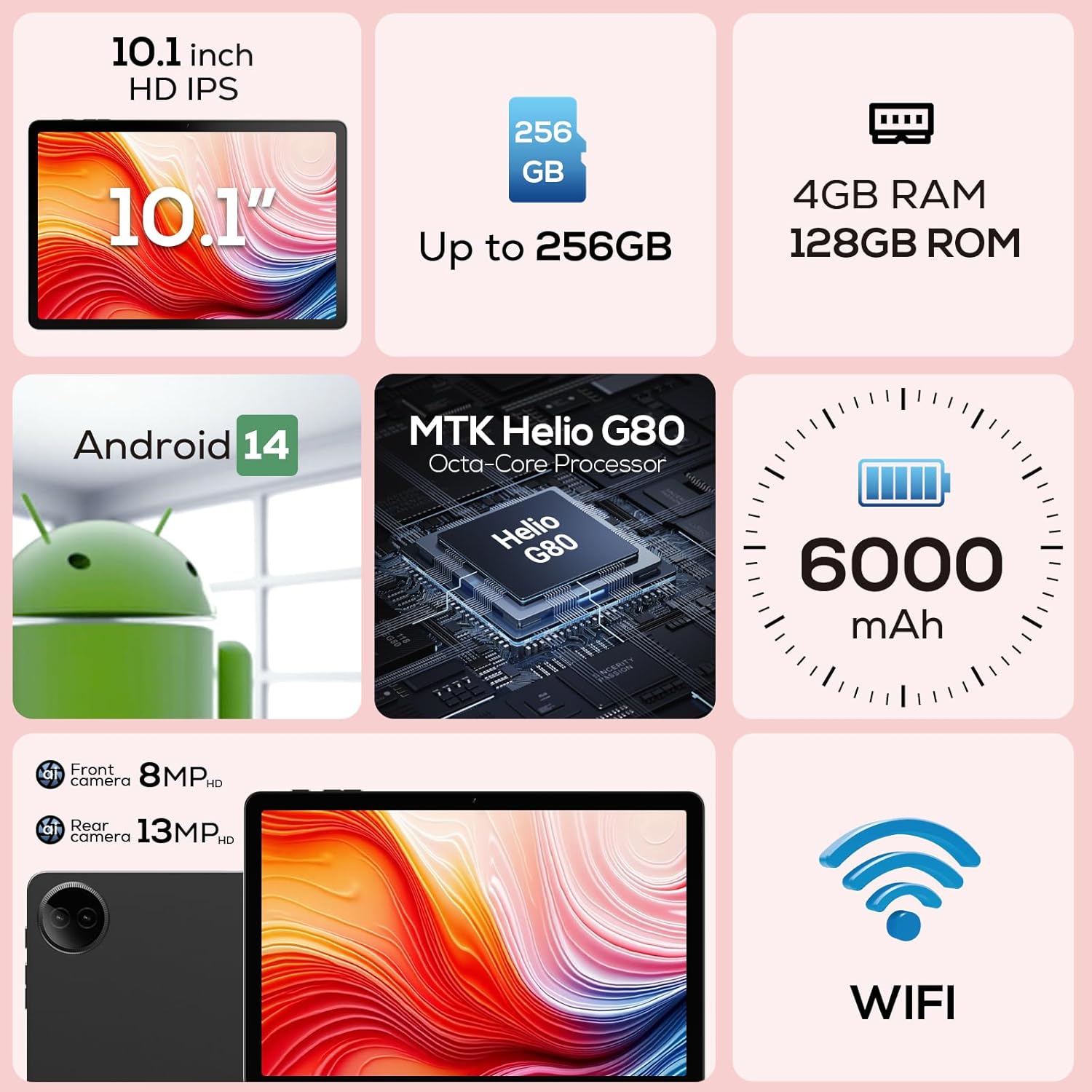
3.2-сүрөт: Негизги өзгөчөлүктөрдүн диаграммасы

Figure 3.3: Widevine L1 Support for HD Streaming

3.4-сүрөт: Өтө жука жана жеңил дизайн
4. Орнотуу
4.1 Алгачкы заряддоо
Before first use, fully charge your tablet. Connect the USB Type-C cable to the tablet's charging port and the power adapter to a wall outlet. The charging indicator will show the charging status. A full charge typically takes several hours.
4.2 Күйгүзүү/өчүрүү
- Күйгүзүү үчүн: Press and hold the Power button located on the side of the tablet until the DigiLand logo appears on the screen.
- Өчүрүү үчүн: Кубат параметрлери менюсу чыкканга чейин Кубат баскычын басып, кармап туруңуз. "Өчүрүү" дегенди тандап, ырастаңыз.
- Кайра баштоо үчүн: Кубат параметрлери менюсунан "Кайра баштоо" дегенди тандаңыз.
4.3 Биринчи жолу орнотуу устасы
Upon first power-on, the tablet will guide you through a setup wizard. Follow the on-screen prompts to:
- Тилиңизди тандаңыз.
- Wi-Fi тармагына туташыңыз.
- Google аккаунтуңуз менен кириңиз же жаңысын түзүңүз.
- Экран кулпусун орнотуу (PIN, үлгү, сырсөз).
- Review жана шарттарды кабыл алуу.
5. Иштөө нускамалары
5.1 Сенсордук экранда навигация
Your tablet features a responsive multi-touch display. Common gestures include:
- таптаңыз: Элементти тандоо үчүн, колдонмону ачыңыз же баскычты басыңыз.
- Тийип кармап туруу: To open contextual menus or drag items.
- Серпүү: To scroll through lists, move between home screens, or dismiss notifications.
- Чымчып-кичирейтүү: Сүрөттөрдү, карталарды чоңойтуу же кичирейтүү үчүн же web барактар.
5.2 Wi-Fi туташуусу
Wi-Fi тармагына туташуу үчүн:
- барыңыз Орнотуулар > Тармак жана интернет > Wi-Fi.
- Wi-Fi которуштуруу On.
- Тизмеден каалаган тармакты тандаңыз.
- Эгер суралса, сырсөздү киргизип, таптаңыз Туташуу.

Figure 5.1: High-Speed Wi-Fi Connectivity
5.3 Bluetooth жупташтыруу
To pair with Bluetooth devices (e.g., headphones, speakers):
- барыңыз Орнотуулар > Туташкан түзмөктөр > Туташуу артыкчылыктары > Bluetooth.
- Bluetooth которуштуруу On.
- Bluetooth түзмөгүңүз жупташтыруу режиминде экенин текшериңиз.
- Select your device from the 'Available devices' list and follow any on-screen prompts to complete pairing.
5.4 Камераларды колдонуу
Your tablet is equipped with a 13MP rear camera and an 8MP front camera.
- ачыңыз Камера колдонмону үй экраныңыздан же колдонмо суурмасынан.
- Алдыңкы жана арткы камераларды алмаштыруу үчүн камераны которуштуруу сүрөтчөсүн таптаңыз.
- Сүрөткө тартуу үчүн жапкыч баскычын же видео жазуу үчүн видео сүрөтчөсүн таптаңыз.
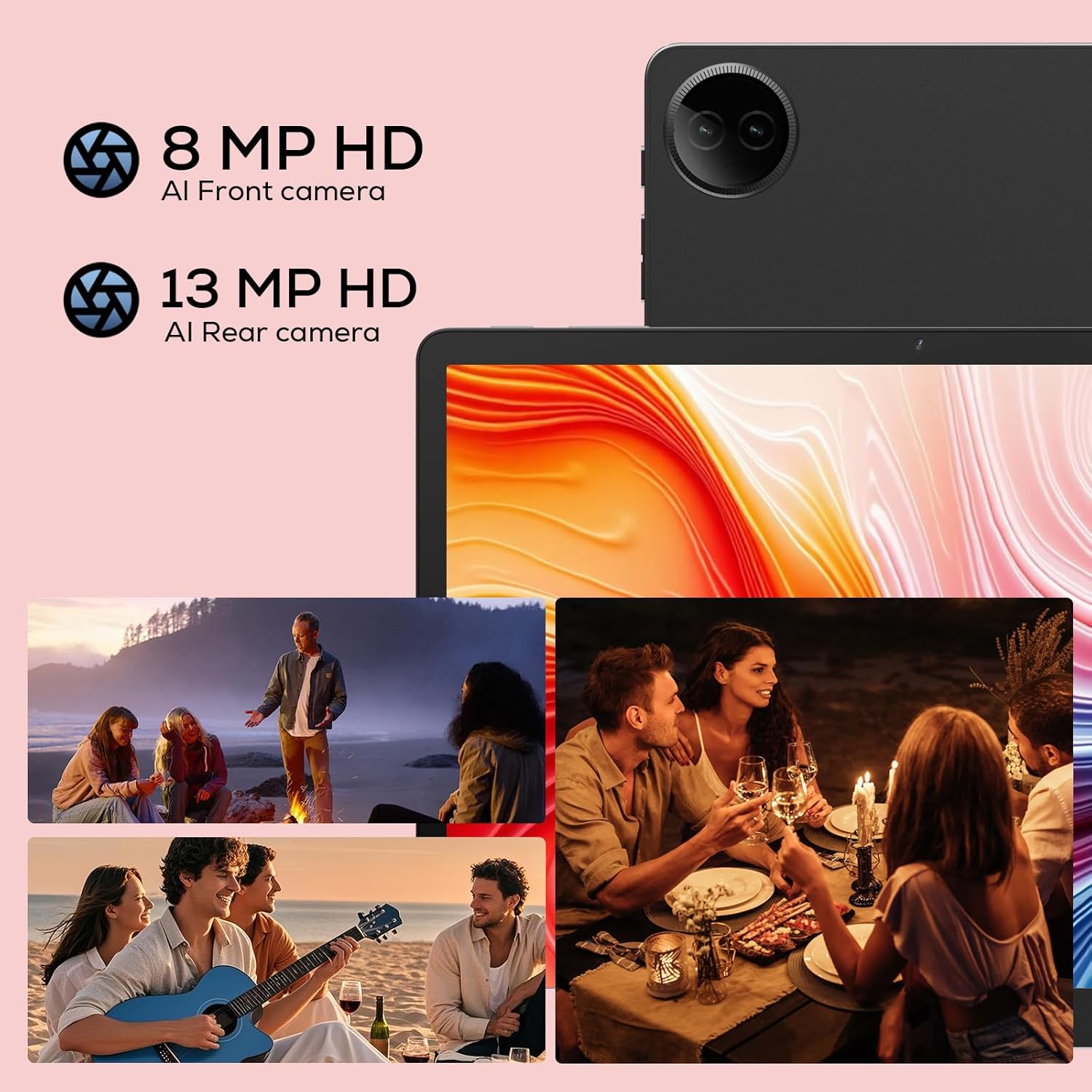
Figure 5.2: Tablet Cameras and Sample Сүрөттөр
5.5 Колдонмо башкаруу
Колдонмолорду орнотуу: Download and install apps from the Google Play Store. Open the Play Store app, search for your desired app, and tap 'Install'.
Колдонмолорду орнотуудан чыгаруу: Touch and hold the app icon on the home screen or app drawer, then drag it to 'Uninstall' or select 'App info' and tap 'Uninstall'. Alternatively, go to Орнотуулар > Колдонмолор > Бардык колдонмолорду көрүү, колдонмону тандап, "Чыгарып салуу" баскычын таптаңыз.
6. Техникалык тейлөө
6.1 Планшетиңизди тазалоо
Планшетиңиздин экранын жана корпусун тазалоо үчүн жумшак, мамыксыз чүпүрөктү колдонуңуз. Өжөр тактар үчүн бир аз сүртүңүзampчүпүрөккө суу же электроника үчүн арналган экран тазалагыч. Катуу химиялык заттарды же абразивдүү материалдарды колдонуудан алыс болуңуз.
6.2 Батареяга кам көрүү
Батареянын иштөө мөөнөтүн узартуу үчүн:
- Ашыкча температурадан сактаныңыз.
- Батареянын бат-баттан түгөнүп калышына жол бербеңиз.
- Берилген заряддагычты жана кабелди колдонуңуз.
- Adjust screen brightness and disable unused features (Wi-Fi, Bluetooth) to conserve power.

Figure 6.1: Extended Battery Life Features
6.3 Программалык камсыздоо жаңыртуулары
Оптималдуу аткарууну, коопсуздукту жана жаңы функцияларга жетүүнү камсыз кылуу үчүн программалык камсыздоо жаңыртууларын дайыма текшерип, орнотуп алыңыз. барыңыз Орнотуулар > Система > Системаны жаңыртуу.
6.4 Сактагычты башкаруу
Планшетиңиздин сактагычын башкаруу үчүн:
- барыңыз Орнотуулар > Сактагыч чейин view сактоо пайдалануу.
- Колдонулбаган колдонмолорду чыгарып салыңыз.
- Колдонмолор үчүн кэш дайындарын тазалоо.
- Чоң көлөмдөгү которуу files (photos, videos) to cloud storage or an external TF card.
7. Кыйынчылыктарды
If you encounter issues with your tablet, refer to the following common problems and solutions:
| Көйгөй | Мүмкүн чечим |
|---|---|
| Планшет күйбөйт | Батарея заряддалганын текшериңиз. Кубаттоочу түзүлүшкө кеминде 30 мүнөт туташтырыңыз. Эгер дагы эле жооп бербесе, "Кубат" баскычын 10-15 секунд басып туруп, мажбурлап өчүрүп-күйгүзүңүз. |
| Wi-Fi туташуу маселелери | Wi-Fi роутериңизди өчүрүп күйгүзүңүз. Планшетиңиздеги тармакты унутуп, кайра туташыңыз. Wi-Fi сигналынын чегинде экениңизди текшериңиз. |
| Колдонмолор жай же бузулуп жатат | Close background apps. Clear app cache (Settings > Apps > [App Name] > Storage & cache > Clear cache). Ensure sufficient storage space. Restart the tablet. |
| Батарея бат эле түгөнөт | Reduce screen brightness. Disable Wi-Fi/Bluetooth when not in use. Close unused apps. Check battery usage in Settings to identify power-hungry apps. |
| Экран жооп бербей жатат | Restart the tablet. Ensure the screen is clean and dry. Remove any screen protectors that might be interfering. |
Бул чечимдерди колдонуп көргөндөн кийин көйгөй чечилбесе, кардарларды колдоо менен байланышыңыз.
8. Техникалык шарттар
Detailed technical specifications for your DigiLand R10 Pro+ Tablet:
| Өзгөчөлүк | Спецификация |
|---|---|
| Бренд | DigiLand |
| Модель аты | R10 Pro+ |
| Операция системасы | Android 14 |
| Туруктуу экран дисплей өлчөмү | 10.1 дюйм |
| Screen Resolution | 1280 x 800 пиксель |
| Процессор бренди | MediaTek |
| Процессордун модели | Helio G80 Octa-Core CPU |
| RAM | 12 ГБ |
| Флэш-эс тутумдун көлөмү (ROM) | 128 ГБ |
| Кеңейтүүчү сактагыч | Up to 256GB (TF card slot) |
| Зымсыз түрү | 802.11n |
| Bluetooth | 5.0 |
| Батареянын орточо иштөө мөөнөтү | 12 саат |
| Элемент Салмагы | 1.32 фунт (болжол менен 600 г) |
| Продукциянын өлчөмдөрү | 10.17 x 6.41 x 0.31 дюйм |
| Түс | Боз |
9. Кепилдик жана колдоо
9.1 Кепилдик саясаты
Your DigiLand Tablet comes with a 1 жылдык кепилдик саясаты сатып алынган күндөн тартып. Бул кепилдик өндүрүш кемчиликтерин жана нормалдуу колдонуудан келип чыккан маселелерди камтыйт. Кепилдик дооматтары үчүн сатып алганыңыздын далилин сактап коюңуз.
9.2 Кардарларды колдоо
For any questions regarding the use, setup, or troubleshooting of your DigiLand Tablet, our customer service team is available to assist you.
- Онлайн колдоо: We offer 24/7 online call support.
- Оңдоо боюнча колдоо: 1 жылдык оңдоо колдоосу көрсөтүлөт.
You can contact us directly through the channels provided on our official website or through your purchase platform. We are committed to providing prompt and helpful service.

Figure 9.1: Dedicated Customer Support
For more information and product updates, visit the official DigiLand Store: DigiLand Store on Amazon