
1. Киришүү
Thank you for choosing the Tibuta Android 13 Tablet. This manual provides essential information to help you set up, operate, and maintain your device. Please read this manual carefully before using your tablet to ensure optimal performance and longevity.
2. Кутуда эмне бар
Таңгактан чыгаргандан кийин, төмөнкү нерселердин бардыгы камтылганын текшериңиз:
- Tibuta Android 13 Tablet
- Заряддагыч
- USB кабели
- Колдонуучунун колдонмосу (бул документ)
- Кепилдик картасы
3. Продукт бүтүп калдыview
Familiarize yourself with the physical components of your Tibuta tablet.

Figure 3.1: Tablet Components (Side View)
This image illustrates the location of the power button, Type-C port, volume controls, Micro SD card slot, camera, reset button, headphone jack, and speakers on the tablet's exterior.

Figure 3.2: Tablet Components (Front and Back View)
Бул сүрөт майда-чүйдөсүнө чейин камсыз кылат view of the tablet, highlighting the speaker, front camera, reset button, volume controls, power button, 3.5mm headphone jack, rear camera, SD card slot, and Type-C port. It also shows the included power adapter and Type-C cable.
4. Орнотуу
4.1 Алгачкы заряддоо
Before first use, fully charge your tablet using the provided charger and USB cable. Connect the Type-C cable to the tablet's Type-C port and the charger to a power outlet. The battery indicator on the screen will show charging progress.
4.2 Күйгүзүү/өчүрүү
- Күйгүзүү үчүн: Press and hold the Power button (refer to Figure 3.1 or 3.2) until the screen lights up.
- Өчүрүү үчүн: Меню пайда болгонго чейин Кубат баскычын басып, кармап туруңуз. "Өчүрүү" дегенди тандап, ырастаңыз.
- Кайра баштоо үчүн: From the same menu, select 'Restart'.
4.3 Баштапкы конфигурация
Upon first power-on, follow the on-screen prompts to set up your tablet. This includes selecting your language, connecting to a Wi-Fi network, and signing in with your Google account. A Google account is required to download apps from the Google Play Store.
4.4 Микро SD картаны салуу
To expand storage, insert a Micro SD card (up to 1TB, not included) into the Micro SD card slot (refer to Figure 3.1 or 3.2). Ensure the tablet is powered off before inserting or removing the card.
5. Иштөө нускамалары
5.1 Негизги навигация
The tablet features a sensitive touchscreen. Use standard Android gestures:
- таптаңыз: Бир нерсени тандаңыз же колдонмону ачыңыз.
- Серпүү: Барактарды же тизмелерди жылдырыңыз.
- Чымчуу: Сүрөттөрдү чоңойтуу же кичирейтүү жана web барактар.
- Узак басуу: Контексттик менюларга кириңиз же сүрөтчөлөрдү жылдырыңыз.
5.2 Wi-Fiга туташуу
барыңыз Орнотуулар > Тармак жана интернет > Wi-Fi. Turn on Wi-Fi, select your desired network, and enter the password if prompted. The tablet supports 2.4G and 5G Wi-Fi (802.11ac, 802.11b, 802.11g, 802.11n).
5.3 Bluetooth жупташтыруу
To connect Bluetooth devices (e.g., headphones, keyboard, mouse):
- барыңыз Орнотуулар> Туташкан түзмөктөр> Байланыштын каалоолору> Bluetooth.
- Bluetooth күйгүзүү.
- Bluetooth түзмөгүңүз жупташтыруу режиминде экенин текшериңиз.
- Select your device from the list and follow any on-screen instructions to complete pairing.
5.4 Камераны колдонуу
The tablet is equipped with a 5MP front camera and an 8MP rear camera. Open the Camera app to capture photos and videos. The rear camera features PDAF Phase Auto-focus and an LED flash.

Figure 5.1: Camera and Split-Screen Functionality
This image demonstrates the tablet's dual camera capabilities for capturing moments and its split-screen feature for multitasking, such as video calls while viewдокументтерин.
5.5 Split-Screen Function
The Android 13 operating system supports split-screen mode, allowing you to use two applications simultaneously. To activate, open an app, then swipe up from the bottom of the screen to access recent apps. Long-press the app icon at the top of the window and select 'Split screen'. Choose a second app to open alongside it.
5.6 Customization and Personalization
Android 13 offers extensive customization options. You can personalize your tablet by changing wallpapers, adding widgets to your home screen, and organizing app icons to suit your preferences.
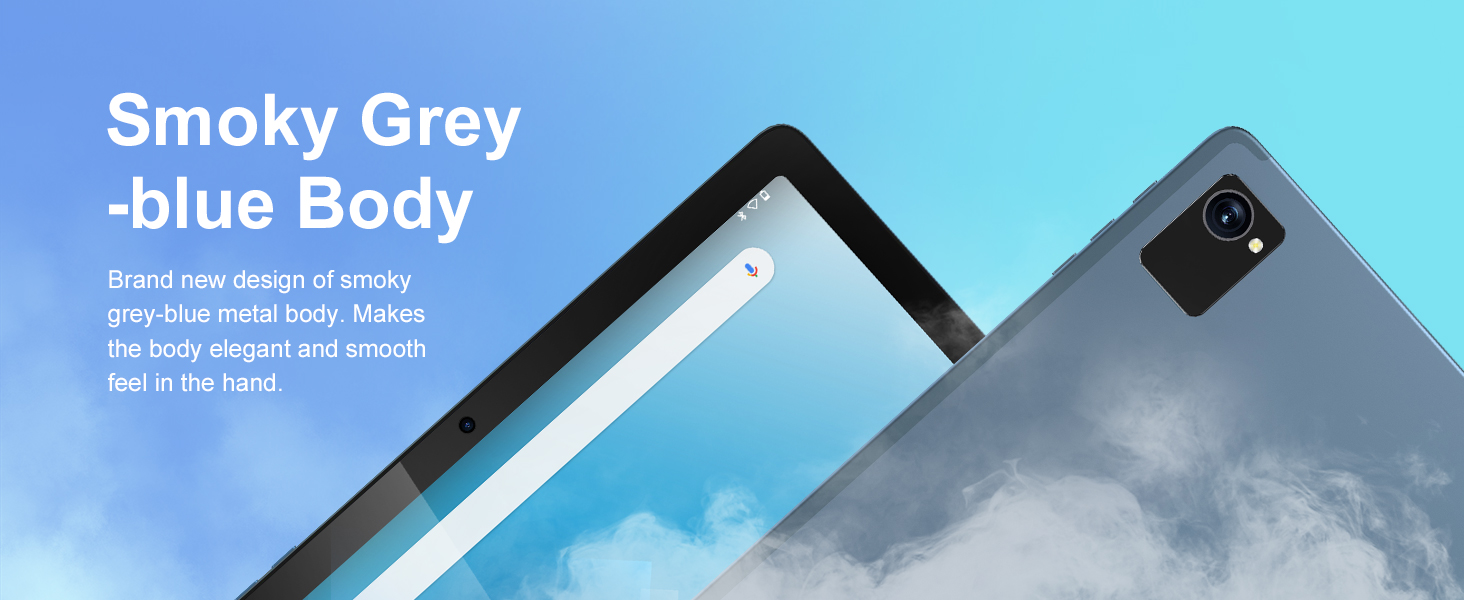
Figure 5.2: Customizable Interface
This image highlights the ability to customize widgets and change app icons, allowing users to personalize their tablet experience.
5.7 Eye Protection Mode
To reduce eye strain, especially during prolonged use, activate the eye protection mode. This feature reduces the amount of blue light emitted by the screen. You can usually find this option in the Quick Settings panel or under Орнотуулар > Дисплей.
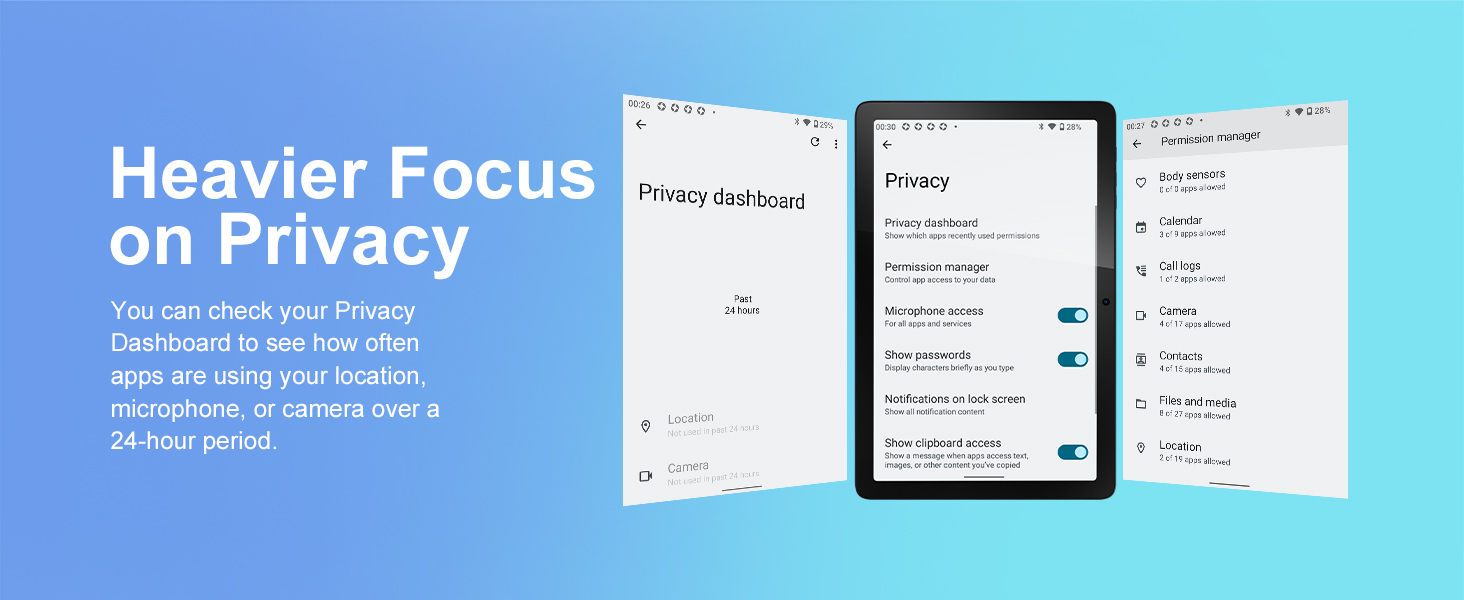
Figure 5.3: Eye Protection Feature
This image demonstrates the tablet's eye protection mode, which reduces blue light to prevent discomfort during extended viewing.
5.8 Зымсыз проекция
The tablet supports wireless projection, allowing you to cast your screen to compatible larger display devices such as smart TVs or projectors. This is ideal for presentations or sharing media with others.
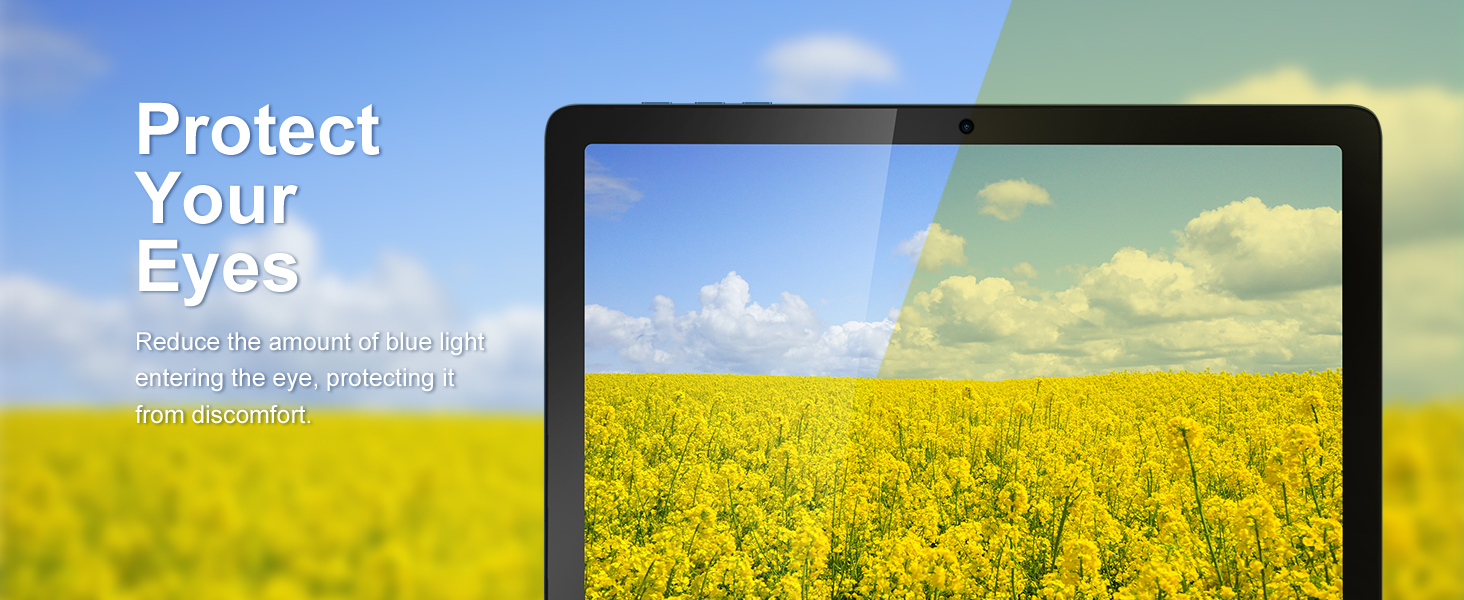
Figure 5.4: Wireless Projection in Use
This image depicts the tablet's wireless projection capability, enabling users to connect to larger screens for shared viewтажрыйбаларды.
5.9 GPS функциясы
The tablet includes GPS for navigation and location-based services. Ensure location services are enabled in Орнотуулар> Жайгашкан жер for optimal performance with mapping applications.

5.5-сүрөт: GPS навигациясы
This image shows the tablet utilizing GPS for navigation, displaying a map with a highlighted route.
5.10 Media Consumption and Gaming
The 10.1-inch IPS HD display (1280x800 pixels) and Octa-Core processor provide a smooth experience for watching videos and playing games. The tablet supports Widevine L1 for high-definition streaming content. The Mali-G52 MC2 GPU enhances gaming performance.

Figure 5.6: Enhanced Gaming Experience
This image highlights the tablet's improved gaming performance, featuring gyroscope motion control and a Mali-G72 GPU for a responsive gaming experience.
6. Техникалык тейлөө
6.1 Аппаратты тазалоо
Use a soft, lint-free cloth to clean the screen and body of the tablet. Avoid using harsh chemicals or abrasive materials that could damage the surfaces.
6.2 Батареяга кам көрүү
The tablet is equipped with a 7000mAh battery, providing approximately 8 hours of average use. To prolong battery life:
- Ашыкча температурадан сактаныңыз.
- Батареянын бат-баттан түгөнүп калышына жол бербеңиз.
- Берилген заряддагычты колдонуңуз.
- Экран жарыктыгын ыңгайлуу деңгээлге тууралаңыз.
6.3 Программалык камсыздоо жаңыртуулары
Your tablet runs on Android 13. Periodically check for system updates in Орнотуулар > Система > Системаны жаңыртуу to ensure you have the latest features and security patches.
6.4 Сактагычты башкаруу
The tablet comes with 64GB of internal storage (ROM) and 4GB of RAM. You can expand storage up to 1TB using a Micro SD card. Regularly manage your fileжана оптималдуу иштөөсүн сактоо үчүн колдонулбаган тиркемелерди чыгарып салыңыз.
7. Кыйынчылыктарды
Бул жерде сиз кабылышы мүмкүн болгон жалпы маселелерди чечүү жолдору бар:
- Түзмөк күйбөй жатат: Батарея заряддалганын текшериңиз. Болбосо, заряддагычты туташтырыңыз жана кайра күйгүзүү аракетинен мурун бир нече мүнөт күтүңүз.
- Жай аткаруу: Close unused applications, clear cache, or restart the tablet. Consider freeing up storage space.
- Wi-Fi туташуу көйгөйлөрү: Check if Wi-Fi is enabled. Restart your router and the tablet. Ensure you are within range of the Wi-Fi signal.
- Колдонмолор бузулуп жатат: Ensure apps are updated to their latest versions. Clear the app's cache or data in Орнотуулар > Колдонмолор. Эгер маселе чечилбесе, колдонмону чыгарып салып, кайра орнотуңуз.
- Экран жооп бербейт: Күйгүзүү баскычын болжол менен 10-15 секунд басып туруу менен мажбурлап өчүрүп-күйгүзүңүз.
8. Техникалык шарттар
Detailed technical specifications for the Tibuta Android 13 Tablet (Model A20 8GB+64GB):
| Өзгөчөлүк | Спецификация |
|---|---|
| Бренд | Тибута |
| Модель аты | A20 |
| Модель номери | 8GB+64GB |
| Операция системасы | Android 13 |
| Процессор бренди | MediaTek Octa-Core |
| Процессордун ылдамдыгы | 1.3 ГГц |
| Screen Size | 10.1 дюйм |
| Screen Resolution | 1280 x 800 Pixels (IPS HD) |
| RAM | 4 ГБ |
| Сактоо сыйымдуулугу | 64 GB (Expandable up to 1TB via Micro SD) |
| Графикалык чипсет бренди | PowerVR |
| GPU | Мали-G52 MC2 |
| Байланыш | Bluetooth, Wi-Fi (802.11ac, 802.11b, 802.11g, 802.11n) |
| Зымсыз технология | 2.4GHz + 5GHz Wi-Fi, Bluetooth 4.2 |
| Туташтыргыч түрү | USB Type-C |
| Батареянын иштөө мөөнөтү (орточо) | 8 саат |
| Элементтин өлчөмдөрү (L x W x Y) | 24.8 x 16.7 x 1.2 сантиметр |
| Элемент Салмагы | 538.8 грамм |
| Алдыңкы камера | 5 депутат |
| Арткы камера | 8 депутат |
9. Кепилдик жана колдоо
9.1 Өндүрүүчүнүн кепилдиги
The Tibuta Android 13 Tablet comes with a 1-year manufacturer's warranty. Please refer to the included Warranty Card for detailed terms and conditions.
9.2 Кардарларды колдоо
If you encounter any issues not covered in this manual or require further assistance, please contact Tibuta customer support. Contact information can typically be found on the manufacturer's webсайтында же кепилдик картасында көрсөтүлгөн.