
1. Продукт бүтүп калдыview
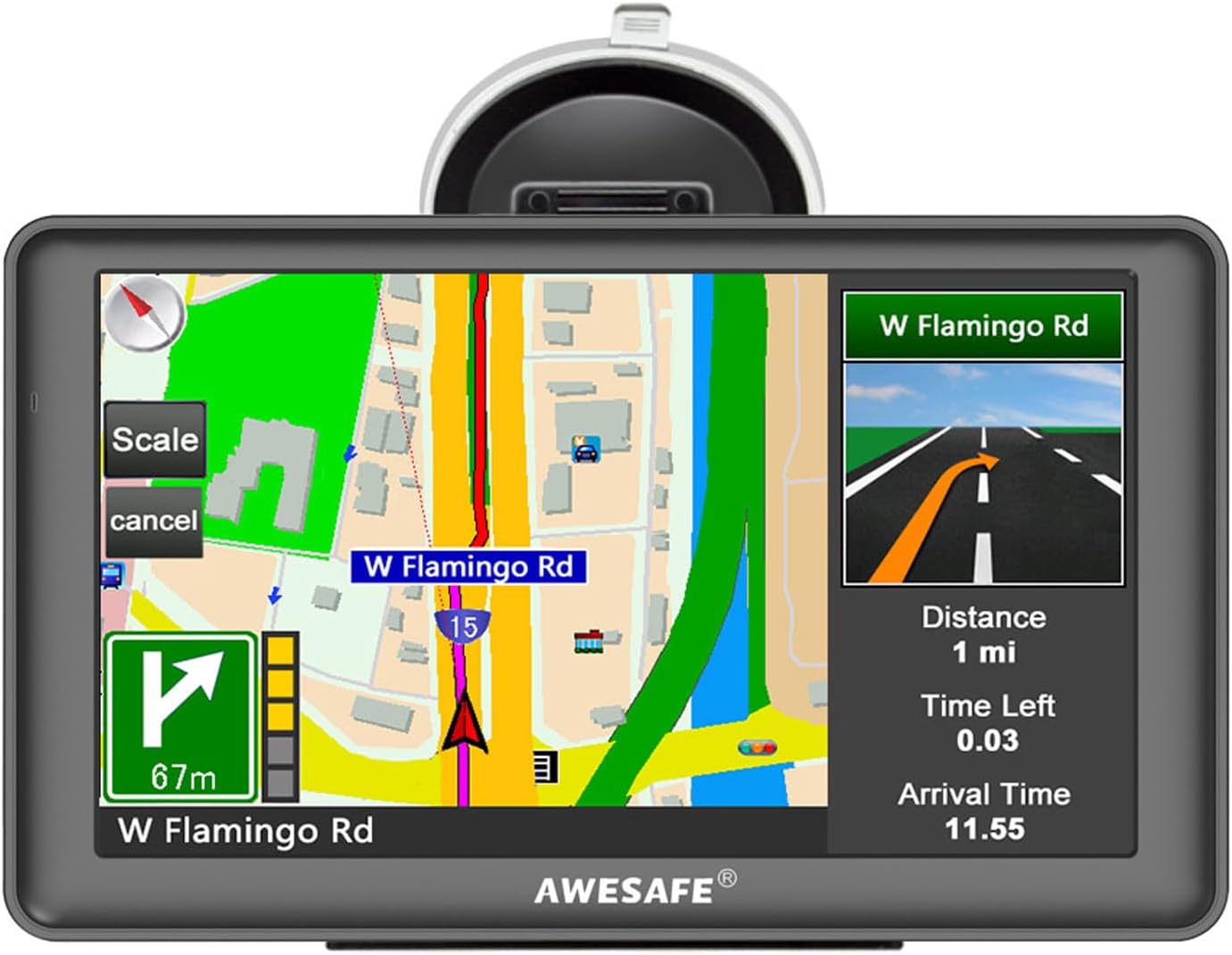
The AWESAFE 7-inch Touch Screen GPS Navigator is designed to provide reliable navigation for various vehicle types, including cars, trucks, pedestrians, bicycles, emergency vehicles, buses, and taxis. It features a clear 7-inch TFT LCD touch screen with 800 x 480 resolution, offering high visibility even in sunlight. The device includes preloaded North American maps (USA, Canada, Mexico) with free lifetime updates, intelligent voice navigation, speed camera alerts, and customizable route planning based on vehicle dimensions.
2. Орнотуу
2.1. Пакеттин мазмуну
Пакетте бардык буюмдар бар экенин текшериңиз:
- AWESAFE 7-inch GPS Navigator Unit
- Колдонуучунун колдонмосу (Нускамалар)
- Клип кармагыч
- Сорох чөйчөкчө кронштейн
- Cigarette Lighter Charger (114cm / 44.1 inch)
- USB Charger Cable (52cm / 20.4 inch)

2.2. Аппаратты орнотуу
Follow these steps to securely install your GPS Navigator in your vehicle:
- Secure the navigator device through the back clip.
- Clamp the 3 small grooves through the back clip.
- Insert the bracket into the groove of the back clip and push upward to lock the back clip and the bracket.
- The assembled unit can be attached to the car windshield or a smooth, flat dashboard using the suction cup.

2.3. Power Connection
Connect the GPS Navigator to your vehicle's power source using the provided cigarette lighter charger. The device requires continuous power during operation as its internal battery does not store electricity for extended periods. This design extends battery life by preventing deep discharge cycles.

3. Иштөө нускамалары
3.1. Basic Navigation Features
The GPS Navigator offers a range of features to assist with your journey:
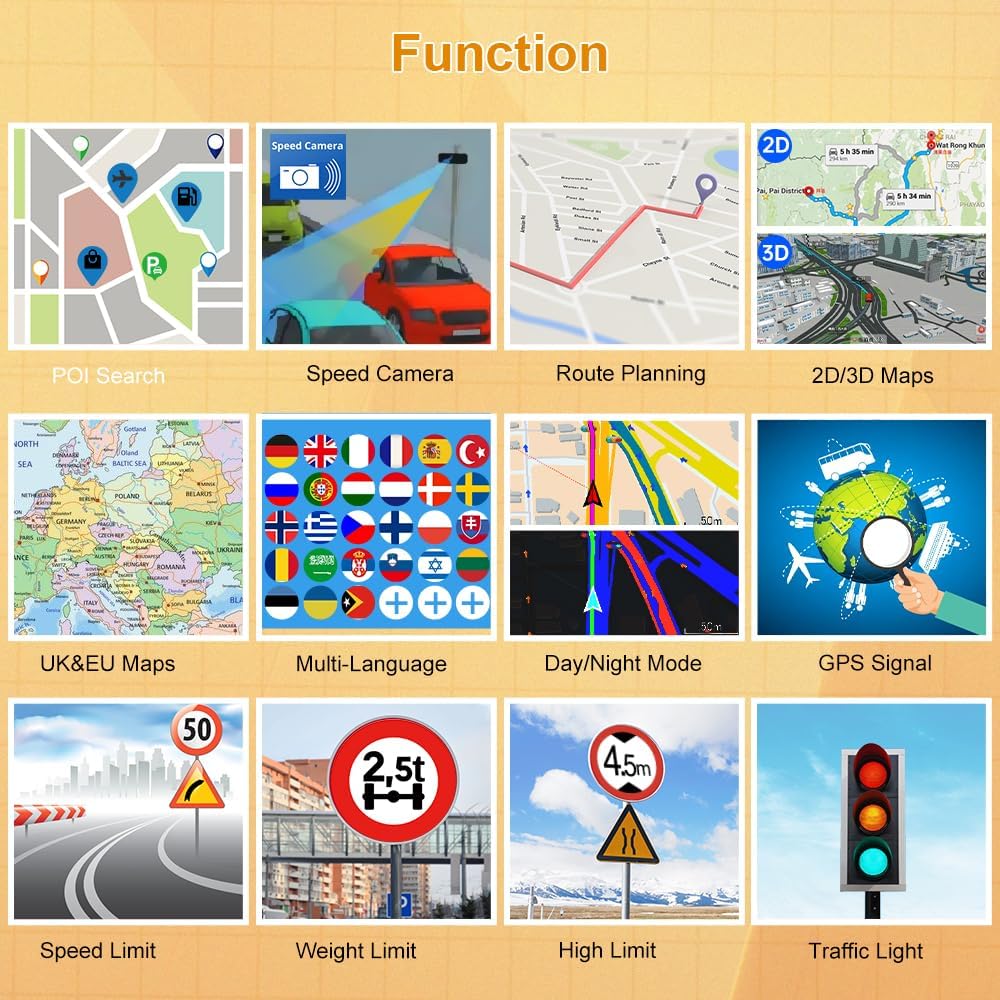
- Маршрутту пландаштыруу: Customize routes based on 7 vehicle modes (Car, Truck, Pedestrian, Bicycle, Emergency, Bus, Taxi). For larger vehicles like trucks or motorhomes, you can input specific parameters such as weight, length, height, and width to avoid restricted roads.
- Үн кеңештери: Receive clear voice guidance for turn-by-turn directions, road names, and lane assistance.
- Speed Limit & Warning: The device provides intelligent alerts for current speed cameras and warns you if you exceed the speed limit.
- Карта дисплей: View navigation in both 2D and 3D modes for enhanced clarity.
- Estimated Time of Arrival (ETA): Displays remaining distance and estimated arrival time to your destination.
3.2. Карта жаңыртуулары
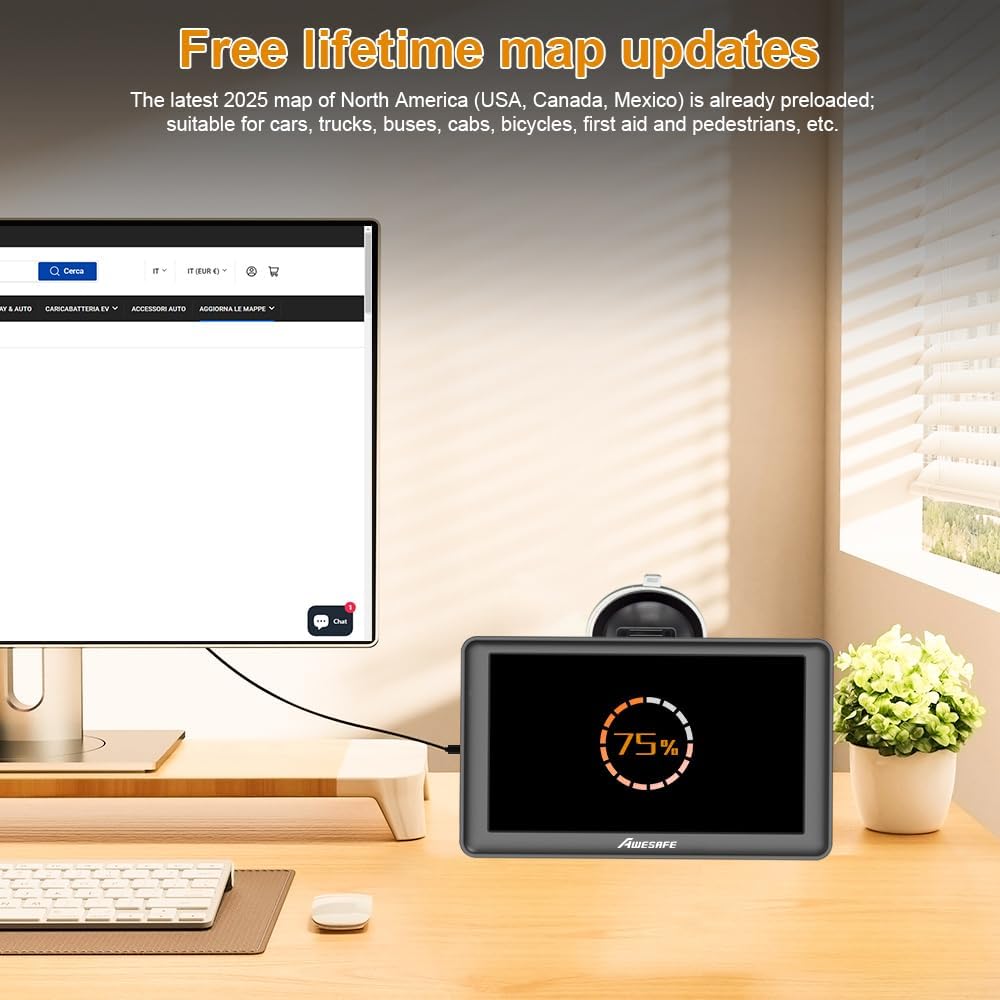
The device comes with the latest 2025 map of North America (USA, Canada, Mexico) preloaded. Free lifetime map updates are available to ensure your navigation data is current. Refer to the manufacturer's website or included instructions for the specific process to download and install map updates.
3.3. FM Transmission
To output navigation audio through your car's speakers, utilize the FM transmission feature. Access the FM settings on the GPS device, enable "Use FM," and set the frequency. Then, tune your car's FM radio to the same frequency. This will broadcast the GPS audio through your vehicle's sound system.

4. Техникалык тейлөө
4.1. Экранга кам көрүү
To maintain optimal screen clarity, regularly clean the 7-inch touch screen with a soft, lint-free cloth. Avoid using abrasive cleaners or harsh chemicals that could damage the screen surface.
4.2. Программалык камсыздоону жана картаны жаңыртуу
Periodically check for and install available map and software updates to ensure the device operates with the latest features and navigation data. Connect the device to a computer and follow the instructions provided by AWESAFE for update procedures.
5. Кыйынчылыктарды
5.1. No Sound from Navigation
If you are not hearing sound from the navigation unit, consider the following solutions:
- 1-вариант: Turn off the "Use FM" function in the device settings. Sound should then be emitted directly from the GPS unit's internal speaker.
- 2-вариант: If you wish to use FM transmission, ensure "Use FM" is enabled and that the FM frequency on the navigator matches the frequency set on your car's radio.
5.2. Device Requires Constant Charging
The AWESAFE GPS Navigator is designed to operate primarily while connected to a power source. Its internal battery does not store electricity for long periods, which helps extend its overall lifespan. Therefore, it is normal for the device to require continuous charging during use. If disconnected, it will prompt for power and eventually shut down.
5.3. Mounting Instability
Ensure the suction cup bracket is applied to a clean, smooth, and flat surface (e.g., windshield). Verify that the back clip is securely locked into the bracket and that the GPS unit is firmly attached to the clip holder. If the unit frequently detaches, re-evaluate the mounting surface and the locking mechanism.
5.4. Жай аткаруу
If the device exhibits slow response times or navigation recalculations, ensure that the latest map updates are installed. Excessive stored routes or points of interest might also impact performance. Consider performing a factory reset if issues persist, noting that this will erase personal data and settings.
6. Техникалык шарттар
| Бренд | AWESAFE |
| Модел | B0F52X8NS3 |
| Screen Size | 7 дюйм |
| Дисплей өлчөмү | 7 дюйм |
| Адам интерфейсинин киргизүү | Сенсордук экран |
| Байланыш технологиясы | Bluetooth |
| Өзгөчө өзгөчөлүк | Bluetooth |
| Карта түрү | North America (USA, Canada, Mexico) |
| Элемент Салмагы | 1.57 фунт (0.71 килограмм) |
| Пакеттин өлчөмдөрү | 8.43 x 5.35 x 3.7 дюйм |
| Батареялар камтылган | Жок |
7. Кепилдик жана колдоо
7.1. Продукцияга кепилдик
The AWESAFE 7-inch Touch Screen GPS Navigator comes with a 1-year manufacturer's warranty. Please retain your proof of purchase for warranty claims.
7.2. Кардарларды колдоо кызматы
For technical assistance, troubleshooting, or warranty inquiries, please refer to the contact information provided in the original product packaging or visit the official AWESAFE support webсайт.