
1. Продукт бүтүп калдыview
The INFIYA Z1 Solar Camera is a wireless outdoor security camera designed for home surveillance. It features a built-in 5200 mAh battery, solar charging capabilities, PIR motion detection, siren alarm, and 2K color night vision. It supports SD and optional cloud storage and is compatible with Alexa.
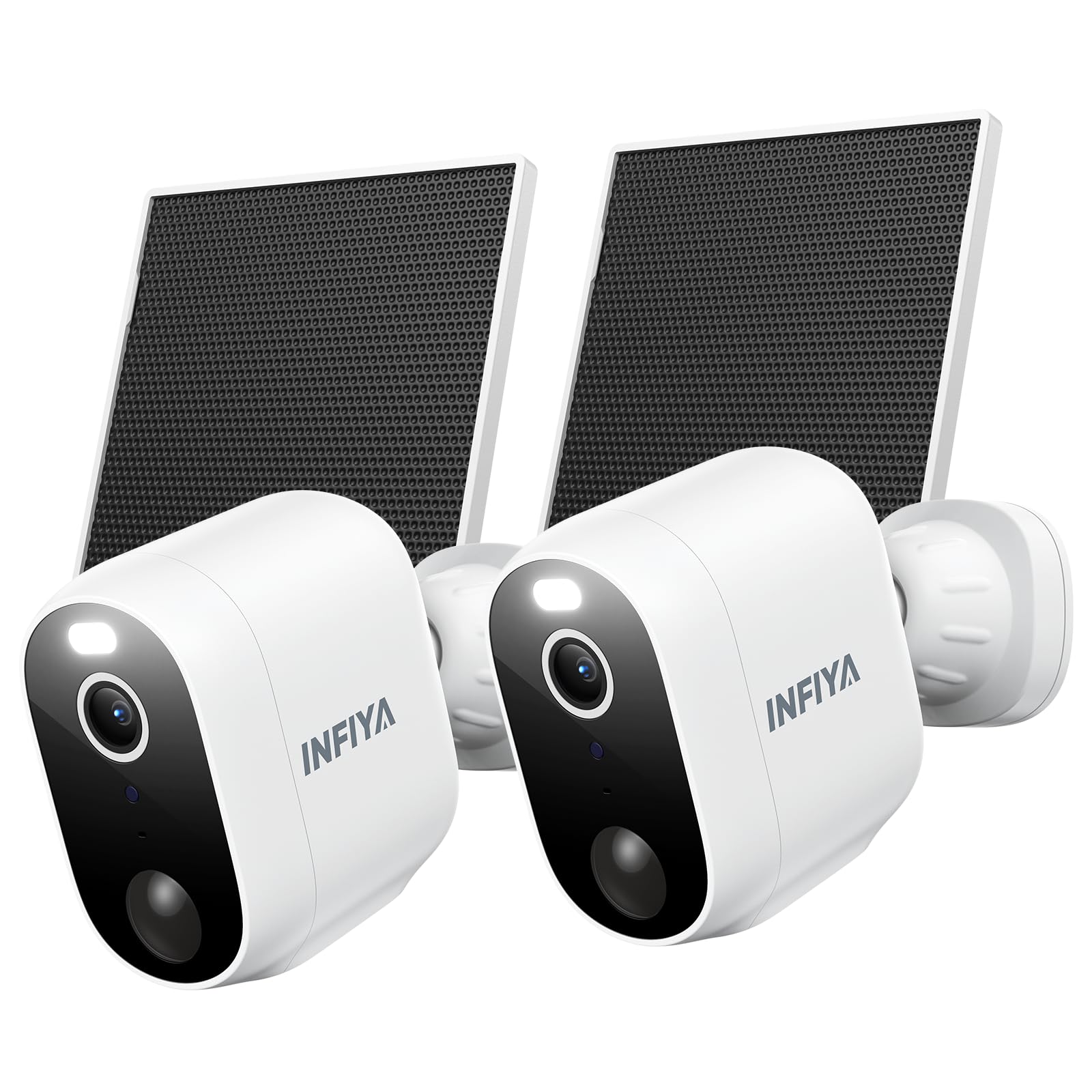
Image 1.1: INFIYA Z1 Solar Camera highlighting key features.
- Узун күтүү убактысы: Built-in 5200 mAh battery with included solar panel for continuous power.
- AI-Enhanced PIR Human Detection: Reduces false alerts by detecting important events up to 32ft.
- Dual Defense: Light and siren alarm to deter intruders, with 2-way audio for communication.
- 2K FHD Live Feed: Crystal-clear video resolution for detailed surveillance.
- Түнкү көрүнүш: White light enables color vision at night; infrared for black & white mode.
- Truly Wireless: IP65 weather resistance and 2.4GHz WiFi connectivity (5GHz not supported).
- Ийкемдүү сактагыч: Supports App Motion Alerts, Local TF Card Storage (up to 128GB, not included), and Optional Cloud Storage.
2. Кутуда эмне бар

Image 2.1: Package contents for the INFIYA Z1 Solar Camera.
- Solar Camera (x2)
- кашаа (x2)
- Орнотуу боюнча колдонмо
- Монтаждоо бурамалар
- Mounting Template Stickers
- Type-C Power Cord (x2)
- Күн панели (x2)
3. Орнотуу жана орнотуу
Follow these steps to set up and install your INFIYA Z1 Solar Camera.
3.1 Колдонмону жүктөп алуу жана аккаунт түзүү
- Scan the QR code on the product packaging or in the Installation Guide to download the Wansview Cloud app from Google Play or the App Store.
- Колдонмону ачып, жаңы аккаунт түзүңүз же сизде мурунтан эле бар болсо, кириңиз.
3.2 Камераны туташтыруу
Ensure your phone is connected to a 2.4GHz Wi-Fi network. 5GHz Wi-Fi is not supported.
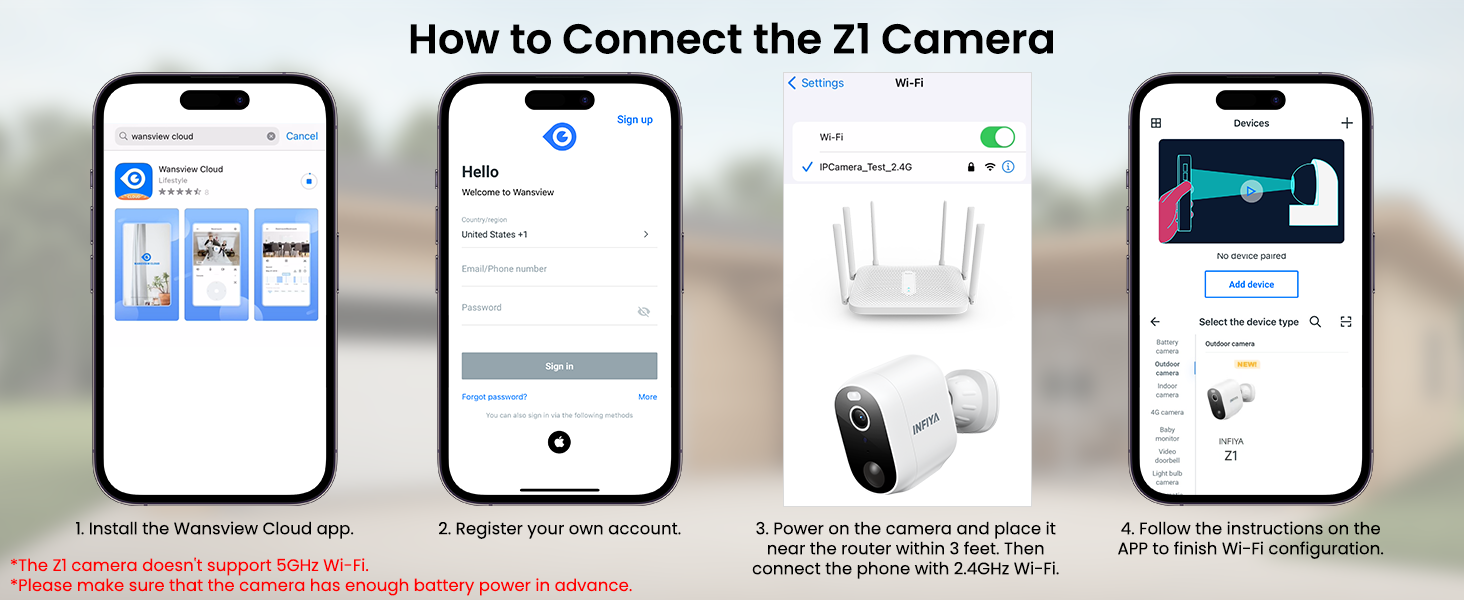
Image 3.1: Visual guide for connecting the Z1 camera to the Wansview Булут колдонмосу.
- Ванс шаарындаview Cloud app, tap the '+' icon to add a new device.
- Select the 'INFIYA Z1' camera model.
- Choose 'Wi-Fi connection by QR code' or 'Wi-Fi connection by Soft-AP' as per the app's instructions.
- Power on the camera. Ensure it has sufficient battery or charge it for about 30 minutes in advance.
- If using QR code connection, scan the QR code displayed on your phone with the camera lens.
- Follow any remaining in-app prompts to complete the connection.
3.3 Физикалык орнотуу
The camera and solar panel can be wall-mounted or ceiling-mounted. It is recommended to install the solar panel in an area with direct sunlight.
- Use the provided mounting template stickers to mark drill holes on your desired installation surface.
- Тешиктерди бургулап, кеңейтүүчү болтторду киргизиңиз.
- Affix the camera bracket base and solar panel bracket using the provided screws.
- Attach the camera to its bracket and connect the solar panel cable to the camera's Type-C port.
4. Камераны иштетүү
The Wansview Cloud app provides full control over your INFIYA Z1 camera's features.
4.1 Live View & Эки тараптуу аудио
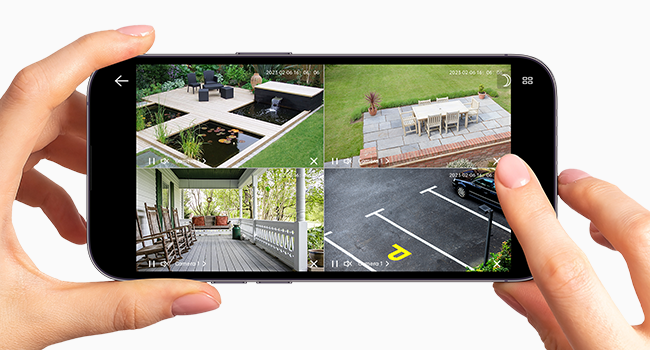
Image 4.1: Multiple camera views within the Wansview Булут колдонмосу.
- Access live 2K FHD video streams from your camera(s) via the app.
- Use the microphone icon to enable two-way audio, allowing you to speak through the camera.
- Switch between 2K and standard definition video quality as needed.
- Record video directly to your smartphone or capture still images.
4.2 Кыймылды аныктоо жана эскертүүлөр
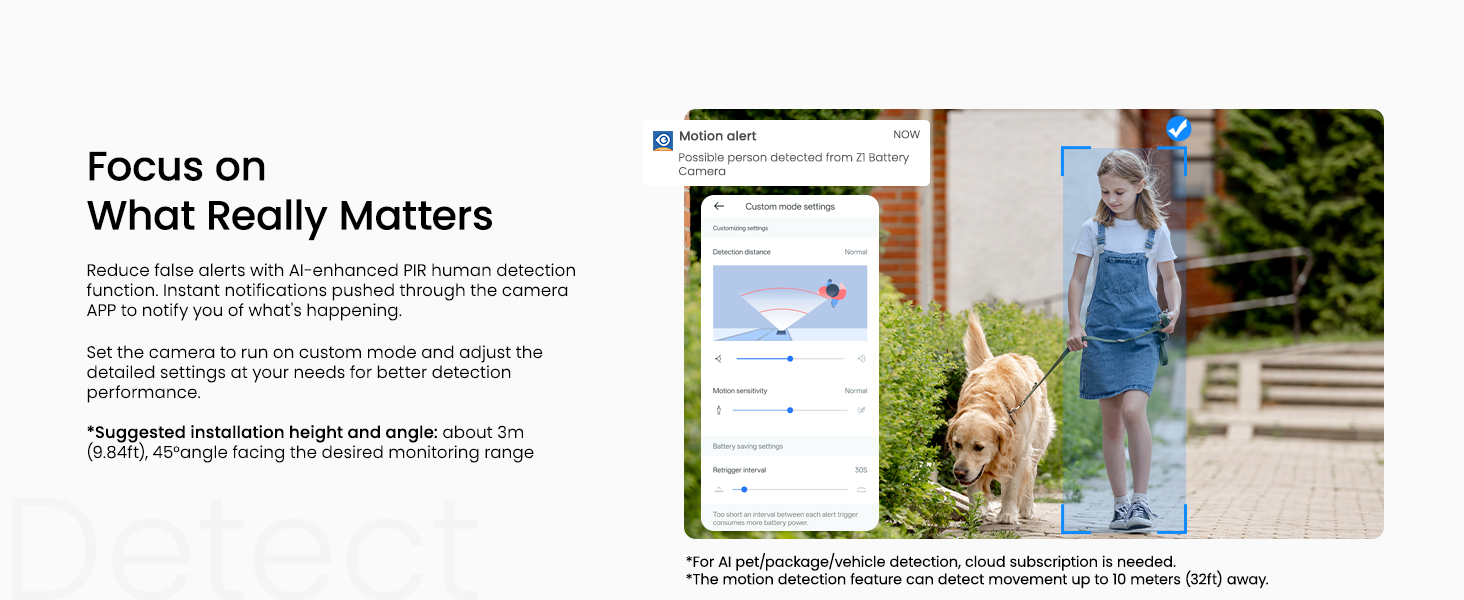
Image 4.2: Customizing motion detection settings and receiving alerts.
- Configure motion detection settings (Power-save, Standard, Performance, Custom modes) to balance battery life and detection sensitivity.
- Enable motion alerts to receive real-time notifications on your smartphone when activity is detected.
- Customize detection types (e.g., human, pet, vehicle) and notification preferences.
4.3 Night Vision & Lighting
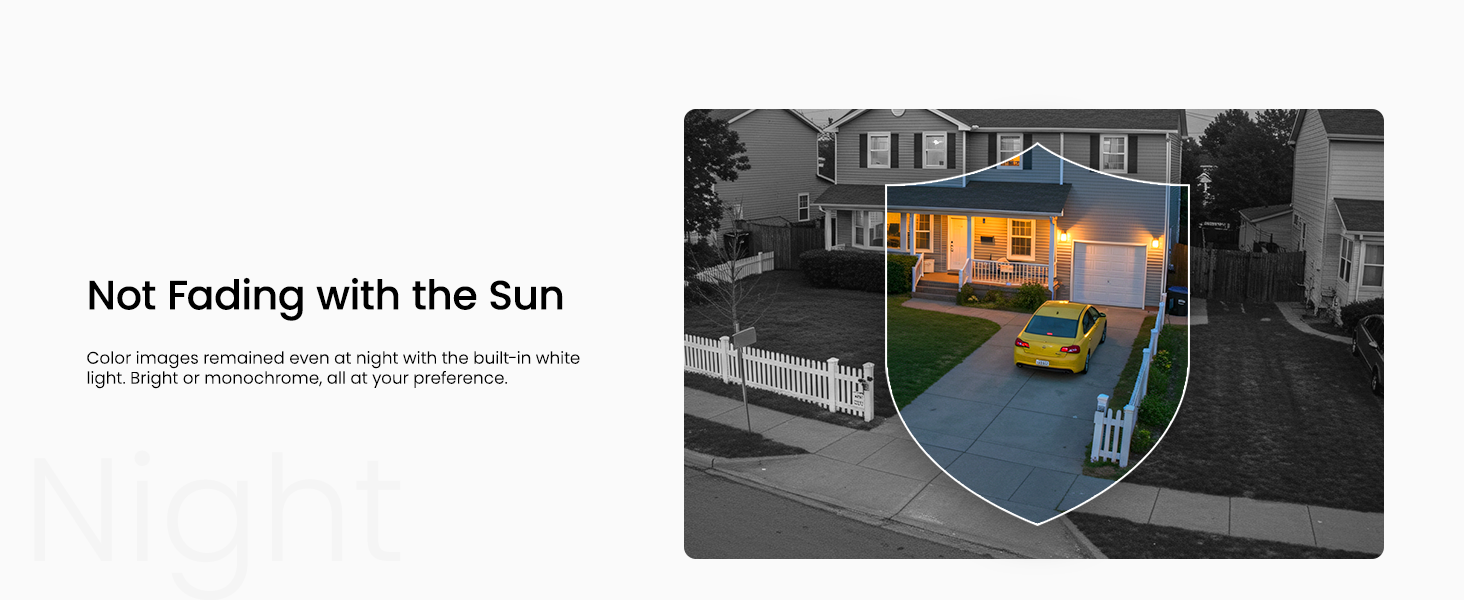
Image 4.3: The camera offers both infrared and full-color night vision options.
- Choose between Auto Infrared mode (black & white), Intelligent Light mode (color night vision with white lights on motion), or Full Color Night mode (always color with ambient light).
- Manually turn on/off the camera's integrated light for enhanced visibility or deterrence.
4.4 Siren Alarm

Image 4.4: The camera's siren can be manually activated or triggered by motion.
- Manually activate the siren from the app to deter unwanted visitors.
- Set the siren to be triggered automatically by motion detection for an immediate response.
5. Сактоо параметрлери

Сүрөт 5.1: Бүттүview of the three available storage modes.
- App Motion Alerts: Receive real-time snapshots/clips (no permanent save) at no cost.
- Local TF Card Storage: Supports up to 128GB (FAT32 format only) for loop recording. TF card not included.
- Optional Cloud Storage: Subscription required for secure off-site backup, multi-device access, and advanced AI recognition features (human, pet, vehicle, package).
6. Түзмөктү бөлүшүү
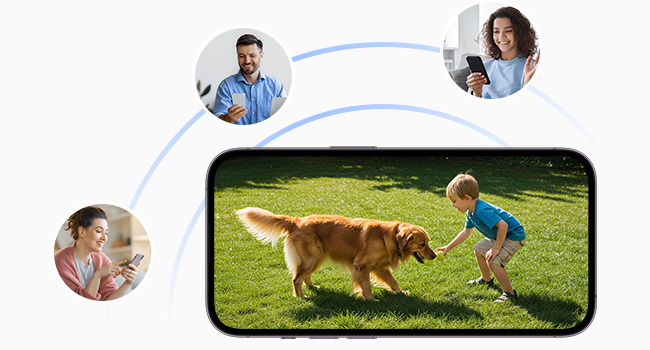
Image 6.1: Share camera access with family members or other users.
You can share access to your camera with other users (family, friends) through the Wansview Cloud app. Navigate to 'Settings' > 'Device Sharing' and invite new members. You can select specific permissions for shared users, such as live view, motion alerts, cloud storage replay, two-way audio, light control, and siren control.
7. Техникалык шарттар
| Ички/тышкы колдонуу | Ички, сырткы |
| Шайкеш түзмөктөр | Alexa Assistant |
| Power Source | Батарея менен иштейт, күн энергиясы менен иштейт |
| Connectivity Protocol | Wi-Fi (2.4 ГГц гана) |
| Controller Type | Android, iOS |
| Монтаж түрү | Дубалга орнотуу, шыпка орнотуу |
| Видео тартуунун резолюциясы | 1296p (2K) |
| Түс | Ак |
| Эл аралык коргоо рейтинги | IP65 |
| Батареянын күчү | 5200 миллионamp Саат |
| Түнкү көрүү диапазону | 26 Фут |
| Viewбурч | 98.9 градус |
8. Техникалык тейлөө
To ensure optimal performance and longevity of your INFIYA Z1 Solar Camera, follow these maintenance guidelines:
- үзгүлтүксүз тазалоо: Камеранын линзасын жана күн панелинин бетин мезгил-мезгили менен жумшак, d менен тазалап туруңуз.amp көрүүгө тоскоол болушу же кубаттоонун натыйжалуулугун төмөндөтүшү мүмкүн болгон чаңды, кирди же таштандыларды кетирүү үчүн кездеме.
- Батарея мониторинги: While solar-powered, monitor the battery level in the app, especially during prolonged periods of low sunlight or heavy usage.
- Программалык камсыздоонун жаңыртуулары: Вандарды текшериңизview Cloud app regularly for firmware updates to ensure your camera has the latest features and security enhancements.
- Аба ырайын коргоо: Although IP65 rated, ensure the camera is installed securely to withstand strong winds or heavy precipitation. Avoid direct high-pressure water jets.
9. Кыйынчылыктарды
If you encounter issues with your INFIYA Z1 Solar Camera, refer to these common troubleshooting tips:
- Туташуу маселелери: Ensure your Wi-Fi network is 2.4GHz. Verify the Wi-Fi signal strength at the camera's location using the app. Try resetting the camera by holding the reset button for 5 seconds until the red and blue LEDs flash alternately.
- Батарея заряддалбай жатат: Confirm the solar panel is receiving direct sunlight. Check the connection cable between the solar panel and the camera. Ensure the solar panel surface is clean.
- Жалган кыймыл эскертүүлөрү: Adjust the motion detection sensitivity settings in the app. Utilize custom detection zones to exclude areas with frequent irrelevant movement (e.g., swaying trees).
- Түнкү көрүү начар: Ensure the camera lens is clean. Check night vision settings in the app (Auto Infrared, Intelligent Light, Full Color Night) to match your preference and ambient light conditions.
- Эки тараптуу аудио көйгөйлөр: Verify microphone and speaker settings in the app. Ensure there are no obstructions blocking the camera's microphone or speaker.
10. Кепилдик жана колдоо
For warranty information, technical support, or further assistance, please refer to the official INFIYA website or contact their customer service directly. The Wansview Cloud app also provides a 'Support Center' and 'Diagnose' section for in-app assistance.