
Ninkear MBOX 11
Ninkear MBOX 11 мини компьютеринин колдонуучу колдонмосу
Model: MBOX 11 | Brand: Ninkear
1. Продукт бүтүп калдыview
The Ninkear MBOX 11 Mini PC is a compact and powerful computing solution designed for various applications, from office work and home entertainment to light gaming and educational use. Featuring an Intel N150 processor, 16GB DDR4 RAM, and a 512GB M.2 SSD, it offers efficient performance in a small form factor. Its dual 4K display support and multiple connectivity options make it a versatile choice for modern computing needs.
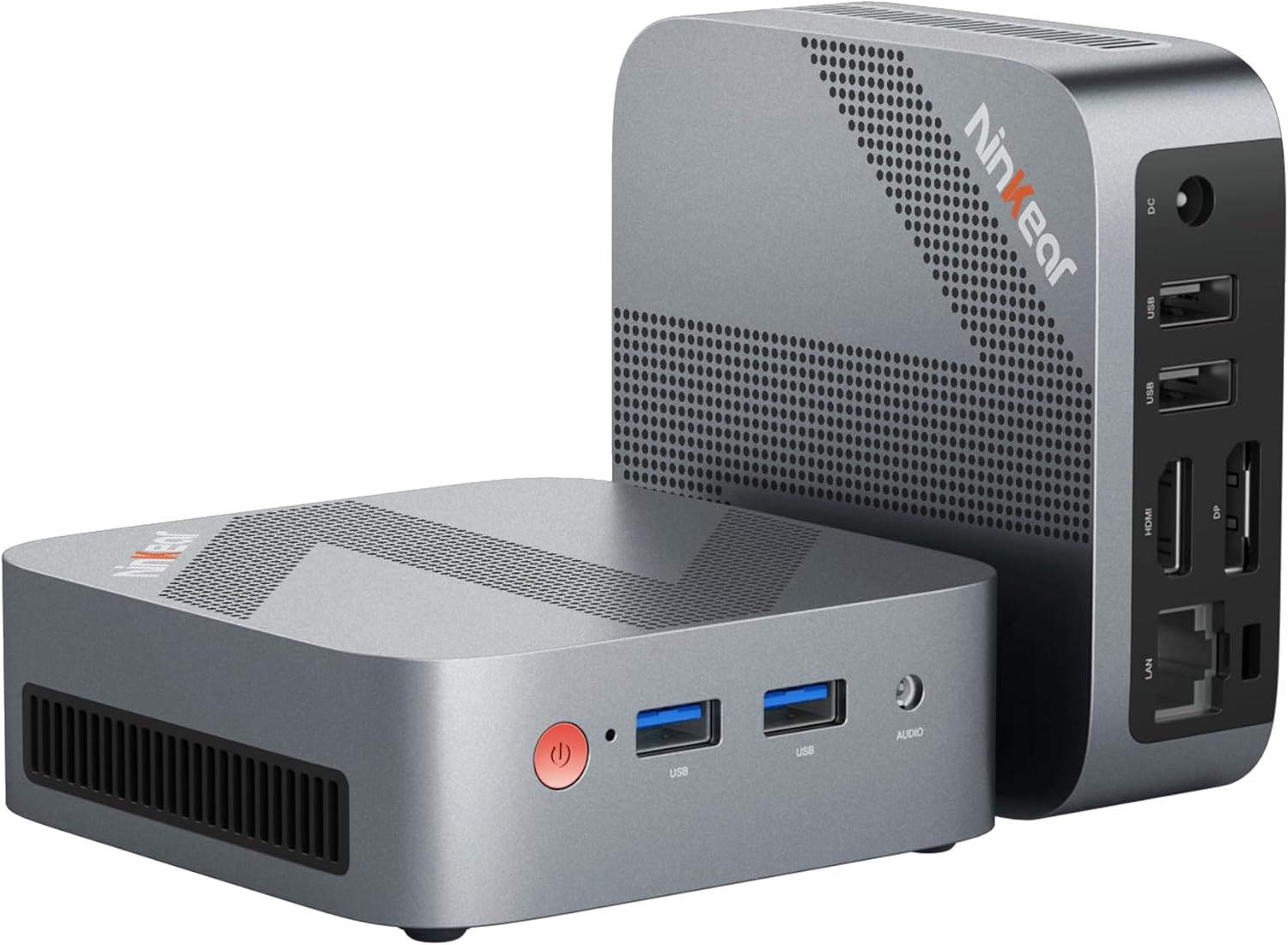
Figure 1: The Ninkear MBOX 11 Mini PC, showcasing its compact design and available ports on the front and rear. The device is small enough to fit in the palm of a hand, emphasizing its portability.
2. Эмнелер камтылган
Upon unboxing your Ninkear MBOX 11 Mini PC, please verify that all the following components are present:
- Ninkear MBOX 11 Mini PC
- User Manual
- Кубаттуу адаптер жана кабель
- HDMI кабели
- Fixed Bracket (for VESA mounting)

Figure 2: All items included in the Ninkear MBOX 11 Mini PC package. This visual guide helps users confirm they have received all necessary accessories for setup.
3. Орнотуу колдонмосу
Follow these steps to set up your Ninkear MBOX 11 Mini PC for the first time:
- Кубатка туташуу: Plug the power adapter into the DC-in port on the back of the Mini PC, then connect it to a power outlet.
- Дисплейге туташуу: Use the provided HDMI cable to connect the Mini PC to your monitor or TV. The Mini PC also supports DisplayPort (DP) for dual display setups.
- Перифериялык түзүлүштөрдү туташтыруу: Plug in your USB keyboard and mouse into the available USB 3.0 ports on the front or USB 2.0 ports on the back.
- Тармакка туташуу (милдеттүү эмес): For a wired internet connection, connect an Ethernet cable from your router to the RJ45 LAN port on the back of the Mini PC. Alternatively, you can use the built-in Wi-Fi 5 for wireless connectivity.
- Күйгүзүү: Press the power button located on the front of the Mini PC. The device will boot up, and you will see the Ninkear logo followed by the Windows 11 setup screen.
- Алгачкы Windows орнотуулары: Follow the on-screen prompts to complete the Windows 11 setup, including language selection, network configuration, and user account creation.

3-сүрөт: Детальдуу view of the Mini PC's multi-interface design, highlighting the front USB 3.0 ports, audio jack, and rear LAN, HDMI, DP, USB 2.0, and DC-in ports. This image assists users in correctly connecting their peripherals and displays.
4. Иштөө нускамалары
The Ninkear MBOX 11 Mini PC comes pre-installed with Windows 11, offering a familiar and intuitive user experience. Its powerful specifications ensure smooth operation for a variety of tasks.
4.1. Аткаруучулук жана көп тапшырма
Equipped with an Intel N150 processor and 16GB DDR4 RAM, the Mini PC handles multiple applications simultaneously with ease. The 512GB M.2 SSD ensures fast boot times and quick loading of files and programs. This configuration is ideal for:
- Office Productivity: Seamlessly run word processors, spreadsheets, and presentation software.
- Web Серептөө: Enjoy smooth browsing even with numerous tabs open.
- Үйдөгү көңүл ачуу: Stream 4K content from various platforms without lag.
- Light Gaming: Capable of running less demanding games.

Figure 4: The Ninkear MBOX 11 Mini PC in various usage scenarios, demonstrating its versatility for online classes, video games, design, online meetings, home theater, stock trading, and general light work.
4.2. Dual Display Support
The Mini PC supports 4K@60Hz dual-screen display via its HDMI 2.0 and DisplayPort (DP) outputs. This allows for an expanded workspace, enhancing productivity for tasks requiring multiple screens.

Figure 5: A user utilizing the Mini PC's dual 4K display capability, showcasing its utility for multitasking and professional applications like video conferencing and graphic design.
5. Техникалык тейлөө
To ensure the longevity and optimal performance of your Ninkear MBOX 11 Mini PC, consider the following maintenance tips:
- Аны таза кармаңыз: Regularly clean the exterior of the Mini PC with a soft, dry cloth. Ensure ventilation holes are free from dust and obstructions to maintain proper airflow.
- Программалык камсыздоо жаңыртуулары: Keep your Windows 11 operating system and drivers updated to ensure security, stability, and performance improvements.
- Оптималдуу жайгаштыруу: Place the Mini PC in a well-ventilated area, away from direct sunlight or heat sources, to prevent overheating. The device features an efficient cooling system designed for low noise and strong heat dissipation.
- Маалыматтын камдык көчүрмөсү: Дайыма маалыматтын жоголушун алдын алуу үчүн тышкы дискке же булут сактагычка маанилүү маалыматтардын камдык көчүрмөсүн сактоо.

6-сүрөт: Ички view highlighting the advanced cooling system of the Mini PC, which includes a copper tube, aluminum heat sink, and a high-speed fan to ensure efficient and quiet operation.
6. Кыйынчылыктарды
If you encounter issues with your Ninkear MBOX 11 Mini PC, refer to the following common troubleshooting steps:
- Дисплей жок:
- Ensure the HDMI/DP cable is securely connected to both the Mini PC and the monitor.
- Монитордун күйгүзүлгөнүн жана туура киргизүү булагына коюлганын текшериңиз.
- Try a different HDMI/DP cable or monitor if available.
- Кубат жок:
- Check if the power adapter is firmly connected to the Mini PC and the power outlet.
- Башка электр розеткасын колдонуп көрүңүз.
- Жай аткаруу:
- Фондо иштеп жаткан керексиз тиркемелерди жабыңыз.
- Windows жана драйверлер жаңыртылганын текшериңиз.
- Check for sufficient free space on the SSD.
- Run a virus scan to rule out malware.
- Перифериялык түзмөк аныкталган жок:
- Перифериялык түзүлүштү башка USB портуна туташтырууга аракет кылыңыз.
- Restart the Mini PC.
- Перифериялык драйверлердин орнотулганын жана жаңыртылганын текшериңиз.
For persistent issues not covered here, please refer to the Warranty and Support section.
7. Техникалык шарттар
Detailed technical specifications for the Ninkear MBOX 11 Mini PC:
| Өзгөчөлүк | Спецификация |
|---|---|
| Бренд | Ninkear |
| Модель аты | MBOX 11 |
| Операция системасы | W11 OS |
| Процессор | Intel CPU N150 (up to 3.6GHz, 4C/4T) |
| RAM | 16 ГБ DDR4 |
| Сактагыч | 512 GB M.2 SSD (Supports M.2 NVMe PCIe3.0 SSDs or M.2 SATA SSDs up to 2 TB) |
| Графикалык сопроцессор | Intel UHD графикасы |
| Max Screen Resolution | 3840x2160 пиксел (4K) |
| Байланыш | HDMI 2.0, DisplayPort (DP), USB 3.0, USB 2.0, RJ45 (Gigabit Ethernet), WiFi 5, Bluetooth 5 |
| Элемент Салмагы | 1.34 фунт (болжол менен 608 г) |
| Өлчөмдөр | 5.63 x 5.31 x 4.13 дюйм (болжол менен 14.3 x 13.5 x 10.5 см) |
8. Кепилдик жана колдоо
Ninkear is committed to providing quality products and excellent customer service. Your MBOX 11 Mini PC comes with a manufacturer's warranty.
8.1. Кепилдик маалыматы
If you purchase the product and experience a failure due to product defects within 1 year of purchase, Ninkear will do its best to help you solve the problem. Please retain your proof of purchase for warranty claims.
8.2. Кардарларды колдоо кызматы
For further assistance, technical support, or warranty inquiries, please visit the official Ninkear Store on Amazon or contact their customer service directly. You can find more information and contact details at the Ninkear Store.
Ask a question about this manual
Ask about setup, troubleshooting, compatibility, parts, safety, or missing instructions. Manuals+ will review the question and use this page’s manual context to help answer it.