
1. Коопсуздук боюнча маанилүү маалымат
- Always turn off the power supply before installing or replacing the bulb.
- This bulb is designed for indoor use only. Do not use in wet locations or outdoors.
- Do not use this smart bulb with traditional dimmer switches. It features built-in dimming functionality controlled via the app or voice commands. Using it with an external dimmer may cause damage or malfunction.
- Voltage of your fixture is compatible with the bulb (AC 120V).
- Лампаны ажыратпаңыз же өзгөртпөңүз.
- Балдар жетпеген жерде сактаңыз.
2. Продукт бүтүп калдыview
The I-SHUNFA Wi-Fi RGBCW Smart G9 LED Bulb offers advanced lighting control through your smartphone or voice assistant. It provides a wide range of colors and adjustable white light to suit any mood or activity.

Сүрөт: бүттүview of I-SHUNFA G9 Smart Bulb features.
Негизги өзгөчөлүктөрү:
- 16 миллион түстөр: Choose from a vast spectrum of colors to create custom lighting scenes.
- Жөнгө салынуучу ак жарык: Seamlessly transition between warm white (2700K) and cool white (6500K).
- Өнүгүү жарыктыгы: Adjust brightness from 1% to 100% (40LM-400LM) via the app or voice.
- Энергияны үнөмдүү: 4W LED bulb equivalent to 40-50W incandescent, saving up to 90% energy.
- Үн менен башкаруу: Handsfree иштөө үчүн Amazon Alexa жана Google Assistant менен шайкеш келет.
- Колдонмону башкаруу: Manage your bulbs from anywhere using the 'Smart Life' app (2.4GHz Wi-Fi required).
- Топтук көзөмөл: Control multiple bulbs simultaneously for unified lighting.
- Таймерлер жана графиктер: Set custom schedules for automatic on/off times.
- Музыкалык ритм режими: Lights change color with the rhythm of music or sound.
- Узак өмүрү: Designed to last approximately 30,000 hours.
3. Техникалык шарттар
| Модель аты | G9-2835B-95LED |
| Лампанын базасы | G9 |
| Жарык түрү | LED (RGBCW) |
| Ватtage | 4 Ватт |
| Кызытма эквиваленти | 40-50 Уотт |
| Жарыктык | 400 Lumens (adjustable 1%-100%) |
| Түс температурасы | 2700K-6500K |
| Тtage | AC 120V (100-120V, 60Hz) |
| Түстөрдү көрсөтүү индекси (CRI) | > 85 |
| Өмүр | Болжол менен 30,000 саат |
| Өлчөмдөр | 19.9mm (0.78") W x 63.5mm (2.5") H |
| Материал | Пластик |
| Башкаруу ыкмасы | Колдонмо, Үн |
| Ички/тышкы колдонуу | Indoor |

Image: Dimensions of the G9 LED bulb compared to a G9 Halogen bulb. Please verify size before purchase.
4. Орнотуу
- Өчүрүү: Before installation, ensure the power to the light fixture is completely turned off at the main switch or circuit breaker.
- Эски лампочканы алып салуу: Carefully remove the existing G9 bulb from its socket.
- Insert Smart Bulb: Gently insert the I-SHUNFA G9 Smart LED Bulb into the G9 socket. Ensure it is seated firmly.
- Күйгүзүү: Restore power to the light fixture. The bulb should light up, indicating successful installation.
5. Орнотуу жана жупташтыруу
5.1. Smart Life App Connection
To control your smart bulb, you need to download the 'Smart Life' app and connect the bulb to your home Wi-Fi network.
- Колдонмону жүктөп алуу: Scan the QR code on the product packaging or search for 'Smart Life' in your smartphone's app store (iOS or Android) and download the app.
- Катталуу/Кирүү: "Акылдуу жашоо" колдонмосун ачып, жаңы аккаунтка катталыңыз же сизде мурунтан эле бар болсо кириңиз.
- Wi-Fi талабы: Ensure your home Wi-Fi network is 2.4GHz. The bulb does not support 5GHz Wi-Fi.
- Жупташтыруу режимине кирүү: Turn the bulb on. Then, turn it off and on three times (on-off-on-off-on) in quick succession. The bulb should start flashing rapidly, indicating it is in pairing mode.
- Түзмөк кошуу: In the 'Smart Life' app, tap the '+' icon (usually in the top right corner) to add a device. Select 'Lighting' > 'Light Source (Wi-Fi)'.
- Wi-Fi'га туташуу: Follow the on-screen instructions to connect the bulb to your 2.4GHz Wi-Fi network. You will need to enter your Wi-Fi password.
- Түзмөк кошулду: Once connected, the bulb will stop flashing and appear in your device list in the app. You can rename the bulb for easier control.

Image: Smart Life App Connection Steps.
5.2. Voice Assistant Pairing (Alexa/Google Home)
After successfully connecting your bulb to the 'Smart Life' app, you can link it with Amazon Alexa or Google Assistant for voice control.
- Үн жардамчысы тиркемесин ачыңыз: Смартфонуңуздан Amazon Alexa же Google Home тиркемесин ачыңыз.
- Көндүм/Кызматты иштетүү:
- For Alexa: Go to 'Skills & Games', search for 'Smart Life', and enable the skill.
- For Google Home: Go to 'Set up device' > 'Works with Google', search for 'Smart Life', and link the service.
- Каттоо эсептерин байланыштыруу: You will be prompted to log in with your 'Smart Life' account credentials to link the accounts.
- Түзмөктөрдү табуу: Once linked, ask Alexa to "Discover devices" or use the 'Discover devices' option in the Google Home app. Your I-SHUNFA smart bulb will be detected.
- Assign to Rooms: Assign the bulb to a specific room for easier voice control (e.g., "Living Room Light").
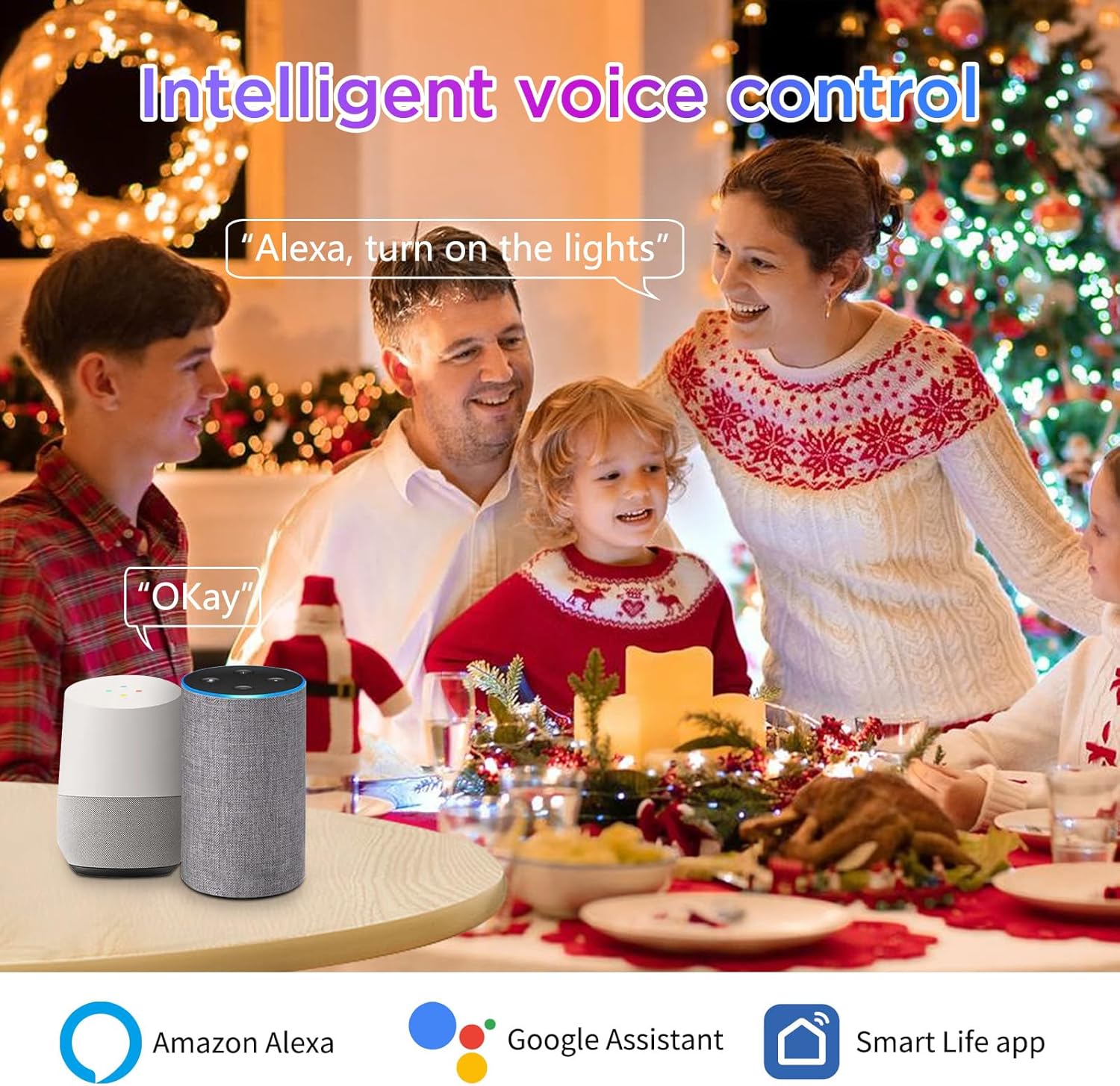
Image: Voice control with Amazon Alexa and Google Assistant.
6. Иштөө нускамалары
Control your I-SHUNFA Smart G9 LED Bulb using the 'Smart Life' app or your preferred voice assistant.
6.1. Color and Brightness Adjustment
- Колдонмону башкаруу: Open the 'Smart Life' app, select your bulb, and use the color wheel or sliders to choose from 16 million colors, adjust brightness (1%-100%), or change the white light temperature (2700K-6500K).
- Үн буйруктары:
- "Alexa/Эй, Google, [Lamp Name] функциясын күйгүз."
- "Alexa/Hey Google, set [Bulb Name] to blue."
- "Alexa/Эй Google, [лампанын аталышын] 50% га чейин күңүрттө."
- "Alexa/Эй Google, [Lamp Name] түсүн жылуу ак түскө коюңуз."

Image: Color Temperature and Brightness Adjustment options.
6.2. Preset Scenes
The 'Smart Life' app offers 12 preset scenes (e.g., Reading, Working, Good Night, Festivals) to instantly create different atmospheres. Select the desired scene within the app.

Сүрөт: Мисamples of diverse scenes for colorful atmosphere.
6.3. Timers and Schedules
Set custom timers and schedules for your bulb to turn on or off automatically, helping to save energy and automate your lighting.
- "Smart Life" колдонмосунда лампочкаңызды тандап, "График" же "Таймер" бөлүмүнө өтүңүз.
- Set desired on/off times and repeat days.

Image: Setting individual timers for multiple bulbs.
6.4. Music Rhythm Mode
Activate the music rhythm mode in the 'Smart Life' app. The bulb's colors will change and sync with the sound detected by your smartphone's microphone, creating a dynamic lighting experience.

Image: Musical Rhythm Mode in action.
6.5. Топтук көзөмөл
Control multiple I-SHUNFA smart bulbs simultaneously by grouping them in the 'Smart Life' app. This allows you to change the color, brightness, or turn on/off all grouped bulbs with a single command.
- In the 'Smart Life' app, select one of your bulbs, then look for the 'Create Group' option.
- Топко кошууну каалаган бардык лампаларды тандап, ырастаңыз.
- You can then control the entire group as a single device.
7. Техникалык тейлөө
- Тазалоо: Ensure the bulb is off and cool before cleaning. Wipe gently with a soft, dry cloth. Do not use liquid cleaners or abrasive materials.
- Сактагыч: Эгерде лампочканы узак убакытка сактасаңыз, аны күн нурунан жана экстремалдык температурадан алыс, салкын, кургак жерде сактаңыз.
8. Кыйынчылыктарды
| Көйгөй | Мүмкүн себеп | Чечим |
|---|---|---|
| Bulb not connecting to Wi-Fi/App | Incorrect Wi-Fi band (5GHz), incorrect pairing mode, weak Wi-Fi signal. | Ensure your Wi-Fi is 2.4GHz. Confirm the bulb is flashing rapidly (pairing mode) by power cycling it 3 times. Move closer to your Wi-Fi router. |
| Үн башкаруу иштебейт | Smart Life skill/service not linked, device not discovered, incorrect commands. | Verify 'Smart Life' skill/service is enabled and linked in your Alexa/Google Home app. Ask the voice assistant to "Discover devices." Use correct voice commands as listed in the app. |
| Булб колдонмодо оффлайн режиминде | Wi-Fi туташуусу жоголуп, электр энергиясы өчүрүлөтtage. | Check your Wi-Fi router and internet connection. Power cycle the bulb (turn off for 10 seconds, then on). If the issue persists, try re-pairing the bulb. |
| Bulb does not respond to external dimmer switch | Incompatibility with external dimmer. | This smart bulb is not compatible with external dimmer switches. Use the 'Smart Life' app or voice commands for dimming functionality. |
| Лампочка жетиштүү жарык эмес | Brightness set too low, lumen output not sufficient for application. | Adjust brightness to 100% in the app. Note that this 400-lumen bulb is equivalent to a 40-50W incandescent bulb; consider if higher lumen output is needed for your specific use case. |
9. Кепилдик жана колдоо
For warranty information or technical support, please refer to the product packaging or contact the manufacturer directly through their official webсайт же кардарларды тейлөө каналдары. Кепилдик талаптары үчүн сатып алуу дүмүрчөгүңүздү сактап коюңуз.