
1. Киришүү
This manual provides detailed instructions for the installation, operation, and maintenance of your UNITOPSCI 9.66 Inch 3 Channel WiFi Mirror Dash Cam. This device is designed to enhance driving safety and provide comprehensive recording capabilities with its front, in-cabin, and rear cameras. Please read this manual thoroughly before using the product to ensure proper functionality and to avoid damage.

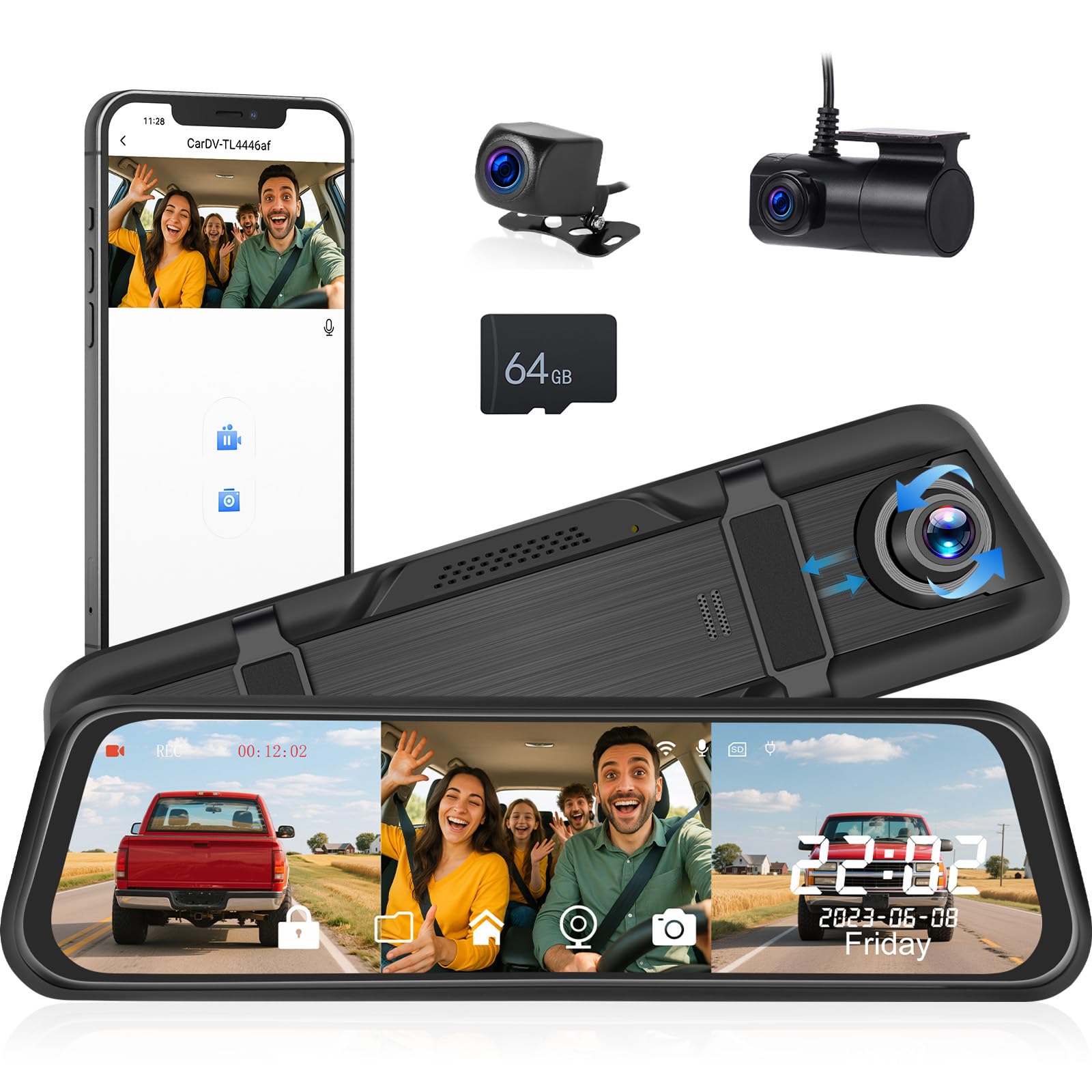
Бүттүview of the UNITOPSCI 9.66 Inch 3 Channel Mirror Dash Cam with its main features.
2. Пакеттин мазмуну
Төмөндө тизмеленген нерселердин баары пакетиңизге камтылганын текшериңиз. Эгерде кандайдыр бир нерселер жок болсо же бузулса, кардарларды колдоо менен байланышыңыз.
- DVR (Mirror Dash Cam) x 1
- Электр кабели x 1
- Арткы view camera x 2 (Note: The product description mentions 3 channels, but the 'Whats in the box' lists 2 rear view cameras. This implies one is for the rear exterior and one for the interior/cabin, or there's a discrepancy. For clarity, we list as provided.)
- Extended line x 1
- Колдонуучунун колдонмосу x 1
- бинт x 1
- 64GB TF Card x 1 (Included as per feature bullets)

Visual representation of the package contents and main unit dimensions.
3. Продукт бүтүп калдыview
3.1 Main Unit Components
- 9.66" IPS Touch Screen: Capacitive display for intuitive control and clear viewing.
- Алдыңкы камера: Records the road ahead at 1440P resolution.
- In-Cabin Camera: Records the vehicle interior at 720P resolution.
- Арткы камера: Жазуулар view behind the vehicle at 720P resolution.
- USB порт: For power and data transfer.
- AV-IN Port: For connecting external cameras.
- TF карта уячасы: Supports up to 64GB TF card for storage.
- Калыбына келтирүү баскычы: Заводдук жөндөөлөрдү калыбына келтирүү үчүн.
- Баяндамачылар: Аудио чыгаруу үчүн.
- кашаалар: For mounting the mirror dash cam.
Фронт view of the mirror dash cam.
4. Негизги өзгөчөлүктөрү
4.1 Triple Channel Recording
The dash cam records simultaneously from three perspectives: front (1440P), in-cabin (720P), and rear (720P). This provides comprehensive coverage for incidents and situational awareness.

Illustration of the triple channel recording and wide viewбурчтар.
4.2 9.66" IPS HD Touch Screen
The large capacitive IPS touch screen offers vibrant colors and details. It allows easy switching between camera views (front, rear, inside) or displaying them simultaneously.

Triple display switching and in-cabin camera functions.
4.3 Супер түнкү көрүү
Equipped with an upgraded sensor and WDR & HDR technology, the dash cam captures clear videos with enhanced details in low light conditions, making license plates and road signs visible.

Night vision capabilities in various low-light scenarios.
4.4 Built-in WiFi & App Control
Connect the dash cam to your smartphone via Wi-Fi using the "Viidure" app (available for iOS and Android). This allows you to view, playback, and manage recordings directly from your device.

Steps for WiFi connection and app control.
4.5 Loop Recording & G-Sensor
Цикл жаздыруу: Эң эски кулпусу ачылган фудду автоматтык түрдө кайра жазатtage when the 64GB TF card is full, ensuring continuous recording.
G-сенсор: Күтүлбөгөн соккуларды же кагылышууларды аныктап, учурдагы видеону автоматтык түрдө кулпулайт file to prevent it from being overwritten, preserving critical evidence.

Explanation of G-Sensor, Parking Monitor, and Loop Recording.
4.6 24 саат бою унаа токтотуучу жайды көзөмөлдөөчү монитор
With a dedicated hardwire kit (sold separately), the dash cam can continue recording in time-lapse mode after the car is turned off, providing continuous surveillance against theft or vandalism.

Visual of the 24-hour parking monitoring feature.
4.7 Айдоо View Функция
When reversing, the mirror dash cam automatically displays the backup camera image in full screen with adjustable parking assist lines. You can manually adjust the display range up or down for optimal viewing.

Automatic display of parking lines when reversing.
5. Орнотуу боюнча колдонмо
Follow these steps to properly install your dash cam system.
5.1 Күзгүлүү видеорегистраторду орнотуу
- Күзгү панелинин камерасын учурдагы арткы бетине бекитиңизview mirror using the provided bandages/straps. Ensure it is firmly attached and does not obstruct your view.
- Каалаганды тартуу үчүн алдыңкы камеранын линзасын тууралаңыз view алдыдагы жолдун.
5.2 Электр кабелин туташтыруу
- Plug the power cable into the dash cam's USB port.
- Route the power cable along the edge of the windshield and down to your vehicle's 12V power outlet (cigarette lighter socket).
- Plug the power adapter into the 12V power outlet.
5.3 Арткы камераны орнотуу
- Арткы камераны унааңыздын артына, адатта, номердин үстүнө же арткы терезеге орнотуңуз. Анын тунук экенин текшериңиз. view.
- Арткы камеранын кабелин негизги видеорегистратор блогундагы AV-IN портуна туташтырыңыз.
- Route the rear camera cable neatly through the vehicle's interior, tucking it under trim panels to conceal it.
- Connect the red wire of the rear camera cable to your vehicle's reverse light power wire. This enables the automatic display of the reversing view тескери режимге которулганда.
5.4 Installing the In-Cabin Camera
The in-cabin camera is integrated into the main unit, requiring no separate installation.

Cable routing and installation diagram.
6. Иштөө нускамалары
6.1 Күйгүзүү/өчүрүү
- Унааңыздын от алдыруу системасы күйгүзүлгөндө, видеорегистратор автоматтык түрдө күйүп, жаздыра баштайт.
- Ал от алдыруу системасы өчүрүлгөндө автоматтык түрдө өчөт.
- To manually power on/off, press and hold the power button (if available, otherwise rely on ignition).
6.2 Экранда навигация
Use the touch screen to navigate menus and settings. Swipe left/right to switch between camera views or display modes.
6.3 Орнотууларды тууралоо
Access the settings menu by tapping the gear icon on the screen. Here you can adjust:
- Видеонун чечилиши: Set recording quality for each camera.
- Цикл жаздыруу узактыгы: Set segment length (e.g., 1, 3, 5 minutes).
- G-сенсордун сезгичтиги: Adjust the sensitivity for impact detection.
- Унаа токтотуучу жай: Enable/disable and configure settings (requires hardwire kit).
- Экспозициянын ордун толтуруу: Adjust brightness levels for optimal recording in varying light conditions.
- Дата/Убакыт: Туура күндү жана убакытты коюңуз.
- Wi-Fi: Enable/disable Wi-Fi and view тармак чоо-жайы.

Adjustable screen settings for lens, field of view, and brightness.

Adjusting exposure compensation for night vision.
7. App Control (Viidure App)
The "Viidure" app allows for convenient control and management of your dash cam via Wi-Fi.
7.1 Колдонмону жүктөп алуу
Издөө "Viidure" in your smartphone's app store (Google Play Store for Android, Apple App Store for iOS) and download it.
7.2 Wi-Fiга туташуу
- On the dash cam, enable Wi-Fi from the settings menu.
- Смартфонуңузда Wi-Fi жөндөөлөрүнө өтүп, видеорегистратордун Wi-Fi тармагына туташыңыз (SSID жана сырсөз видеорегистратордун экранында көрсөтүлөт).
- Open the "Viidure" app. It should automatically detect and connect to the dash cam.
7.3 Колдонмо функциялары
- Live View: реалдуу убакыт foo агымtage from the cameras to your phone.
- Ойнотуу: Review recorded videos stored on the TF card.
- Жүктөп алуу: Save video clips directly to your smartphone.
- Орнотуулар: Видеорегистратордун жөндөөлөрүн алыстан тууралаңыз.

Detailed steps for WiFi connection and app control.
8. Кыйынчылыктарды
Эгер сиз сызык камераңызда көйгөйлөргө туш болсоңуз, төмөнкү жалпы көйгөйлөрдү жана чечимдерди караңыз:
| Көйгөй | Мүмкүн себеп | Чечим |
|---|---|---|
| Dash камерасы күйбөйт. | No power supply; faulty power cable/adapter; loose connection. | Check power cable connection to dash cam and 12V outlet. Ensure vehicle's 12V outlet is functional. Try a different power source if available. |
| Жаздыруу токтойт же катып калат. | TF card full; faulty TF card; low power. | Ensure loop recording is enabled. Format the TF card regularly. Replace the TF card if it's old or damaged. Ensure stable power supply. |
| Видеонун сапаты начар. | Dirty lens; incorrect resolution settings; extreme lighting conditions. | Clean camera lenses with a soft cloth. Check video resolution settings. Adjust exposure compensation in settings. |
| Wi-Fi туташуу маселелери. | Туура эмес Wi-Fi сырсөзү; колдонмо жаңыртылган жок; тоскоолдук. | Verify Wi-Fi password. Ensure the "Viidure" app is up to date. Try restarting both the dash cam and your smartphone. |
| Арткы камера көрүнбөйт. | Кабелдин байланышы бошоп калган; камера бузук. | Арткы камеранын кабелинин негизги блокко туташуусун текшериңиз. Кабель бузулбагандыгын текшериңиз. |
| Унаа токтотуучу жайдын монитору иштебей жатат. | Hardwire kit not installed; feature disabled in settings. | Install a dedicated hardwire kit for 24-hour parking monitoring. Enable the feature in the dash cam settings. |
9. Техникалык шарттар
| Өзгөчөлүк | Деталь |
|---|---|
| Продукциянын өлчөмдөрү | 1 x 10.1 x 2.8 дюйм |
| Элемент Салмагы | 1.82 фунт |
| Дисплей | 9.66 дюймдук IPS сенсордук экран |
| Алдыңкы камеранын чечилиши | 1440P (1920*1080P@25FPS as per feature bullets, 1440P as per other details. Refer to device for exact resolution.) |
| In-Cabin Camera Resolution | 720P (1080*720P@30FPS as per feature bullets) |
| Арткы камеранын чечилиши | 720P (1080*720P@30FPS as per feature bullets) |
| талаасы View | Front: 170 degrees, In-Cabin: 120 degrees, Rear: 150 degrees (approximate, based on product images) |
| Сактагыч | TF картасын колдойт (64 ГБ камтылган) |
| Байланыш | Зымсыз (Wi-Fi) |
| Өзгөчөлүктөр | IPS Touch screen, G-Sensor, Loop Recording, Night Vision, Parking Monitor, App Control |
| Монтаж түрү | Арткыview Mirror Mount |
| Унаа кызматынын түрү | Автоунаа, жүк ташуучу унаа |
10. Кепилдик жана колдоо
UNITOPSCI provides customer support and warranty services for its products.
- Алмаштыруу: 24 айдын ичинде жеткиликтүү.
- Техникалык колдоо: Өмүр бою сатуудан кийинки консультация жана техникалык колдоо.
- Кайтаруулар: 60-day no-worry return policy.
- Жооп убактысы: Суроолор боюнча 16 сааттын ичинде тез жооп.
For support, please contact UNITOPSCI via email at UNITOPSCI@126.com.