
1. Киришүү
Thank you for choosing the TECKNET TK-KB005 Bluetooth Keyboard. This full-size wireless keyboard is designed for multi-device connectivity, offering a seamless typing experience across various operating systems. Please read this manual carefully to ensure proper setup and optimal performance.
2. Пакеттин мазмуну
- 1 × TECKNET TK-KB005 Multi-device Bluetooth Keyboard
- 1 × USB-C заряддоо кабели
- 1 × Колдонуучунун колдонмосу
3. Продукциянын өзгөчөлүктөрү
- 4 режимдеги туташуу: Connects up to four devices (3 Bluetooth modes + 1 2.4G wireless mode) with easy switching.
- Кайра заряддалуучу батарея: Built-in 500mAh battery provides up to 180 days of use on a 2-hour charge (based on 2 hours daily use). Features auto-sleep mode for power saving.
- Quiet & Fluid Typing: 110 upgraded scissor-switch keys offer 90% noise reduction and a comfortable 2mm key travel.
- Эргономикалык дизайн: Crafted for comfort with adjustable tilt angles (3° - 7°) and 5 non-slip pads for stability.
- Кеңири шайкештик: Compatible with Windows, iOS, macOS, and Android devices including PCs, laptops, tablets, smartphones, and smart TVs.
- 12 Мультимедиа баскычтары: Enhances productivity with dedicated multimedia functions.
4. Орнотуу жана туташуу
4.1 Баштапкы орнотуу
- Биринчи колдонуудан мурун клавиатура толук кубатталганын текшериңиз.
- Turn on the keyboard using the ON/OFF switch located on the back.
4.2 Connecting via Bluetooth (BT1/BT2/BT3)
- On the keyboard, press and hold one of the Bluetooth channel buttons (BT1, BT2, or BT3) for 3-5 seconds until the corresponding LED indicator flashes quickly. This indicates pairing mode.
- Түзмөгүңүздө (компьютер, ноутбук, планшет, смартфон) Bluetooth жөндөөлөрүнө өтүп, Bluetooth'ту күйгүзүңүз.
- Издөө "TK-KB005" in the list of available devices and select it to pair.
- Once connected, the LED indicator on the keyboard will stop flashing and remain solid for 2 seconds before turning off.
4.3 2.4G USB кабыл алгычы аркылуу туташуу
- Locate the 2.4G USB receiver stored in the slot on the back of the keyboard.
- USB ресиверди компьютериңиздеги жеткиликтүү USB-A портуна сайыңыз.
- On the keyboard, press the 2.4G channel button (indicated by a lightning bolt icon). The LED indicator will light up.
- Клавиатура түзмөгүңүзгө автоматтык түрдө туташышы керек.
4.4 Түзмөктөрдүн ортосунда которулуу
To switch between connected devices, simply press the corresponding channel button (BT1, BT2, BT3, or 2.4G) on the keyboard. The keyboard will connect to the selected device within seconds.

Image: Diagram illustrating the 4 modes of connection (3 Bluetooth, 1 2.4G USB) and how to switch between devices like a tablet, phone, laptop, and desktop computer.
Video: Official TECKNET video demonstrating the Bluetooth Wireless Keyboard's rechargeable feature and general overview.
5. Иштөө нускамалары
5.1 System Compatibility and Switching
The keyboard is designed to automatically detect and adapt to different operating systems. However, if certain keys do not function as expected, you can manually switch the system mode:
- For Android devices: Press Fn + Q
- For Windows devices: Press Fn + W
- For iOS/macOS devices: Press Fn + E
Note: Due to differences in systems, key functions may vary. Generally, the system will automatically switch in Bluetooth mode, but use the shortcut keys if needed.

Image: Visual guide for switching keyboard layouts between Android, Windows, and iOS/macOS using Fn key combinations.
5.2 Мультимедиа баскычтары
The keyboard features 12 multimedia keys (F1-F12) that provide quick access to various functions such as volume control, media playback, and more. These functions are typically accessed by pressing the Fn key in combination with the desired F-key.
Video: Official TECKNET video showcasing the 4-Device Switch Bluetooth Keyboard's features and multi-device connectivity.
6. Заряддоо
The TECKNET TK-KB005 keyboard is equipped with a built-in 500mAh rechargeable battery. To charge the keyboard:
- Connect the provided USB-C charging cable to the USB-C port on the back of the keyboard.
- Plug the other end of the USB-C cable into a USB power source (e.g., computer USB port, USB wall adapter).
- The charging indicator light will illuminate during charging and turn off once fully charged. A full charge typically takes 2 hours.
The keyboard automatically enters sleep mode after 30 minutes of inactivity to conserve battery. Press any key to wake it up instantly.

Image: Close-up of the keyboard's USB-C charging port with a cable connected, highlighting the quick charge feature.
7. Техникалык тейлөө
- Клавиатураны жумшак, кургак чүпүрөк менен үзгүлтүксүз тазалап туруңуз.
- Катуу химиялык заттарды же абразивдүү материалдарды колдонуудан алыс болуңуз.
- Клавиатураны суюктуктардан жана өтө жогорку температуралардан алыс кармаңыз.
- Store the 2.4G USB receiver in its designated slot on the back of the keyboard when not in use to prevent loss.
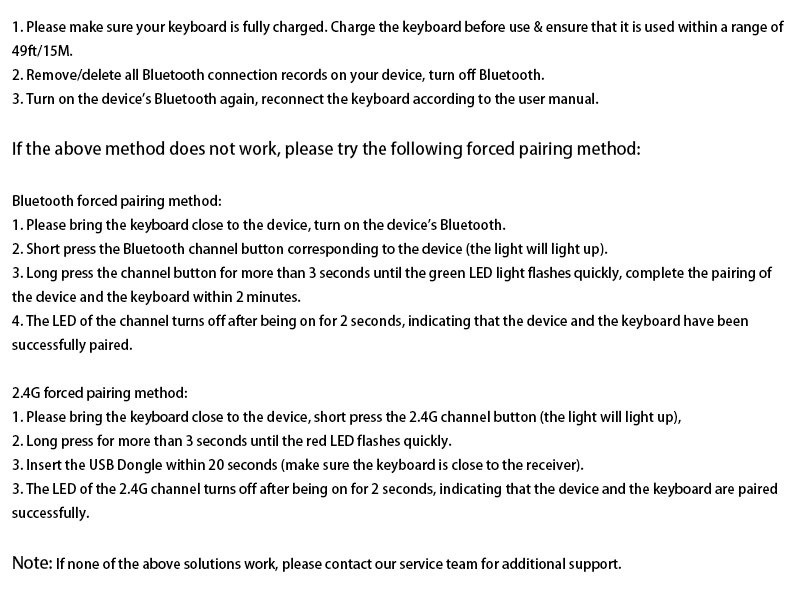
Image: Diagram of the keyboard's back panel, showing the adjustable support buckles, power switch, USB-C charging port, USB receiver storage, and anti-slip pads.
8. Кыйынчылыктарды
If you encounter any issues with your keyboard, please try the following solutions:
- Ensure full charge: Make sure your keyboard is fully charged. Charge the keyboard before use and ensure it is used within a range of 15 meters (49 feet).
- Bluetooth'ду кайра туташтыруу: Remove/delete all Bluetooth connection records on your device, turn off Bluetooth, then turn it back on and reconnect the keyboard according to the user manual.
- Computer Lag: If the issue is caused by computer lag, please restart your computer and reconnect the keyboard.
- Сигнал интерференциясы: The keyboard signal may be interfered with. Try to stay away from metal obstacles or other radio signals.
- 2.4G Connection Issue: If you are using 2.4G to connect, unplug the USB receiver and re-insert it into the device.
If none of the above solutions work, please contact our professional customer service team for additional support.
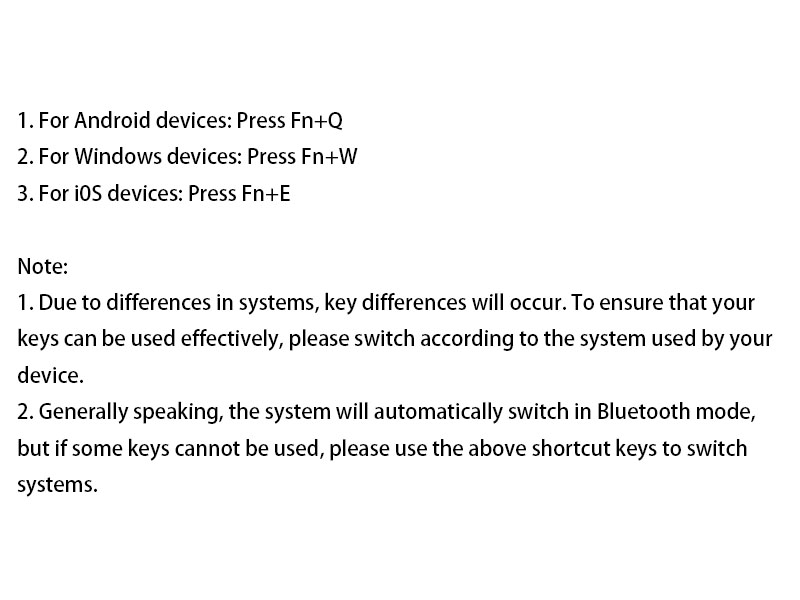
Image: Text-based troubleshooting guide for common keyboard issues, including battery, connection, and signal problems.
9. Техникалык шарттар
| Өзгөчөлүк | Деталь |
|---|---|
| Бренд | TECNET |
| Модель номери | TK-KB005 |
| Байланыш технологиясы | Bluetooth, 2.4G USB-A |
| Шайкеш түзмөктөр | Laptop, PC, Smart TV, Smartphone, Tablet, iPad |
| Баскычтоптун жайгашуусу | QWERTY, Full Size (110 keys) |
| Өзгөчөлүктөр | 12 Multimedia Keys, 90% Noise Reduction, Ergonomic, Low-Profile Key, Rechargeable |
| Батарея сыйымдуулугу | 500mAh |
| Продукциянын өлчөмдөрү | 17.13"L x 5.12"W x 0.57"H |
| Элемент Салмагы | 568 грамм |
| Материал | Пластик |
10. Кепилдик жана колдоо
TECKNET offers up to 36-month support for this product (registration may be required). If you encounter any problems or have questions regarding your TK-KB005 keyboard, please do not hesitate to contact our customer service team. We are committed to providing friendly and helpful assistance.
For customer service inquiries, please refer to the contact information provided in your product packaging or visit the official TECKNET webсайт.