
1. Киришүү
This manual provides detailed instructions for the setup, operation, maintenance, and troubleshooting of your OMOTON Bluetooth Keyboard. Please read this manual thoroughly before using the product to ensure proper functionality and longevity.
2. Пакеттин мазмуну
Пакетте бардык буюмдар бар экенин текшериңиз:
- 1 x OMOTON Bluetooth Keyboard
- 1 x Type-C заряддоо кабели
- 1 х Колдонуучунун колдонмосу (бул документ)
3. Продукциянын өзгөчөлүктөрү
- Көп системалуу шайкештик: Supports iOS, Windows, and Android operating systems.
- Компакт жана көчмө: Ultra-thin design (6.6mm thickness) and lightweight (0.42 pounds) for easy transport. Dimensions: 9.7"L x 5.9"W x 0.2"H.
- Өркүндөтүлгөн терүү тажрыйбасы: Features large keycaps for comfortable and precise typing.
- Кайра заряддалуучу батарея: Built-in 500mAh lithium battery provides up to 200 hours of working time on a 2-3 hour charge.
- 7 түстүү арткы жарык: Adjustable backlight with 7 color options and 3 brightness levels for typing in various lighting conditions.
- Автоматтык уйку режими: Conserves battery by entering sleep mode after 30 minutes of inactivity.
4. Орнотуу нускамалары
4.1 Баскычтопту заряддоо
Before initial use, fully charge the keyboard. Connect the provided Type-C charge cable to the keyboard's charging port and to a USB power source. The charge indicator light will illuminate during charging and turn off when fully charged.
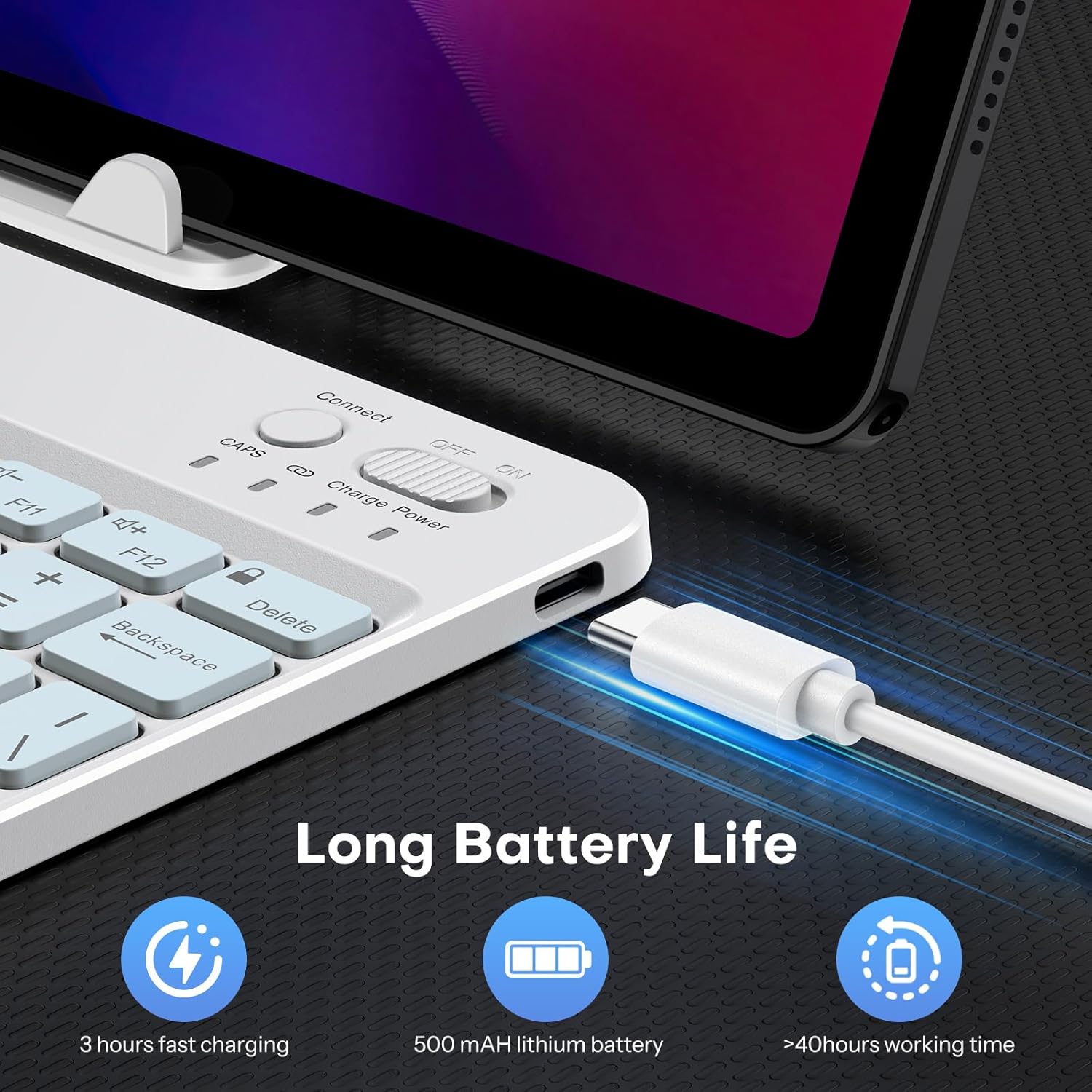
Image: Close-up of the keyboard showing the Type-C charging port and cable connected. The image highlights the charging process and the port location.
4.2 Bluetooth жупташтыруу
- Кубат баскычын "ON" абалына жылдырып, баскычтопту күйгүзүңүз. Кубат индикаторунун жарыгы кыска убакытка күйөт.
- Press the 'Connect' button (usually located near the power switch) to enter pairing mode. The Bluetooth indicator light will flash, indicating it is ready to pair.
- On your device (tablet, phone, computer), enable Bluetooth and search for available devices.
- Select 'OMOTON Keyboard' (or similar name) from the list of found devices.
- If prompted, enter the pairing code displayed on your device using the OMOTON keyboard and press Enter.
- Once paired, the Bluetooth indicator light on the keyboard will stop flashing and remain solid for a few seconds, then turn off. The keyboard is now connected.

Сүрөт: үстүнкү view of the OMOTON Bluetooth Keyboard, highlighting the power switch and the 'Connect' button, which are essential for initiating Bluetooth pairing.
4.3 Операциялык системаларды алмаштыруу
The keyboard is compatible with multiple operating systems. It is crucial to switch to the correct system mode for optimal functionality. Press the following key combinations:
- FN + A: For iOS / iPadOS / macOS devices
- FN + S: Windows түзмөктөрү үчүн
- FN + D: Android түзмөктөр үчүн

Image: A visual guide on the keyboard showing the FN key combined with A, S, or D keys to switch between iOS, Windows, and Android operating system modes.
5. Иштөө нускамалары
5.1 Жарыкты башкаруу
The keyboard features a 7-color adjustable backlight with 3 brightness levels.
- To turn the backlight on/off or adjust brightness, press the Fn менен бир убакта ачкыч lightbulb icon key (usually located near the right Ctrl key). Repeated presses will cycle through brightness levels or turn off the backlight.
- To change backlight colors, press the Fn менен бир убакта ачкыч color palette icon key (usually located next to the lightbulb icon key). Repeated presses will cycle through the 7 available colors.

Image: The OMOTON Bluetooth Keyboard displaying various backlight colors, illustrating the 7-color and 3-brightness level adjustment feature.
5.2 Автоматтык уйку режими
To conserve battery life, the keyboard will automatically enter sleep mode after 30 minutes of inactivity. To wake the keyboard, press any key. There may be a slight delay as the keyboard reconnects to your device.
5.3 Функционалдык ачкыч
The top row of keys (F1-F12) can be used as standard function keys or as multimedia/shortcut keys. To access the secondary function (e.g., volume control, media playback), press the Fn каалаган функция баскычы менен бир убакта басыңыз.
6. Техникалык тейлөө
To ensure the longevity and optimal performance of your OMOTON Bluetooth Keyboard, follow these maintenance guidelines:
- Тазалоо: Клавиатуранын бетин тазалоо үчүн жумшак, кургак, түксүз чүпүрөктү колдонуңуз. Өтө катуу кир үчүн, бир аз сүртүңүз.ampчүпүрөктү суу же жумшак тазалоо эритмеси менен жууп салыңыз. Ашыкча нымдуулуктан сактаныңыз.
- Сактагыч: Колдонулбай турган учурда, клавиатураны салкын, кургак жерде, күндүн түз нурунан жана өтө жогорку температурадан алыс сактаңыз.
- Суюктуктардан алыс болуңуз: Клавиатурага суюктуктарды тийгизбеңиз. Төкмөлөр туруктуу зыян алып келиши мүмкүн.
- Этияттык менен мамиле кылуу: Баскычтопту түшүрүп алуудан же катуу сокку уруудан алыс болуңуз, анткени бул ички компоненттерге зыян келтириши мүмкүн.
7. Кыйынчылыктарды
7.1 Keyboard Keys Not Working or Responding
- Confirm Device's Operating System: Ensure you have selected the correct operating system mode on the keyboard. Press FN+A iOS үчүн, FN+S for Windows, or FN+D Android үчүн.
- Bluetooth байланышын текшерүү: Verify that the keyboard is properly paired and connected to your device. If not, re-initiate the pairing process (Section 4.2).
- Батарея деңгээли: Ensure the keyboard has sufficient battery charge. Recharge if necessary.
- Түзмөктөрдү кайра иштетүү: Try turning off and on both the keyboard and your device, then attempt to reconnect.

Image: A troubleshooting graphic explaining how to fix issues with keyboard keys not working, emphasizing confirming the device's operating system and switching modes.
7.2 Bluetooth туташуу маселелери
- Аралык: Ensure the keyboard is within the effective range of your device's Bluetooth signal (typically up to 10 meters).
- Интерференция: Тоскоолдукка алып келиши мүмкүн болгон башка зымсыз түзмөктөрдөн алыс болуңуз.
- Түзмөктү унут: On your device, 'forget' or 'remove' the keyboard from your Bluetooth device list, then attempt to pair again.
8. Техникалык шарттар
| Бренд | ОМОТОН |
| Модел | B0F65RJ45J |
| Байланыш технологиясы | Bluetooth |
| Шайкеш түзмөктөр | Tablet, Android, Windows, iOS |
| Баскычтоптун жайгашуусу | QWERTY |
| Өзгөчөлүктөр | Backlit (7 colors, 3 brightness levels), Ergonomic, Lightweight |
| Батарея сыйымдуулугу | 500mAh литий батареясы |
| Заряддоо убактысы | 2-3 саат |
| Жумуш убактысы | 200 саатка чейин |
| Продукциянын өлчөмдөрү (L x W x Y) | 9.7" x 5.9" x 0.2" (247 мм x 150 мм x 6.6 мм) |
| Салмагы | 0.42 фунт |
| Материал | Пластик |

Image: A visual comparison of the OMOTON Bluetooth Keyboard's dimensions against a smartphone and a tablet, illustrating its compact and portable size.
9. Кепилдик маалыматы
The OMOTON Bluetooth Keyboard comes with a 12 айлык кепилдик from the date of purchase. This warranty covers manufacturing defects and malfunctions under normal use. It does not cover damage caused by misuse, accidents, unauthorized modifications, or external factors.
Кепилдик дооматтары үчүн сатып алганыңыздын далилин сактап коюңуз.
10. Кардарларды колдоо кызматы
If you encounter any issues or have questions regarding your OMOTON Bluetooth Keyboard that are not addressed in this manual, please contact OMOTON customer support through the retailer's platform or the official OMOTON webсайт. Биздин колдоо тобу сизге жардам берүүгө даяр.
Көбүрөөк маалымат алуу үчүн, киргиле Amazon'догу OMOTON дүкөнү.