
BoxWave DirectSync Cable
BoxWave DirectSync Cable Instruction Manual
Model: DirectSync Cable for Doogee T6
Brand: BoxWave
1. Киришүү
The BoxWave DirectSync Cable is a versatile accessory designed to provide both charging and high-speed data transfer capabilities for your compatible devices, such as the Doogee T6. This manual provides essential information on the cable's features, usage, maintenance, and troubleshooting to ensure optimal performance and longevity.
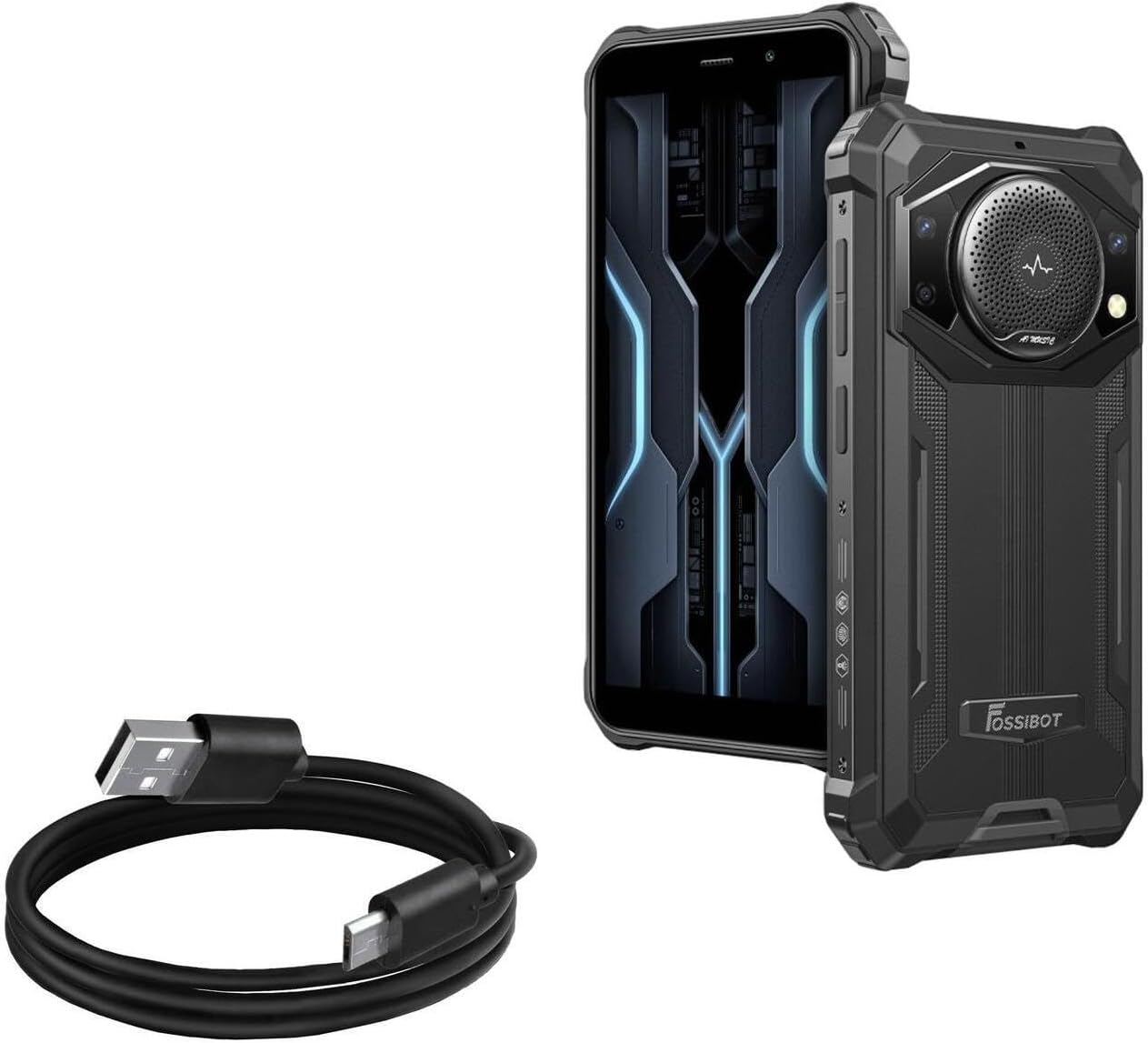
Image 1.1: The BoxWave DirectSync Cable shown alongside a compatible smartphone, illustrating its primary use.
2. Продукциянын өзгөчөлүктөрү
The DirectSync Cable is engineered with several key features to enhance its functionality and durability:
- Hi-Speed USB 2.0 Data Transfers: Supports data transfer speeds up to 480Mbps, allowing for quick synchronization of files between your device and a computer.
- Dual-Functionality: Designed to simultaneously charge your device and transfer data, streamlining your connectivity needs.
- Durable and Shielded Design: The cable is shielded to protect against interference and ensure a stable connection, contributing to its long lifespan.
- Reinforced Strain Relief: Features robust rubberized grommet strain reliefs at the connectors to prevent kinking, fraying, and splitting, enhancing durability.
- Жоомарт узундугу: камсыз кылат ample length for convenient use without restricting device placement during charging or data transfer. The cable is approximately 3 feet long.
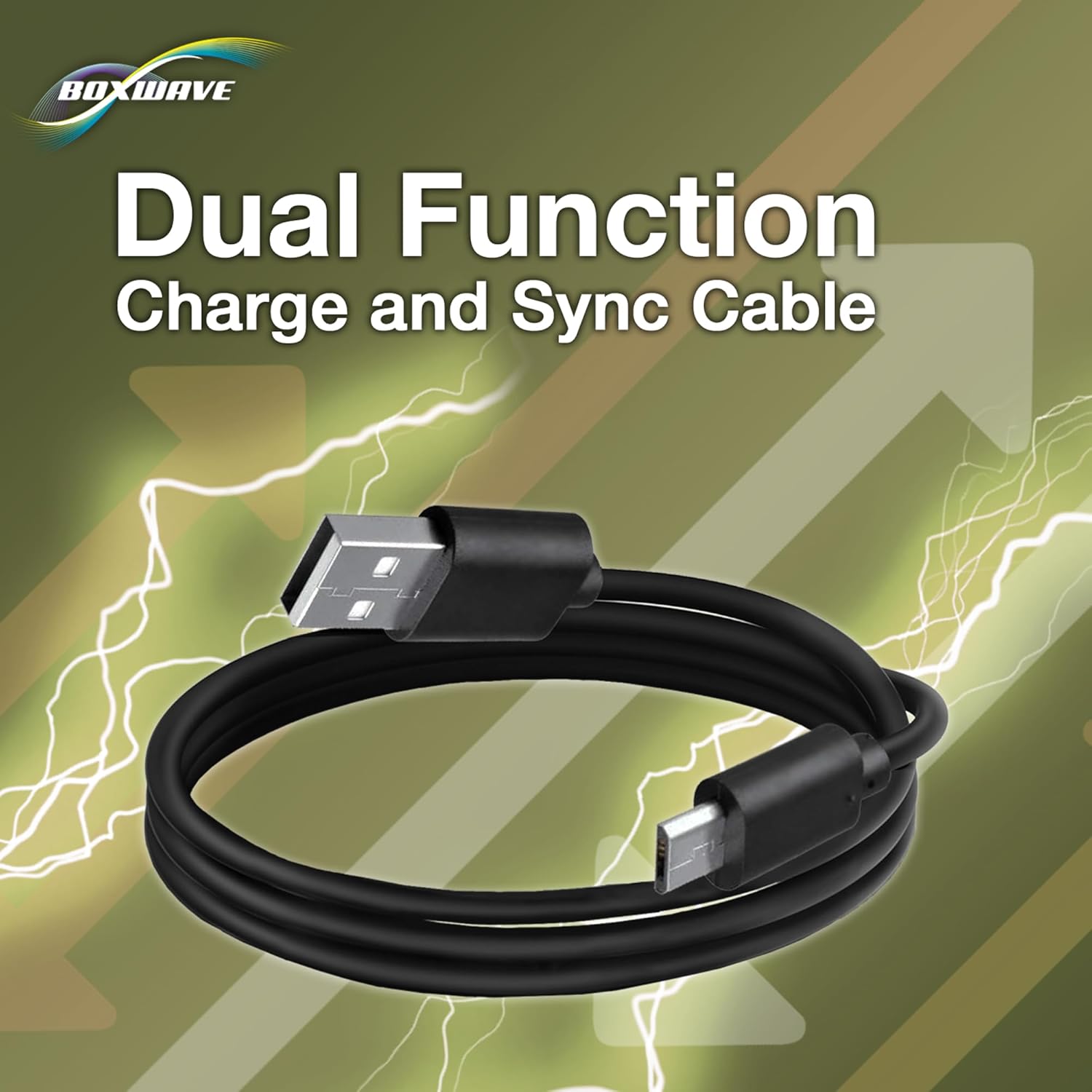
Image 2.1: The DirectSync Cable, emphasizing its dual charge and sync capabilities.

Image 2.2: Detail of the reinforced strain relief, designed to prevent cable damage at the connector points.
3. Орнотуу жана туташуу
The DirectSync Cable is designed for simple plug-and-play operation. No special drivers or software are typically required for basic functionality.
3.1 Кубаттоо үчүн туташтыруу
- Insert the micro-USB connector of the DirectSync Cable into the charging port of your Doogee T6 or other compatible device.
- Insert the standard USB-A connector into a compatible USB power source, such as a wall adapter, car charger, or power bank.
- Ensure the connection is secure. Your device should indicate that it is charging.
3.2 Connecting for Data Transfer
- Insert the micro-USB connector of the DirectSync Cable into the charging/data port of your Doogee T6 or other compatible device.
- Insert the standard USB-A connector into an available USB port on your computer (PC or Mac).
- Once connected, your computer should recognize the device. You may need to select "File Transfer" or "MTP" mode on your device's screen if prompted, to allow access to its storage.

Image 3.1: The DirectSync Cable facilitating both charging and data synchronization between a device and a computer.
4. Иштөө нускамалары
4.1 Аппаратыңызды заряддоо
To charge your device, connect the DirectSync Cable as described in Section 3.1. The cable supports standard charging rates compatible with USB 2.0 specifications. Charging time will vary depending on your device's battery capacity and the power output of your USB power source.
4.2 Маалыматтарды өткөрүп берүү
For data transfer, connect the DirectSync Cable to your device and computer as described in Section 3.2. You can then access your device's internal storage or external SD card (if applicable) through your computer's file изилдөөчү. Сүйрөп баруу files to transfer them. The cable supports data transfer speeds of up to 480Mbps, which is standard for USB 2.0, allowing for efficient transfer of photos, videos, and documents.
5. Кароо жана тейлөө
Proper care of your DirectSync Cable will extend its lifespan and ensure reliable performance:
- Курч ийилгенден качыңыз: Do not bend the cable sharply, especially near the connectors, as this can damage the internal wires. The reinforced strain reliefs are designed to mitigate this, but extreme bending should still be avoided.
- Туура сактоо: When not in use, coil the cable loosely. Avoid tangling or knotting the cable.
- Тазалыкты сактоо: If the connectors become dirty, gently wipe them with a dry, lint-free cloth. Do not use liquids or abrasive cleaners.
- Этияттык менен мамиле кылуу: Түзмөктү же кубат булагынан сууруп жатканда, ар дайым кабелдин өзүнөн эмес, туташтыргычтын башынан тартыңыз.
- Экологиялык шарттар: Avoid exposing the cable to extreme temperatures, direct sunlight for prolonged periods, or excessive moisture.
6. Көйгөйлөрдү чечүү боюнча колдонмо
| Көйгөй | Мүмкүн себеп | Чечим |
|---|---|---|
| Түзмөк заряддалбай жатат. | Loose connection, faulty power source, damaged cable, device issue. |
|
| Device not recognized for data transfer. | Incorrect device setting, loose connection, driver issue, damaged cable. |
|
| Slow charging or data transfer. | Using a non-optimal power source, background processes, cable degradation. |
|
7. Техникалык шарттар
- Продукт аты: DirectSync Cable
- Моделдин шайкештиги: Doogee T6 and other devices with a micro-USB port
- Туташтыргыч түрү 1: USB-A (эркек)
- Туташтыргыч түрү 2: Micro-USB (Male)
- USB стандарты: USB 2.0
- Маалыматтарды өткөрүү ылдамдыгы: 480 Мбит/сек чейин
- Кабелдин узундугу: Болжол менен 3 фут (0.91 метр)
- Элемент Салмагы: 1.7 унция (48.2 грамм)
- Өндүрүүчү: BoxWave
- Биринчи жеткиликтүү датасы: 7-октябрь, 2015-жыл

Сүрөт 7.1: Бүттүview of key features and specifications of the DirectSync Cable.
8. Кепилдик жана колдоо
BoxWave stands behind the quality of its products. For any issues or inquiries regarding your DirectSync Cable, please contact BoxWave customer support. While this product is compatible with the Doogee T6, BoxWave is not affiliated with or endorsed by Doogee. Limited third-party tech support for your device (up to 3 inquiries via messaging) may be available, as noted at the time of purchase.
For the most current support information and contact details, please visit the official BoxWave webсайтына кириңиз же продуктуңуздун таңгагын караңыз.
Webсайт: www.boxwave.com
Ask a question about this manual
Ask about setup, troubleshooting, compatibility, parts, safety, or missing instructions. Manuals+ will review the question and use this page’s manual context to help answer it.