
1. Коопсуздук боюнча маанилүү маалымат
This section outlines critical safety precautions for operating the Twotrees TTS-10 Pro Laser Engraver. Failure to follow these instructions may result in serious injury or damage to the equipment.
1.1 Лазердик коопсуздук
The TTS-10 Pro is a Class 4 laser product. Direct or scattered laser radiation can cause severe eye and skin damage. Always wear appropriate laser safety goggles when the machine is in operation. Never look directly into the laser beam.

Image: Laser safety warning label for the TTS-10 Pro, indicating Class 4 laser radiation and the need to avoid eye or skin exposure.
- Көздү коргоо: Always wear certified laser safety goggles that block the specific wavelength of the laser (typically 450nm for blue diode lasers).
- Терини коргоо: Теринин лазер нурунун түздөн-түз таасиринен алыс болуңуз.
- Корпусу: Operate the engraver in a controlled environment, ideally with a protective enclosure to contain scattered radiation.
- Күйүүчү материалдар: Do not engrave or cut highly flammable materials without proper ventilation and fire suppression.
- Вентиляция: Ensure adequate ventilation to remove smoke and fumes produced during engraving/cutting, which can be harmful.
- Көзөмөл: Иш учурунда машинаны эч качан кароосуз калтырбаңыз.
1.2 Электр коопсуздугу
- Берилген кубат адаптерин гана колдонуңуз.
- Ensure the power supply is stable and matches the machine's requirements (DC 12V, 4A).
- Машинаны ным колдор менен же дamp шарттар.
2. Продукт бүтүп калдыview
The Twotrees TTS-10 Pro is a high-precision laser engraving and cutting machine designed for various materials including wood, metal, acrylic, glass, and stainless steel. It features a 10000mW laser output, a 0.069mm laser spot, and a maximum engraving speed of 30000mm/min.

Image: The Twotrees TTS-10 Pro Laser Engraver, fully assembled and ready for use.
2.1 Негизги өзгөчөлүктөрү
- High Power Laser: 10000mW (10W) LD+FAC+C-Lens compressed spot technology for efficient engraving and cutting.
- Тактык: 0.069mm ultra-fine laser spot for detailed work.
- Ылдамдыгы: Engraving speeds up to 30000mm/min.
- Advanced Mainboard: 32-bit dual-core MCU for faster processing and versatile functions.
- Байланыш: Supports online engraving, TF card offline operation, mobile app (MKSLaser), and computer WEB контролдоо.
- Программалык шайкештик: Compatible with LaserGRBL (Windows) and Lightburn (Windows, Mac).
- Аба жардам берүүчү сопло: Integrated metal air assist nozzle for improved cutting penetration and efficiency.
3. Орнотуу нускамалары
The Twotrees TTS-10 Pro comes largely pre-assembled. This section guides you through the final steps to prepare your machine for operation.
3.1 Таңгактан чыгаруу жана текшерүү
- Бардык компоненттерди таңгактан кылдаттык менен алып салыңыз.
- Таңгактоо тизмесинде көрсөтүлгөн бардык тетиктердин бар экенин жана бузулбаганын текшериңиз.
- Place the main frame on a stable, level surface.
3.2 Лазердик модулду орнотуу
The laser module is typically pre-installed or requires minimal attachment.
- Ensure the laser module is securely fastened to the gantry. Refer to the quick start guide for specific fastening points if not already attached.
- Connect the laser module cable to the designated port on the mainboard.

Image: The laser module, demonstrating its fine spot size for detailed engraving.
3.3 Air Assist Nozzle Attachment (Optional Upgrade)
The TTS-10 Pro includes a metal air assist nozzle. While the core kit does not include an air pump, the nozzle is designed for easy integration with an external air assist system.
- Attach the metal air assist nozzle to the laser module as per the diagram in the quick start guide.
- If using an external air pump (not included), connect the air hose to the nozzle.

Image: The TTS-10 Pro with optional accessories like air assist, which can be integrated using the included nozzle.
3.4 Кубат туташтыруу
- Connect the power adapter to the machine's power input port.
- Кубат адаптерин ылайыктуу электр розеткасына сайыңыз.
4. Иштөө нускамалары
This section provides guidance on operating your Twotrees TTS-10 Pro Laser Engraver.
4.1 Программалык камсыздоону орнотуу жана туташтыруу
The TTS-10 Pro is compatible with several software options:
- LaserGRBL: Free software for Windows. Download from the official LaserGRBL webсайт.
- Жарык күйүү: Paid software for Windows and Mac. Download from the official Lightburn webсайт.
- MKSLaser: Mobile app for Android and iOS systems. Download from your device's app store.
- Install your preferred software on your computer or mobile device.
- Connect the engraver to your computer via USB or establish a wireless connection if supported by the software/mainboard.
- Follow the software's instructions to establish communication with the engraver.
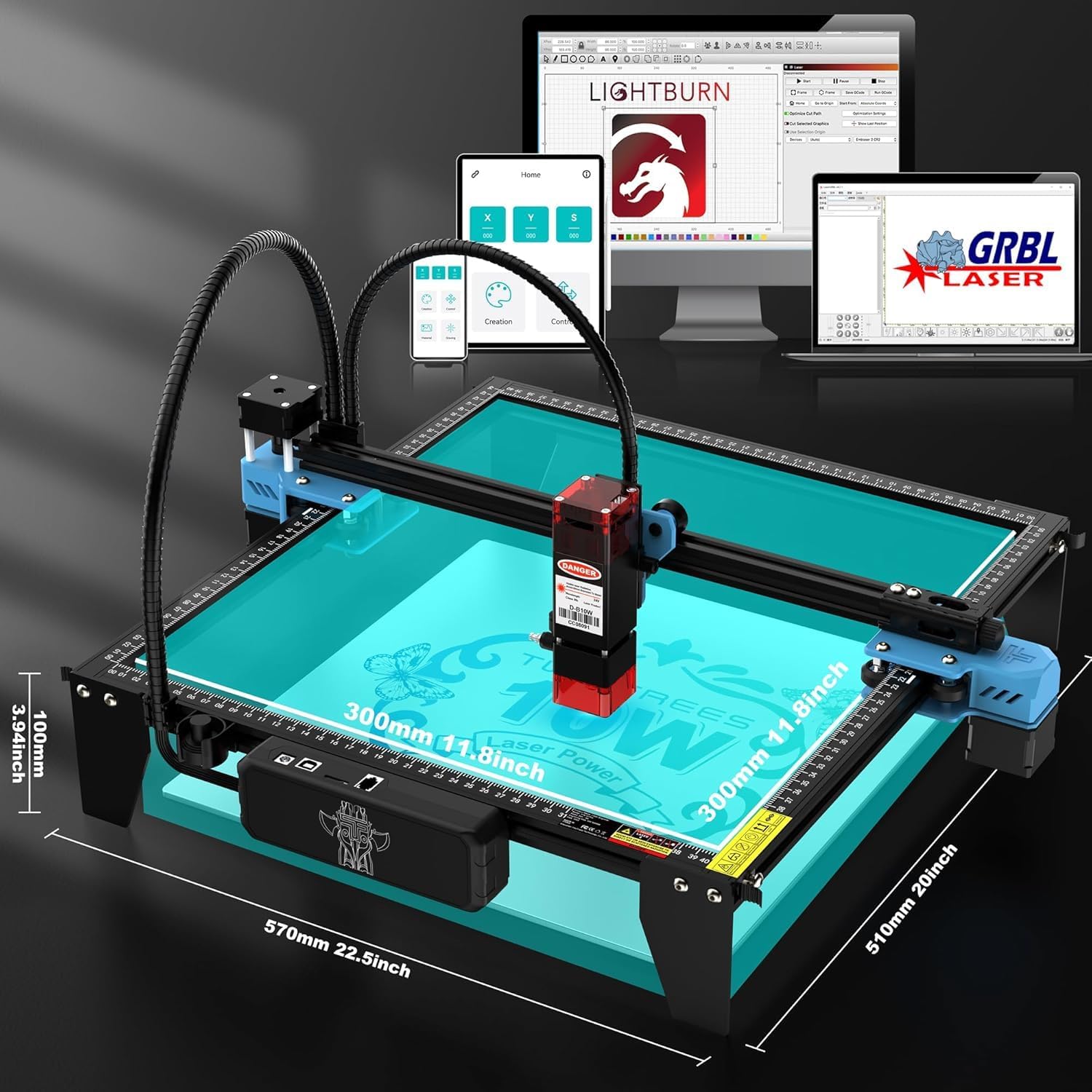
Image: Software compatibility of the TTS-10 Pro, including Lightburn, LaserGRBL, and a mobile application.
4.2 Материалды даярдоо
- Place the material to be engraved or cut within the working area (300x300mm).
- Ensure the material is flat and securely positioned to prevent movement during operation.
- Adjust the laser focus according to the material thickness.
4.3 Гравировка жана кесүү процесси
- Import or create your design in the chosen software.
- Set the appropriate laser power, speed, and passes for your material. The TTS-10 Pro can cut 8mm plywood and 5mm black acrylic in a single pass.
- Preview the engraving path to ensure correct positioning.
- Initiate the engraving/cutting process. Always wear safety goggles during operation.

Image: The TTS-10 Pro demonstrates high-speed and high-quality engraving capabilities compared to other models.
5. Техникалык тейлөө
Regular maintenance ensures optimal performance and extends the lifespan of your TTS-10 Pro Laser Engraver.
5.1 Cleaning the Laser Lens
Dust and debris on the laser lens can reduce laser power and engraving quality.
- Жыштыгы: Clean the lens after every 10-20 hours of operation, or if you notice a decrease in performance.
- Процедура: Use a specialized lens cleaning solution and a lint-free cloth or cotton swab. Gently wipe the lens surface.
5.2 Cleaning the Air Assist Nozzle
The air assist nozzle can accumulate residue from smoke and debris, affecting airflow.
- Жыштыгы: Inspect and clean the nozzle regularly, especially after cutting operations.
- Процедура: Disconnect the air hose (if applicable) and carefully remove any blockages or buildup from the nozzle opening.
5.3 Rail and Belt Maintenance
The linear rails and belts ensure smooth movement of the laser module.
- Тазалоо: Periodically clean the rails with a soft cloth to remove dust and debris.
- Майлоо: Apply a small amount of lithium grease or machine oil to the linear rails every few months to ensure smooth operation.
- Кур чыңалуу: Check the tension of the timing belts. They should be taut but not overly tight. Adjust if necessary.
6. Кыйынчылыктарды
This section addresses common issues you might encounter with your TTS-10 Pro Laser Engraver.
6.1 Laser Not Firing or Weak Output
- Күчтү текшерүү: Ensure the machine is powered on and the laser module cable is securely connected.
- Программалык камсыздоонун жөндөөлөрү: Verify that the laser power setting in your software is not set too low or to 0.
- Линзанын тазалыгы: A dirty laser lens can significantly reduce output. Refer to Section 5.1 for cleaning instructions.
- Фокус: Лазердин материалдын бетине туура фокусталганын текшериңиз.
6.2 Machine Not Connecting to Software
- USB туташуу: Ensure the USB cable is securely connected to both the machine and the computer. Try a different USB port or cable.
- Айдоочулар: Verify that the necessary USB drivers are installed on your computer.
- Software Port: In your engraving software, ensure the correct COM port is selected.
- Power Cycle: Turn off both the engraver and your computer, then restart them.
6.3 Гравюра/кесүү сапаты начар
- Фокус: Improper focus is a common cause. Re-focus the laser.
- Ылдамдык/кубат орнотуулары: Adjust laser speed and power settings for the specific material. Too fast or too low power can result in incomplete cuts or faint engravings.
- Материалдык шайкештик: Note that diode lasers like the TTS-10 Pro are generally not suitable for cutting clear acrylic. They excel with opaque acrylic, wood, and other materials.
- Material Stability: Ensure the material is not moving during the process.
- Механикалык маселелер: Check for loose belts or debris on the rails that might cause skipped steps or uneven movement.
6.4 Gantry Movement Issues
- Кабелдик: Inspect all motor and limit switch cables for secure connections and any signs of damage or short circuits.
- Тоскоолдуктар: Check the gantry and rails for any physical obstructions.
- Майлоо: Ensure the linear rails are properly lubricated (see Section 5.3).
7. Техникалык шарттар
Detailed technical specifications for the Twotrees TTS-10 Pro Laser Engraver.
| Өзгөчөлүк | Спецификация |
|---|---|
| Модел | TTS-10 Pro |
| Бренд | Twotrees |
| Лазердик чыгаруу күчү | 10000мВт (10Вт) |
| Лазердик класс | 4-класс |
| Лазердик Spot өлчөмү | 0.069мм |
| Гравюра ылдамдыгы | 30000 мм/мин чейин |
| Жумушчу аймак | 300 x 300 мм (12 x 12 дюйм) |
| Киргизүү рейтинги | DC 12V, 4A |
| Продукциянын өлчөмдөрү | 20.1 x 7 x 7 дюйм |
| Элемент Салмагы | 7.92 фунт |
| Программалык камсыздоонун шайкештиги | LaserGRBL, Lightburn, MKSLaser App |
| Колдоого алынган материалдар | Wood, Metal, Acrylic (opaque), Glass, Stainless Steel, Leather, Paper, Fabric, etc. |