
Introduction
This manual provides detailed instructions for the setup, operation, maintenance, and troubleshooting of your Axtel One BT Stereo Wireless Headset. This headset is designed for professional use, offering reliable Bluetooth connectivity, noise-cancelling microphones, and high-definition speakers for clear communication and audio playback.
Пакеттин мазмуну
Пакетиңизде бардык буюмдар бар экенин текшериңиз:
- Axtel One BT Stereo Wireless Headset
- USB-A Dongle
- Кубаттоочу станция
- USB-C заряддоо кабели
- Колдонуучунун Колдонмосу (бул документ)

Image: Axtel One BT Stereo Wireless Headset placed on its charging base, showing the headset and base as a complete unit.
Продукт бүттүview
Familiarize yourself with the components of your Axtel One BT Stereo Wireless Headset.

Сүрөт: каптал view of the Axtel One BT Stereo Wireless Headset with the microphone boom extended, highlighting the earcups and headband.
Гарнитура компоненттери:
- Жөнгө салынуучу баш боосу: Ыңгайлуу ылайыктуу үчүн.
- Кулак жаздыктары: Vegan leather and memory foam for comfort.
- Микрофон бум: Flexible arm with dual noise-cancelling microphones.
- Башкаруу баскычтары: Located on the earcup for call management (answer/reject/mute) and volume.
- USB-C порту: Гарнитураны түз заряддоо үчүн.
- Busy Light Indicator: Signals availability during calls.
Charging Station & USB-A Dongle:

Image: The Axtel One BT Charging Station, a black stand designed to hold and charge the headset.
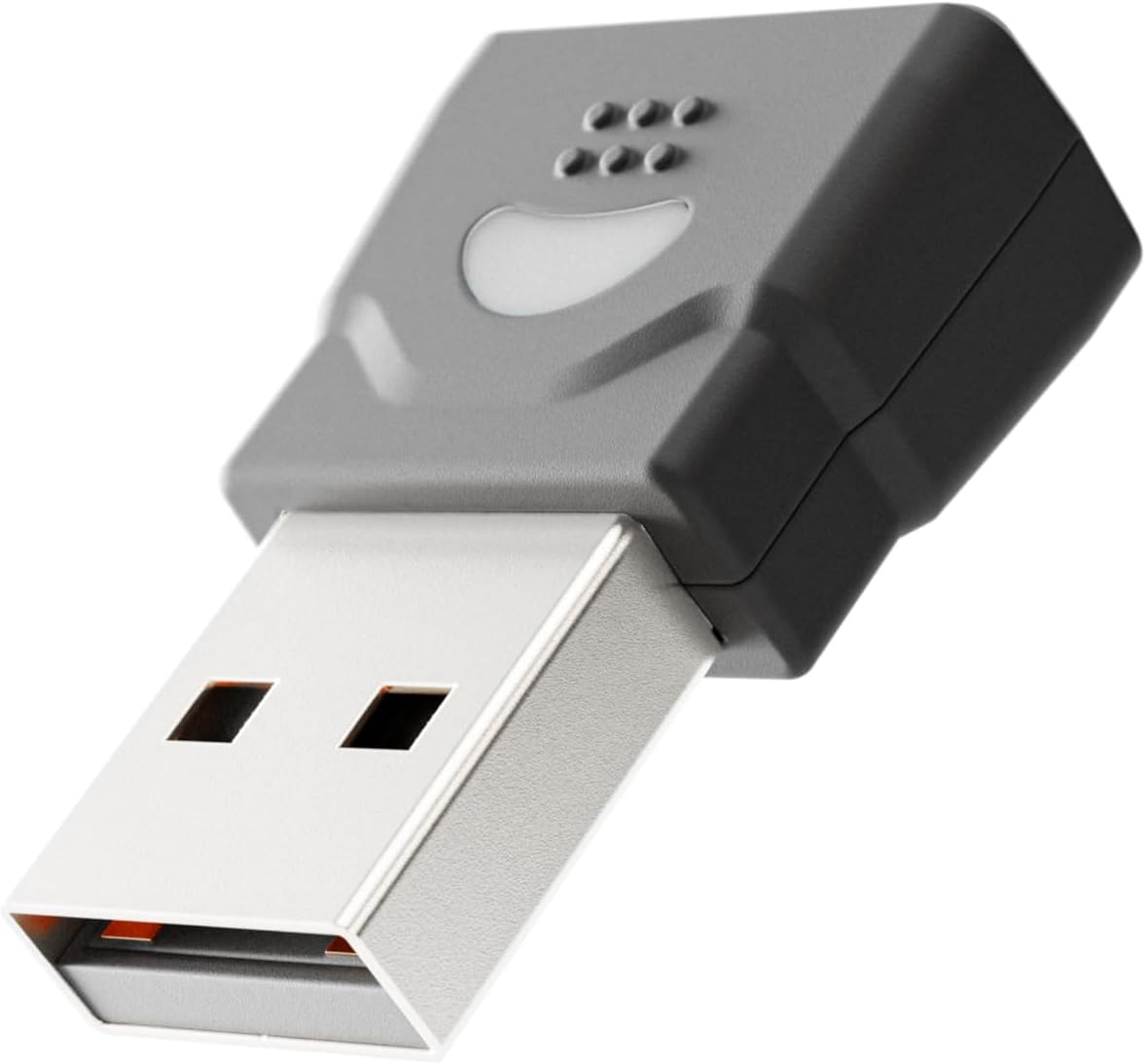
Image: The compact USB-A dongle, used for connecting the headset to a computer without built-in Bluetooth.
- Заряддоо станциясы: Provides a convenient dock for charging and storing the headset.
- USB-A Dongle: Enables wireless connection to computers without Bluetooth or for enhanced stability.
Жайгашуу
1. Гарнитураны заряддоо
Before initial use, fully charge your headset. A full charge takes approximately 2 hours and provides up to 40 hours of talk or music time. A 20-minute fast charge can provide several hours of use.
- Заряддоо станциясын колдонуу: Connect the USB-C charging cable to the charging station and then to a power source (e.g., computer USB port or wall adapter). Place the headset onto the charging station. The headset's indicator light will show charging status.
- Түз USB-C заряддоо: Connect the USB-C charging cable directly to the USB-C port on the headset and then to a power source.
2. Connecting to a Computer via USB-A Dongle (Plug & Play)
For seamless connection to your computer, use the included USB-A dongle.
- Insert the USB-A dongle into an available USB-A port on your computer.
- The dongle's indicator light will blink, then turn solid when connected to the headset.
- Power on your headset. It will automatically pair with the dongle.
- Your computer should recognize the headset as an audio device. You may need to select "Axtel One BT" as your default audio input/output device in your system settings.
3. Connecting via Bluetooth (Mobile Devices / Computers with Bluetooth)
To connect to a mobile device or a computer with built-in Bluetooth:
- Гарнитура өчүрүлгөнүн текшериңиз.
- Press and hold the Power button on the headset until the indicator light flashes blue and red, indicating pairing mode.
- Түзмөгүңүздө (смартфон, планшет, компьютер) Bluetooth жөндөөлөрүнө өтүп, Bluetooth'ду иштетиңиз.
- Select "Axtel One BT" from the list of available devices.
- Once paired, the headset's indicator light will turn solid blue.
Иштөө нускамалары
Күйгүзүү/өчүрүү
- Күйгүзүү: Кубат баскычын 2 секунд басып, кармап туруңуз.
- Өчүрүү: Кубат баскычын 3 секунд басып, кармап туруңуз.
Чалууларды башкаруу
The headset features integrated controls for managing calls.
- Чалууга жооп берүү/аяктоо: Чакыруу баскычын бир жолу басыңыз.
- Чакырууну четке кагуу: Чакыруу баскычын 2 секунд басып туруңуз.
- Микрофондун үнүн басуу/ачуу: Press the Mute button (usually located on the microphone boom or earcup) once during a call.
Аудио башкаруу элементтери
- Көлөмү: Үнүн жогорулатуу баскычын басыңыз.
- Үнүн азайтуу: Үндү азайтуу баскычын басыңыз.
Microsoft Teams and UC Platform Compatibility
The Axtel One BT Stereo Headset is optimized for Microsoft Teams and compatible with other Unified Communications (UC) platforms such as Zoom, Skype, and Webex. For optimal performance, ensure the headset is selected as the default audio device within the application settings.
Bosy Light индикатору
The integrated busy light indicator automatically illuminates when you are on a call, signaling to others that you are occupied and minimizing interruptions.
Техникалык тейлөө
Тазалоо
- Wipe the headset and charging station with a soft, dry, anti-static cloth.
- Катуу химиялык заттарды, тазалоочу эриткичтерди же күчтүү жуучу каражаттарды колдонбоңуз.
Батареяга кам көрүү
- Батареянын иштөө мөөнөтүн узартуу үчүн, гарнитураны бат-баттан толук зарядсыздандырбаңыз.
- Гарнитураны узак убакыт бою колдонбогон учурда салкын, кургак жерде сактаңыз.
Earcup Maintenance
The vegan leather and memory foam ear cushions are designed for comfort and can be swapped for hygiene and durability. Refer to the manufacturer's website or support for instructions on replacing ear cushions.
Проблемаларды чечүү
| Көйгөй | Мүмкүн себеп | Чечим |
|---|---|---|
| Гарнитурадан үн жок | Headset not powered on; Not paired; Incorrect audio device selected; Volume too low. | Ensure headset is powered on. Re-pair the headset. Check computer/device audio settings and select "Axtel One BT". Increase headset and device volume. |
| Микрофон иштебей жатат | Микрофондун үнү өчүрүлгөн; Туура эмес киргизүү түзмөгү тандалып алынган; Микрофондун штангасы туура эмес коюлган. | Unmute the microphone. Check computer/device audio settings and select "Axtel One BT" as input. Ensure microphone boom is close to your mouth. |
| Bluetooth аркылуу туташуу мүмкүн эмес | Headset not in pairing mode; Device Bluetooth off; Out of range; Interference. | Put headset in pairing mode (flashing blue/red). Ensure device Bluetooth is on. Move headset closer to device. Turn off other Bluetooth devices temporarily. |
| Заряддоо маселелери | Cable or charging station not connected properly; Faulty cable/port; Headset not seated correctly on station. | Check all cable connections. Try a different USB port or power adapter. Ensure headset is firmly seated on the charging station. |
| Аудио сапаты начар | Weak signal; Interference; Low battery. | Move closer to the connected device. Avoid sources of strong electromagnetic interference. Charge the headset fully. |
Техникалык шарттар
| Модель аты | ONE BT Stereo with charging base |
| Модель номери | AXH-ONEBTD |
| Байланыш технологиясы | Зымсыз (Bluetooth) |
| Кулак жайгаштыруу | Кулак үстүндө |
| Форма фактору | On Ear |
| Түс | Кара |
| Динамиктин айдоочусунун өлчөмү | 40 mm HD Speakers |
| Микрофон | Dual Noise-Cancelling Microphones (ENC) |
| Батареянын сыйымдуулугу | 500mAh |
| Talk Time | 40 саатка чейин |
| Музыка убактысы | 40 саатка чейин |
| Күтүү убактысы | 8.5 күнгө чейин |
| Заряддоо убактысы | Up to 2 hours (via USB-C) |
| Acoustic Protection Technology | Yes, < 118 dB(A) |
| Digital Signal Processing (DSP) | Ооба |
| Автоматтык пайданы көзөмөлдөө (AGC) | Ооба |
| Bosy Light индикатору | Ооба |
| Жаздык материалы | Memory foam with vegan leather finish |
| Платформанын шайкештиги | Compatible with major communication platforms (MS Teams, Zoom, Skype, Webex) |
| USB-A Dongle | Пакетке киргизилген |
| Өндүрүүчү | Axtel |
Кепилдик маалымат
The Axtel One BT Stereo Wireless Headset comes with a 1 жылдык Чектелген Өндүрүүчүнүн Кепилдиги. This warranty covers defects in materials and workmanship under normal use. Please retain your proof of purchase for warranty claims. For full terms and conditions, please refer to the official Axtel webсайтка же кардарларды колдоо менен байланышыңыз.
Колдоо
If you encounter any issues not covered in the troubleshooting section or require further assistance, please contact Axtel customer support. You can find contact information on the official Axtel webсайт.
Онлайн ресурстар: For the latest drivers, firmware updates, and FAQs, visit the Axtel support page.