
1. Киришүү
This user manual provides detailed instructions for the KTC M27P6 27-inch MiniLED Gaming Monitor. Please read this manual thoroughly before operating the device to ensure proper usage and optimal performance. Keep this manual for future reference.
The KTC M27P6 is a high-performance gaming monitor featuring a 27-inch MiniLED panel with 1152 local dimming zones, offering exceptional contrast and brightness up to HDR1400. It supports dual display modes: 4K resolution at 160Hz and Full HD resolution at 320Hz, providing versatility for various gaming and professional needs. Key features include a 1ms GtG response time, Adaptive Sync technology, and comprehensive connectivity options including USB-C with 65W power delivery and KVM functionality.

Сүрөт: бүттүview of KTC M27P6 monitor's key features including MiniLED, 1152 local dimming zones, dual mode 4K@160Hz/FHD@320Hz, USB-C, KVM, HDR1400, 145% sRGB, Fast IPS, and Adaptive-Sync.
2. Коопсуздук маалыматы
- Монитор кулап кетпеши үчүн, аны ар дайым туруктуу, тегиз жерге коюңуз.
- Электр шок же өрт болбош үчүн мониторду жамгырга же нымдуулукка дуушар кылбаңыз.
- Keep the monitor away from direct sunlight, heat sources, or extreme temperatures.
- Монитордун айланасында туура желдетүүнү камсыз кылыңыз. Вентиляция тешиктерин жаап албаңыз.
- Өндүрүүчү тарабынан берилген же сунушталган кубат адаптерин жана кабелдерди гана колдонуңуз.
- Unplug the power cord from the outlet if the monitor will not be used for a long period.
- Мониторду өзүңүз оңдоого аракет кылбаңыз. Бардык тейлөөлөрдү квалификациялуу тейлөө кызматкерлерине тапшырыңыз.
- Экранга курч нерселер менен тийүүдөн качыңыз.
3. Пакеттин мазмуну
Verify that all components are present in your package. If any items are missing or damaged, contact your retailer.
- KTC M27P6 27-inch MiniLED Gaming Monitor
- Монитор стенд (негизги жана кол)
- Кубаттуу адаптер
- Электр кабели
- HDMI кабели
- DisplayPort кабели
- USB-C Cable
- USB-B to USB-A Cable (for KVM/USB Hub)
- Колдонуучунун Колдонмосу (бул документ)
- Кепилдик картасы
4. Monitor Overview
4.1 Фронт View
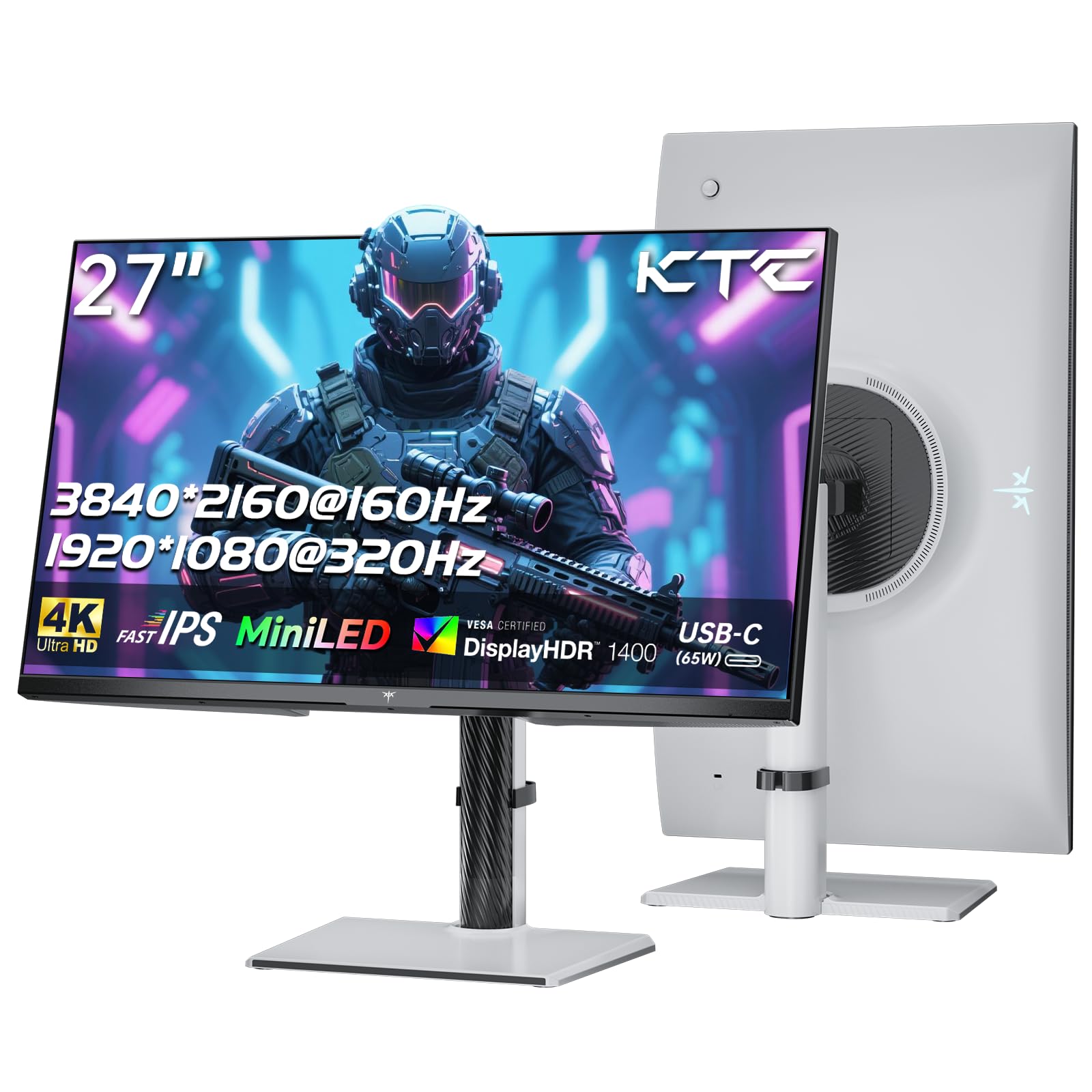
Сүрөт: алдыңкы view of the KTC M27P6 27-inch MiniLED Gaming Monitor.
The front of the monitor features the 27-inch MiniLED display panel. The KTC logo is typically located at the bottom center bezel.
4.2 Арткы View жана порттор

Сүрөт: Арткы view of the KTC M27P6 monitor, highlighting the various input/output ports and the adjustable stand.
The rear of the monitor houses the input/output ports and the stand attachment point. The ports include:
- Кубат киргизүү: Кубат адаптерин туташтыруу үчүн.
- HDMI 2.1 порттору (x2): For connecting to devices supporting HDMI 2.1 (4K@160Hz / FHD@320Hz).
- DisplayPort 1.4 Ports (x2): For connecting to devices supporting DisplayPort 1.4 (4K@160Hz / FHD@320Hz).
- USB-C порту (x1): Full-function port supporting video input (4K@160Hz / FHD@320Hz) and 65W Power Delivery.
- USB-B Upstream Port (x1): For connecting the monitor's USB hub to your computer, enabling the downstream USB-A ports and KVM functionality.
- USB-A 3.0 Downstream Ports (x3): Баскычтоптор, чычкандар же USB дисктер сыяктуу перифериялык түзүлүштөрдү туташтыруу үчүн.
- 3.5 мм аудио чыгышы: Наушниктерди же тышкы динамиктерди туташтыруу үчүн.
Видео: Бүттүview of the KTC M27P6 monitor's features and design, including its connectivity options and adjustable stand.
5. Орнотуу
5.1 Стендди чогултуу
- Мониторду жана стенд компоненттерин таңгактан этияттык менен алып салыңыз.
- Attach the stand arm to the monitor panel by aligning the mounting points and securing with screws (if applicable).
- Attach the stand base to the stand arm, ensuring it is firmly connected.
- Чогулган мониторду туруктуу, жалпак бетке коюңуз.
The monitor also supports VESA mounting (100x100mm) for use with compatible wall mounts or monitor arms. Ensure the VESA mount is rated for the monitor's weight.

Image: Diagram illustrating the multi-angle adjustment capabilities of the KTC M27P6 monitor stand, including height, tilt, swivel, and pivot.
5.2 Туташтыруучу кабельдер
- Кубат туташуу: Connect the power adapter to the monitor's power input, then plug the power cable into a power outlet.
- Видео туташуу:
- For PC/Gaming Console: Connect one end of the HDMI or DisplayPort cable to your device's output and the other end to the corresponding port on the monitor.
- For USB-C Compatible Devices: Connect the USB-C cable from your device to the monitor's USB-C port for video, data, and power delivery.
- USB Hub/KVM Connection: To use the monitor's USB-A ports and KVM functionality, connect the USB-B to USB-A cable from the monitor's USB-B upstream port to a USB-A port on your computer.
- Аудио туташуусу: If using external headphones or speakers, connect them to the 3.5mm audio out port on the monitor.
6. Иштөө нускамалары
6.1 Күйгүзүү/өчүрүү
Press the power button (usually located on the back or bottom of the monitor) to turn the monitor on or off. The power indicator light will illuminate when the monitor is on.
6.2 Экрандык менюнун навигациясы
The On-Screen Display (OSD) menu allows you to adjust various monitor settings. Use the joystick or buttons (refer to your monitor's physical layout) to navigate the OSD menu:
- Press Joystick/Button: Enter OSD menu or confirm selection.
- Джойстикти өйдө/ылдый жылдыруу: Меню параметрлери боюнча чабыттоо.
- Джойстикти солго/оңго жылдырыңыз: Маанилерди тууралаңыз же кошумча менюларга жылдырыңыз.
- Чыгуу баскычы: Exit the current menu or OSD.
6.3 Dual Mode Switching (4K@160Hz / FHD@320Hz)
The KTC M27P6 supports seamless switching between two display modes: 4K (3840x2160) at 160Hz and Full HD (1920x1080) at 320Hz. This allows you to optimize performance based on your content (e.g., high-resolution graphics for AAA games or ultra-high refresh rate for competitive FPS games).
To switch modes, access the OSD menu and navigate to the "Display" or "Gaming" settings. Select the desired resolution and refresh rate. Your connected device must also support these resolutions and refresh rates for optimal performance.

Image: Illustration of the KTC M27P6 monitor's seamless dual mode switching capability, showing a 4K@160Hz gaming scene and a FHD@320Hz gaming scene.
6.4 Adaptive Sync
The monitor supports Adaptive Sync (AMD FreeSync and NVIDIA G-Sync compatible) to eliminate screen tearing and stuttering, providing a smoother gaming experience. Ensure Adaptive Sync is enabled in the monitor's OSD settings and in your graphics card control panel.

Image: Visual representation of Adaptive Sync technology, showing how it prevents screen tearing by synchronizing the monitor's refresh rate with the GPU's frame rate.
6.5 KVM Функционалдыгы
The integrated KVM (Keyboard, Video, Mouse) switch allows you to control multiple computers or devices connected to the monitor using a single keyboard and mouse. To use KVM:
- Connect your primary computer to the monitor via DisplayPort/HDMI and the USB-B upstream cable.
- Connect your secondary device (e.g., laptop via USB-C) to the monitor.
- Connect your keyboard and mouse to the USB-A downstream ports on the monitor.
- Switch between connected devices using the KVM hotkey or OSD menu option.
6.6 Color Settings and HDR1400
The monitor features a MiniLED panel with 1152 local dimming zones and VESA DisplayHDR 1400 certification, providing high contrast and vibrant colors. You can adjust color settings (brightness, contrast, color temperature, gamma) through the OSD menu. For HDR content, ensure HDR is enabled in your operating system and the monitor's OSD. The monitor supports 10-bit color depth and a wide color gamut (145% sRGB / 99% DCI-P3).

Image: Visual comparison demonstrating the enhanced dynamic range and detail provided by HDR1400 on the KTC M27P6 monitor.
7. Техникалык тейлөө
- Экранды тазалоо: Экранды жумшак, түксүз чүпүрөк менен акырын сүртүңүз. өжөр белгилер үчүн, гampen the cloth with a small amount of screen cleaner (non-ammonia based). Do not spray cleaner directly onto the screen.
- Тазалоо Casing: Мониторду сүртүү үчүн жумшак, кургак чүпүрөктү колдонуңуз casinг. Абразивдүү тазалагычтарды же эриткичтерди колдонуудан алыс болуңуз.
- Вентиляция: Ensure the ventilation openings on the monitor are clear of dust and debris to prevent overheating.
8. Кыйынчылыктарды
| Көйгөй | Мүмкүн себеп | Чечим |
|---|---|---|
| Экранда сүрөт жок | Кубат кабели ажыратылган; Видео кабели ажыратылган; Туура эмес киргизүү булагы. | Кубат жана видео кабелдердин туташууларын текшериңиз. OSD менюсу аркылуу туура киргизүү булагын тандаңыз. |
| Сүрөт бүдөмүк же бурмаланган | туура эмес чечим; Бузулган видео кабель. | Set the display resolution to the native 3840x2160 or 1920x1080. Try a different video cable. |
| Оюндарда экрандын жыртылышы же кекечтениши | Adaptive Sync not enabled; Graphics card driver issues. | Enable Adaptive Sync in monitor OSD and graphics card settings. Update graphics drivers. |
| USB порттору иштебейт | USB-B upstream cable not connected; Driver issues. | Ensure the USB-B upstream cable is connected from the monitor to your computer. Check computer's USB drivers. |
| Аудио чыккан жерден үн чыкпайт | Туура эмес аудио чыгышы тандалды; Үнү өтө төмөн. | Check audio output settings on your computer. Adjust monitor and device volume. |
9. Техникалык шарттар
| Өзгөчөлүк | Деталь |
|---|---|
| Бренд | KTC |
| Модель аты | M27P6 |
| Screen Size | 27 Pollici (27 inches) |
| Панел түрү | MiniLED, Fast IPS |
| Resolution (Native) | 3840 x 2160 (4K UHD) |
| Максималдуу жаңыртуу ылдамдыгы (4K) | 160 Гц |
| Максималдуу жаңыртуу жыштыгы (FHD) | 320 Гц |
| Жооп убактысы | 1ms GtG |
| Жергиликтүү караңгылатуу зоналары | 1152 зона |
| HDR сертификаты | VESA DisplayHDR 1400 |
| Жарыктык | 1400 CD / м² (чоку) |
| Контраст катышы | 1,000,000:1 (Динамикалык) |
| Түс гаммасы | 145% sRGB, 99% DCI-P3 |
| Түс тереңдиги | 10-бит |
| Adaptive Sync | AMD FreeSync, NVIDIA G-Sync Compatible |
| Viewбурч | 178 градус |
| Байланыш | 2x HDMI 2.1, 2x DisplayPort 1.4, 1x USB-C (65W PD), 1x USB-B Upstream, 3x USB-A 3.0 Downstream, 1x 3.5mm Audio Out |
| KVM колдоо | Ооба |
| Stand өзгөрүүлөрдү | Бийиктик, жантайтуу, айлануу, айлануу |
| VESA тоосу | 100 x 100 мм |
| Өлчөмдөрү (DxWxH) | 21.1P x 61.7l x 54.7H см |
10. Кепилдик жана колдоо
KTC products are covered by a limited warranty. Please refer to the warranty card included in your package for specific terms and conditions. For technical support, troubleshooting assistance, or warranty claims, please contact KTC customer service or visit the official KTC webсайт.
You can find more information and contact details on the KTC official store page: KTC Store.