Introduction
This manual provides essential information for setting up, operating, maintaining, and troubleshooting your Thunderobot Zero 18 Pro 5070 Ti Gaming Laptop. Please read this guide thoroughly to ensure optimal performance and longevity of your device.
Кутуда эмне бар
Таңгактан чыгаргандан кийин, төмөндө көрсөтүлгөн нерселердин бардыгы бар экенин текшериңиз:
- THUNDEROBOT Zero Laptop
- Кубаттуу адаптер
- Колдонуучунун Колдонмосу (бул документ)
- Кепилдик картасы
If any items are missing or damaged, contact your retailer or Thunderobot customer support immediately.
Жайгашуу
Баштапкы күйгүзүү
- Connect the power adapter to the laptop's power input port and then to a wall outlet.
- Ноутбуктун капкагын ачыңыз.
- Ноутбукту иштетүү үчүн кубат баскычын басыңыз.
- Windows 11 Home орнотуусун аяктоо үчүн экрандагы нускамаларды аткарыңыз.
Перифериялык түзүлүштөрдү туташтыруу
Utilize the available ports to connect external devices such as a mouse, keyboard, external display, or other accessories. Refer to the "Connectivity (Ports)" section for port details.
Иштөө нускамалары
Күйгүзүү/өчүрүү
- To power on: Press the power button located on the keyboard deck.
- To shut down: Click the Start button, then Power, and select "Shut down".
- To restart: Click the Start button, then Power, and select "Restart".
- To sleep: Close the laptop lid or click the Start button, then Power, and select "Sleep".
Keyboard and RGB Lighting
The laptop features a full-size keyboard with per-key customizable RGB backlighting and a dedicated numeric keypad.
- Per-Key RGB Backlight: Customize individual key lighting through the AI Intelligent Control Center software.
- Функция баскычтары: колдонуу Fn key in combination with other keys for various functions (e.g., volume control, screen brightness, keyboard backlight adjustment).
- Performance Mode Switching: Dedicated keys (Fn+Space) allow for quick toggling between performance profiles.
- One-Click Cooling: A dedicated key (often near the numeric keypad) can activate maximum cooling. Ensure cooling mode is exited before using the first three keys to switch modes.
Дисплей өзгөчөлүктөрү
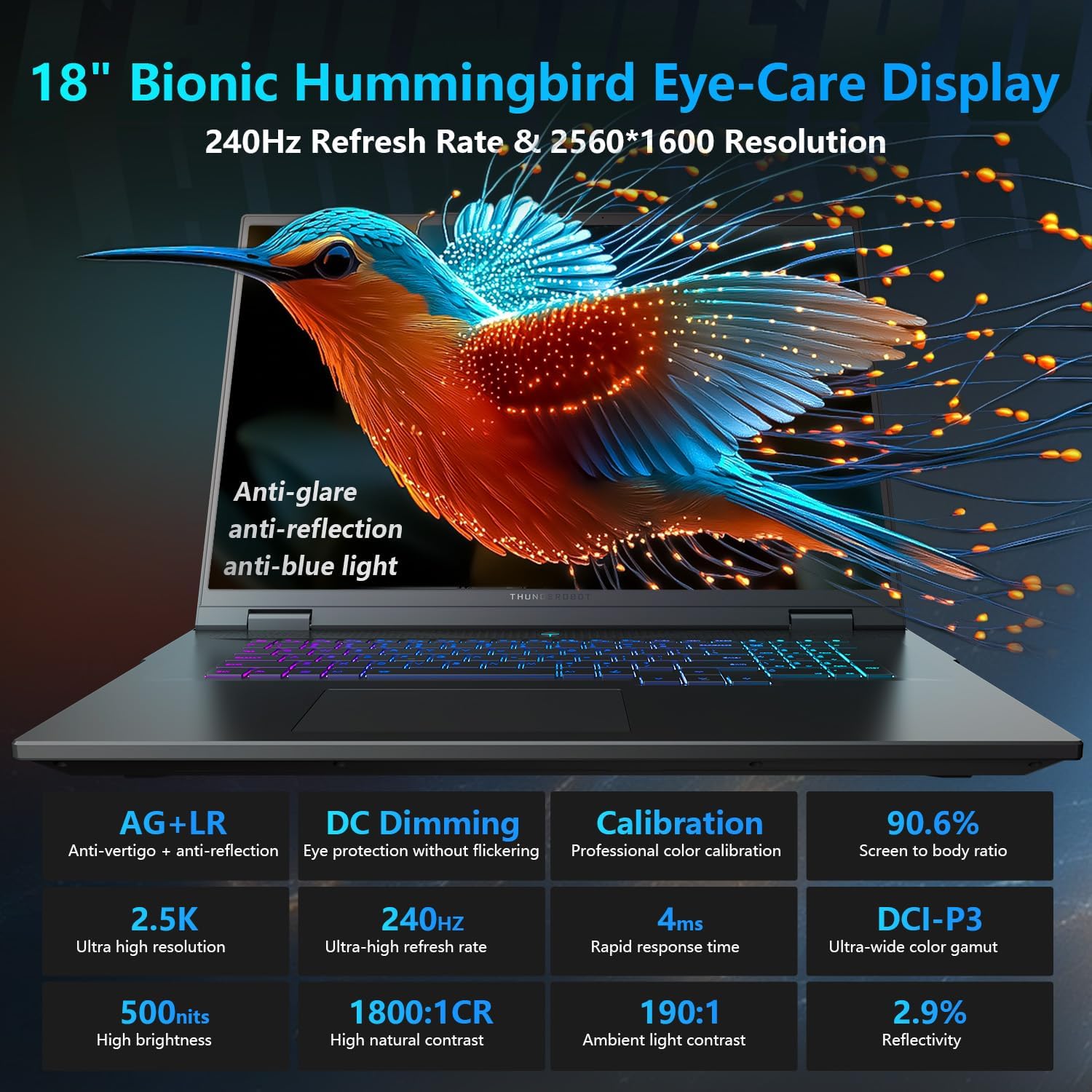
The 18-inch QHD+ (2560x1600) Bionic Hummingbird Eye-Care display offers a 240Hz refresh rate and 4ms response time for clear and fluid visuals. It includes anti-glare, anti-reflection, and anti-blue light technologies for eye comfort.

Connectivity (Ports)
The laptop is equipped with various ports for extensive connectivity:
- 3 x Супер ылдамдыктагы USB Type-A порттору
- 2 x Superspeed USB Type-C ports (including Thunderbolt 5 support)
- 1 x HDMI port (HDMI 2.1)
- 1 x RJ-45 Ethernet порту
- 1 x Аудио порт (3.5 мм)
- UHS-II SD картаны окугуч
- Wi-Fi 6E for high-speed wireless internet
- Bluetooth for wireless peripheral connections

Муздатуу системасы
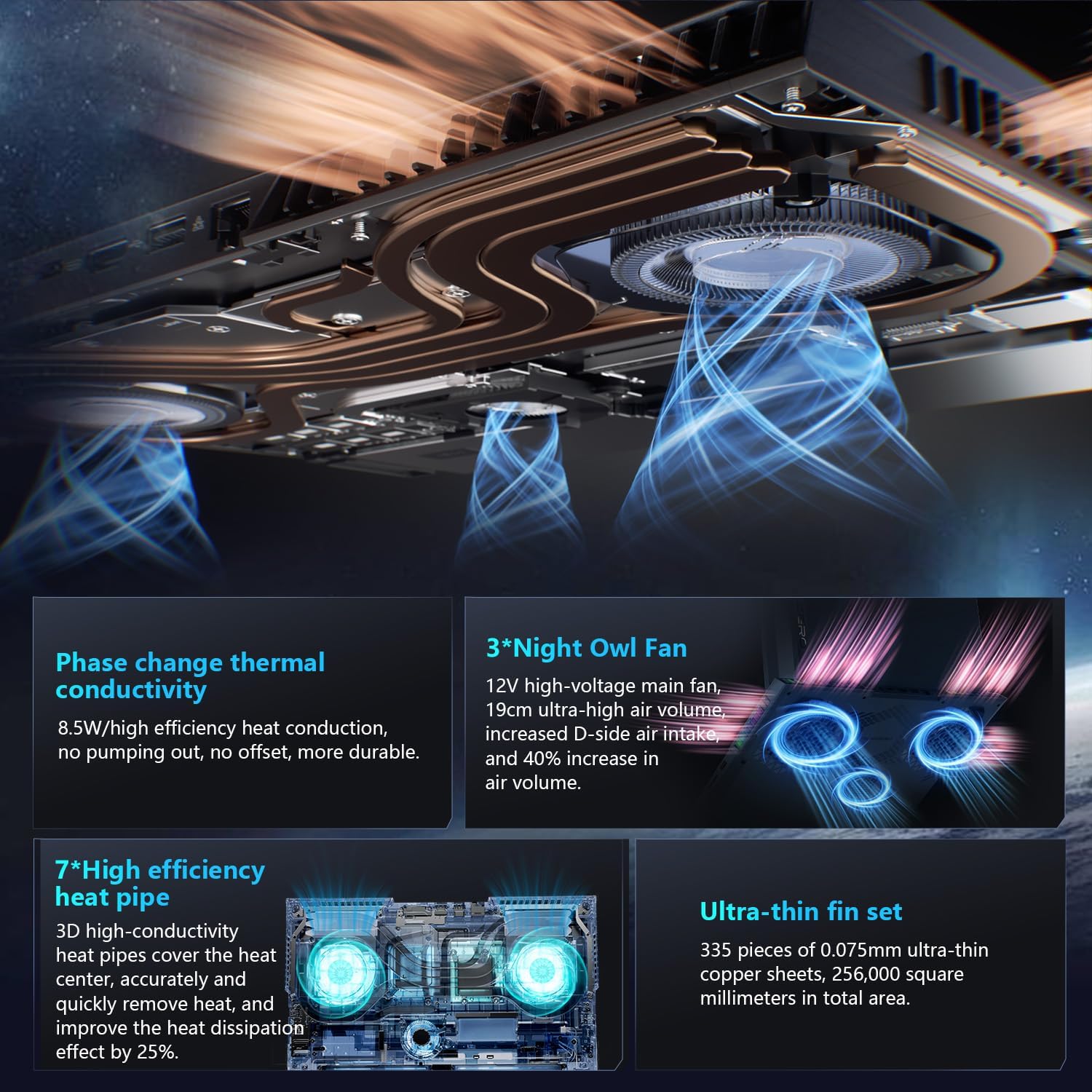
The advanced cooling system features 3 Night Owl fans, 7 high-efficiency heat pipes, and 338 ultra-thin copper fins to ensure optimal thermal management during intensive use, allowing for 270W super performance release.
AI Intelligent Control Center
The AI Intelligent Control Center software allows for comprehensive system management, including performance tuning, intelligent light adjustment, and personalized customization. This includes monitoring CPU/GPU temperatures and fan speeds.
- Аткаруу жөндөөсү: Adjust power settings for quiet, balanced, or turbo modes.
- Акылдуу жарыкты жөндөө: Customize keyboard, strip, and logo RGB lighting effects.
- Системанын мониторинги: View real-time CPU and GPU status.
Эскертүү: Башкаруу борборунда системанын режимин которуу үчүн түзмөк кубат булагына туташтырылышы керек.
Техникалык тейлөө
Ноутбугуңузду тазалоо
- Экран: Жумшак, түксүз кездемени жеңил колдонуңуз dampсуу же экран тазалоочу менен бүттү. Катуу химиялык заттардан алыс болуңуз.
- Баскычтоп жана шасси: Беттерди сүртүү үчүн жумшак чүпүрөк колдонуңуз. Жаракалардагы чаң үчүн кысылган абаны колдонуңуз.
- Тешиктер: Periodically clean the cooling vents with compressed air to prevent dust buildup, which can affect performance.
Батареяга кам көрүү
- Батареяны бат-баттан толук кубаттап калуудан алыс болуңуз.
- Ноутбукту узак убакыт бою колдонбосо, салкын, кургак жерде сактаңыз.
- For optimal battery health, avoid extreme temperatures.
Программалык камсыздоо жаңыртуулары
Regularly check for and install operating system updates (Windows Update) and driver updates (via Thunderobot's official website or the AI Intelligent Control Center) to ensure system stability and performance.
Проблемаларды чечүү
| Көйгөй | Мүмкүн себеп | Чечим |
|---|---|---|
| Ноутбук күйбөйт. | Кубат жок, батареянын заряды түгөнгөн же жабдык көйгөйү жок. |
|
| Экран бош же кара. | Display settings, external monitor connected, or hardware issue. |
|
| Колдонуу учурунда ысып кетүү. | Blocked vents, high performance settings, or dust buildup. |
|
| Wi-Fi туташуу маселелери. | Wi-Fi disabled, driver issues, or router problems. |
|
For further assistance, please contact Thunderobot customer support.
Техникалык шарттар
| Өзгөчөлүк | Деталь |
|---|---|
| Модель аты | Zero 18 Pro |
| Процессор | Intel Core Ultra 9 275HX (24 Cores, 24 Threads, up to 5.40GHz) |
| Графика | NVIDIA GeForce RTX 5070 Ti (8 GB GDDR6 Dedicated) |
| RAM | 32 ГБ DDR5 (4800 МГц) |
| Сактагыч | 2 TB PCIe M.2 SSD |
| Дисплей | 18-inch QHD+ (2560x1600) 240Hz Bionic Hummingbird Eye-Care Display |
| Операция системасы | Windows 11 Home |
| Байланыш | Wi-Fi 6E, Bluetooth, 3x USB-A, 2x USB-C (Thunderbolt 5), HDMI 2.1, RJ-45, Audio Port |
| Баскычтоп | Per-Key RGB Backlit, Numeric Keypad |
| Өлчөмдөрү (LxWxH) | 16.04 x 11.78 x 1.41 дюйм |
| Элемент Салмагы | 15 фунт |
| Power Source | AC & Батарея |
Кепилдик жана колдоо
Ар бир Thunderobot ноутбугунда төмөнкүлөр бар: 12 айлык кепилдик, оңдоо керек болгон учурда эксперттик колдоо, кылдат диагностика жана оригиналдуу тетиктерди сунуштайт. Мындан тышкары, 90 күндүк кепилдик бардык кепилдик алмаштыруучу тетиктерде камтылган, бул оңой оңдоону камсыз кылат. Сиздин толук канааттанууңуз - биздин милдеттенмебиз.
Техникалык колдоо, кепилдик боюнча дооматтар же тейлөө боюнча суроолор үчүн, расмий Thunderobot сайтына кириңиз website or contact their customer service department. Keep your purchase receipt and serial number handy for faster service.