
TERRAMASTER F4 SSD
TERRAMASTER F4 SSD NAS Storage User Manual
Model: F4 SSD
1. Киришүү
The TERRAMASTER F4 SSD is a high-performance 4-bay Network Attached Storage (NAS) server designed for both small businesses and home users. It features an Intel N95 4-core CPU, 8GB DDR5 RAM, and a 5GbE Ethernet port, providing efficient data storage and management capabilities. This manual provides essential instructions for setting up, operating, maintaining, and troubleshooting your F4 SSD NAS.

Image: The TERRAMASTER F4 SSD NAS Storage unit.

Сүрөт: бүттүview of the F4 SSD's core specifications: Intel N95 4-core CPU, 16 execution units GPU, 8GB DDR5 RAM, 5GbE port, 4 M.2 interfaces, and 4K hardware decoding.
2. Физикалык бүтүрүүview
The F4 SSD NAS is designed to be compact and lightweight, making it suitable for various environments. It features multiple ports for connectivity and indicators for status monitoring.
2.1 Өлчөмдөрү жана Салмагы
- Продукциянын өлчөмдөрү: 2.36 x 5.51 x 5.43 дюйм (60 x 140 x 138 мм)
- Элемент Салмагы: 1.32 фунт (0.6 кг)

Image: The F4 SSD NAS demonstrating its palm-sized, compact design.
2.2 Арткы панелдин порттору
Арткы панель маанилүү туташуу параметрлерин камсыз кылат:
- 5 ГбЭ Ethernet порту: For high-speed network connectivity.
- USB 3.2 порттору: Тышкы түзмөктөрдү туташтыруу үчүн.
- HDMI порту: Видео чыгаруу үчүн.
- Кубат киргизүү: Кубат адаптерин туташтыруу үчүн.

Сүрөт: деталдуу view of the rear panel, highlighting the 5GbE LAN port for faster data transmission.
3. Аппараттык камсыздоону орнотуу
The F4 SSD NAS features a tool-free design for easy installation and expansion of M.2 NVMe SSDs and RAM.
3.1 SSD орнотуу
The device supports up to four M.2 2280 NVMe SSDs, with a total capacity of 32TB (8TB per SSD). Follow these steps to install SSDs:
- Түзмөктүн өчүрүлгөнүн жана кубат булагынан ажыратылганын текшериңиз.
- Locate the SSD slots.
- Gently insert each M.2 NVMe SSD into its designated slot.
- Secure the SSDs as per the device's mechanism (tool-free clips or screws).
3.2 RAM Expansion
The F4 SSD comes with 8GB DDR5-4800MHz memory. If expansion is desired, follow these steps:
- Түзмөктүн өчүрүлгөнүн жана кубат булагынан ажыратылганын текшериңиз.
- Locate the RAM slot.
- Carefully insert the new DDR5 RAM module into the slot until it clicks into place.

Image: Visual guide for tool-less SSD and RAM installation, demonstrating the ease of setup.
4. Initial Setup and Operating System (TOS)
After hardware installation, connect your F4 SSD NAS to your network and power it on. The device runs on TerraMaster Operating System (TOS), which provides a user-friendly interface for managing your storage.
4.1 Тармактык туташуу
- Connect the F4 SSD NAS to your router or switch using an Ethernet cable.
- Connect the power adapter and power on the device.
4.2 Accessing TOS
Refer to the quick installation guide provided with your device or the official TerraMaster website for detailed instructions on initial TOS setup, including finding the device on your network and creating your administrator account.
5. Data Management and Backup
The F4 SSD NAS offers a comprehensive suite of backup and data management tools through the TerraMaster Business Backup Suite (BBS).
5.1 Business Backup Suite (BBS)
BBS is an enterprise-grade solution designed for robust data protection and recovery. Key features include:
- Centralized Backup: Consolidate data from various sources to your NAS.
- TerraSync: Synchronize data between your NAS, servers, and PCs.
- Duple Backup: Create off-site backups for disaster recovery.
- CloudSync: Integrate with cloud storage services for cloud recovery.
- Сүрөт: Protect against ransomware and accidental data deletion with point-in-time recovery.
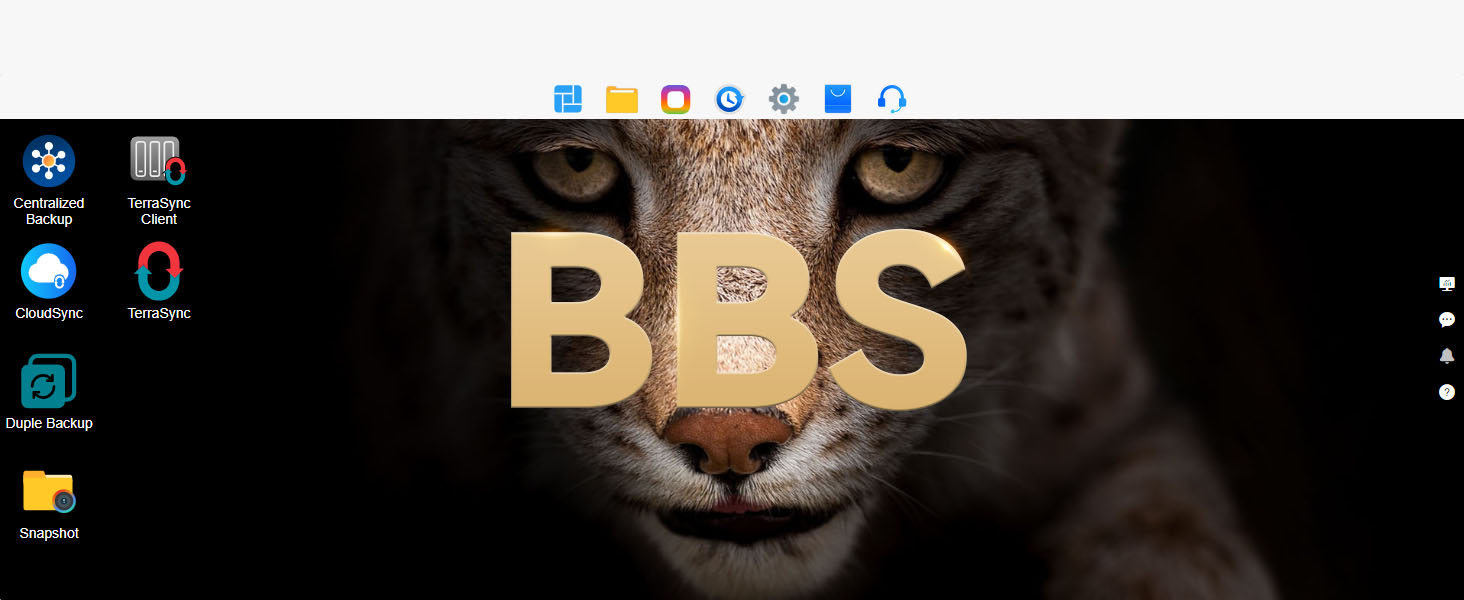
Сүрөт: An overview of the Business Backup Suite (BBS) interface and its various backup and synchronization tools.

Image: Diagram showing how Centralized Backup works, consolidating data from various sources to the NAS.

Image: Diagram illustrating TerraSync, enabling data synchronization across various devices and platforms.

Image: Diagram showing Duple Backup, a disaster recovery solution for creating redundant backups.

Image: Diagram illustrating CloudSync, a feature for synchronizing data with various cloud storage providers.
6. Мультимедиа функциялары
The F4 SSD NAS supports various multimedia applications, making it a central hub for your digital content.
6.1 4K Video Decoding
The device supports 4K hardware decoding, allowing for smooth playback of high-resolution video content. It is compatible with popular media servers such as Plex, Emby, and Jellyfin.

Image: The F4 SSD NAS supports 4K video decoding, compatible with media platforms like Plex, Emby, and Jellyfin.

Image: The NAS efficiently manages multimedia content, supporting Plex and Emby.
6.2 Terra Photos
Terra Photos provides intelligent photo management, allowing you to organize, browse, and share your photo collections easily.

Image: Terra Photos offers intelligent photo management features.
6.3 TNAS Mobile
Access and manage your NAS content on the go with the TNAS Mobile application, available for smartphones and tablets.
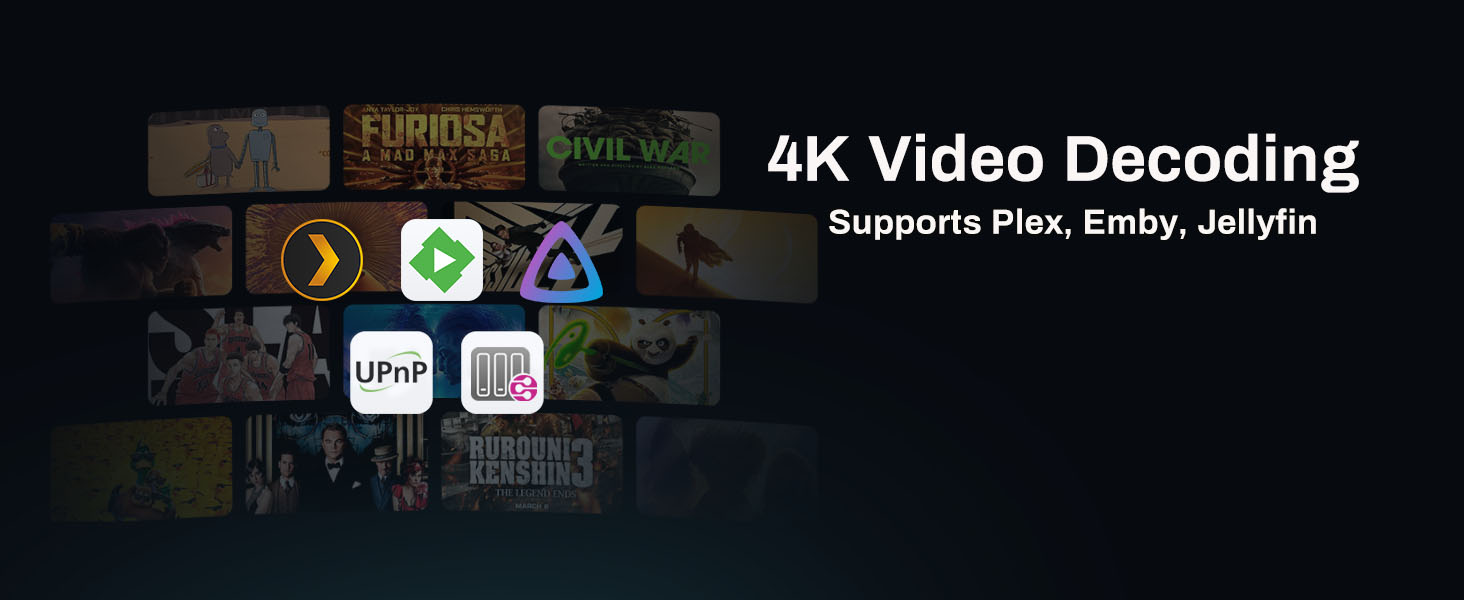
Image: The TNAS Mobile application allows remote access and management of your NAS.
7. Байкоо жүргүзүү
The F4 SSD NAS can function as a surveillance solution with its Surveillance Manager application.
7.1 Surveillance Manager
Effortlessly connect and manage IP cameras, view live feeds, record, and review historical videos through the Surveillance Manager.

Image: The Surveillance Manager provides tools for live viewing, recording, and managing connected cameras.
8. Техникалык тейлөө жана муздатуу
The F4 SSD NAS is designed for quiet operation and efficient heat dissipation to ensure stable performance and longevity.
8.1 Innovative Cooling System
The device incorporates an advanced cooling system with a convection design for each SSD and silent, auto-adjusting smart fans. This design keeps internal temperatures low, even under heavy workloads, contributing to its whisper-quiet performance (below 19dB in standby).

Image: Illustration of the innovative cooling system with airflow for optimal heat dissipation.

Image: The F4 SSD NAS operates with minimal noise, ensuring a quiet environment.
9. Техникалык шарттар
| Өзгөчөлүк | Спецификация |
|---|---|
| Модел | F4 SSD |
| Процессор | Intel N95 Quad-Core (up to 3.4GHz) |
| RAM | 8GB DDR5-4800MHz |
| GPU | UHD Graphics (16 Execution Units) |
| Ethernet порту | 1 x 5GbE |
| M.2 NVMe Slots | 4 (M.2 2280) |
| Max. Storage Capacity | 32TB (4 x 8TB SSDs) |
| USB порттору | 3 x USB 3.2 (10 Гбит/сек) |
| Video Output | HDMI (4K hardware decoding) |
| Өлчөмдөрү (H x W x D) | 2.36 x 5.51 x 5.43 дюйм (60 x 140 x 138 мм) |
| Салмагы | 1.32 фунт (0.6 кг) |
| Материал | Пластик |
| Түс | Кара |

Image: The F4 SSD supports up to 32TB of storage using four M.2 2280 NVMe SSDs.
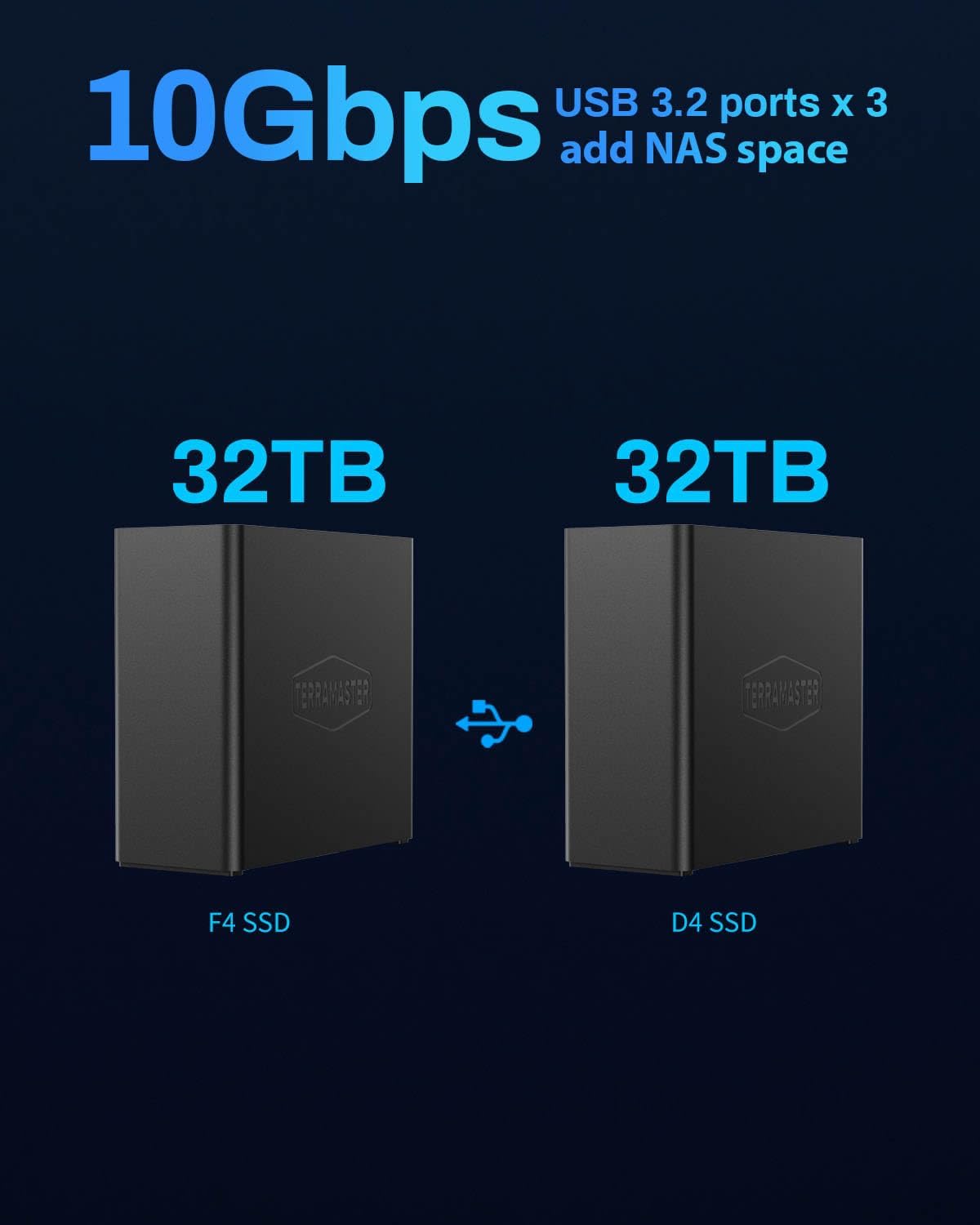
Image: The device features 10Gbps USB 3.2 ports for connecting external storage and expanding NAS capacity.
10. Кыйынчылыктарды
This section provides general guidance for common issues. For specific problems or advanced troubleshooting, please refer to the official TERRAMASTER support resources.
10.1 Жалпы маселелер
- Түзмөк күйбөй жатат: Кубат адаптери аспапка да, иштеген электр розеткасына да бекем туташып турганын текшериңиз.
- Cannot Access NAS on Network: Verify that the Ethernet cable is properly connected and that your network settings (IP address, subnet mask) are correctly configured. Try restarting your router and the NAS.
- SSD таанылган жок: Ensure SSDs are correctly seated in their slots. Check the official compatibility list for supported M.2 NVMe SSDs.
- Жай аткаруу: Check network cable quality, ensure 5GbE connection is active, and monitor CPU/RAM usage through the TOS interface.
10.2 Кошумча жардам издөө
If you encounter issues not covered here, or require more in-depth technical support, please visit the official TERRAMASTER support webсайтка же кардарларды тейлөөгө кайрылыңыз.
11. Кепилдик жана колдоо
TERRAMASTER products are designed for reliability and performance. For detailed information regarding your product's warranty coverage, terms, and conditions, please refer to the warranty card included with your purchase or visit the official TERRAMASTER webсайт.
11.1 Техникалык колдоо
For technical assistance, software updates, and additional resources, please visit the official TERRAMASTER support portal:
- TERRAMASTER Official Webсайт: www.terramaster.com
- TERRAMASTER Store on Amazon: Amazon.com/TERRAMASTER
Ask a question about this manual
Ask about setup, troubleshooting, compatibility, parts, safety, or missing instructions. Manuals+ will review the question and use this page’s manual context to help answer it.