
1. Киришүү
This manual provides essential information for the safe and efficient operation of your GooDee AC571 4K Smart Projector. Please read it thoroughly before use and retain it for future reference.
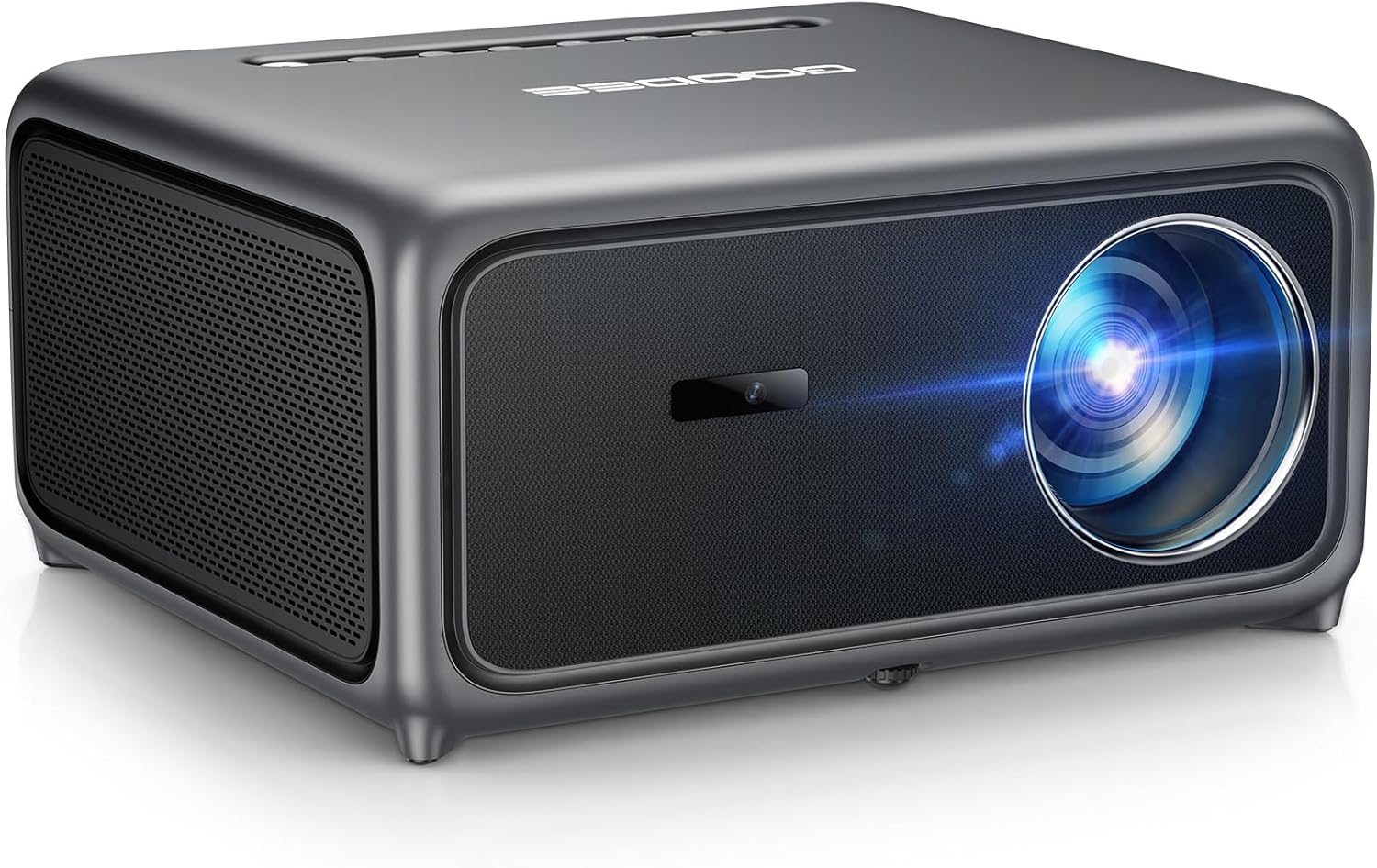
Image 1.1: The GooDee AC571 4K Smart Projector. This image displays the projector's front and side profile, highlighting its lens and speaker grille.
2. Кутуда эмне бар
Таңгактан чыгарганда бардык буюмдар бар экенин текшериңиз:
- GooDee AC571 4K Smart Projector
- Электр кабели
- HDMI кабели
- Алыстан башкаруу
- Тазалоо комплекти
- Проектор линзасынын капкагы
- Колдонуучунун Колдонмосу (бул документ)
3. Орнотуу колдонмосу
3.1 Алгачкы жайгаштыруу
Place the projector on a stable, flat surface. Ensure adequate ventilation around the device. For optimal viewпроекторду проекциялык бетиңиздин (дубалдын же экрандын) түз алдына коюңуз.
3.2 Кубат туташтыруу
- Электр шнурунун проектордун кубат киресине туташтырыңыз.
- Электр шнурунун экинчи учун ылайыктуу электр розеткасына сайыңыз.
3.3 Тышкы түзмөктөрдү туташтыруу
The projector supports various input sources. Refer to the port diagram below for connection points.

Image 3.1: Rear panel connections of the GooDee AC571 Projector. This image illustrates the available ports including HDMI, USB, and audio output, with labels indicating their functions.
- HDMI: Connect Blu-ray players, gaming consoles, or laptops using the provided HDMI cable.
- USB: Медиа ойнотуу үчүн USB дисктерин салыңыз.
- 3.5 мм аудио чыгышы: Тышкы кулакчындарды же динамиктерди туташтырыңыз.
3.4 Automatic Calibration (ToF Auto Focus & Keystone)
The projector features advanced AI + ToF Smart Sensing for automatic image calibration. Upon power-on or movement, the projector will automatically adjust focus, keystone correction, and screen adaptation for a clear, rectangular image.

Image 3.2: The GooDee AC571 Projector demonstrating 1ms ultra-low latency ToF Smart Sensing and AI Precision for auto-calibration. The image shows the projector automatically adjusting the projected image on a wall, ensuring optimal focus and keystone correction.
This process includes:
- Auto Focus: Ensures a sharp image.
- Auto Keystone: Трапециянын бурмаланышын оңдойт.
- Автоунаа тоскоолдуктарынан качуу: Adjusts the image to avoid objects on the projection surface.
- Automatic Screen Adaptation: Fits the image to the available screen area.
4. Иштөө нускамалары
4.1 Күйгүзүү/өчүрүү
- Түзмөктү күйгүзүү же өчүрүү үчүн проектордогу же пульттагы кубат баскычын басыңыз.
4.2 Smart OS'те багыт алуу
The GooDee AC571 features an intelligent operating system with built-in applications. Use the remote control to navigate the interface.

Image 4.1: The GooDee AC571's Smart OS interface, displaying various streaming app icons like Netflix, Prime Video, and YouTube. This image shows the user-friendly layout for accessing built-in entertainment.
- Башкы экран: Access pre-installed apps like Netflix, Prime Video, and YouTube.
- App Store: Download additional applications for personalized entertainment.
- Орнотуулар: Adjust display, audio, network, and system preferences.
4.3 Wireless Connectivity (WiFi & Bluetooth)
The projector supports WiFi 6 and Bluetooth 5.4 for seamless streaming and audio connections.

Image 4.2: The GooDee AC571 Projector demonstrating seamless streaming and effortless connectivity via WiFi 6 and Bluetooth 5.4. The image shows a smartphone mirroring content to the projector, highlighting its wireless capabilities.
- WiFi туташуусу: барыңыз Settings > Network > WiFi зымсыз тармакка туташуу үчүн.
- Bluetooth байланыш: барыңыз Орнотуулар > Bluetooth to pair with Bluetooth headphones or speakers.
- Экранды чагылдыруу: Use AirPlay (iOS) or Miracast (Android/Windows) for wireless screen sharing.
4.4 Audio Settings (Dolby Audio & AI SoundBalance)
The projector features Dolby Audio-certified 30W dual speakers and AI SoundBalance technology.

Image 4.3: The GooDee AC571 Projector with Dolby Audio. The image visually represents sound waves emanating from the projector, emphasizing its immersive audio capabilities.
- Үндү көзөмөлдөө: Adjust using the remote control.
- Үн режимдери: Access audio settings to select different sound profiles or enable/disable AI SoundBalance.
5. Техникалык тейлөө
5.1 Линзаны тазалоо
Use the provided cleaning kit to gently clean the projector lens. Avoid abrasive materials that could scratch the lens surface.
5.2 Чаңдан коргоо
The projector incorporates an advanced dust-shield triple-protection architecture. However, regular cleaning of the exterior with a soft, dry cloth is recommended to prevent dust buildup.

Image 5.1: Illustration of the GooDee AC571 Projector's advanced dust-shield triple-protection architecture. The image shows a transparent overlay highlighting the internal dust protection mechanisms, ensuring longevity and clear projection.
5.3 Сактоо
When not in use, cover the lens with the provided lens cap and store the projector in a cool, dry place away from direct sunlight and extreme temperatures.
6. Кыйынчылыктарды
Жалпы маселелер жана аларды чечүү үчүн төмөнкү таблицага кайрылыңыз.
| Маселе | Мүмкүн себеп | Чечим |
|---|---|---|
| Сүрөт көрсөтүлгөн жок | Power not connected; Input source incorrect; Lens cap on | Электр кубатына туташууну текшериңиз; Туура киргизүү булагын тандаңыз; Линза капкагын алып салыңыз |
| Сүрөт бүдөмүк | Out of focus; Projector moved | Allow auto-focus to recalibrate; Manually adjust focus if needed via settings |
| Сүрөт бурмаланган (трапеция формасы) | Keystone not corrected | Allow auto-keystone to recalibrate; Manually adjust keystone via settings |
| Үн жок | Volume too low; External audio device not connected; Muted | Increase volume; Check external audio connections; Unmute projector |
| WiFi/Bluetooth'ко туташа албай жатат | Incorrect password; Device out of range; Network issue | Verify password; Move closer to router/device; Restart router/projector |
7. Техникалык шарттар
Key technical specifications for the GooDee AC571 4K Smart Projector:
| Өзгөчөлүк | Спецификация |
|---|---|
| Бренд | GooDee |
| Модель номери | AC571 |
| Display Resolution | 1920 x 1080 (Native 1080P, 4K Decoding) |
| Жарыктык | 3000 ANSI челинин |
| Контраст катышы | 20,000:1 |
| Түс гаммасы | 98% NTSC |
| Өзгөчөлүктөр | ToF Auto Focus, Auto Keystone, Auto Obstacle Avoidance, Auto Screen Alignment, MEMC, Dolby Audio, AI SoundBalance Pro, AI Image Tech, Built-in Wi-Fi 6, Bluetooth 5.4, Built-in Speaker, Movin OS with Netflix/Prime Video/YouTube |
| Байланыш технологиясы | Bluetooth, HDMI, USB, Wi-Fi |
| Сунушталган Колдонуулар | Бизнес, Билим берүү, Оюн-зоок, Үй кинотеатры |
| Элемент Салмагы | 9.23 фунт |
| Пакеттин өлчөмдөрү | 12 x 10 x 9.25 дюйм |
8. Кепилдик жана колдоо
8.1 Кепилдик маалыматы
Your GooDee AC571 4K Smart Projector is covered by a manufacturer's warranty. Please refer to the warranty card included in your product packaging for specific terms and conditions, including warranty duration and coverage details.
8.2 Кардарларды колдоо
For technical assistance, troubleshooting not covered in this manual, or warranty claims, please contact GooDee customer support. Contact information can typically be found on the GooDee official webсайтында же кепилдик картасында.

Image 8.1: A customer support representative, symbolizing reliable service and professional support available for GooDee products.