
1. Киришүү
This manual provides detailed instructions for the installation, operation, and maintenance of your Rimoody 8Core 4G+64G Android Car Stereo. This device features an 8-core CPU, 4GB RAM, 64GB ROM, and a 10.1-inch IPS touch screen, offering advanced functionalities such as Wireless Carplay, Android Auto, GPS navigation, Bluetooth, and WiFi connectivity. Please read this manual thoroughly before use to ensure proper installation and optimal performance.

Сүрөт: Негизги view of the Rimoody 10.1-inch Android Car Stereo.
2. Шайкештик
This car stereo is designed for specific Mitsubishi models and years:
- Mitsubishi Outlander Sport: 2011-2017
- Mitsubishi ASX: 2013-2015
- Mitsubishi RVR: 2011-2017
Please verify your vehicle's dashboard configuration matches 'Model A' as shown in the image below. This product is not compatible with 'Model B' dashboards. If your vehicle has a 'Model B' dashboard, please contact customer support for alternative recommendations.

Image: Visual guide for compatible car models, highlighting dashboard types 'A' (compatible) and 'B' (incompatible).
3. Камтылган компоненттер
Пакет төмөнкү нерселерди камтыйт:
- Унаа радиосу
- Камера
- Микрофон
- Электр зымдары
- GPS антеннасы
- RCA кабели
- Орнотуу куралы
- Reverse Line
- USB кабели
- User Manual
Сураныч, орнотууну баштоодон мурун бардык компоненттер бар экенин текшериңиз.
Image: Visual representation of the product list and included accessories.
4. Орнотуу жана орнотуу
4.1 Орнотуу боюнча жалпы көрсөтмөлөр
- Кандайдыр бир электр иштерин баштоодон мурун унаанын аккумуляторун ажыратыңыз.
- Ensure all connections are secure to prevent short circuits or malfunctions.
- Refer to your vehicle's service manual for specific dashboard removal and wiring diagrams.
4.2 Зымдарды туташтыруу
Connect the main wiring harness to your vehicle's power, ground, and speaker wires. Ensure correct polarity for all connections. The GPS antenna should be mounted in a location with a clear view оптималдуу сигнал кабыл алуу үчүн асман.
4.3 Reverse Camera Installation
The included backup camera provides a rear view display when the vehicle is in reverse. Connect the camera's video output to the designated video input on the car stereo. The camera's power wire should be connected to the positive pole of your car's reversing light, and the ground wire to a suitable chassis ground.
Video: This video demonstrates the wiring process for installing the reverse camera with the car stereo.

Сүрөт: Арткы view camera connection and display example.
4.4 Агрегатты монтаждоо
Carefully insert the car stereo into the dashboard opening. Secure it using the provided mounting brackets and screws. Ensure the unit is flush with the dashboard and all cables are neatly tucked away to avoid interference.
5. Иштөө нускамалары
5.1 Күйгүзүү/өчүрүү жана негизги навигация
Press the power button to turn the unit on or off. Navigate the system using the 10.1-inch IPS touchscreen. Swipe gestures allow for easy switching between applications and menus.
5.2 Wireless Carplay & Android Auto
Connect your smartphone wirelessly to access Carplay (for iOS devices) or Android Auto (for Android devices). This allows you to use your phone's navigation, music, messaging, and calling features directly from the car stereo's display. Voice commands are supported for hands-free operation.
5.3 Mirror Link функциясы
The Mirror Link feature allows you to mirror your smartphone's screen onto the car stereo display. Connect via USB cable or WiFi. This enables viewing of phone apps, videos, and other content on the larger screen.

Image: Wireless Carplay, Android Auto, and Mirror Link features.
5.4 GPS Navigation and Built-in WiFi
The unit includes a built-in GPS module supporting both online and offline maps. Utilize voice guidance and real-time traffic information for efficient navigation. Connect to the internet via a WiFi hotspot or tethering from your smartphone to browse the web, stream content, and download applications.

Image: GPS Navigation and WiFi functionality.
5.5 Bluetooth байланышы
Pair your phone via Bluetooth for hands-free calling and wireless music streaming. The system supports automatic loading of your phone book for easy access to contacts.
5.6 FM/RDS радиосу
Access 30 preset radio stations with clear channel search and low noise. The RDS (Radio Data System) function provides additional information such as station name and song title where available.
5.7 DSP & EQ Audio Settings
Utilize the built-in DSP (Digital Signal Processor) tuning software to customize your audio experience. Adjust frequency, acoustic environment (AE), and a 32-band equalization to match your preferences.

Image: Bluetooth, FM/RDS Radio, and DSP/EQ Audio features.
5.8 Рулду башкаруу (SWC)
The unit supports Steering Wheel Control (SWC) functionality, allowing you to control various features directly from your vehicle's steering wheel buttons. This enhances convenience and safety. Refer to the system settings to program and customize SWC functions.
Сүрөт: Руль дөңгөлөгүн башкарууну орнотуу интерфейси.
5.9 Бөлүнгөн экрандын иштеши
Utilize the split-screen feature to run two applications simultaneously. You can customize the size and position of each app window and switch between them with a simple swipe gesture.
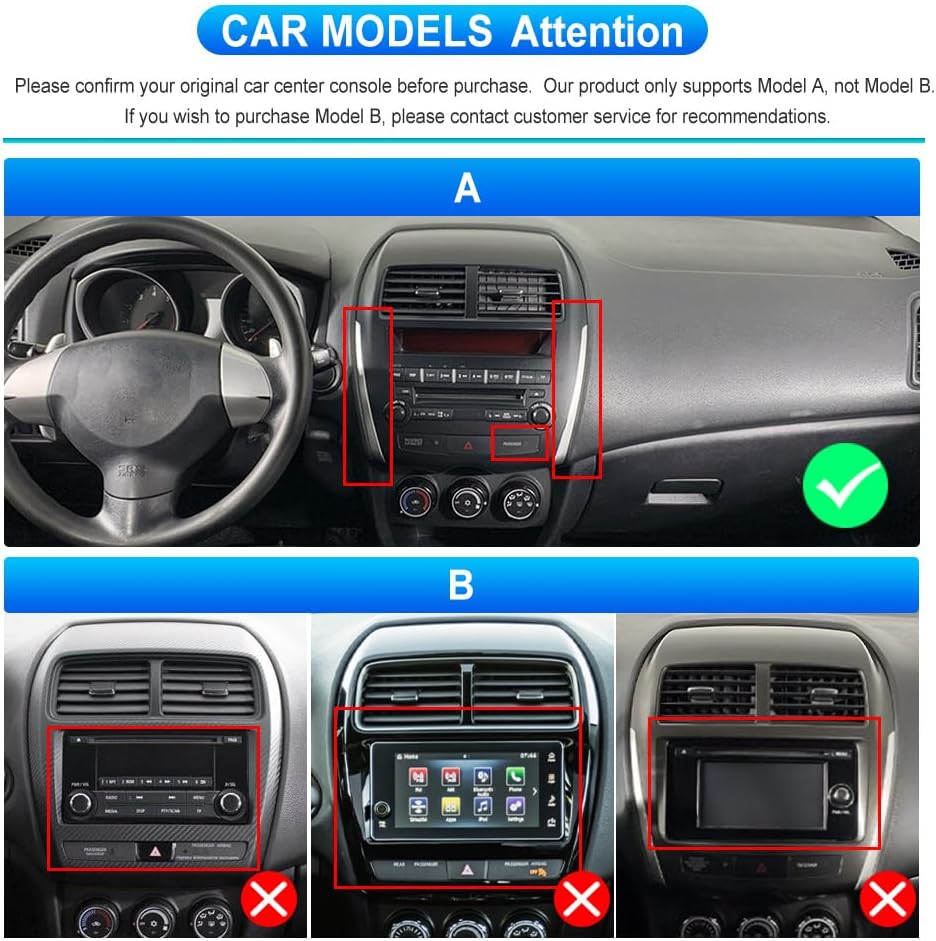
Image: Split Screen feature and optional accessory support.
5.10 Кошумча функциялар
The car stereo supports additional features such as DAB+ (Digital Audio Broadcasting), OBD2 (On-Board Diagnostics), and DVR (Digital Video Recorder). These functions require the separate purchase and installation of compatible accessories.
6. Техникалык тейлөө
- Тазалоо: Экранды жана аппаратты тазалоо үчүн жумшак, кургак чүпүрөктү колдонуңуз. Абразивдүү тазалагычтардан же эриткичтерден качыңыз.
- Программалык камсыздоо жаңыртуулары: Оптималдуу иштешин жана жаңы функцияларга жетүүнү камсыз кылуу үчүн программанын жаңыртууларын мезгил-мезгили менен текшерип туруңуз. Жаңыртууларды адатта өндүрүүчүнүн сайтынан тапса болот webсайты же түзмөктүн жөндөөлөрү аркылуу.
- Температура: Түзмөктү өтө жогорку температурага дуушар кылбаңыз, анткени бул анын иштөө мөөнөтүнө жана иштешине таасир этиши мүмкүн.
7. Кыйынчылыктарды
| Көйгөй | Мүмкүн себеп | Чечим |
|---|---|---|
| Күч жок | туура эмес зымдар; күйгүзүлгөн сактагыч; Унаанын аккумулятору аз. | Check power connections; Inspect vehicle fuses; Charge/replace vehicle battery. |
| Үн жок | Динамиктин зымдары ажыратылган; Үнү өтө төмөн; Үнсүз режим иштетилген. | Verify speaker connections; Increase volume; Disable mute. |
| GPS сигналынын жоголушу | Antenna obstruction; Poor antenna placement. | GPS антеннасынын таза болушун текшериңиз view of sky; Relocate antenna if necessary. |
| Bluetooth туташуу маселелери | Device not in pairing mode; Interference; Incorrect pairing process. | Ensure phone's Bluetooth is on and discoverable; Re-pair device; Move away from other wireless devices. |
| Сенсордук экран жооп бербейт | Software glitch; Screen dirty. | Restart the unit; Clean the screen with a soft cloth. |
8. Техникалык шарттар
| Өзгөчөлүк | Деталь |
|---|---|
| Бренд | Римуди |
| Операция системасы | Android |
| CPU | 8 Негизги |
| Эстутум (RAM+ROM) | 4 ГБ RAM + 64 ГБ ROM |
| Screen Size | 10.1 дюйм |
| Дисплей түрү | IPS Capacitive сенсордук экраны |
| Байланыш | Bluetooth, WiFi |
| Навигация | Built-in GPS (Supports online/offline maps) |
| Аудио чыгаруу режими | Стерео |
| Өзгөчөлүктөр | Wireless Carplay, Wireless Android Auto, Mirror Link, Split Screen, DSP, EQ, FM/RDS Radio, SWC Support, Rear View Камера киргизүү |
| Шайкеш түзмөктөр | Смартфон |
| Башкаруу ыкмасы | Тийүү, Үн |
9. Кепилдик жана колдоо
Your Rimoody car stereo comes with a 2 жылдык өндүрүүчүнүн кепилдиги. Бул кепилдик нормалдуу колдонуудагы материалдардагы жана жасалгадагы кемчиликтерди камтыйт.
For technical assistance, installation guidance, or warranty claims, please contact Rimoody customer support. We offer:
- Quick response within 24 hours.
- Professional installation guides and video support.
- 90-day free return for refund or exchange.
- Өмүр бою техникалык колдоо.
You can find contact information on the official Rimoody webсайт же сатып алуу платформасы аркылуу.