
1. Киришүү
Thank you for choosing the FightBox B-PRO All Button Leverless Arcade Game Controller. This manual provides essential information for setting up, operating, maintaining, and troubleshooting your device. Please read it thoroughly to ensure optimal performance and longevity of your controller.
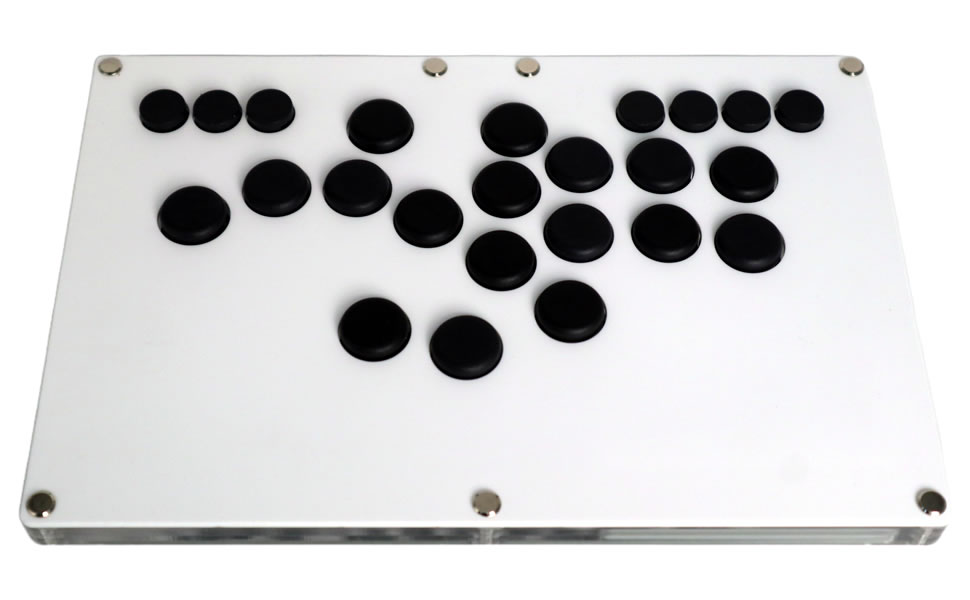
Image 1.1: The FightBox B-PRO All Button Leverless Arcade Game Controller, a compact and high-performance gaming device.
2. Продукциянын өзгөчөлүктөрү
The FightBox B-PRO is engineered for precision and responsiveness, offering a superior gaming experience with its advanced design and components.
- Fully Customizable Buttons: Includes 5 additional buttons for personalized control schemes.
- Портативдик дизайн: Features an ultra-thin and compact form factor for easy transport.
- Cherry MX Silver Key Switches: Equipped with high-performance, hot-swappable Cherry MX Silver switches for rapid input.
- FightBox RP2040 Advanced Breakout Board: Utilizes a robust internal board for reliable and low-latency performance.
- SOCD Support: Complies with tournament standards for Simultaneous Opposing Cardinal Directions (SOCD) cleaning.
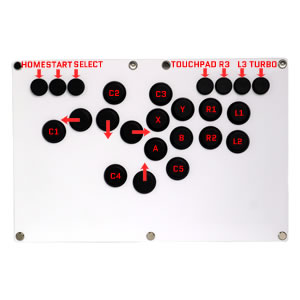

Image 2.1: The FightBox RP2040 Advanced Breakout Board (left) and a Cherry MX Silver Key Switch (right), key internal components of the controller.
3. Пакеттин мазмуну
Кутудан чыгарганда пакетте бардык буюмдар бар экенин текшериңиз:
- FightBox B-PRO All Button Leverless Arcade Game Controller
- USB кабели (Тип-Адан Бга чейин)
- Колдонуучунун Колдонмосу (бул документ)

Image 3.1: The retail packaging for the FightBox B-PRO controller.
4. Controller Layout
The FightBox B-PRO features a standard all-button layout designed for fighting games, with additional customizable buttons for enhanced functionality.

Image 4.1: Diagram illustrating the button layout and labeling of the FightBox B-PRO controller, including directional inputs and action buttons.
The controller includes standard arcade action buttons (X, Y, A, B, R1, R2, L1, L2), directional buttons (Up, Down, Left, Right), and additional system buttons (HOME, START, SELECT, TOUCHPAD, R3, L3, TURBO) along with five customizable buttons (C1-C5).
5. Орнотуу нускамалары
Follow these steps to connect your FightBox B-PRO controller to your desired platform.
5.1 Connecting to PC/PS3/PS4/Nintendo Switch
- Locate the USB Type-B port on the back of the FightBox B-PRO controller.
- Connect one end of the provided USB cable (Type-A to Type-B) to the controller's USB Type-B port.
- Connect the other end of the USB cable (Type-A) to an available USB port on your PC, PlayStation 3, PlayStation 4, or Nintendo Switch dock.
- The controller should be automatically recognized by your system. For PC, drivers may install automatically. For consoles, ensure the console is powered on.

Сүрөт 5.1: Жакын пландан view of the USB Type-B port on the FightBox B-PRO controller, used for connecting to gaming platforms.
5.2 Платформанын шайкештиги
- PC: Windows операциялык системалары менен шайкеш келет.
- PlayStation 3 (PS3): Plug and play.
- PlayStation 4 (PS4): Plug and play.
- Nintendo Switch: Connect via the Switch dock.
6. Иштөө нускамалары
Once connected, the FightBox B-PRO functions as a standard game controller. Refer to your game's control settings to customize button assignments as needed.
6.1 Customizing Additional Buttons
The 5 additional buttons (C1-C5) can be programmed for various functions depending on the game or system. Consult your game's options menu for button remapping capabilities.
6.2 Турбо функциясы
The TURBO button allows for rapid, repeated input of another button. To activate, hold the TURBO button and press the desired action button. To deactivate, repeat the process.
7. SOCD Modes
The FightBox B-PRO supports three Simultaneous Opposing Cardinal Directions (SOCD) cleaning modes, which determine how conflicting directional inputs are processed. This feature is crucial for competitive play and tournament compliance.

Image 7.1: Table detailing the three supported SOCD modes and their input processing logic.
- Up Priority SOCD Mode (Default): When Up and Down are pressed simultaneously, Up input is prioritized. When Left and Right are pressed simultaneously, Neutral is output.
- Neutral (CAPCOM) SOCD Mode: When opposing directions (Up+Down or Left+Right) are pressed simultaneously, a Neutral input is output. This is a common tournament standard.
- Last Win SOCD Mode: The last directional input pressed takes precedence over the opposing direction. For example, if Left is held and Right is pressed, Right will be the active input.
Refer to the controller's specific button combinations or software utility (if available) to switch between these SOCD modes.
8. Техникалык тейлөө
Proper care will extend the life of your FightBox B-PRO controller.
- Тазалоо: Use a soft, dry cloth to wipe the surface of the controller. For stubborn dirt, a slightly damp жумшак самын менен кездеме, андан кийин кургак чүпүрөк колдонсо болот. Абразивдүү тазалагычтардан же эриткичтерден качыңыз.
- Сактагыч: Контроллерди түз күн нурунан жана экстремалдык температурадан алыс салкын, кургак жерде сактаңыз.
- Колдонуу: Avoid dropping the controller or exposing it to excessive force, which can damage internal components or the acrylic casing.
9. Кыйынчылыктарды
If you encounter issues with your FightBox B-PRO, try the following solutions:
| Көйгөй | Мүмкүн чечим |
|---|---|
| Controller not recognized by system |
|
| Buttons are unresponsive or sticky |
|
| Incorrect directional inputs (SOCD issues) |
|
10. Техникалык шарттар
Detailed technical specifications for the FightBox B-PRO controller.
| Өзгөчөлүк | Деталь |
|---|---|
| Модель аты | B-PRO |
| Бренд | FightBox |
| Шайкеш түзмөктөр | Nintendo Switch, PC, PlayStation 3, PlayStation 4, Windows |
| Controller Type | USB |
| Байланыш технологиясы | USB |
| Button Quantity | 17 |
| Аппараттык платформа | Android, Nintendo Switch, PC, PlayStation 3/4 |
| Элементтин өлчөмдөрү (L x W x Y) | 11.81 x 7.40 x 0.75 дюйм (30 см x 18.8 см x 1.9 см) |
| Салмагы | Болжол менен 1.2 кг |
| UPC | 769700309744 |
| ASIN | B0FB8XZ84R |

Image 10.1: Diagram showing the dimensions of the FightBox B-PRO controller.
11. Кепилдик жана колдоо
The FightBox B-PRO controller comes with a standard manufacturer's warranty against defects in materials and workmanship. For specific warranty terms, duration, and to initiate a support request, please refer to the warranty card included with your product or visit the official FightBox webсайт.
For technical assistance, troubleshooting beyond this manual, or general inquiries, please contact FightBox customer support through their official channels.