
Introduction
This manual provides instructions for the Oraimo FlowMotion Smart 3-Axis Gimbal Stabilizer. This advanced accessory is designed to enhance your content creation by providing smooth, professional-quality video recording. It features smart face tracking technology to keep your subject in focus and a 3-axis stabilization system to eliminate camera shake. The compact and durable design makes it suitable for various filming needs, from vlogging to live streaming.
Кутуда эмне бар
- Oraimo FlowMotion Smart 3-Axis Gimbal Stabilizer
- User Manual
- Монтаждык база
- USB заряддоо кабели
Продукт бүттүview
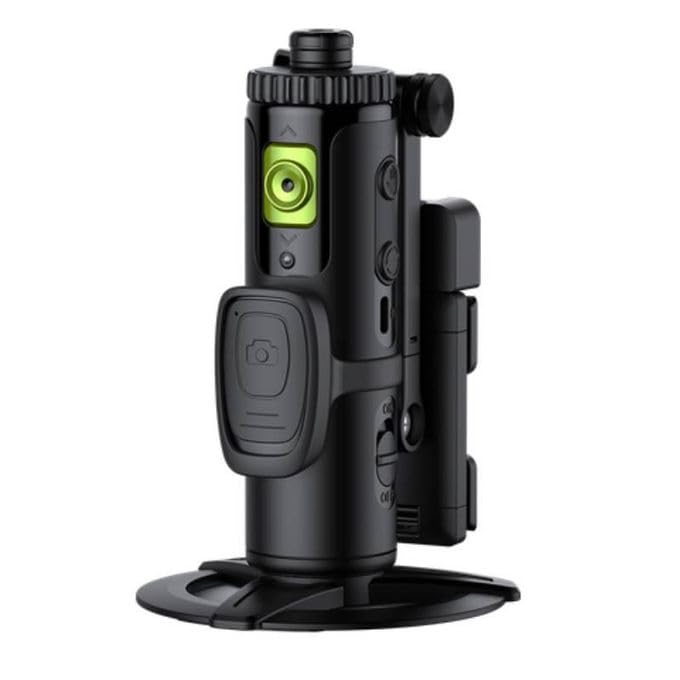
1-сүрөт: Oraimo FlowMotion Smart 3-Axis Gimbal Stabilizer OAT-201A with a smartphone mounted and an LED light accessory. The gimbal is shown on a table, highlighting its smart tracking and multi-angle shooting capabilities.
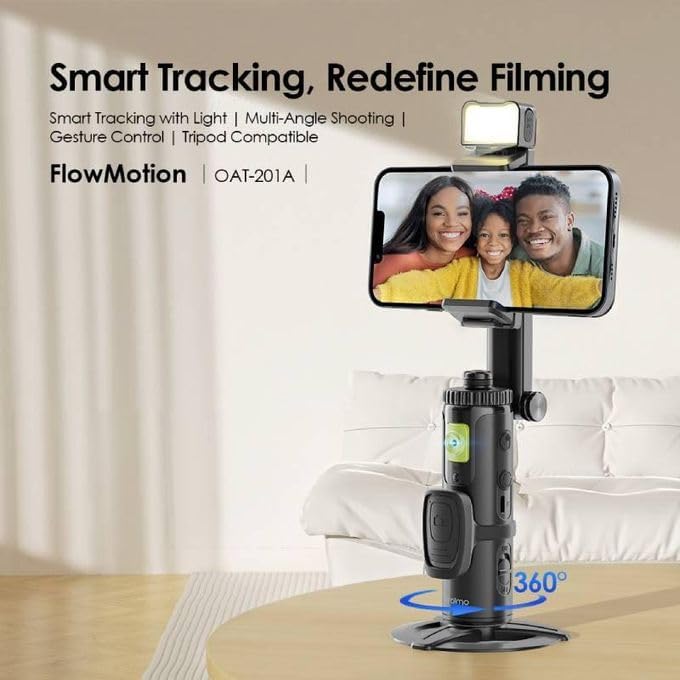
2-сүрөт: Oraimo FlowMotion Smart 3-Axis Gimbal Stabilizer OAT-201A demonstrating multi-angle shooting. This image illustrates the gimbal's ability to rotate 360 degrees around the phone and 360 degrees at its base, as well as 180 degrees for vertical shooting, offering versatile recording angles.
Жайгашуу
- Гимбалды заряддоо: Before first use, fully charge the gimbal using the provided USB charging cable. Connect the cable to the gimbal's charging port and a suitable USB power source. The LED indicator will show charging status.
- Смартфонуңузду орнотуңуз: Телефондун кулпусун кеңейтүүamp and carefully place your smartphone in it, ensuring it is securely centered. The gimbal supports phones up to 500g.
- Күйгүзүү: Press and hold the power button for a few seconds until the LED indicator lights up, indicating the gimbal is powered on.
- Bluetooth аркылуу туташуу: Enable Bluetooth on your smartphone. Open your phone's Bluetooth settings and search for the gimbal (e.g., "Oraimo Gimbal"). Pair the devices. This connection is necessary for smart tracking and remote control features.
- Install the App (Optional): For enhanced features and control, download and install the dedicated Oraimo gimbal app from your smartphone's app store.
Иштөө нускамалары
- Негизги башкаруу элементтери: The control panel features intuitive buttons for various functions. Refer to the specific button layout on your device for detailed functions such as mode switching, recording start/stop, and zoom control.
- Smart Face Tracking: Once connected via Bluetooth and with the app (if used), activate face tracking. Position yourself or your subject in front of the camera, and the gimbal will automatically follow their movement, keeping them centered in the frame.
- Которуу режими: Press the mode button to cycle through different operating modes (e.g., Pan Follow, Lock Mode, POV). Each mode offers a unique stabilization behavior for different shooting scenarios.
- Кол менен тууралоо: You can manually adjust the gimbal's angle using the joystick or by gently moving the phone clamp каалаган абалга.
- Өчүрүү: LED индикатору өчкөнчө кубат баскычын басып, кармап туруңуз.
Техникалык тейлөө
- Тазалоо: Use a soft, dry cloth to clean the gimbal. Avoid using harsh chemicals or abrasive materials that could damage the surface.
- Сактагыч: Store the gimbal in a cool, dry place away from direct sunlight and extreme temperatures. When not in use for extended periods, ensure the battery is partially charged (around 50%) to prolong its lifespan.
- Батареяга кам көрүү: Do not expose the battery to high temperatures or disassemble it. Charge the gimbal regularly, even if not in frequent use, to maintain battery health.
Проблемаларды чечүү
- Гимбаль күйбөй жатат: Ensure the gimbal is fully charged. If the issue persists, try connecting it to a different charging cable or power adapter.
- Туруксуз Footage: Verify that your smartphone is securely mounted and balanced in the clamp. Ensure the gimbal is calibrated correctly (refer to app instructions if applicable).
- Face Tracking Not Working: Confirm that Bluetooth is connected and the Oraimo app (if used) has the necessary permissions. Ensure the subject's face is clearly visible to the camera.
- Bluetooth туташуу маселелери: Try restarting both the gimbal and your smartphone. Ensure no other devices are interfering with the Bluetooth signal.
- Gimbal жооп бербейт: Power off the gimbal and restart it. If unresponsive, allow the battery to fully discharge and then recharge it.
Техникалык шарттар
| Өзгөчөлүк | Деталь |
|---|---|
| Бренд аты | Oraimo |
| Модель аты | OAT-201A |
| Моделдин номери / тетиктин номери | Ofm-g01 |
| Түс | Кара |
| Шайкеш түзмөктөр | Mobile Phone, Smartphone |
| Өзгөчөлүктөр | Smart Tracking |
| Материал | Металл |
| Элемент Салмагы | 278 грамм |
| Максималдуу Салмак сыйымдуулугу | 500 грамм |
| Продукциянын өлчөмдөрү (D x W x Y) | 8.5 см х 8 см х 20 см |
| Катталган өлчөмү | 15.0 см х 8.0 см х 5.0 см |
| Image Stabilization | 3-axis Gimbal Stabilization |
| Видео тартуу форматы | MP4 |
| Видео тартуунун резолюциясы | 4K (3840 x 2160) |
| Аудио жаздыруу | Жок |
| Атуу режимдери | Бетке көз салуу |
| Экспозицияны башкаруу түрү | Автоматтык |
| File Формат | Video (4K) |
| Медиа түрү | Video |
Кепилдик жана колдоо
This Oraimo FlowMotion Smart 3-Axis Gimbal Stabilizer comes with a бир жылдык кепилдик сатып алынган күндөн тартып. Бул кепилдик өндүрүштүк кемчиликтерди камтыйт жана кадимки колдонууда ишенимдүү иштөөнү камсыз кылат. Кепилдик дооматтары үчүн сатып алганыңызды тастыктаган документти сактап коюңуз.
For technical support, troubleshooting assistance, or warranty inquiries, please contact Oraimo customer service through their official website or the contact information provided in your product packaging. Always refer to the official Oraimo resources for the most accurate and up-to-date support information.