
Introduction
This manual provides essential information for setting up, operating, maintaining, and troubleshooting your Acer AL15-33P laptop. Please read this guide thoroughly to ensure proper use and to maximize the lifespan of your device.
Жайгашуу
1. Кутудан чыгаруу жана алгачкы текшерүү
Carefully remove the laptop and all accessories from the packaging. Check for any visible damage. The package should include the laptop, power adapter, and this user manual.

Фронт view of the Acer AL15-33P laptop with the screen displaying the Windows desktop.
2. Кубатты туташтыруу
- AC адаптердин кабелин кубат адаптерине туташтырыңыз.
- Plug the DC output connector of the power adapter into the power input port on the side of your laptop.
- AC шнурду электр розеткасына сайыңыз.
The battery will begin charging automatically. It is recommended to fully charge the battery before initial use.
3. Баштапкы жүктөө жана Windows орнотуу
- Ноутбуктун капкагын ачыңыз.
- Press the power button, typically located on the keyboard deck or side, to turn on the laptop.
- Follow the on-screen instructions to complete the Windows 11 setup process. This includes selecting your region, language, accepting terms, and setting up a user account.
Ноутбугуңузду иштетүү
1. Баскычтопту жана сенсордук тактаны колдонуу
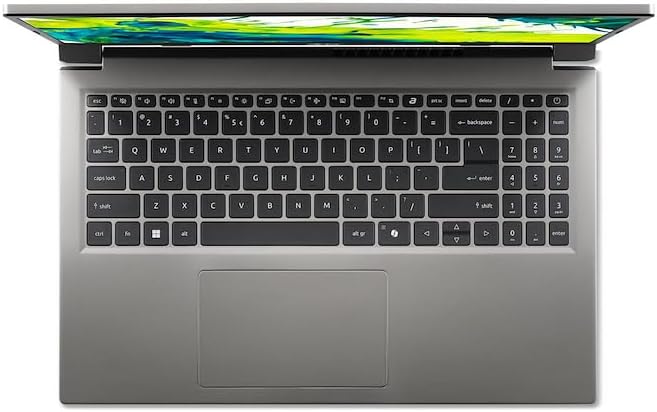
Жогорудан төмөн view of the laptop's keyboard and touchpad.
- Баскычтоп: The laptop features a full-size keyboard. Use the function (Fn) key in combination with F-keys for special functions like adjusting brightness, volume, or enabling/disabling Wi-Fi.
- Сенсордук такта: The integrated touchpad supports multi-touch gestures. Tap to click, use two fingers to scroll, and pinch to zoom.
2. Перифериялык түзүлүштөрдү туташтыруу
Your Acer AL15-33P laptop is equipped with various ports for connecting external devices.

Right side of the laptop showing ports including USB and audio jack.

Left side of the laptop showing ports including power, USB-C, HDMI, and USB-A.
- USB порттору: Тышкы катуу дисктер, чычкандар же баскычтоптор сыяктуу USB түзмөктөрүн туташтырыңыз.
- HDMI порту: Connect an external monitor or TV for a larger display.
- Аудио Jack: Наушниктерди же тышкы динамиктерди туташтырыңыз.
- USB-C порту: For data transfer and potentially display output or charging, depending on the specific model configuration.
3. Зымсыз байланыш
- Wi-Fi: Зымсыз тармакка туташуу үчүн, тапшырмалар тилкесиндеги Wi-Fi сөлөкөтүн чыкылдатып, тармакты тандап, керек болсо сырсөздү киргизиңиз.
- Bluetooth: To pair Bluetooth devices, go to Windows Settings > Bluetooth & devices, and turn on Bluetooth.
4. Электр энергиясын башкаруу
- Уйку режими: Капкакты жабыңыз же ноутбукту аз кубаттуулукта абалга келтирүү үчүн Баштоо менюсунан "Уйку" дегенди тандаңыз.
- Өчүрүү: To turn off the laptop completely, go to the Start menu, click the Power icon, and select 'Shut down'.
- Кайра баштоо: To restart the laptop, go to the Start menu, click the Power icon, and select 'Restart'.
Техникалык тейлөө
1. Ноутбукту тазалоо
- Бир аз жумшак, түксүз кездемени колдонуңуз dampдисплейди тазалоо үчүн суу же экран тазалагыч менен иштетиңиз.
- Баскычтоп жана шасси үчүн жумшак кездеме колдонуңуз. Катуу химиялык заттардан же абразивдүү материалдардан алыс болуңуз.
- Periodically use compressed air to clear dust from the cooling vents to prevent overheating.
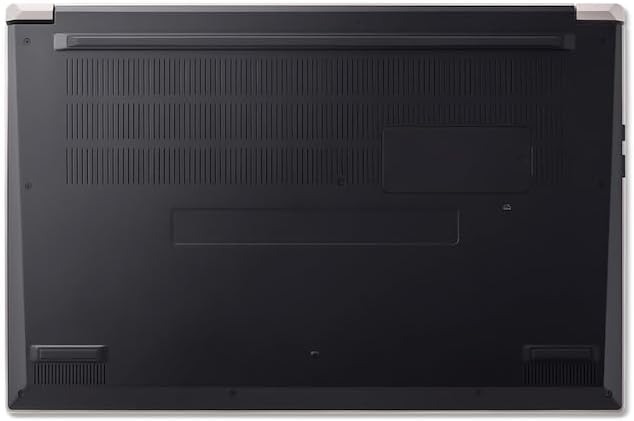
Төмөнкү view of the laptop, highlighting the ventilation grilles.
2. Батареяга кам көрүү
- Батареянын тез-тез толугу менен зарядсызданышынан алыс болуңуз.
- Ноутбукту узак убакытка сактасаңыз, батареянын болжол менен 50-70% га чейин заряддалганын текшериңиз.
- Operate the laptop in a moderate temperature environment.
3. Программалык камсыздоону жаңыртуу
Regularly update your operating system and drivers to ensure optimal performance and security. Windows Update can be accessed via Settings > Windows Update.
4. Сактагычты башкаруу
Мезгил-мезгили менен кайраview жана керексиз жок кылуу files to free up storage space. Utilize cloud storage or external drives for backups of important data.
Проблемаларды чечүү
This section addresses common issues you might encounter with your Acer AL15-33P laptop.
| Көйгөй | Мүмкүн чечим |
|---|---|
| Ноутбук күйбөйт. | Ensure the power adapter is securely connected and the outlet is working. Try a different outlet. If the battery is completely drained, it may take a few minutes to show signs of life after plugging in. |
| Дисплей бош же кара түстө. | Check if the laptop is powered on. Try pressing Fn + F6 (or the corresponding display toggle key) to cycle through display modes. Connect an external monitor to check if the issue is with the laptop's screen. |
| Wi-Fi туташуу маселелери. | Ensure Wi-Fi is enabled (Fn + F3 or check Windows settings). Restart your router and modem. Check if other devices can connect to the Wi-Fi network. Update Wi-Fi drivers. |
| Ноутбук жай иштеп жатат. | Close unnecessary applications. Check Task Manager for processes consuming high CPU or memory. Run a disk cleanup. Ensure Windows and drivers are up to date. |
Техникалык шарттар
The following are key specifications for the Acer AL15-33P model. Note that specific configurations may vary.
- Модел: Acer AL15-33P
- Процессор: Intel Core i3-N355
- RAM: 8 ГБ
- Сактагыч: 512 ГБ SSD
- Дисплей: 15.6 дюймдук
- Операция системасы: Windows 11
- Бренд: Acer
Кепилдик жана колдоо
Your Acer AL15-33P laptop comes with a standard manufacturer's warranty. Please refer to the warranty card included with your product for specific terms and conditions, including the warranty period and coverage details.
Техникалык колдоо, драйверди жүктөп алуу же кызмат суроо үчүн Acer расмий колдоо бөлүмүнө баш багыңыз website or contact Acer customer service directly. Have your laptop's serial number ready when contacting support.
Acer колдоо Webсайт: www.acer.com/support