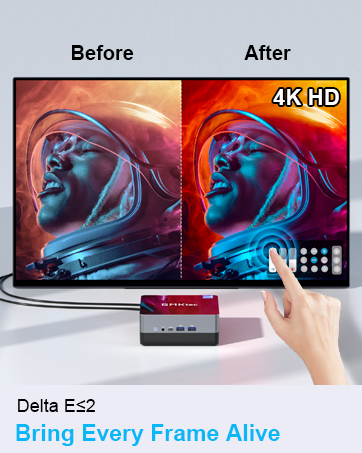
1. Продукт бүтүп калдыview
The GMKtec Nucbox G10 is a compact and powerful mini PC designed for various computing tasks, from office productivity to light gaming and multimedia consumption. It features an AMD Ryzen 5 3500U processor, ample memory, and fast storage, along with extensive connectivity options.

2. Пакеттин мазмуну
Пакетте бардык буюмдар бар экенин текшериңиз:
- GMKtec Nucbox G10 AMD Ryzen 5 3500U Mini PC Computer
- Power Supply & Cable
- HDMI кабели
- VESA Mount and Screws
- User Manual

3. Орнотуу нускамалары
3.1 Перифериялык түзүлүштөрдү туташтыруу
Before powering on the Mini PC, connect your essential peripherals:
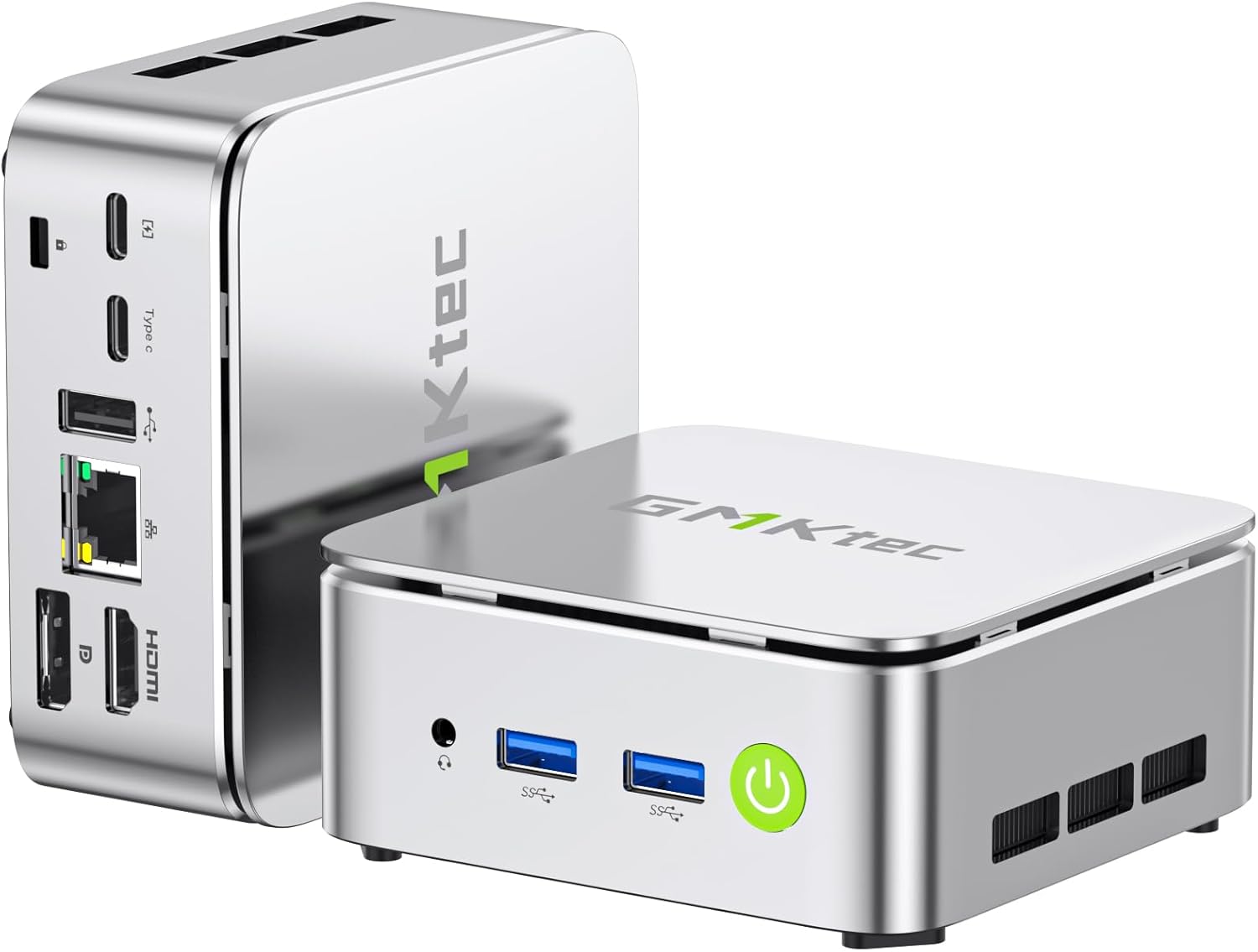
- Дисплей: Connect your monitor(s) using the HDMI 2.1 TMDS, DisplayPort (DPv1.4), or USB-C (DP Alt Mode) ports. The Nucbox G10 supports up to three 4K displays simultaneously.
- Баскычтоп жана чычкан: Connect your USB keyboard and mouse to the available USB 3.2 (5Gbps) or USB 2.0 ports.
- Тармак: For a wired connection, connect an Ethernet cable to the 2.5GbE LAN port. For wireless, ensure your WiFi network is available.
- Аудио: Connect speakers or headphones to the 3.5mm audio jack (CTIA standard).
- Күч: Connect the power adapter to the DC-in port on the Mini PC and then to a power outlet.

3.2 Баштапкы күйгүзүү
Press the power button located on the front of the device. The system will boot up, and you will be guided through the initial operating system setup (Windows 11 Pro is pre-installed).
3.3 VESA орнотуусун орнотуу
The Nucbox G10 includes a VESA mount for attaching the Mini PC to the back of a compatible monitor or TV. This helps save desk space and creates a cleaner setup.
- Locate the VESA mounting holes on your monitor (typically 75x75mm or 100x100mm).
- Attach the VESA bracket to the Mini PC using the provided screws. You may need to remove two of the foot pads on the Mini PC to properly secure the bracket.
- Secure the Mini PC with the attached VESA bracket to your monitor's VESA mounting holes using the appropriate screws.
4. Иштөө нускамалары
4.1 Күйгүзүү/өчүрүү
- Күйгүзүү: Кубат баскычын бир жолу басыңыз.
- Өчүрүү: From the operating system, select 'Shut down'. Alternatively, press and hold the power button for 5-7 seconds to force a shutdown (use only when necessary).
4.2 Дисплейдин конфигурациясы
The Nucbox G10 supports up to three independent 4K displays. Connect your displays to the HDMI, DisplayPort, and USB-C (DP Alt Mode) ports. Configure display settings within your operating system to extend or duplicate your desktop.

4.3 Тармакка туташуу
- Зымдуу LAN: Connect an Ethernet cable to the 2.5GbE port for high-speed internet access.
- Wi-Fi: The device supports Wi-Fi 5 for wireless internet. Access network settings in your operating system to connect to available Wi-Fi networks.
- Bluetooth: Bluetooth 5.0 is integrated for connecting wireless peripherals such as keyboards, mice, and headphones.

4.4 Сактоо жана эс тутумду кеңейтүү
The Nucbox G10 comes with 16GB DDR4 RAM and a 256GB M.2 2280 SSD. Both are expandable:
- RAM: The dual-channel DDR4 SO-DIMM RAM can be expanded up to 64GB.
- Сактагыч: The device features dual M.2 2280 PCIe 3.0 slots, supporting storage expansion up to 16TB (2x 8TB SSDs).
Note: Upgrades are not included and should be performed by a qualified technician if you are unfamiliar with hardware installation.

5. Техникалык тейлөө
5.1 Муздатуу системасы
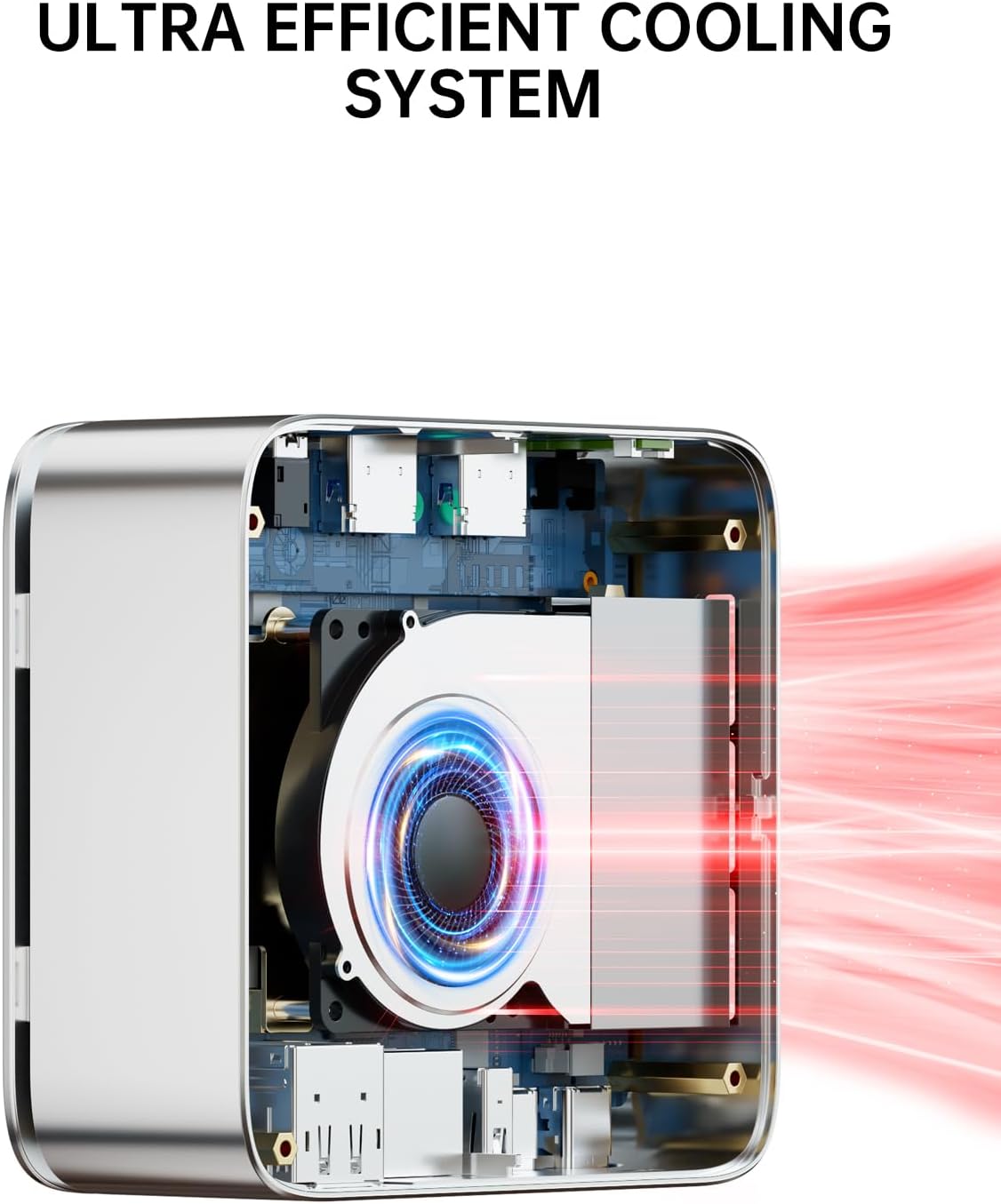
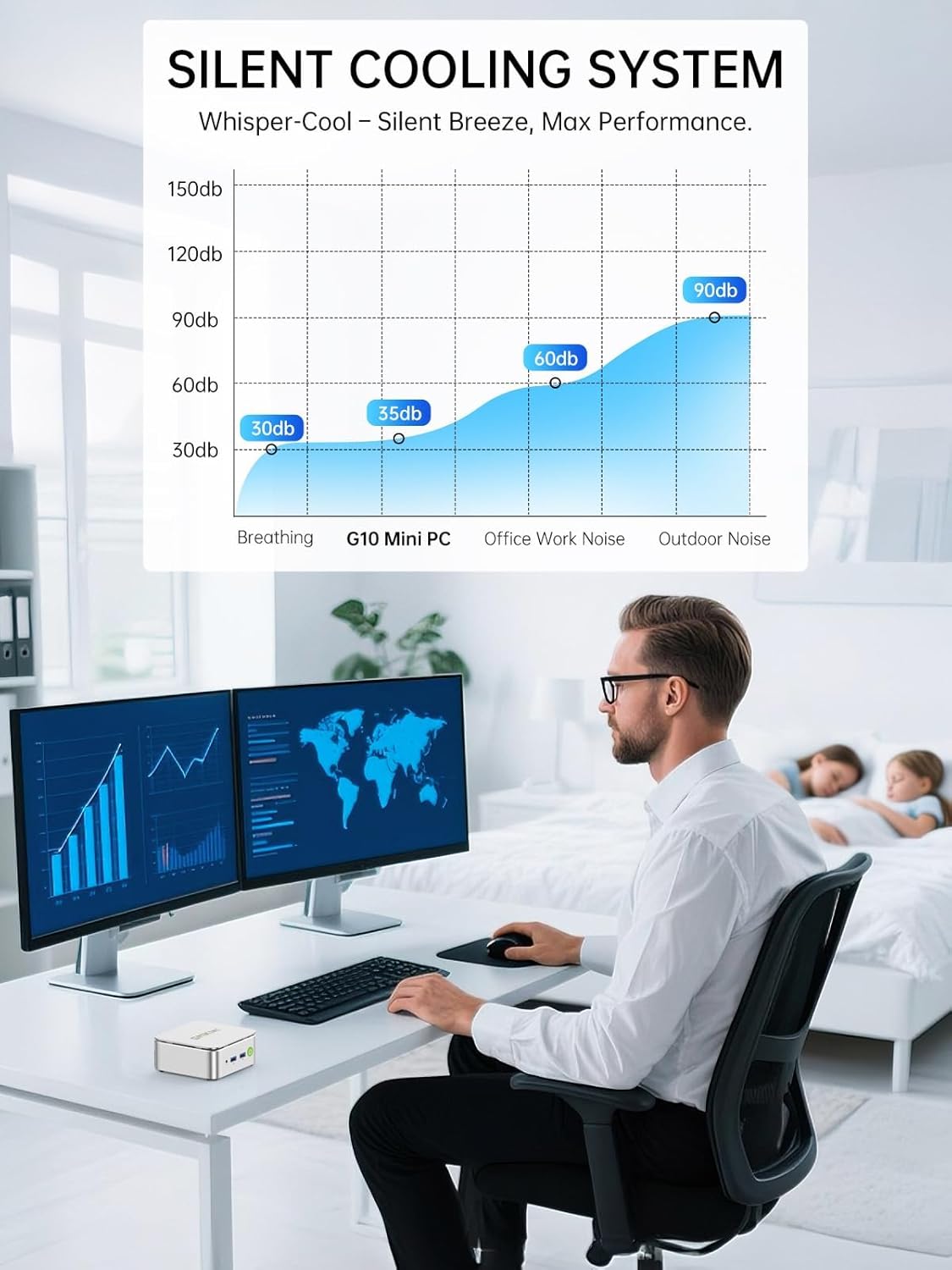
The Nucbox G10 features an ultra-efficient silent turbo cooling system designed to maintain optimal performance and quiet operation. Ensure the ventilation openings are not obstructed to allow for proper airflow.
5.2 Жалпы кам көрүү
- Түзмөктү таза, кургак жерде, күндүн түз нурунан жана өтө жогорку температурадан алыс кармаңыз.
- Аппаратка суюктуктарды төгүп албоо керек.
- Clean the exterior with a soft, dry cloth. Do not use harsh chemicals.
6. Кыйынчылыктарды
6.1 Күч жок
- Кубат адаптери Мини компьютерге жана иштеген электр розеткасына бекем туташып турганын текшериңиз.
- Башка аспапка сайып, розетка иштеп жатканын текшериңиз.
6.2 Display Output жок
- Check that the display cables (HDMI, DP, USB-C) are securely connected to both the Mini PC and the monitor.
- Монитордун күйгүзүлгөнүн жана туура киргизүү булагына коюлганын текшериңиз.
- Башка дисплейге туташып көрүңүз же башка кабелди колдонуңуз.
6.3 Тармакка туташуу маселелери
- текст: Ensure the Ethernet cable is properly connected and the router/modem is working. Check network adapter settings in the operating system.
- Wi-Fi: Verify that Wi-Fi is enabled in the operating system and you are connected to the correct network with the correct password. Ensure the Wi-Fi signal is strong.
6.4 Системанын иштешинин маселелери
- Системалык ресурстарды бошотуу үчүн керексиз тиркемелерди жабыңыз.
- Ensure the cooling vents are clear and not obstructed.
- Check for operating system updates and driver updates.
7. Техникалык шарттар
| Өзгөчөлүк | Спецификация |
|---|---|
| Процессор | AMD Ryzen 5 3500U (4 Cores, 8 Threads, 2.1 GHz Base, 3.7 GHz Boost) |
| Графика | AMD Radeon Vega 8 Graphics (1200 MHz) |
| RAM | 16GB DDR4 SO-DIMM (2x8GB), expandable to 64GB |
| Сактагыч | 256GB M.2 2280 NVMe SSD, dual slot expandable to 16TB (2x 8TB) |
| Операция системасы | Windows 11 Pro |
| Video Output | 1x HDMI 2.1 TMDS (4K@60Hz), 1x DisplayPort 1.4 (4K@60Hz), 1x USB-C (DP Alt Mode) |
| USB порттору | 2x USB 3.2 (5Gbps), 1x USB 2.0, 1x Full Function USB-C (PD/DP/Data), 1x USB-C (PD Only) |
| Network | 2.5GbE LAN, Wi-Fi 5, Bluetooth 5.0 |
| Аудио | 1x 3.5mm CTIA Audio Jack |
| Өлчөмдөр | 6.46 x 6.26 x 4.21 дюйм (Пакет) |
| Салмагы | 2.29 фунт (буюм) |
8. Кепилдик жана колдоо
GMKtec offers a 1-year limited warranty for each Mini PC, effective from the date of purchase. This warranty covers defects due to design and workmanship.
8.1 Кардарларды колдоо
For technical assistance or warranty claims, please contact GMKtec support:
- Электрондук почта колдоо: support@gmktec.com (24/7 Customer Support)
- Amazon колдоо: For purchases made on Amazon, log in to your Amazon account, navigate to 'Your Orders', and select 'Ask Product Question' for the relevant order.
GMKtec is committed to providing reliable products and professional after-sales service.