
Introduction
This manual provides essential information for setting up, operating, maintaining, and troubleshooting your NIMO 15.6-inch FHD Gaming Laptop, model Nimo N153. Please read this manual thoroughly before using your device to ensure proper function and longevity.

Image: The NIMO 15.6-inch FHD Gaming Laptop, showcasing анын кооз дизайны.
Кутуда эмне бар
Кутучаны ачканда, төмөндө көрсөтүлгөн бардык буюмдар бар экенин текшериңиз:
- 1 x Nimo N153 Laptop
- 1 x Type-C 100W PD Fast Charger
- 1 х Колдонуучунун колдонмосу (бул документ)
- Windows 11 Home (pre-installed)
- Кепилдик жана кайтаруу жөнүндө маалымат
Жайгашуу
1. Баштапкы күйгүзүү жана заряддоо
Before first use, connect the laptop to the power adapter and a wall outlet. The Type-C 100W PD Fast Charger is designed for efficient charging. Allow the battery to charge sufficiently before disconnecting.

Image: The compact Type-C 100W PD Fast Charger included with the laptop.
2. Операциялык системаны орнотуу (Windows 11)
Upon first boot, follow the on-screen instructions to complete the Windows 11 Home setup. This includes selecting your region, language, connecting to a Wi-Fi network, and creating a user account.
3. Манжа изин окугучту орнотуу
For enhanced security, set up the integrated fingerprint reader. Navigate to Windows Settings > Accounts > Sign-in options and follow the prompts to register your fingerprint.

Image: Close-up of the laptop's keyboard, highlighting the fingerprint reader and backlit keys.
4. Перифериялык түзүлүштөрдү туташтыруу
Ноутбук тышкы түзмөктөрдү туташтыруу үчүн бир нече порттор менен жабдылган:
- USB порттору: Connect USB devices such as mice, keyboards, and external storage.
- HDMI порту: Кеңейтилген дисплей үчүн тышкы монитор же сыналгыга туташыңыз.
- Type-C порттору: For data transfer, charging, and connecting compatible Type-C accessories.
- Микро SD карта слоту: Insert Micro SD cards for additional storage or data transfer.
- Гарнитура уячасы: Наушниктерди же тышкы динамиктерди туташтырыңыз.
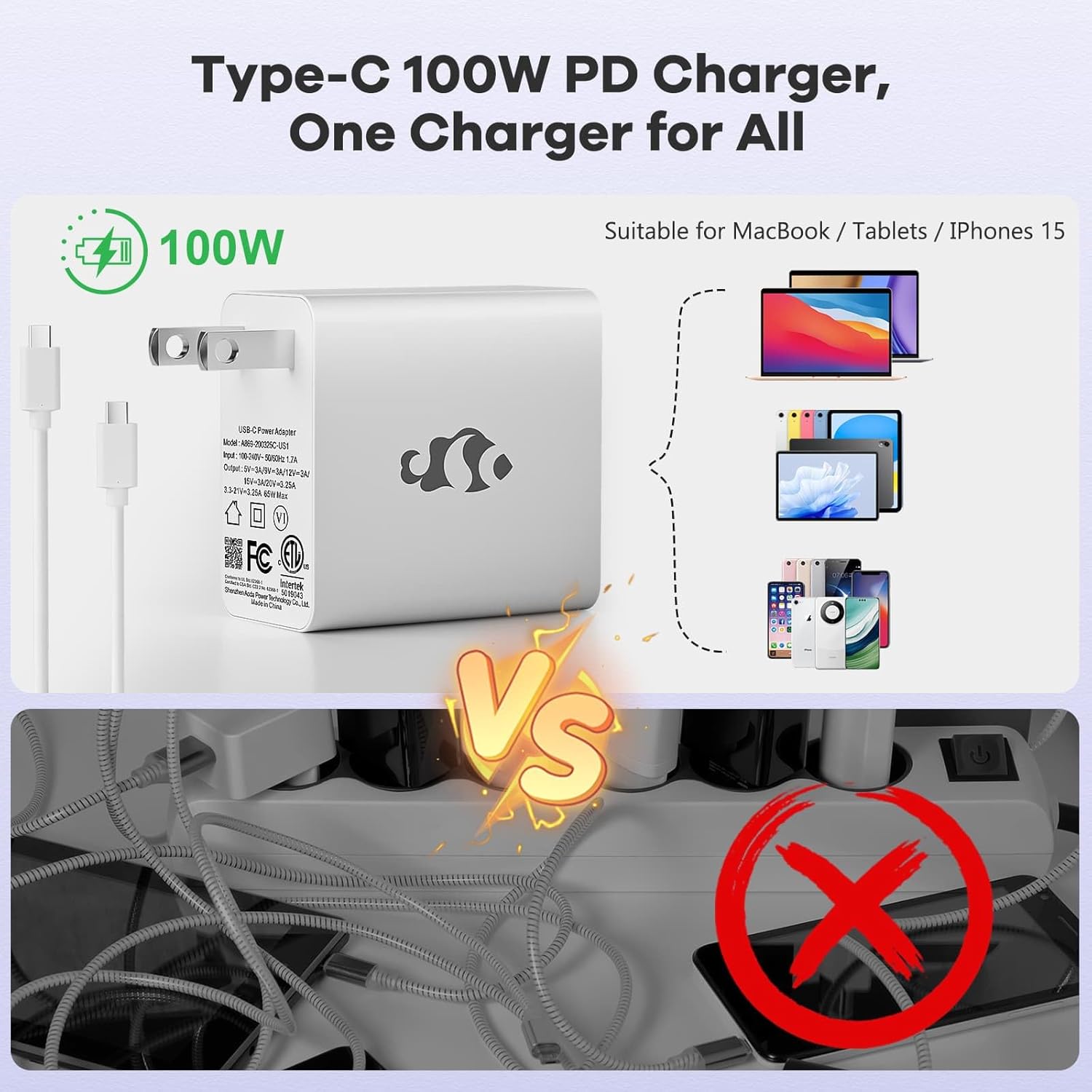
Image: Diagram illustrating the various ports available on the NIMO laptop, including USB, HDMI, Type-C, Micro SD, and headphone jack.
Иштөө нускамалары
1. Күйгүзүү/өчүрүү жана уйку режими
- Күйгүзүү: Баскычтопто жайгашкан кубат баскычын басыңыз.
- Өчүрүү: Windows'тун Start баскычын чыкылдатып, андан кийин Кубат > Өчүрүү дегенди тандаңыз.
- Уйку режими: Ноутбуктун капкагын жабыңыз же "Старт" баскычын чыкылдатыңыз, андан кийин Кубат > Уйку режимин тандаңыз.
2. Keyboard and Touchpad Functions
- Арткы жарык клавиатура: The keyboard features backlighting for use in low-light conditions. Use the dedicated function key (Fn + F key combination, typically) to adjust brightness or toggle it on/off.
- Сандык баскычтоп: The full-size keyboard includes a numeric keypad for convenient data entry.
- Multi-touch Touchpad: Supports various gestures for navigation and control within Windows. Refer to Windows settings for touchpad gesture customization.
3. Зымсыз байланыш
- Wi-Fi: Зымсыз тармакка туташуу үчүн, тапшырмалар тилкесиндеги Wi-Fi сүрөтчөсүн чыкылдатып, каалаган тармагыңызды тандап, зарыл болсо, сырсөздү киргизиңиз.
- Bluetooth: Bluetooth түзмөктөрүн жупташтыруу үчүн, Windows Орнотуулары > Bluetooth жана түзмөктөр бөлүмүнө өтүп, жаңы түзмөк кошуу үчүн көрсөтмөлөрдү аткарыңыз.
4. Webcam Shield
The laptop is equipped with a physical webcam shield for privacy. Slide the shield to cover or uncover the webкерек болсо камера.
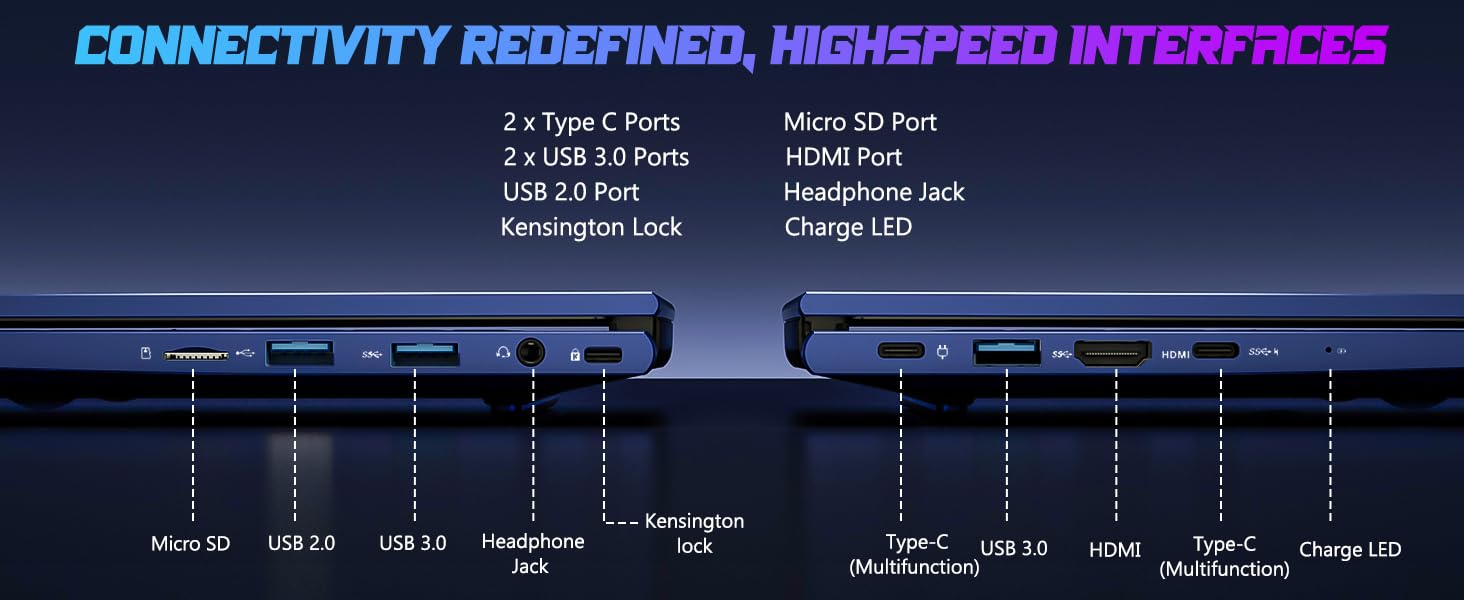
Image: Illustration of the laptop's webcam with a privacy shield feature.
5. Дисплей өзгөчөлүктөрү
The 15.6-inch FHD IPS anti-glare display (1920x1080 resolution) provides clear visuals. Adjust display settings such as brightness and resolution through Windows Display Settings.

Image: The NIMO laptop displaying a vibrant image on its 15.6-inch FHD IPS screen.
Техникалык тейлөө
1. Ноутбукту тазалоо
- Экран: Жумшак, түксүз кездемени жеңил колдонуңуз dampсуу же экран тазалоочу менен бүттү. Суюктукту экранга түз чачпаңыз.
- Баскычтоп жана шасси: Жумшак, кургак чүпүрөктү колдонуңуз. өжөр кир үчүн, бир аз гamp тешиктерге эч кандай суюктук кирбеши үчүн, кездемени колдонсо болот.
- Порттор: Порттарды чаңдан жана таштандылардан тазалаңыз. Зарыл болсо, банканы тик кармап, кысылган абаны колдонуңуз.
2. Программалык камсыздоону жаңыртуу
Regularly check for and install Windows updates to ensure system stability, security, and optimal performance. Go to Windows Settings > Windows Update.
3. Жаңыртуу мүмкүнчүлүгү
The Nimo N153 laptop supports upgradable dual-channel memory and detachable RAM/SSD. If you plan to upgrade components, it is recommended to consult a qualified technician or refer to NIMO's official support resources to avoid voiding your warranty or damaging the device.
Проблемаларды чечүү
If you encounter issues with your NIMO laptop, try the following basic troubleshooting steps:
- Кубат жок: Ensure the charger is securely connected to both the laptop and a working power outlet. Check the charge LED indicator.
- Дисплей маселелери: If the screen is blank, try connecting an external monitor via HDMI to check if the issue is with the laptop's internal display. Ensure display drivers are up to date.
- Туташуу көйгөйлөрү (Wi-Fi/Bluetooth): Restart the laptop and your router/Bluetooth device. Check Windows network settings to ensure Wi-Fi and Bluetooth are enabled.
- Жай аткаруу: Close unnecessary applications, check for malware, and ensure sufficient free storage space on the SSD.
- Системанын тоңушу: Ноутбукту мажбурлап өчүрүү үчүн кубат баскычын 10-15 секунд басып туруңуз, андан кийин өчүрүп-күйгүзүңүз.
For more complex issues or if the problem persists, please contact NIMO customer support.
Техникалык шарттар
| Өзгөчөлүк | Деталь |
|---|---|
| Бренд | NIMO |
| Модель аты | Nimo N153 |
| Screen Size | 15.6 дюйм |
| Резолюция | 1920x1080 Pixels (FHD IPS Anti-glare) |
| CPU модели | AMD Ryzen 5 6600H (6 Cores, 12 Threads, up to 4.5 GHz) |
| Графикалык сопроцессор | AMD Radeon 660M (интеграцияланган графикалык процессор) |
| RAM эстутум орнотулган өлчөмү | 16 ГБ DDR5 (4800 МГц) |
| Катуу дисктин өлчөмү | 1 TB SSD (PCIe 4.0) |
| Операция системасы | Windows 11 Home |
| Өзгөчөлүктөр | Backlit Keyboard, Fingerprint Reader, HD Audio, Numeric Keypad, Webcam Shield |
| Байланыш технологиясы | Wi-Fi (802.11a/b/g/n/ac), Bluetooth |
| Порттар | 2x Type-C, 2x USB 3.0, 1x USB 2.0, 1x HDMI, 1x Micro SD, 1x Headphone Jack, Kensington Lock |
| Батареянын иштөө мөөнөтү | Up to 5 Hours (Usage), Up to 7 Hours (Standby) |
| Батарея сыйымдуулугу | 53.58 Ватт саат |
| Заряддагыч | 100W GaN Type-C PD Fast Charger |
| Элемент Салмагы | 3.8 фунт |
| Өлчөмдөрү (L x W x Th) | 14.07" x 8.98" x 0.76" |
Эскертүү: Техникалык мүнөздөмөлөр алдын ала эскертүүсүз өзгөртүлүшү мүмкүн.
Кепилдик жана колдоо
1. Өндүрүүчүнүн Кепилдиги
Your NIMO N153 laptop is covered by a 2 жылдык өндүрүүчүнүн кепилдиги from Nimo Direct Inc. This warranty covers defects in materials and workmanship under normal use. Please retain your proof of purchase for warranty claims.
2. Кайтаруу саясаты
NIMO offers a 90-day hassle-free return policy. If you are not satisfied with your purchase, you may return the product within 90 days of purchase. Refer to your purchase documentation for specific return procedures.
3. Кардарларды колдоо кызматы
For technical assistance, warranty claims, or any product-related inquiries, please contact NIMO customer support:
- Электрондук почта: service@nimopc.com
- Онлайн: Visit the official NIMO webколдоо ресурстары жана байланыш жолдору үчүн сайт.
Our dedicated support team is available to assist you.

Image: NIMO customer service representatives ready to assist.