
1. Introduction and Overview
This manual provides comprehensive instructions for the Auusda 16-inch Laptop, model T160R-8+512-3250U. Designed for efficient performance and versatile use, this laptop is equipped with a Ryzen 3 3250U processor, 8GB DDR4 RAM, and a 512GB SSD, ensuring smooth multitasking and quick data access. It comes pre-installed with Windows 11 Pro, offering a modern and secure operating environment.
The laptop features a vibrant 16-inch FHD IPS display with a 1920x1200 resolution and a 178° wide viewing angle, providing clear and detailed visuals for both work and entertainment. Enhanced security is provided by a fingerprint recognition key for convenient login and a physical privacy switch for the 1MP HD webcam. The backlit keyboard ensures visibility in various lighting conditions, adding to user comfort.
Connectivity options include a full-function Type-C port, standard HDMI 4K video output, and three USB ports, allowing for seamless connection to multiple peripherals and external displays. Dual-band WiFi 5 (802.11ac) and Bluetooth 4.2 technology ensure stable and high-speed wireless connections for all your networking and device pairing needs.

Figure 1.1: The Auusda 16-inch Laptop, showcasing its sleek design and key specifications on the screen.
2. Орнотуу колдонмосу
2.1 Кутудан чыгаруу жана алгачкы текшерүү
Таңгактан бардык компоненттерди этияттык менен алып салыңыз. Төмөнкү нерселердин камтылганын текшериңиз:
- Auusda 16-inch Laptop
- Кубаттуу адаптер
- User Manual
- Keyboard membranes (Transparent and Spanish, as gifts)
Улантуудан мурун ноутбуктун физикалык бузулууларын текшериңиз.

2.1-сүрөт: Продукт пакетине камтылган нерселер.
2.2 Кубат адаптерин туташтыруу
Connect the power adapter to the charging port on the side of the laptop. Plug the other end into a wall outlet. The battery indicator light will illuminate, indicating that the laptop is charging.
2.3 Initial Boot and Windows 11 Pro Setup
Press the power button to turn on the laptop. Follow the on-screen prompts to complete the initial setup of Windows 11 Pro. This includes selecting your region, language, connecting to a Wi-Fi network, and creating a user account.
2.4 Манжа изи сенсорун орнотуу
During the Windows 11 setup or later via Windows Settings (Accounts > Sign-in options > Fingerprint Recognition), you can set up the fingerprint sensor for quick and secure login. Follow the instructions to register your fingerprints.
3. Иштөө нускамалары
3.1 Электр энергиясын башкаруу
- Күйгүзүү: Press the power button located on the top right of the keyboard.
- Уйку режими: Капкакты жабыңыз же басыңыз Fn + F1 (or the sleep key if available) to put the laptop into sleep mode.
- Өчүрүү: Баштоо баскычын чыкылдатып, андан кийин Күчтү басып, "Өчүрүү" баскычын тандаңыз.
- Кайра баштоо: "Баштоо" баскычын, андан кийин "Күч" баскычын чыкылдатып, "Кайра баштоо" баскычын тандаңыз.
3.2 Баскычтоп жана сенсордук такта
The laptop features a full-size keyboard with a numeric keypad and a backlit function. To toggle the keyboard backlight, press Fn + Боштук (or the dedicated backlight key if present). The touchpad supports multi-touch gestures for navigation.
3.3 Webcam and Privacy Switch
The integrated 1MP HD webcam is located at the top center of the display. For privacy, a physical switch is provided next to the webcam. Slide the switch to cover or uncover the camera lens.

Figure 3.1: The physical webcam privacy switch and various ports.
3.4 Тышкы түзмөктөрдү туташтыруу
Ноутбук тышкы түзмөктөрдү туташтыруу үчүн ар кандай порттор менен жабдылган:
- USB 3.0 порттору (x3): For connecting USB devices such as external hard drives, mice, and keyboards.
- Full-Function Type-C Port (x1): Supports data transfer, video output (DisplayPort Alternate Mode), and power delivery.
- HDMI порту (x1): For connecting to external monitors or TVs, supporting up to 4K resolution.
- Кулакчын уячасы (x1): Наушниктерди же тышкы динамиктерди туташтыруу үчүн.
- TF Card Slot (x1): For reading TransFlash (microSD) memory cards.
Video 3.1: A detailed view of the laptop's physical appearance, including its ports, webcam privacy switch, and fingerprint sensor.
4. Техникалык тейлөө жана кам көрүү
4.1 Ноутбукту тазалоо
- Бир аз жумшак, түксүз кездемени колдонуңуз dampдисплейди тазалоо үчүн суу же экран тазалагыч менен иштетиңиз.
- Баскычтоп жана шасси үчүн жумшак кездеме колдонуңуз. Катуу химиялык заттардан же абразивдүү материалдардан алыс болуңуз.
- Regularly clean dust from vents to ensure proper airflow and prevent overheating.
4.2 Батареяга кам көрүү
The laptop is equipped with a 5000mAh battery. To maximize battery lifespan:
- Батареяны бат-баттан толук кубаттап калуудан алыс болуңуз.
- Ноутбукту өтө жогорку температурага дуушар кылбаңыз.
- Ноутбукту узак убакытка сактасаңыз, батареянын 50% га чейин заряддалганын текшериңиз.
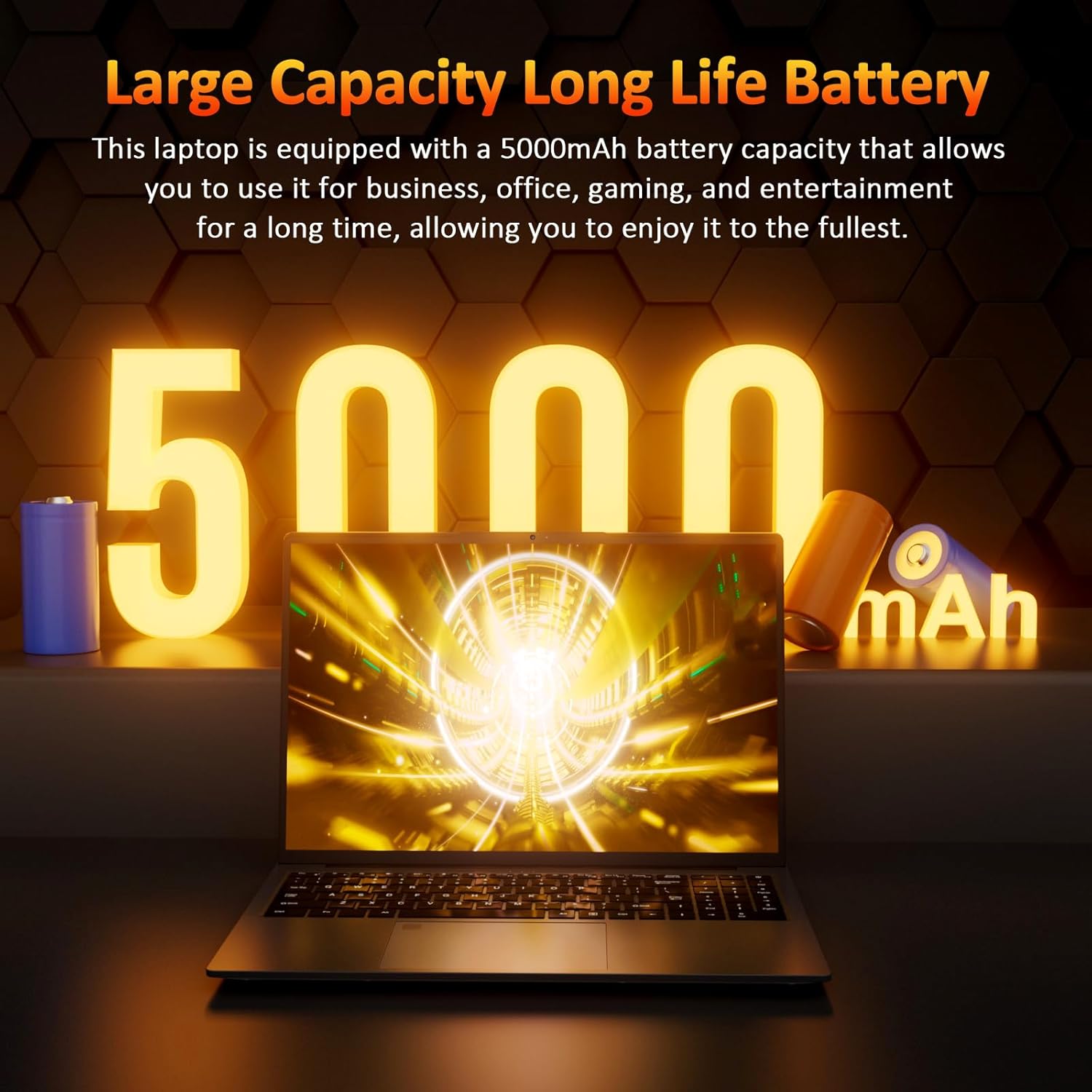
Figure 4.1: The laptop's high-capacity battery provides extended usage.
4.3 Программалык камсыздоо жаңыртуулары
Regularly update your Windows 11 operating system and device drivers to ensure optimal performance, security, and compatibility. You can check for updates via Windows Settings > Windows Update.
5. Кыйынчылыктарды
This section addresses common issues you might encounter with your Auusda laptop.
5.1 Ноутбук күйбөй жатат
- Кубат адаптери ноутбукка да, иштеген электр розеткасына да бекем туташып турганын текшериңиз.
- Башка аспапка туташтыруу менен электр розеткасынын иштешин текшериңиз.
- Эгер батарейка толугу менен түгөнүп калса, аны күйгүзүүгө аракет кылуудан мурун кеминде 30 мүнөт кубаттоого уруксат бериңиз.
5.2 Wi-Fi туташуу маселелери
- Verify that Wi-Fi is enabled on your laptop (check the Wi-Fi icon in the taskbar).
- Wi-Fi роутериңизди жана модемиңизди өчүрүп күйгүзүңүз.
- Forget the network in Windows Wi-Fi settings and reconnect.
- Ноутбуктун Wi-Fi сигналынын диапазонунда экенин текшериңиз.
5.3 Дисплей көйгөйлөрү
- Экран бош болсо, басып көрүңүз Fn + F7 (or the display toggle key) to cycle through display modes.
- Ensure display drivers are up to date.
- If using an external monitor, check the cable connection and ensure the monitor is powered on.
5.4 Жай аткаруу
- Фондо иштеп жаткан керексиз тиркемелерди жабыңыз.
- Процессорду же оперативдүү эстутумду талап кылган процесстер үчүн Task Manager (Ctrl+Shift+Esc) текшериңиз.
- SSD'ңизде жетиштүү бош орун бар экенин текшериңиз.
- Вирусту сканерлеңиз.
6. Техникалык шарттар
| Өзгөчөлүк | Спецификация |
|---|---|
| Туруктуу экранды көрсөтүү өлчөмү | 16 дюйм |
| Screen Resolution | 1920 x 1200 пиксель |
| Max Screen Resolution | 1920 пиксел |
| Процессор | 2.6 GHz Ryzen 3 3250U |
| RAM | 8 ГБ DDR4 |
| Катуу диск | 512 GB SSD (PCIE x 2) |
| Графикалык сопроцессор | AMD Radeon графикасы (интегралдык) |
| Зымсыз түрү | 802.11a/b/g/n/ac (WiFi 5) |
| Bluetooth | 4.2 |
| USB 2.0 порттору | 2 |
| USB 3.0 порттору | 1 |
| Full-Function Type-C | 1 |
| HDMI | Yes (4K output) |
| Операция системасы | Windows 11 Pro |
| Элемент Салмагы | 3.7 фунт |
| Продукциянын өлчөмдөрү | 14 x 11 x 0.7 дюйм |
| Түс | Боз |
| Батареянын орточо иштөө мөөнөтү | 3 саат |
| Өзгөчөлүктөр | Backlit Keyboard, Fingerprint Reader, Memory Card Slot, Numeric Keypad, Portable |
7. Кепилдик жана колдоо
Auusda provides comprehensive support for your laptop. For any inquiries or assistance, please refer to the following:
- Кепилдик мөөнөтү: A 12-month warranty is provided, covering free repair, return, or exchange services for the computer.
- Онлайн колдоо: For assistance with your order, log in to your Amazon account, navigate to "Your Account," then "Your order," and select "Ask questions."
- Электрондук почта колдоо: You can also reach our support team directly via email at supportus@auusdalaptop.com. We aim to provide a 24-hour response to all questions.

Figure 7.1: Auusda's commitment to quality and customer service.