
1. Киришүү
The GOWENIC 4G LTE Mobile Router is a portable WiFi hotspot device designed to provide internet access on the go. It features a SIM card slot for 4G LTE connectivity and is USB-powered for convenient use with various devices. This manual provides instructions for setting up, operating, and maintaining your mobile router.

1.1-сүрөт: GOWENIC 4G LTE Mobile Router, front view showing the Type-C connector and attached carabiner for portability.
2. Пакеттин мазмуну
- 1 x GOWENIC 4G LTE Mobile Router (Model: B0FD851FGB)
Note: A SIM card is not included and must be purchased separately.
3. Техникалык шарттар
| Элемент түрү | WiFi роутер |
| Продукт материалы | ABS |
| Продукт түсү | Ак |
| Интерфейс | C түрү |
| Card Slot | Small SIM Card Slot |
| 4G Transfer Speed | 150Mbps Downlink |
| 4G LTE FDD тилкелери | B1/B3/B5 |
| 3G WCDMA UMTS Bands | B1 (primarily for Eurasia) |
| WiFi колдоо | IEEE802.11b/g/n 2.4 ГГц |
| Пакеттин өлчөмдөрү | 5.12 x 3.15 x 0.79 дюйм |
| Элемент Салмагы | 0.952 унция |
| Өндүрүүчү | ГОВЕНИК |
4. Орнотуу колдонмосу
4.1 SIM картаны салуу
- Locate the SIM card slot cover on the back of the device.
- Gently open the cover to expose the small SIM card slot.
- Insert your activated small SIM card into the slot with the metal contacts facing down, ensuring it is correctly oriented.
- SIM картанын уячасынын капкагын бекем жабыңыз.

4.1-сүрөт: Фронт view of the router highlighting the SIM card slot area.
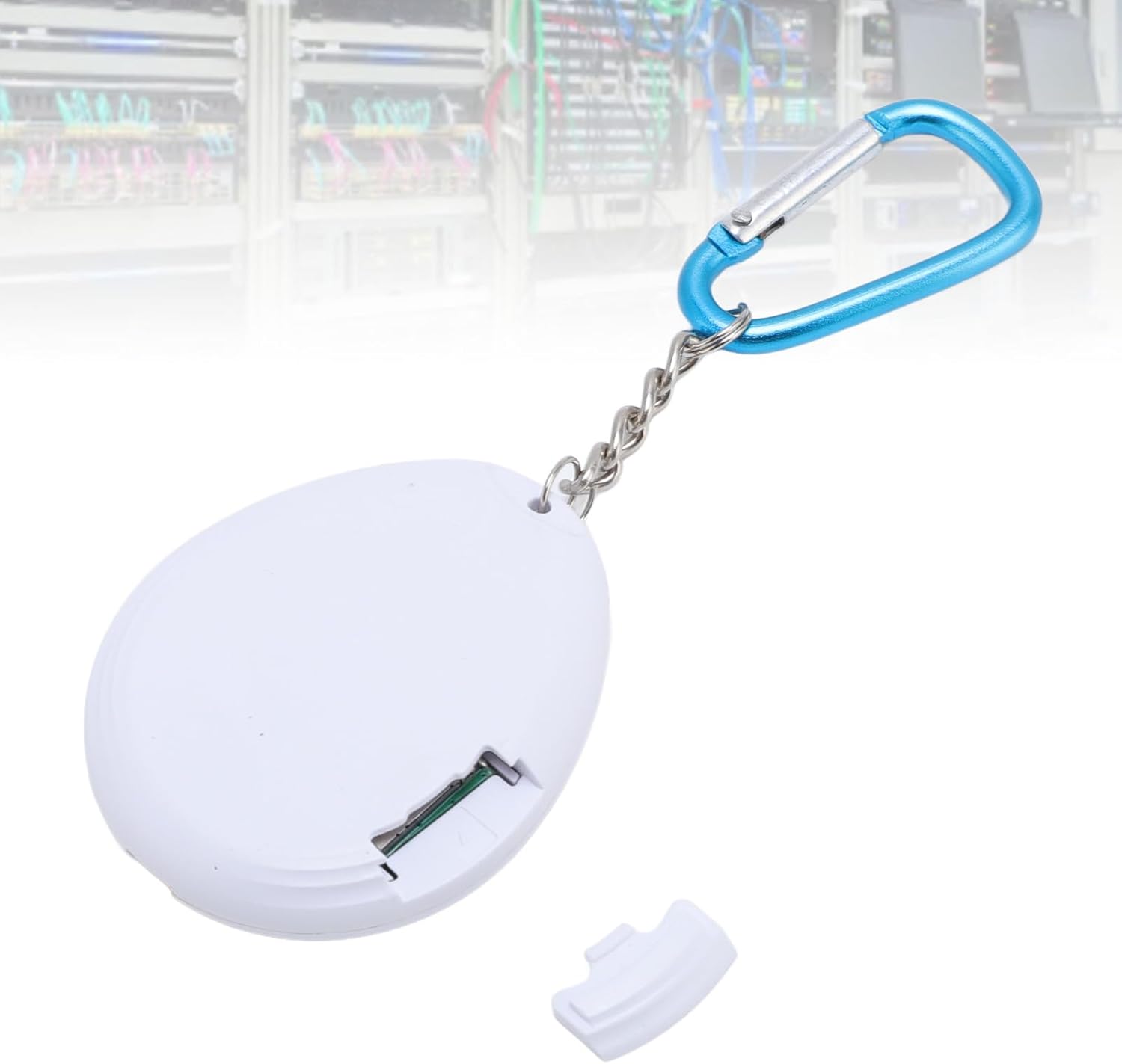
4.2-сүрөт: Артка view of the router with the SIM card slot cover removed, showing the slot for insertion.
4.2 Аппаратты кубаттоо
The router is USB-powered. Connect the integrated Type-C connector to a compatible USB power source, such as a phone charger, power bank, laptop, or tablet. The device will power on automatically.

4.3-сүрөт: The router's Type-C connector, ready for connection to a USB power source.
4.3 Initial Connection and APN Configuration
After powering on, the router should automatically establish a network connection. If the device does not connect to the internet immediately, you may need to perform the following steps:
- Disable SIM Card PIN: Ensure that the PIN code on your SIM card is disabled. This can usually be done by inserting the SIM card into a mobile phone and disabling the PIN through the phone's security settings.
- Modify APN Settings: If automatic connection fails, you may need to manually configure the Access Point Name (APN) settings. This typically involves connecting to the router's WiFi network, accessing its web interface (usually via an IP address like 192.168.1.1 in a web browser), and entering the correct APN details provided by your mobile network operator. Refer to your mobile network operator's documentation for specific APN settings.
5. Иштөө нускамалары
5.1 Connecting to the WiFi Network
- Ensure the GOWENIC Mobile Router is powered on.
- On your WiFi-enabled device (e.g., smartphone, laptop, tablet), open the WiFi settings.
- Scan for available WiFi networks.
- Select the network name (SSID) corresponding to your GOWENIC router. The SSID and password are usually printed on a label on the device itself or its packaging.
- Суралганда WiFi сырсөзүн киргизиңиз.
- Once connected, your device should have internet access through the mobile router.
5.2 High-Speed Connection
The router supports wireless connection speeds up to 150Mbps, providing a stable internet experience for activities such as browsing, chatting, and streaming. Performance may vary based on network conditions and signal strength.

5.1-сүрөт: The router's design emphasizes its capability for high-speed internet access.
6. Маанилүү эскертүүлөр
- SIM-картаны активдештирүү: Always confirm that your SIM card is activated by your mobile network provider before inserting it into the router.
- Колдоого алынбаган кызматтар: Roaming services, virtual SIM cards, and Internet of Things (IoT) SIM cards are generally not supported by this device.
- Signal Fluctuation: In rural areas or locations with poor network coverage, temporary disconnections may occur. This is considered normal operation under such conditions.
- Internal Use Only: This router is designed for connecting devices for internal use (e.g., personal devices to its WiFi network) and cannot be connected externally to other network infrastructure.
7. Кыйынчылыктарды
7.1 Интернет байланышы жок
- SIM картаны текшерүү: Ensure the SIM card is correctly inserted and activated. Verify it is not a roaming, virtual, or IoT SIM.
- Disable PIN: Confirm that the SIM card's PIN code is disabled.
- APN Орнотуулары: Manually configure the APN settings if necessary (refer to Section 4.3).
- Сигнал күчү: Move to an area with better mobile network coverage.
- Кубат булагы: Ensure the router is receiving adequate power from the USB source.
7.2 Байланыш ылдамдыгынын жайлашы
- Тармактын тыгыны: High network traffic in your area can affect speeds.
- Сигнал күчү: Weak 4G LTE signal will result in lower speeds. Try repositioning the router.
- Туташкан түзмөктөрдүн саны: Too many devices connected to the hotspot can reduce individual speeds.
8. Техникалык тейлөө
- Тазалоо: Use a soft, dry cloth to clean the device. Avoid liquid cleaners.
- Сактагыч: Store the router in a cool, dry place away from direct sunlight and extreme temperatures.
- Колдонуу: Физикалык зыянды болтурбоо үчүн аппаратты этияттык менен колдонуңуз.
9. Кепилдик жана колдоо
Specific warranty information for the GOWENIC 4G LTE Mobile Router is not provided in this manual. For warranty details, technical support, or service inquiries, please refer to the documentation included with your purchase or contact the retailer/manufacturer directly.