
1. Продукт бүтүп калдыview
The GHome WiFi Smart Lock KD10-SE offers advanced security and convenience for your home. This 6-in-1 keyless entry deadbolt features built-in WiFi for remote control without a separate gateway, lightning-fast fingerprint recognition, keypad access, NFC card compatibility, and traditional key entry. It is designed for easy installation and durable performance in various weather conditions.
Video 1: GHome Smart - 6 in 1 Keyless Entry Smart Lock, Wifi Control. This video provides an overview of the smart lock's features and unlocking methods.
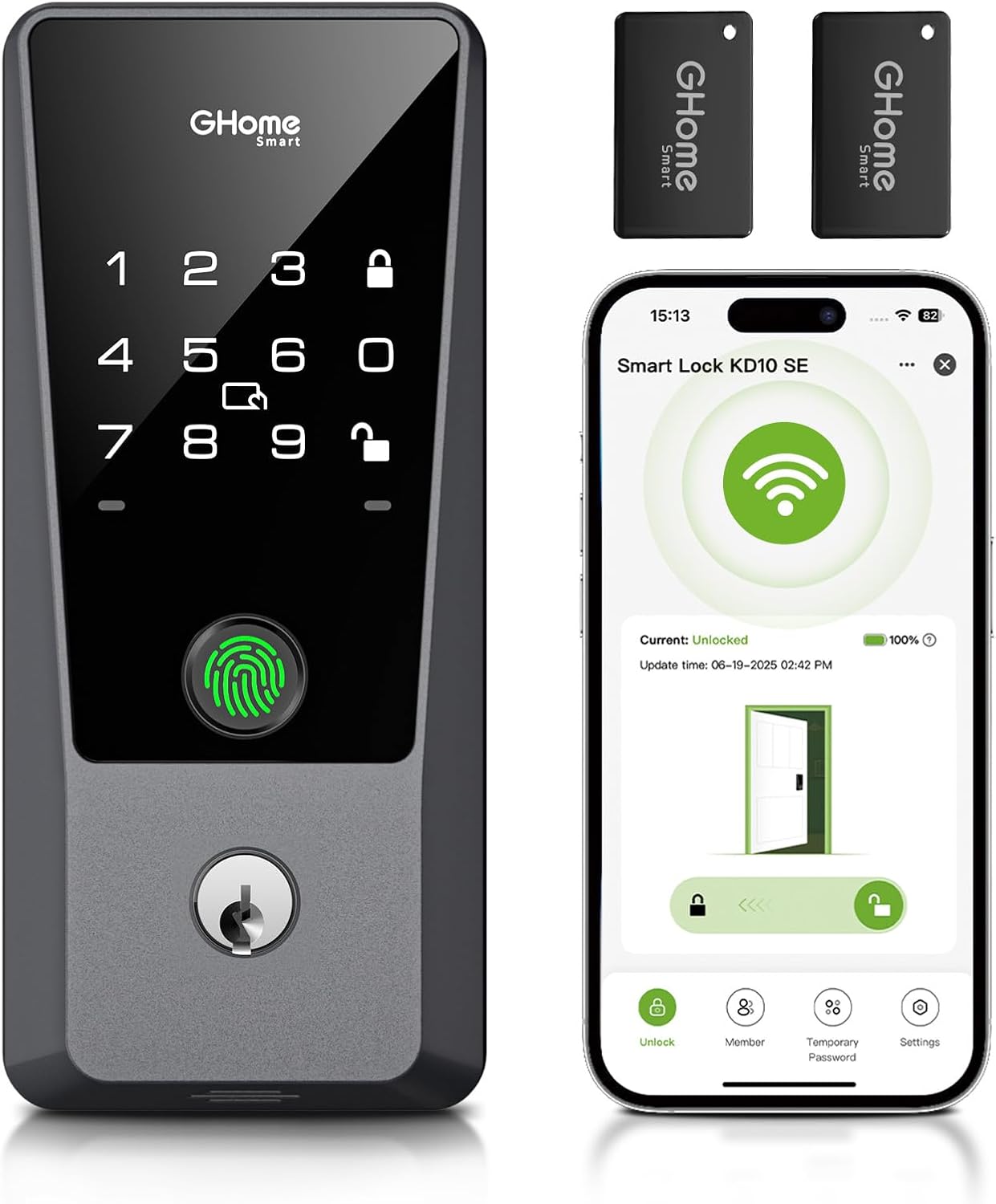
Figure 1: GHome WiFi Smart Lock KD10-SE with accessories and app view.
2. Пакеттин мазмуну
Орнотууну баштоодон мурун, бардык компоненттердин пакетте бар экенин текшериңиз.
- Сырткы кулпу чогултуу
- Ички кулпу жыйындысы
- Deadbolt Mechanism
- Strike Plate
- Strike Box
- Монтаждоо плитасы
- 2 Key Fobs (NFC Cards)
- 2 Камдык ачкычтар
- Parts Kit (various screws for mounting)
- User Manual

Figure 2: Six methods to unlock the GHome Smart Lock.
3. Орнотуу боюнча колдонмо
This section provides step-by-step instructions for installing your GHome WiFi Smart Lock. A Phillips screwdriver (manual or electric) is required for installation. Do not insert the backup key during installation.
3.1 Орнотууга чейинки текшерүүлөр
Before installation, ensure your door dimensions are compatible with the smart lock. Refer to the diagram below for measurements.
- Кайчылаш тешик диаметри: 1½" or 2⅛" (38mm or 55mm)
- Артка: 2⅜" (60mm) or 2¾" (70mm)
- Эшик калыңдыгы: 1⅜" - 2⅛" (35mm - 54mm)
- Door Hole Diameter (Latch Hole): 1" (25мм)

Figure 3: Door dimension compatibility check.
If your original strike plate matches the illustrated dimensions (Width: Roughly 13/16" (21mm), Height: Roughly 1¼" (32mm), Depth: At least 1" (25mm)), replacement is not necessary.
3.2 Этап-этабы менен орнотуу
Көрсөтмө алуу үчүн, төмөндөгү расмий орнотуу видеосун караңыз.
Video 2: How to Install & Program The Smart Wifi Lock. This video provides a detailed walkthrough of the installation process for the GHome Smart Lock.
- Adjust Deadbolt Length (If needed): If the backset is 2¾" (70mm), rotate the faceplate approximately 30 degrees, pull it down to the bottom, then rotate it back to secure the fixed point at the 2¾" (70mm) position.
- Deadbolt орнотуу: Keep the deadbolt in the unlocked position and ensure the torque blade hole is centered in the cross bore. Keep the hole vertical. Secure with strike screws.
- Сырткы монтажды орнотуу: Route the cable below the deadbolt. Ensure the deadbolt is in the unlock position and the torque blade is vertically oriented.
- Монтаждоо плитасын орнотуу: Use the appropriate mounting screws based on your door thickness (1⅜"-1¾" (35-45mm) use 1⅛" (28mm) screw; 1¾"-2⅛" (45-54mm) use 1⅜" (35mm) screw).
- Ички монтаждоо: Connect the wire to the interior assembly. Keep the thumb turn on the unlock position.
- Check Manual Lock: By turning the thumb turn, lock and unlock the deadbolt a few times to ensure it works smoothly.
- Check Unlock/Lock Button: Press the unlock/lock button to confirm normal operation.
- Check Auto-lock Function: Wait for 10 seconds. The lock bolt should automatically extend, and the door lock will be in a closed state.
3.3 Батареяны орнотуу
The smart lock requires 8 AA alkaline batteries (not included). These batteries can last about 8 months based on 10 uses per day under ideal conditions. Carbon batteries are not recommended.
- Ички блоктогу батареянын капкагын ачыңыз.
- Туура полярдуулукту камсыз кылуу менен 8 AA щелочтуу батарейканы салыңыз.
- Батареянын капкагын жабыңыз.
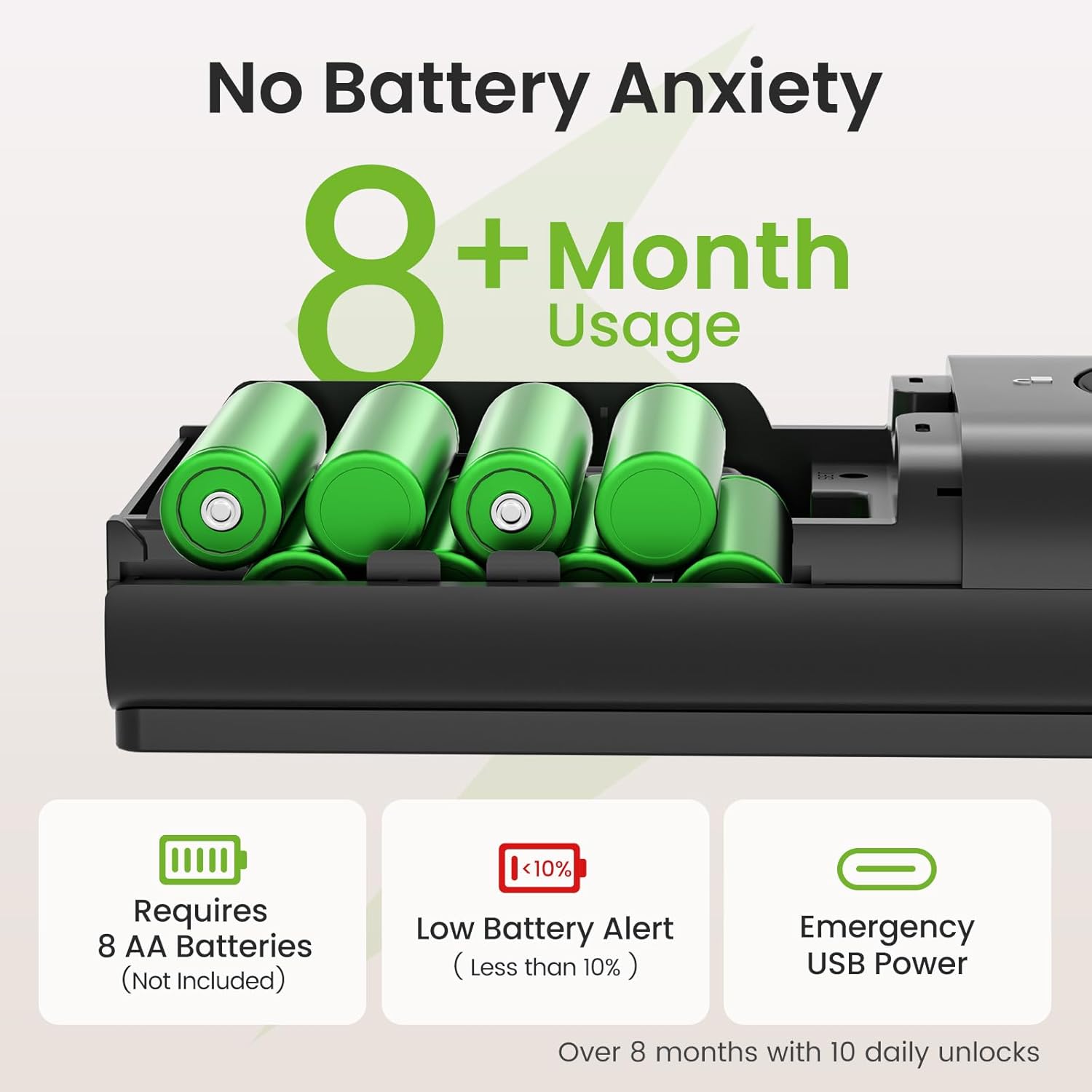
Figure 4: Battery installation and expected battery life.
4. Колдонмону орнотуу жана баштапкы конфигурациялоо
The GHome app allows you to manage your smart lock remotely. Follow these steps to set up the app and configure your lock.
4.1 Download the GHome App
Издөө "GHome" in your device's app store or scan the QR code below to download and install. Sign up for an account.

App Store (iOS 11+)

Google Play (Android 6.0+)
4.2 Телефон орнотуулары
Ensure Bluetooth is enabled on your phone and connect to a 2.4G Wi-Fi network (supports 2.4G Wi-Fi only).
4.3 Заводдук орнотууларды калыбына келтириңиз
To restore factory settings, long press the "SET" button (located under the battery cover) until all 7 beep sounds finish. You will hear "Restore factory setting operation succeeded." Press the unlock button on the keypad to confirm.
4.4 Set Administrator Password
After restoring factory settings, the lock will prompt you to set an administrator password. Enter your desired 6-8 digit password and press the unlock button to confirm. For security, avoid simple codes like "123456".
4.5 Туташуу ыкмасы
You can connect the lock to the app via Bluetooth Auto-Discover Mode or Wi-Fi Mode.
- Bluetooth Auto-Discover Mode: Open the GHome app, tap the top right "+" icon, then "Add Device". When the device pops up, tap "Add". Select the same 2.4G Wi-Fi as your phone. The lock's red light will flash, indicating it's connecting. Keep the app open for at least 2 minutes.
- Wi-Fi режими: If Bluetooth networking fails, you can try Wi-Fi mode. Open the app, tap the top right "+" icon, then "Add Device". Tap "Security" in the left device list, then select "KD10SE". Tap the top right "Bluetooth" and switch to "Wi-Fi Mode". Confirm the keyboard light is blinking and tap "Next". Select your 2.4G Wi-Fi and enter the password. Tap "Go to connect" to connect your phone to the device's hotspot (starts with "SmartLife").
5. Акылдуу кулпуну иштетүү
The GHome Smart Lock offers multiple convenient ways to unlock your door.
5.1 Манжа изи менен ачуу
The lock features a 0.2s AI biometric identification with 99% precision. You can store up to 100 fingerprints.
- Go to the "Member" page in the GHome app.
- Tap your account under "Family member".
- Tap "Add Fingerprint" under "Fingerprint Management".
- Tap "Start to add" and follow the voice prompts and app interface to register your fingerprint. Slightly adjust the angles of your finger for better scanning.
- Once registered, simply place your registered finger on the sensor to unlock.
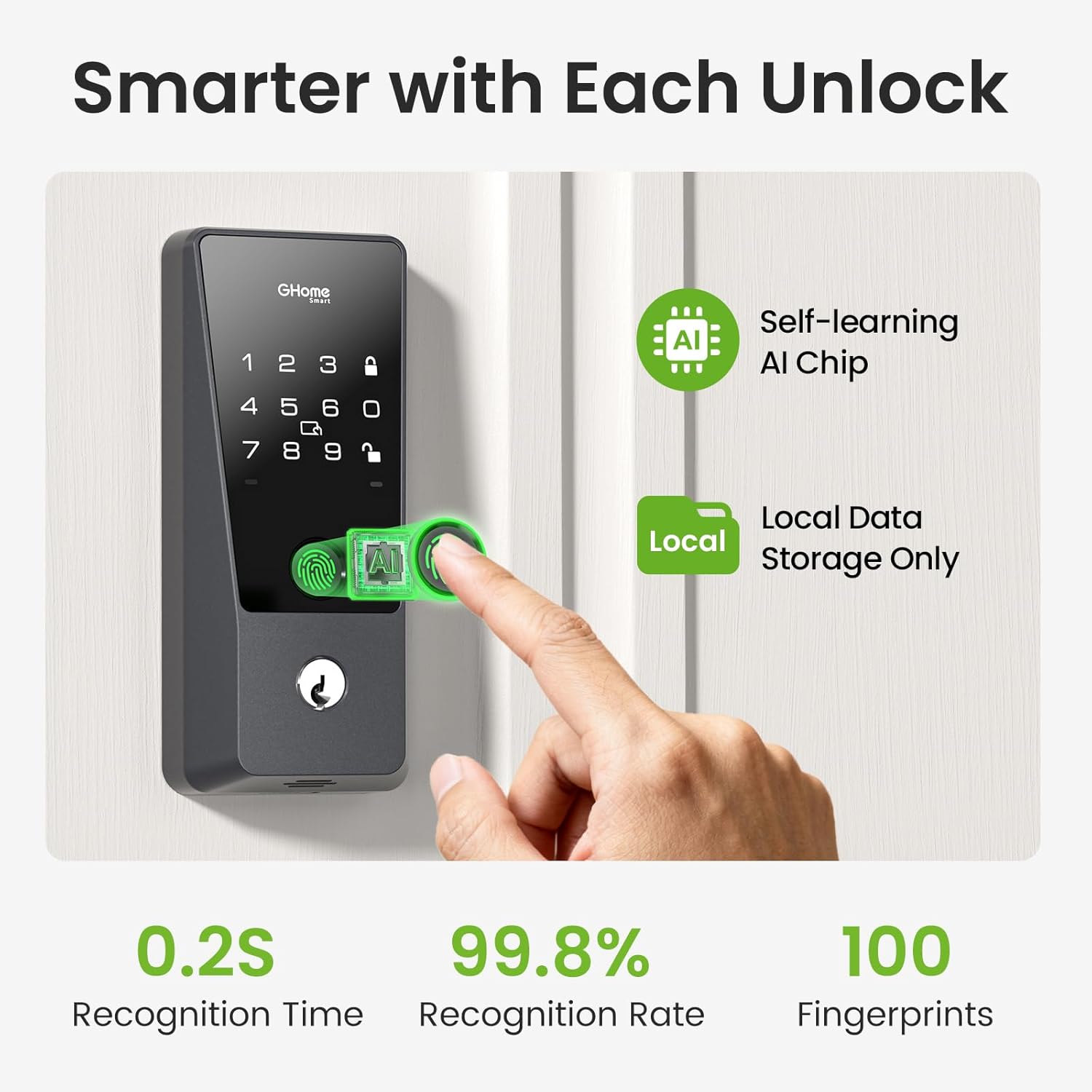
Figure 5: Fingerprint recognition features.
5.2 Сырсөздү ачуу
You can set up to 50 passcodes, including temporary or one-time guest codes. The anti-peeking design allows you to enter random digits before or after your actual code to prevent snooping.
- Go to the "Member" page in the GHome app.
- Tap your account under "Family member".
- Tap "Add Password" under "Password Management".
- Set your desired password in the app.
- To unlock, enter your password on the keypad and press the unlock button.

Figure 6: Personalized passcode options.
5.3 NFC Card Unlock
The lock supports up to 50 NFC cards. Two key fobs are included.
- Go to the "Member" page in the GHome app.
- Tap your account under "Family member".
- Tap "Add Card" under "Card Management".
- Tap "Start to add" and place the access card on the indicated sensing area until a voice prompt confirms successful addition.
- To unlock, swipe the registered NFC card over the sensor.
5.4 APP Remote Unlock (Via Wi-Fi)
With built-in WiFi, you can lock/unlock, manage users, share codes, view access logs, and receive alerts from anywhere via the GHome app.
- Ensure your smart lock is connected to your home's 2.4G Wi-Fi network.
- Open the GHome app and select your smart lock.
- Use the unlock/lock toggle within the app to control your door remotely.
Video 3: GHome Smart Wifi Door Lock - Built-in Wifi, Control Remotely. This video demonstrates remote control capabilities via the GHome app.
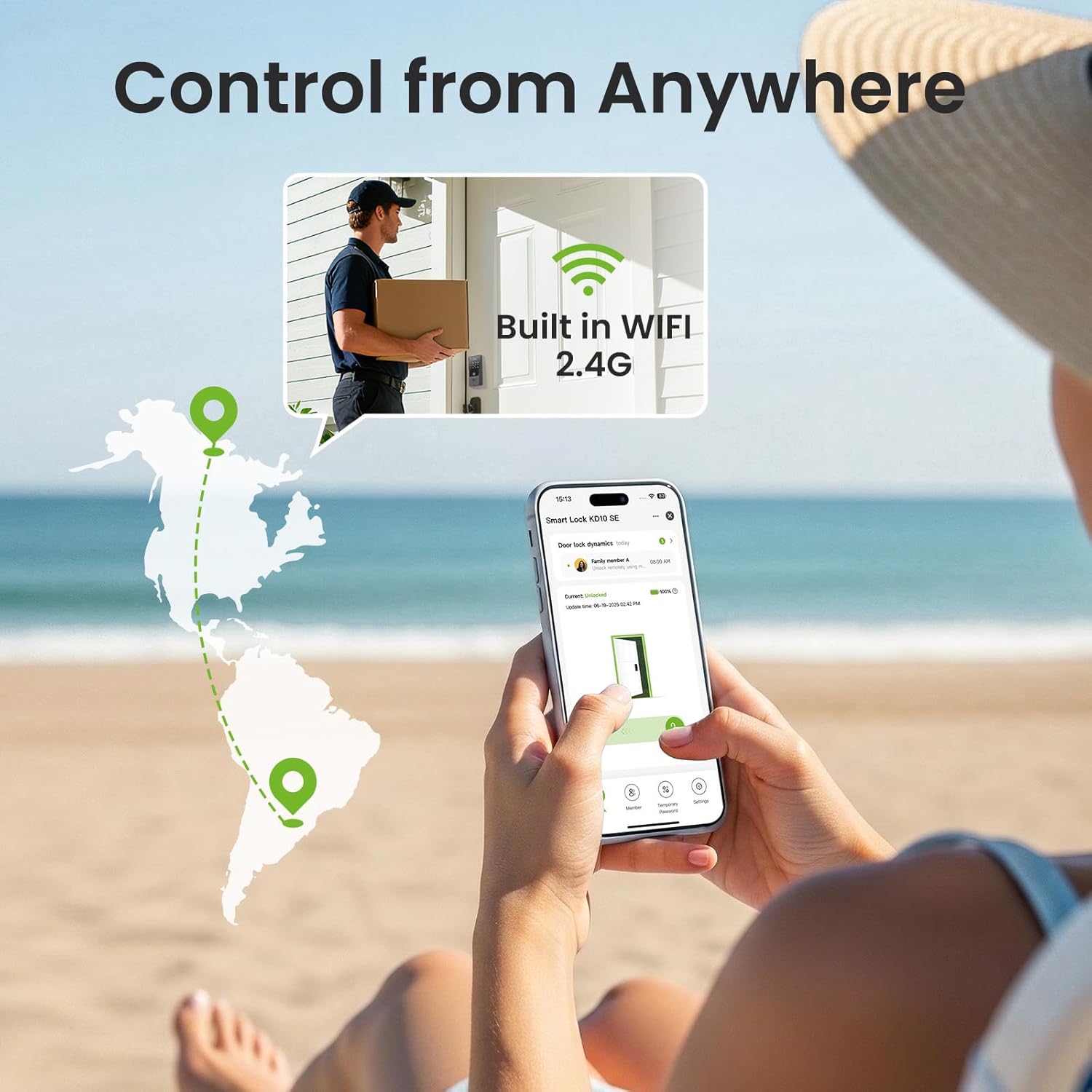
Figure 7: Remote control via GHome app.
5.5 Backup Key Unlock
In case of emergencies or battery depletion, you can use the provided backup keys to manually unlock the deadbolt.
5.6 Voice Control (Optional Feature)
The GHome Smart Lock is compatible with Amazon Alexa and Google Assistant for voice-activated control.
- Connect GHome app with Alexa: Open GHome App → Go to "Me" page → Tap the Alexa icon → Tap "Link to Amazon Alexa" → Tap "Link" → Tap "Done".
- Set up in the Alexa app: Open Alexa app → Tap "Devices" page → Find your smart lock and tap on it → Tap the settings gear icon in the top right corner. For better recognition, edit the smart lock's name (e.g., "Front door").
- Set a voice code for the smart lock in Alexa: Turn on the "Enable Unlock" button under the "Unlock by Voice and Echo Hub" section, then enter your voice code (keep it confidential). Note: For Google Assistant, you need to set up a voice code in the GHome app.
- Үн менен ачуу: Once set up, you can use voice commands like "Alexa, unlock the front door." You will be prompted for your voice code to confirm.
6. Техникалык тейлөө
6.1 Батареяны алмаштыруу
The GHome app will send low-battery alerts when the battery level reaches 9%. Replace all 8 AA batteries promptly to ensure continuous operation. In case of completely dead batteries, use any USB-C power bank/charger for instant emergency access via the Type-C backup port.
7. Кыйынчылыктарды
- Манжа изин таануу көйгөйлөрү: Ensure your finger is clean and dry. Try adjusting the angle of your finger on the sensor. Re-register your fingerprint if issues persist.
- App connection failures: Verify your phone's Bluetooth is on and connected to a 2.4G Wi-Fi network. Ensure the lock is in network configuration mode (flashing red light). If Bluetooth fails, try Wi-Fi mode as described in Section 4.5.
- Автоматтык кулпу иштебейт: Check the auto-lock settings in the GHome app to ensure it's enabled and configured with the desired delay (10 seconds to 30 minutes).
- Кулпу жооп бербей жатат: Check battery levels. If batteries are dead, use the USB-C backup power or backup keys.
- Клавиатура күйбөйт: The keypad lights up in the dark for convenient passcode entry. If it doesn't, check battery levels.
8. Техникалык шарттар
| Бренд | GHome Smart |
| Модель аты | Ghome Smart Locks for Front Door |
| Элемент моделинин номери | KD10-SE |
| Кулпу түрү | Biometric, Keyless Entry Door Lock, Smart Lock for Front Door, Wifi Deadbolt Lock with Keypad |
| Өзгөчөлүктөр | Auto-Lock & Anti-Peep Keypad, Built-in WiFi – Remote Control Without Hub, Easy DIY Installation & Long Battery Life, Fingerprint/APP/Passcode/Voice(Work with Alexa & Google Assistant)/Fobs/Keys Unlock, One-touch Unlock, AI Fingerprint Recognition |
| Материал | Алюминий |
| Түс | Кара |
| Элементтин өлчөмдөрү L x W x H | 8.66 x 7.87 x 3.46 дюйм |
| Элемент Салмагы | 2.7 фунт (1.23 килограмм) |
| Башкаруу ыкмасы | Колдонмо, пульт, тийүү, үн |
| Батареялар талап кылынат | 8 AA batteries (Not Included) |
| Иштөө температурасы | -4°F – 140°F (-20°C – 60°C) |
| Суу өткөрбөйт рейтинги | IP54 (Water & Dust Resistant) |

Figure 8: All-weather durability features.
9. Кепилдик жана колдоо
The GHome WiFi Smart Lock KD10-SE comes with a 1 жылдык кепилдик жана а 30-day no-hassle return policy for worry-free purchases. For expert support or any inquiries, please contact GHome Smart customer service.