
1. Introduction and Overview
This manual provides detailed instructions for the installation, operation, and maintenance of your GNCC GW5Pro 2K Solar Camera Outdoor Wireless. Designed for robust outdoor surveillance, this camera combines solar power efficiency with advanced security features to provide reliable home monitoring.

Image 1.1: The GNCC GW5Pro 2K Solar Camera, showcasing its solar panel for continuous power and a smartphone interface displaying a live outdoor view.
The GW5Pro solar camera is easy to install outdoors and is powered by solar energy, allowing for year-round operation without frequent recharging. It supports both 5G and 2.4GHz WiFi, ensuring compatibility with most home routers. Experience sharp 2K HD video quality with color night vision, where built-in spotlights provide clear, color images even in low light conditions. With an IP65 waterproof rating, the camera is built to withstand various weather conditions. Its 5200mAh rechargeable battery ensures long-lasting use, with the option to recharge during extended cloudy periods. The integrated PIR sensor detects motion up to 8 meters away, and AI capabilities differentiate between people, cars, and pets, significantly reducing false alarms. Two-way audio enables real-time communication with visitors or family members. Setup is streamlined through the 'Osaio' app, and flexible storage options include cloud storage (subscription required) and local SD card storage (up to 128GB).
2. Кутуда эмне бар
Сураныч, бардык буюмдар бар экенине ынануу үчүн пакетиңиздин мазмунун текшериңиз:
- GNCC GW5Pro 2K Solar Camera Unit
- Solar Panel with integrated cable
- Дубалга орнотуу кашаасы
- Монтаждоо бурамдары жана дубал анкерлери
- USB заряддоо кабели
- Колдонуучунун Колдонмосу (бул документ)

Image 2.1: Components of the GNCC GW5Pro system, highlighting the camera, solar panel, and the SD card slot for local storage.
3. Продукциянын өзгөчөлүктөрү
3.1 Solar Power & Battery
The GW5Pro is equipped with a 5200mAh rechargeable lithium battery and a 2W solar panel, providing continuous power and ensuring year-round operation. The camera is designed for safe charging in temperatures ranging from -20°C to 50°C.

Image 3.1.1: Illustration of the solar panel charging mechanism and the 5200mAh battery, indicating efficient power management.
3.2 Dual-Band WiFi Connectivity
Supports both 5G and 2.4GHz WiFi networks, offering flexible and stable connection options for your home router.

Image 3.2.1: Visual representation of the camera's dual-band WiFi capabilities, supporting both 5G and 2.4GHz networks for enhanced connectivity.
3.3 2K HD Video & Color Night Vision
Captures sharp 2K HD video (1440p) with an effective still resolution of 4 MP. Features a 136° wide-angle view to minimize blind spots. Built-in spotlights enable full-color night vision, providing clear and detailed images even in complete darkness up to 8 meters.

Image 3.3.1: Demonstrates the 2K HD resolution and 136-degree wide-angle view, ensuring comprehensive coverage without blind spots.

Image 3.3.2: Comparison illustrating the clarity and detail provided by color night vision compared to traditional black and white.
3.4 PIR Motion Detection & AI Recognition
The passive infrared (PIR) sensor detects motion up to 8 meters away. Advanced AI algorithms can distinguish between people, vehicles, and pets, significantly reducing false alarms and ensuring you receive relevant alerts.

Image 3.4.1: Depicts the PIR smart detection system, showing how the camera identifies and sends notifications for people, animals, and vehicles.

Image 3.4.2: Illustrates the AI-precision surveillance feature, highlighting how the system accurately identifies human figures to minimize false alarms.
3.5 Эки тараптуу аудио
Communicate directly with visitors or deter intruders using the built-in microphone and speaker, accessible through the 'Osaio' app.

Image 3.5.1: Demonstrates the two-way audio functionality, allowing for real-time communication through the camera.
3.6 Cloud/SD Card Dual Storage
Offers flexible storage options: secure cloud storage (subscription required, 14-day free trial available) and local storage via an SD card (up to 128GB, not included).
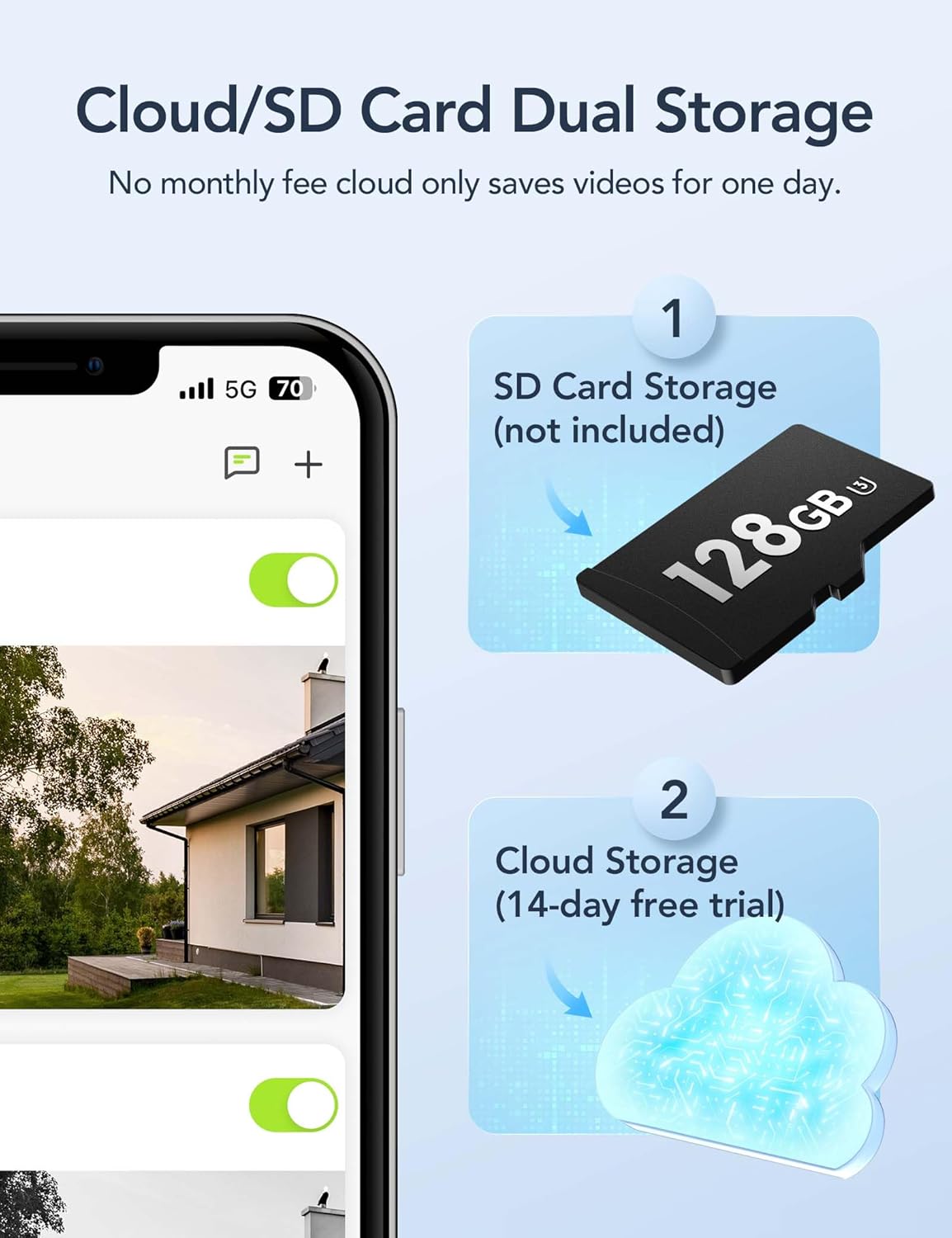
Сүрөт 3.6.1: Бүттүview of the dual storage options, including cloud and local SD card storage, providing flexibility for video retention.
3.7 IP65 суу өткөрбөө рейтинги
The camera is rated IP65, ensuring it is fully protected against dust and can withstand low-pressure water jets from any direction, making it suitable for outdoor use in various weather conditions.
4. Орнотуу колдонмосу
4.1 Алгачкы заряддоо
Before first use, it is recommended to fully charge the camera's internal battery using the provided USB charging cable. Connect the cable to the camera's charging port and a standard USB power adapter (not included). The charging indicator light will show the charging status.
4.2 Колдонмону жүктөп алуу жана орнотуу
The GNCC GW5Pro camera operates with the 'Osaio' app. Download the 'Osaio' app from your smartphone's app store (Google Play Store for Android or Apple App Store for iOS).
4.3 Device Pairing and WiFi Connection
- Камераны сайыңыз: Камера күйгүзүлгөнүн текшериңиз.
- Open Osaio App: Launch the 'Osaio' app on your smartphone and create an account or log in.
- Bluetooth күйгүзүү: Enable Bluetooth on your smartphone for easier device discovery.
- Түзмөк кошуу: In the app, tap the '+' icon to add a new device. Follow the on-screen prompts to select your camera model and connect it to your 2.4GHz or 5GHz WiFi network.
- Түзмөктүн аталышы: Once connected, you can name your camera for easy identification.

Image 4.3.1: Step-by-step guide for setting up the GNCC camera using the Osaio app, from plugging in to successful device naming.
4.4 Камераны орнотуу
Choose a suitable outdoor location for mounting the camera. Ensure the solar panel receives ample direct sunlight throughout the day for optimal charging. Use the provided mounting bracket, screws, and anchors to securely attach the camera to a wall or other stable surface. Adjust the camera angle to cover your desired surveillance area.

Image 4.4.1: A person installing the GNCC solar camera on an exterior wall, demonstrating the ease of installation.

Сүрөт 4.4.2: Мурункуample of the camera's placement flexibility, showing it mounted on a house for outdoor surveillance.
5. Иштөө нускамалары
5.1 Live View
Open the 'Osaio' app and select your camera from the device list to access the live video feed. You can view реалдуу убакыт footagкаалаган убакта, каалаган жерде камераңыздан e.
5.2 Эки тараптуу аудио
Түз эфирде view, tap the microphone icon in the app to speak through the camera's speaker. Tap again to end communication. Tap the speaker icon to listen to audio from the camera's surroundings.
5.3 Кыймылды аныктоо орнотуулары
Navigate to the camera settings in the 'Osaio' app to adjust motion detection sensitivity, set activity zones, and configure alert notifications. You can choose to receive alerts for people, vehicles, or pets specifically.
5.4 Жазуу жана ойнотуу
Recorded events are stored either in the cloud (with subscription) or on a locally inserted SD card (up to 128GB). Access the playback feature in the 'Osaio' app to review past recordings. The camera supports event recording, capturing important moments.

Image 5.4.1: Visual representation of the event recording capability, ensuring no important moments are missed.
5.5 Түнкү көрүү режимдери
The camera automatically switches to night vision in low light conditions. You can configure settings in the app to utilize the color night vision feature, which activates the built-in spotlights for full-color clarity.

Image 5.5.1: Depicts the smart spotlight feature enabling color night vision and instant alerts for enhanced security.
6. Техникалык тейлөө
6.1 Тазалоо
Regularly clean the camera lens and the solar panel surface with a soft, damp Оптималдуу иштөөнү камсыз кылуу үчүн кездеме колдонуңуз. Беттерди тырмап алышы мүмкүн болгон катуу химиялык заттарды же абразивдүү материалдарды колдонуудан алыс болуңуз.
6.2 Батареяны башкаруу
While the solar panel provides continuous charging, during prolonged periods of cloudy weather or low sunlight, the camera's battery level may drop. If the battery level becomes critically low, you may need to temporarily remove the camera and charge it fully using the USB cable.
6.3 Микропрограмма жаңыртуулары
Periodically check the 'Osaio' app for available firmware updates. Keeping your camera's firmware up-to-date ensures you have the latest features, security enhancements, and bug fixes.
6.4 SD картаны башкаруу
If using local SD card storage, ensure the card is properly inserted and formatted via the app. Regularly back up important recordings and consider replacing the SD card if it shows signs of degradation.
7. Кыйынчылыктарды
7.1 Camera is Offline or Not Connecting to WiFi
Чечим: Ensure the camera is powered on and fully charged. Check your WiFi router's signal strength at the camera's location. Try restarting both the camera and your router. Verify that you are connecting to the correct WiFi network (2.4GHz or 5GHz) and that the password is correct. If issues persist, try re-pairing the device through the 'Osaio' app.
7.2 Видеонун сапаты начар
Чечим: Ensure the camera lens is clean and free from dirt or condensation. Check your WiFi connection stability and bandwidth, as a weak signal can affect video streaming quality. Adjust the camera's position to ensure optimal lighting conditions.
7.3 Receiving Too Many False Alarms
Чечим: Adjust the motion detection sensitivity settings in the 'Osaio' app. Utilize the AI detection features to filter alerts for specific objects (people, vehicles, pets). Define specific activity zones to monitor only relevant areas and exclude high-traffic zones like public sidewalks.
7.4 Эки тараптуу аудио иштебей жатат
Чечим: Check the microphone and speaker settings within the 'Osaio' app. Ensure your phone's volume is up and that the app has microphone permissions. Verify there are no obstructions blocking the camera's microphone or speaker.
7.5 SD Card Not Recording
Чечим: Ensure an SD card (up to 128GB) is properly inserted into the camera's slot. Format the SD card through the 'Osaio' app. Check if the SD card is full; if so, back up data and format it. Ensure recording settings are enabled in the app.
8. Техникалык шарттар
| Өзгөчөлүк | Спецификация |
|---|---|
| Модель аты | GW5Pro-1N |
| Ички/тышкы колдонуу | Сыртта |
| Power Source | Күн энергиясы |
| Батареянын күчү | 5200 мАч |
| Байланыш технологиясы | Зымсыз (Wi-Fi) |
| Зымсыз байланыш технологиясы | Wi-Fi (5G & 2.4GHz) |
| Видео тартуунун резолюциясы | 1440p (2K HD) |
| Натыйжалуу дагы эле чечим | 4 депутат |
| Түнкү көрүү диапазону | 8 метр |
| Эл аралык коргоо рейтинги | IP65 (Суу өткөрбөйт) |
| Motion Detection | PIR Motion Detection with AI (Person, Car, Pet) |
| Аудио | Эки тараптуу аудио |
| Сактагыч параметрлери | Cloud Storage (Subscription), Local SD Card (up to 128GB) |
| Шайкеш түзмөктөр | Smartphone (Osaio App) |
| Controller Type | Amazon Alexa, Google Жардамчысы |
| Монтаж түрү | Дубалга орнотуу |
| Түс | Ак |
| Материал | Акрилонитрил бутадиен стирол (ABS) |
| Элементтин өлчөмдөрү (L x W x Y) | 3.5 x 2.3 x 2.3 дюйм |
| Элемент Салмагы | 1.1 фунт |
| UPC | 850070296557 |
9. Кепилдик жана колдоо
9.1 Кепилдик маалыматы
For detailed warranty information regarding your GNCC GW5Pro camera, please refer to the warranty card included with your product or visit the official GNCC webсайт. Кепилдиктин шарттары жана шарттары аймакка жана сатуучуга жараша өзгөрүшү мүмкүн.
9.2 Кардарларды колдоо
If you encounter any issues or have questions about your GNCC GW5Pro camera, please utilize the following resources:
- Osaio App: The 'Osaio' app often includes a help section, FAQs, and direct support contact options.
- GNCC Official Webсайт: Visit the GNCC website for product support, FAQs, and contact information for customer service.

Image 9.2.1: GNCC is committed to providing high-quality support to its customers.