
Introduction
This manual provides instructions for the operation and maintenance of your Generic Q500 Voice Recorder Pen. This device combines a discreet voice recorder, MP3 player, USB flash drive, and a functional writing pen into one compact unit. It is designed for clear audio capture in various settings, including meetings, lectures, and interviews.
Продукт бүттүview
The Q500 Voice Recorder Pen features a sleek design with an omnidirectional microphone for high-quality audio capture and intelligent noise reduction. It operates discreetly without emitting light or LEDs during recording.

Figure 1: Q500 Voice Recorder Pen Components
This image illustrates the key components of the Q500 Voice Recorder Pen, including the boot key, indicator light, pen clip, USB port, TF card slot, and the pen head.
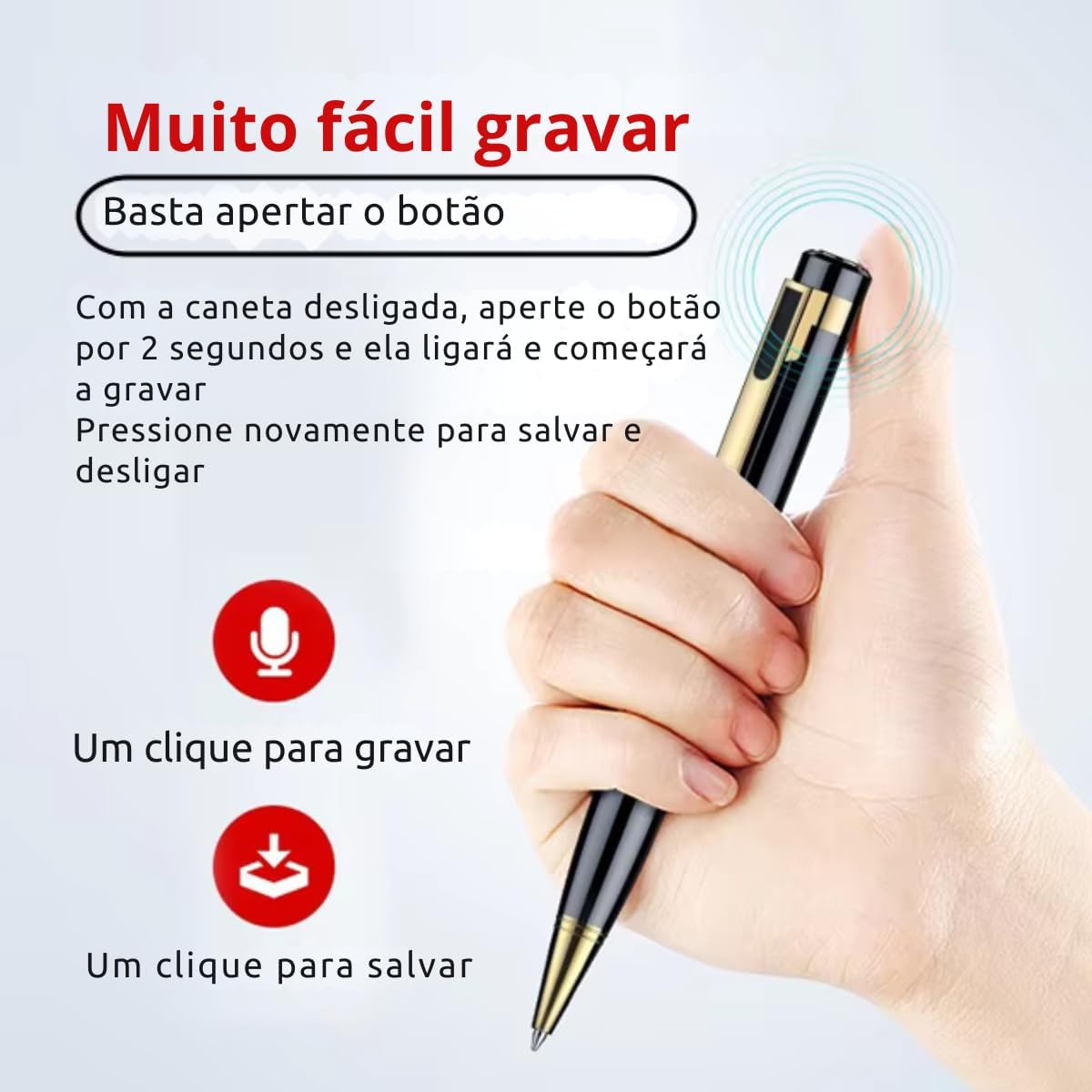
Figure 2: Key Features of the Q500 Voice Recorder Pen
This image highlights the multi-functional capabilities of the pen, including noise reduction, voice activation, one-click recording, MP3 playback, standard writing, and a replaceable ink refill.
Жайгашуу
1. Аппаратты заряддоо
Before first use, fully charge the voice recorder pen. Connect the included USB cable to the pen's USB port and then to a computer or a standard USB wall adapter. The indicator light will show charging status and turn off or change color when fully charged. A full charge takes approximately 1 hour and provides up to 20 hours of continuous recording.
2. MicroSD картасын салуу (кошумча)
The device supports a microSD card for expanded storage. While the internal memory is sufficient for basic use, a microSD card (up to 32GB, not included) can significantly increase recording capacity. Locate the TF card slot (microSD slot) on the pen and gently insert the card until it clicks into place.

3-сүрөт: MicroSD картасын киргизүү
This image demonstrates how to insert a microSD card into the pen's TF card slot for expanded storage. The device supports up to 32GB microSD cards, though some models may support up to 64GB.
Иштөө нускамалары
1. Күйгүзүү/өчүрүү жана жаздыруу
To power on the device and begin recording:
- Ensure the pen is off.
- Press and hold the boot key (power button) for approximately 2 seconds. The indicator light will briefly flash, and the device will start recording automatically.
- Жаздырууну токтотуу жана сактоо үчүн file, press the boot key again. The indicator light will flash, and the device will power off.

Figure 4: One-Click Recording and Saving
This image demonstrates the straightforward process of starting and stopping recordings with a single button press.
2. Connecting to a Computer and Headphones
The Q500 Voice Recorder Pen features a single interface for multiple uses:
- For Listening to Recordings: Plug the included earphones into the pen's USB port using the provided adapter cable.
- үчүн File өткөрүүсү: Connect the pen to your computer using the USB cable. The pen will be recognized as a removable disk, allowing you to access, transfer, and manage your recorded audio files (WAV форматында).

Figure 5: Dual Interface Use
This image shows how the pen's single interface can be used for both connecting headphones to listen to recordings and connecting to a computer for file башкаруу.
3. MP3 Player Function
When connected to headphones, the pen can function as an MP3 player. Transfer MP3, WAV, or WMA audio files to the pen's storage (internal or microSD) via a computer. Use the pen's controls (if available, or through connected headphones with controls) to navigate and play audio files.

Figure 6: All-in-One Functionality
This image visually represents the pen's versatility as a voice recorder, MP3 player, functional writing tool, and portable storage device.
4. Using as a Pen Drive
When connected to a computer, the Q500 Voice Recorder Pen acts as a standard USB flash drive. You can drag and drop any files to and from its storage, making it a convenient portable storage solution.
Video 1: Voice Recorder Pen Overview
Бул видео жалпы маалымат беретview of the voice recorder pen, demonstrating its discreet recording capabilities and ease of use for various situations like studies, meetings, and conversations.
Video 2: Mini Voice Recorder Features
This video showcases the compact nature and various features of a mini voice recorder, which shares similar functionalities with the Q500 pen, including recording and data transfer.
Техникалык тейлөө
- Тазалоо: Use a soft, dry cloth to clean the pen's exterior. Avoid using liquid cleaners or solvents.
- Сактагыч: Store the pen in a cool, dry place away from direct sunlight, extreme temperatures, and high humidity.
- Батареяга кам көрүү: Батареянын иштөө мөөнөтүн узартуу үчүн, бат-баттан батарейканы толук зарядсыздандырбаңыз. Аппаратты узак убакыт бою колдонбосо дагы, үзгүлтүксүз заряддаңыз.
- Сыяны толтуруу: The pen uses a standard replaceable ink refill. Replace it as needed.
Проблемаларды чечүү
- Түзмөк күйбөй жатат:
Ensure the battery is charged. Connect the pen to a power source and allow it to charge for at least 15 minutes before attempting to power it on again. - No recording or poor audio quality:
Check if the device has sufficient storage space. Ensure the microphone is not obstructed. Record in a quiet environment to minimize background noise. Verify the pen is fully charged. - Компьютерге туташуу мүмкүн эмес:
Try a different USB port on your computer. Ensure the USB cable is securely connected to both the pen and the computer. Restart your computer. - Cannot hear recordings with headphones:
Ensure the headphones are properly connected to the pen via the adapter cable. Check headphone volume. Test headphones with another device to ensure they are functional. - Pen not writing:
Check if the ink cartridge is dry or empty. Replace the ink refill if necessary.
Техникалык шарттар
| Өзгөчөлүк | Спецификация |
|---|---|
| Модель номери | Q500 |
| Бренд | Жалпы |
| Материал | Zinc (scratch-resistant) |
| Микрофон | Omnidirectional with intelligent noise reduction, Built-in |
| Жазуу аралык | 8дөн 10 метрге чейин |
| Жазуу форматы | WAV |
| Аудио ойнотуу форматтары | MP3, WAV, WMA |
| Жыштык | 20 Гц – 20 КГц |
| Эстутум сактоо сыйымдуулугу | Supports microSD up to 32GB (card not included) |
| Батарея түрү | Литий 170мАч |
| Battery Duration (Recording) | 20 саатка чейин |
| Заряддоо убактысы | Болжол менен 1 саат |
| Аппараттык интерфейс | USB |
| Кулакчын киргизүү | 3.5 millimeters (via adapter) |
| Келип чыккан өлкө | Кытай |
| Камтылган компоненттер | 1x Voice Recorder Pen, 1x Earphone, 1x USB Cable, 1x User Manual |
Кепилдик маалымат
This product comes with a 90-day warranty from the date of purchase, covering manufacturing defects. Please retain your proof of purchase for warranty claims. The warranty does not cover damage caused by misuse, accidents, unauthorized modifications, or normal wear and tear.
Колдоо
For further assistance, technical support, or warranty inquiries, please refer to the contact information provided by your retailer or the manufacturer's official website. Ensure you have your product model number (Q500) and proof of purchase ready when contacting support.