
1. Киришүү
This manual provides essential information for setting up, operating, maintaining, and troubleshooting your GMKtec K11 Mini PC. Please read this guide thoroughly before using the device to ensure optimal performance and longevity.
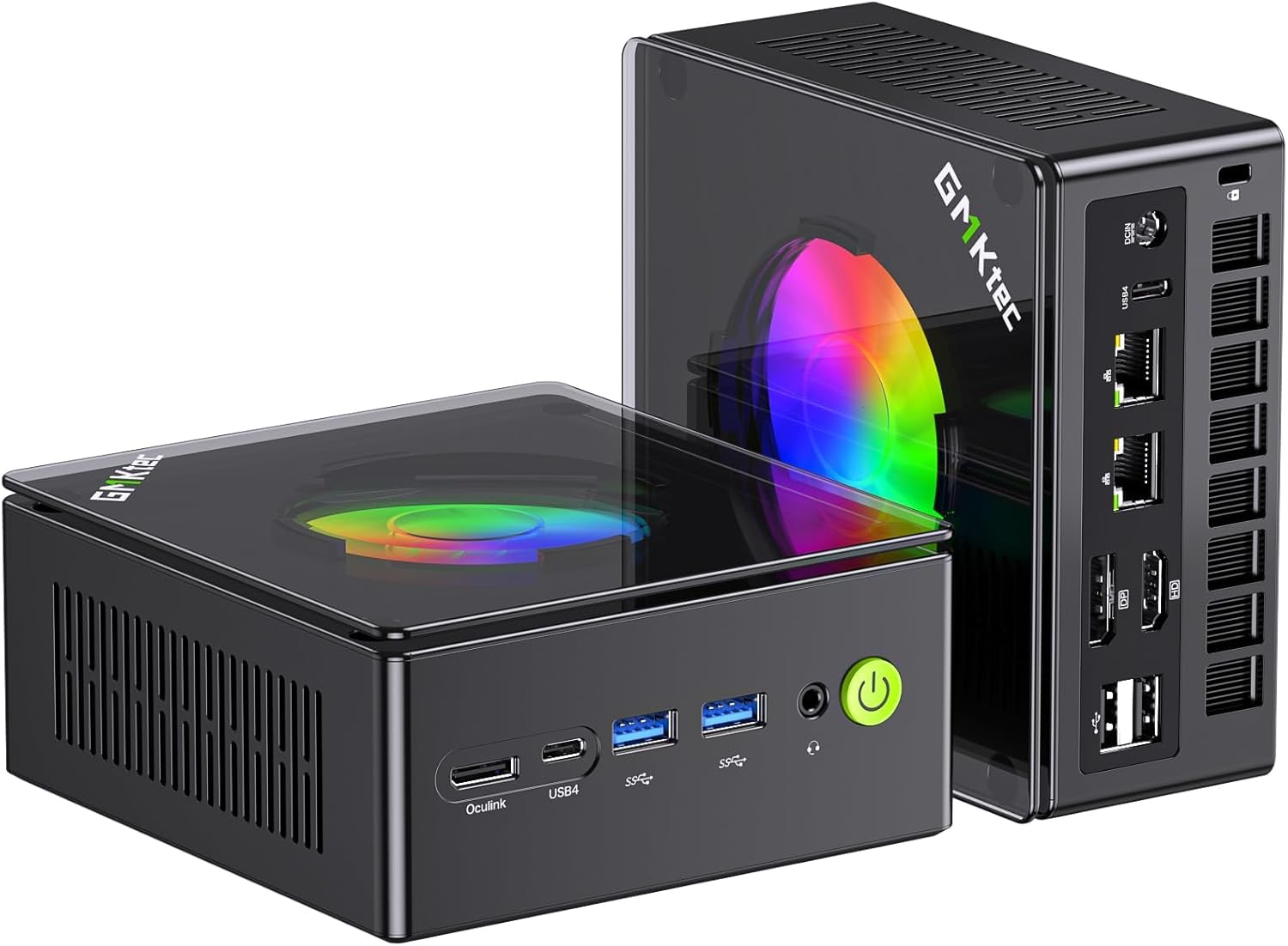
Figure 1: GMKtec K11 Mini PC, a compact desktop computer.
2. Продукт бүтүп калдыview
The GMKtec K11 is a high-performance mini PC designed for demanding tasks, including gaming and content creation. It features advanced processing power, ampэстутум жана сактоо, жана ар тараптуу байланыш параметрлери.
2.1 Негизги өзгөчөлүктөрү
- Процессор: AMD Ryzen 9 8945HS (8 ядро, 16 жип, 5.4 ГГц чейин)
- Графика: Integrated AMD Radeon 780M (RDNA 4 architecture)
- Эстутум: 32GB DDR5 RAM (5600 MT/s, dual channel, expandable to 64GB)
- Сактагыч: 512GB M.2 2280 PCIe 4.0 SSD (supports two Gen4 x4 SSDs, expandable up to 8TB)
- Дисплейди колдоо: Quad 4K display output via HDMI 2.1, DisplayPort 2.1, and two USB4 ports
- Тармак: Dual Intel i226V 2.5 Gigabit LAN, Wi-Fi 6, Bluetooth 5.2
- Муздатуу: Upgraded Hyper Ice Chamber 2.0 with dual fans
- Кубат режимдери: Silent (35W), Balanced (54W), Performance (65W)
- Special Port: Oculink connector for external GPU expansion
2.2 Processor Details
The K11 is equipped with an AMD Ryzen 9 8945HS processor, offering robust performance for multitasking and demanding applications. The integrated AMD Radeon 780M graphics provide strong visual capabilities.

Figure 2: Diagram illustrating the AMD Ryzen 9 8945HS processor with its core, thread, cache, and clock speed specifications, alongside performance benchmarks.
2.3 Порттор жана туташтыргычтар
The GMKtec K11 Mini PC provides a comprehensive set of ports for various peripherals and displays.

Figure 3: Front panel of the K11 Mini PC, showing the power button, USB 3.2 (Gen2) ports, USB4 port, and Oculink port.

Figure 4: Rear panel of the K11 Mini PC, displaying USB 2.0 ports, HDMI 2.1, DisplayPort 2.1, dual 2.5G LAN ports, USB4 port, and DC power input.
3. Орнотуу нускамалары
Follow these steps to set up your GMKtec K11 Mini PC:
- Пакеттен чыгаруу: Carefully remove the Mini PC and all accessories from the packaging. Verify that all components listed in the 'What's in the Box' section are present.
- Дисплейди туташтыруу: Connect your monitor(s) to the Mini PC using an HDMI, DisplayPort, or USB4 cable. The K11 supports up to four 4K displays simultaneously.
- Перифериялык түзүлүштөрдү туташтыруу: Клавиатураңызды, чычканыңызды жана башка USB түзмөктөрүңүздү жеткиликтүү USB портторуна сайыңыз.
- Тармакка туташуу: For a wired connection, connect an Ethernet cable from your router or modem to one of the 2.5G LAN ports. For wireless, ensure your Wi-Fi network is available.
- Туташуу кубаты: Connect the power adapter to the DC IN port on the Mini PC, then plug the power cable into an electrical outlet.
- Күйгүзүү: Press the power button located on the front panel of the Mini PC.
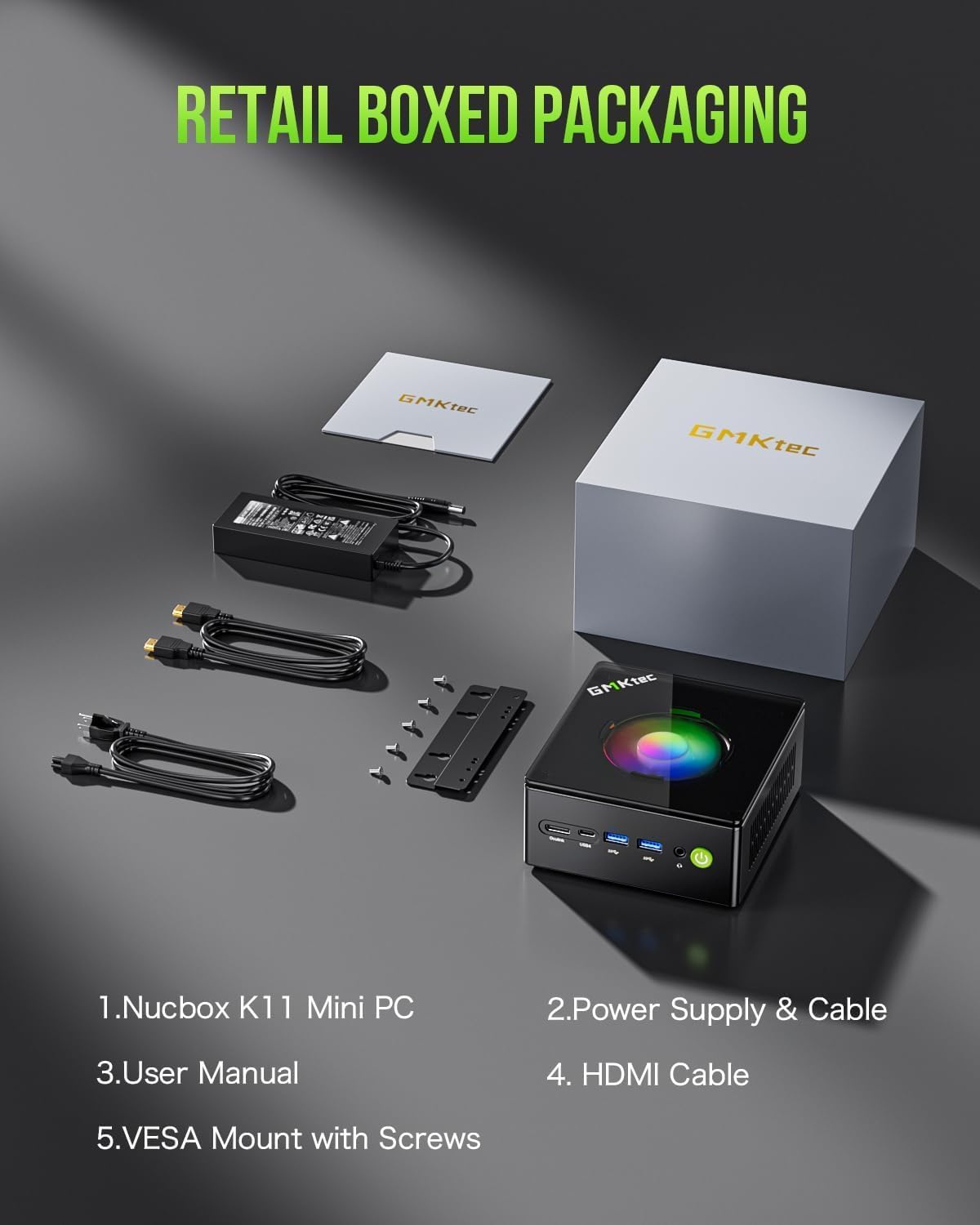
Figure 5: Contents of the GMKtec K11 Mini PC retail box, including the Mini PC, power supply, HDMI cable, and VESA mount with screws.
4. Иштөө нускамалары
4.1 Initial Boot and Operating System
Upon first power-on, the Mini PC will boot into the pre-installed Windows operating system. Follow the on-screen instructions to complete the initial setup, including language selection, network configuration, and user account creation.
4.2 Электр энергиясын башкаруу
The K11 Mini PC offers three power modes to optimize performance and energy consumption:
- Silent Mode (35W TDP): For quiet operation and basic tasks.
- Balanced Mode (54W TDP): Standard performance for everyday use.
- Performance Mode (65-70W TDP): Maximum performance for demanding applications and gaming.
These modes can typically be adjusted within the BIOS/UEFI settings or through the operating system's power options. VRAM allocation can also be adjusted up to 16GB.

Figure 6: Illustration of the K11's power consumption modes (Silent, Balanced, Performance) and their corresponding CPU temperatures and noise levels, along with a diagram of the cooling system.
4.3 Oculink Port Usage
The Oculink port provides enhanced connectivity for external graphics cards, offering higher bandwidth and lower latency compared to Thunderbolt. This allows for significant graphics performance upgrades.
Көңүл буруңуз: The Oculink interface does not support hot-swapping. Please plug and unplug this interface only when the PC is powered off.

Figure 7: The Oculink port on the K11 Mini PC connected to an external graphics card, demonstrating its use for enhanced graphical performance.
5. Техникалык тейлөө
5.1 Тазалоо
To maintain optimal performance, regularly clean the exterior of the Mini PC with a soft, dry cloth. Use compressed air to clear dust from the ventilation grilles and ports. Ensure the device is powered off and unplugged before cleaning.
5.2 RAM and SSD Upgrades
The GMKtec K11 features an easily disassembled design for convenient RAM and SSD upgrades. It supports dual-channel DDR5 SO-DIMM memory, expandable up to 64GB (32GB per slot), and two M.2 2280 PCIe 4.0 SSD slots, expandable up to 8TB (4TB per slot).

8-сүрөт: Ички view of the K11 Mini PC showing the accessible slots for DDR5 RAM and M.2 2280 SSDs, highlighting the ease of installation and upgrade.
6. Кыйынчылыктарды
If you encounter issues with your GMKtec K11 Mini PC, refer to the following common problems and solutions:
- Кубат жок:
- Ensure the power adapter is securely connected to both the Mini PC and a working electrical outlet.
- Электр кабелинде кандайдыр бир бузулуулар бар экенин текшериңиз.
- Дисплей жок:
- Verify that the display cable (HDMI, DisplayPort, or USB4) is firmly connected to both the Mini PC and the monitor.
- Монитордун күйгүзүлгөнүн жана туура киргизүү булагына коюлганын текшериңиз.
- Мүмкүн болсо, башка дисплей кабелин же мониторду колдонуп көрүңүз.
- Интернет байланышы жок:
- Зымдуу туташуулар үчүн Ethernet кабелинин жана роутердин абалын текшериңиз.
- For Wi-Fi, ensure Wi-Fi is enabled in Windows settings and you are connected to the correct network.
- Роутериңизди/модемиңизди жана мини-компьютериңизди өчүрүп-күйгүзүңүз.
- Жай аткаруу:
- Check the power mode settings (refer to section 4.2) and ensure it's set to Balanced or Performance for demanding tasks.
- Фондо иштеп жаткан керексиз тиркемелерди жабыңыз.
- Ensure the cooling system is not obstructed and is functioning correctly.
7. Техникалык шарттар
| Өзгөчөлүк | Спецификация |
|---|---|
| Бренд | GMKtec |
| Модель аты | K11 (NucBox K11) |
| Процессор | AMD Ryzen 9 8945HS (8 ядро, 16 жип, 5.4 ГГц чейин) |
| Графикалык сопроцессор | Integrated AMD Radeon 780M |
| RAM | 32GB DDR5 (5600 MT/s), expandable to 64GB |
| Сактагыч | 512GB M.2 2280 PCIe 4.0 SSD, expandable up to 8TB |
| Операция системасы | Windows |
| Видео чыгаруу интерфейси | HDMI 2.1, DisplayPort 2.1, USB4 (x2) |
| Max Display Resolution | 3840x2160 (4K) |
| Байланыш | Dual 2.5G LAN (Intel i226V), Wi-Fi 6 (802.11ax), Bluetooth 5.2 |
| USB порттору | 4 (USB 3.2 Gen2 x2, USB 2.0 x2, USB4 x2) |
| Special Ports | Oculink (PCIe 4.0 x4) |
| Муздатуу ыкмасы | Air (Hyper Ice Chamber 2.0) |
| Кубат режимдери | Silent (35W), Balanced (54W), Performance (65-70W) |
8. Кепилдик жана колдоо
GMKtec offers a limited one-year warranty for each Mini PC from the date of purchase, covering design and manufacturing defects. For any inquiries or support needs, please refer to the following options:
- Amazon колдоо: Contact us through your Amazon account by navigating to 'Your Orders' and selecting 'Ask Product Question'.
- Сатуудан кийинки колдоо: For direct assistance, send an email to the After-Sales Team at eu-cs@gmktec.com. Customer support is available 24/7.

Figure 9: Image showing a computer setup, representing the user experience and the availability of support.
9. Продукт видеосу бүттүview
Watch this official product video for a visual guide to the GMKtec K11 Mini PC's features and capabilities.
Видео 1: Анимацияланганview of the GMKtec K11 Mini PC, showcasing its AMD Ryzen 9 8945HS processor, AMD Radeon 780M graphics, cooling system, memory and storage upgrade options, front and rear ports, Oculink external GPU support, dual 2.5G LAN, Wi-Fi 6, Bluetooth 5.2, 4K quad display capabilities, and gaming entertainment potential.


