
1. Introduction and Overview
Welcome to your new DigiLand 10.1-inch Android Tablet MID1050. This manual provides essential information for setting up, operating, and maintaining your device. The tablet features a 10.1-inch display, an Octa-core processor, 6GB RAM, 32GB internal storage (expandable), and runs on Android 15. Please read this manual thoroughly to ensure proper use and to maximize your tablet's potential.
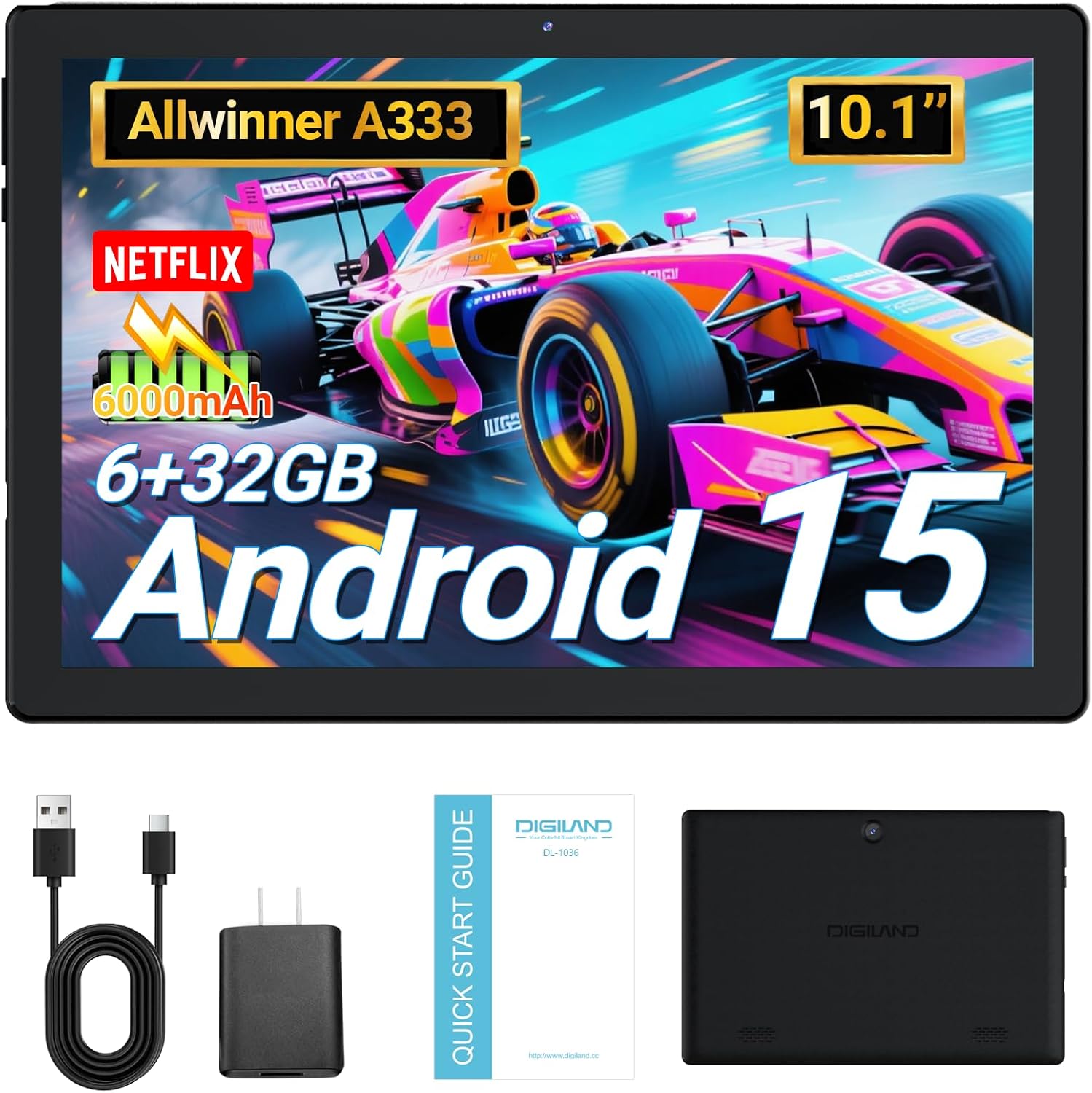
Image: DigiLand 10.1-inch Android Tablet MID1050.
2. Продукциянын өзгөчөлүктөрү
- Latest Android 15 System: Experience enhanced compatibility, faster response times, and smoother operation. The tablet is GMS certified and comes with Google Play pre-installed, supporting popular social applications.
- Жогорку аткаруу: Equipped with a high-performance Octa-core CPU, 6GB RAM (expandable to 3+3GB), and 32GB ROM. Storage can be expanded up to 1TB using an SD card.
- Көп функционалдуу дизайн: Features a 5MP rear camera and a 2MP front camera. Includes Bluetooth 5.0, built-in GPS, 5G WiFi, FM radio, dual-speakers, and a 3.5mm headphone jack.
- 10.1 дюймдук HD экран: Enjoy a clear and vibrant visual experience with an 800x1280 IPS display. The 6000mAh rechargeable battery provides 8-10 hours of mixed use.

Сүрөт: бүттүview of DigiLand Android Tablet features.
3. Кутуда эмне бар
Upon unboxing your DigiLand tablet, please ensure all the following items are present:
- 1 x DigiLand 10.1-inch Android Tablet
- 1 x USB кабели
- 1 x 5V/1A Power Adapter (US regulations)
- 1 х Колдонуучунун колдонмосу (бул документ)
- 1 x Кепилдик картасы
- 1 x Children's Silicone Case
4. Орнотуу колдонмосу
4.1 Планшетти заряддоо
Before first use, fully charge your tablet. Connect the provided USB cable to the tablet's Type-C port and the power adapter. Plug the adapter into a standard electrical outlet. The battery indicator on the screen will show charging status.
4.2 Күйгүзүү/өчүрүү
- Күйгүзүү үчүн: Press and hold the Power button (located on the side) until the DigiLand logo appears.
- Өчүрүү үчүн: Кубат баскычын басып, кармап туруңуз, андан кийин экрандагы параметрлерден "Өчүрүү" дегенди тандаңыз.
4.3 Баштапкы орнотуу
Upon first power-on, follow the on-screen prompts to configure your tablet:
- Каалаган тилиңизди тандаңыз.
- Wi-Fi тармагына туташыңыз.
- Google аккаунтуңуз менен кириңиз же жаңысын түзүңүз.
- Review жана шарттарды кабыл алуу.
- Экран кулпусун орнотуу (PIN, үлгү же сырсөз).
4.4 MicroSD картасын салуу
To expand storage, locate the MicroSD card slot on the side of the tablet. Gently insert the MicroSD card (up to 1TB supported) into the slot until it clicks into place. Ensure the card is oriented correctly.

Image: Diagram showing the location of ports and buttons on the DigiLand Android Tablet.
5. Иштөө нускамалары
5.1 Негизги навигация
The tablet uses a multi-touch display. Common gestures include:
- таптаңыз: Бир нерсени тандаңыз же колдонмону ачыңыз.
- Серпүү: Экрандарды же тизмелерди сыдырыңыз.
- Чымчуу: Сүрөттөрдү чоңойтуу же кичирейтүү жана web барактар.
- Узак басуу: Контексттик менюларга кириңиз же сүрөтчөлөрдү жылдырыңыз.
5.2 Wi-Fiга туташуу
Интернетке туташуу үчүн:
- барыңыз Орнотуулар > Тармак жана интернет > Wi-Fi.
- Wi-Fi которуштуруу On.
- Тизмеден каалаган тармакты тандаңыз.
- Эгер суралса, сырсөздү киргизиңиз, андан кийин таптаңыз Туташуу.
5.3 Bluetooth жупташтыруу
Bluetooth түзмөктөрүнө туташуу үчүн:
- барыңыз Орнотуулар > Туташкан түзмөктөр > Bluetooth.
- Bluetooth которуштуруу On.
- Bluetooth түзмөгүңүз жупташтыруу режиминде экенин текшериңиз.
- Select your device from the 'Available devices' list and follow any on-screen instructions to complete pairing.
5.4 Камераны колдонуу
Планшеттин алдыңкы камерасы 2 МП жана арткы 5 МП камерасы бар.
- ачыңыз Камера app from the home screen or app drawer.
- Сүрөткө тартуу үчүн жапкычты басыңыз.
- Камера сүрөтчөсүн колдонуп, алдыңкы жана арткы камералардын ортосунда которуштуруу.
- Видеолорду жаздыруу үчүн видео режимин тандаңыз.

Image: Capturing moments with the tablet's cameras.
5.5 Колдонмо башкаруу
Download and manage applications:
- Колдонмолорду орнотуу: ачыңыз Google Play дүкөнү колдонмосун ачып, каалаган колдонмоңузду издеп, таптаңыз Орнотуу.
- Колдонмолорду чыгарып салуу: Long-press an app icon on the home screen or app drawer, then drag it to 'Uninstall' or go to Орнотуулар > Колдонмолор > select the app > Чыгаруу.

Image: The tablet's screen showing various applications.
5.6 Бөлүнгөн экран режиминде көп тапшырмалуулук
The tablet supports split-screen mode for multitasking:
- Колдонгуңуз келген биринчи колдонмону ачыңыз.
- Акыркы колдонмолорго кирүү үчүн экрандын ылдый жагынан өйдө карай сүрүп, кармап туруңуз.
- Tap the app icon at the top of the first app's card, then select 'Split screen'.
- Акыркы колдонмолоруңуздан экинчи колдонмону тандаңыз же экрандын экинчи жарымын толтуруу үчүн колдонмолордун суурмасын тандаңыз.

Image: Tablet displaying two applications simultaneously in split-screen mode.
5.7 Video Playback Demonstration
Watch this video for a demonstration of the tablet's functions and video playback capabilities.
Video: Android 15 Tablet Product Function Demonstration by GuYi-USA. This video showcases the tablet's interface and media playback.
6. Техникалык тейлөө
6.1 Планшетиңизди тазалоо
Use a soft, lint-free cloth to clean the screen and body of the tablet. Avoid using abrasive cleaners, alcohol, or harsh chemicals, as these can damage the screen and finish.
6.2 Батареяга кам көрүү
- Планшетти экстремалдык температурага (ысык же муздак) тийгизүүдөн сактаңыз.
- Charge the battery regularly, but avoid leaving it fully charged or fully depleted for extended periods.
- Берилген кубаттагычты же сертификатталган шайкеш кубаттагычты гана колдонуңуз.
6.3 Программалык камсыздоо жаңыртуулары
Regularly check for and install software updates to ensure your tablet has the latest features, security patches, and optimal performance. Go to Орнотуулар > Система > Системаны жаңыртуу.
6.4 Сактагычты башкаруу
Оптималдуу иштөөсүн сактоо үчүн, планшетиңиздин сактагычын мезгил-мезгили менен башкарып туруңуз:
- Колдонулбаган колдонмолорду чыгарып салыңыз.
- Колдонмо кэштерин тазалоо (Орнотуулар > Колдонмолор > колдонмону тандаңыз > Сактоо жана кэш > Кэшти тазалоо).
- Чоң көлөмдөгү которуу files (photos, videos) to cloud storage or an external MicroSD card.
7. Кыйынчылыктарды
If you encounter issues with your tablet, refer to the following common problems and solutions:
| Көйгөй | Чечим |
|---|---|
| Tablet will not turn on | Ensure the battery is sufficiently charged. Connect the tablet to the charger for at least 30 minutes before attempting to power on again. |
| Wi-Fi туташуу маселелери | Check if your Wi-Fi router is working correctly. Restart both the router and the tablet. Forget the network in tablet settings and reconnect. |
| Колдонмолор бузулуп же катып жатат | Clear the app's cache (Settings > Apps > [App Name] > Storage & cache > Clear cache). If the problem persists, try uninstalling and reinstalling the app. |
| Жай аткаруу | Close unnecessary background applications. Free up storage space by deleting old files or uninstalling unused apps. Restart the tablet. |
| Экран жооп бербей жатат | Планшет кайра күйгөнгө чейин Күйгүзүү баскычын болжол менен 10-15 секунд басып туруу менен мажбурлап өчүрүп-күйгүзүүнү аткарыңыз. |
8. Техникалык шарттар
Key technical specifications for the DigiLand 10.1-inch Android Tablet MID1050:
| Өзгөчөлүк | Деталь |
|---|---|
| Модель номери | MID1050 |
| Операция системасы | Android 15 |
| Screen Size | 10.1 дюйм |
| Max Screen Resolution | 800x1280 IPS |
| Процессор | Octa-core (A133P) |
| RAM | 6 ГБ |
| Ички сактагыч | 32 ГБ (TF картасы аркылуу 1 ТБ чейин кеңейтүүгө болот) |
| Алдыңкы камера | 2MP |
| Арткы камера | 5MP |
| Батарея сыйымдуулугу | 6000mAh (Approx. 8-10 hours mixed use) |
| Зымсыз байланыш | 5G WiFi (802.11g) |
| Bluetooth | 5.0 |
| Өлчөмдөрү (LxWxH) | 10.1 x 5.5 x 0.3 дюйм |
| Элемент Салмагы | 2.01 фунт |
9. Кепилдик жана колдоо
9.1 Продукциянын кепилдиги
The DigiLand 10.1-inch Android Tablet MID1050 comes with a one-year warranty from the date of purchase. This warranty covers manufacturing defects and ensures the product meets quality standards.
9.2 Кардарларды колдоо
For any quality problems, technical assistance, or warranty claims, please contact our customer service team. You can reach us via your Amazon Purchase Record. We are committed to ensuring customer satisfaction and providing the best possible service.