
DinoFire WP102
DinoFire Wireless Presentation Remote with Air Mouse User Manual
Модели: WP102
Introduction
This manual provides comprehensive instructions for the DinoFire Wireless Presentation Remote with Air Mouse (Model WP102). This device combines the functionality of a traditional presentation clicker with a wireless air mouse, offering enhanced control during presentations. It features a 2.4GHz RF connection, a built-in rechargeable battery, and a bright red light pointer. The remote is designed for ease of use, supporting various operating systems and presentation software.
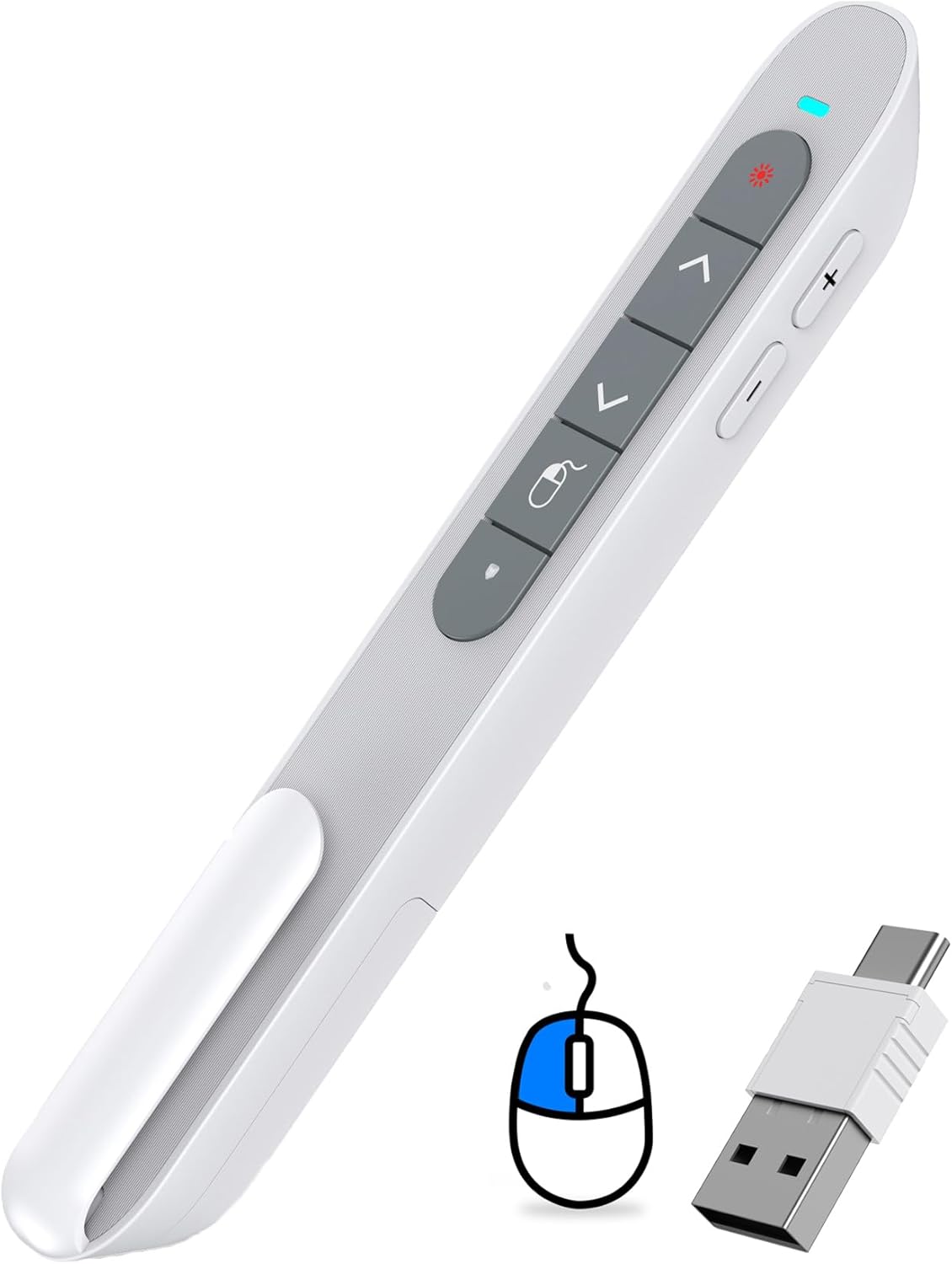
Figure 1: DinoFire Wireless Presentation Remote (Model WP102) with its dual USB receiver.
Орнотуу колдонмосу
- Алыстан башкарууну кубаттоо: Before first use, ensure the presentation remote is fully charged. Connect the included USB-C cable to the remote's charging port and the other end to a USB power source (e.g., computer USB port, wall adapter). The LED indicator will show charging status. A full charge typically takes 3 hours and provides weeks of use.
- USB кабыл алгычты табыңыз: The 2-in-1 USB receiver is conveniently stored inside the remote's body. Gently slide open the magnetic storage compartment at the bottom of the remote to retrieve it.

Figure 2: Location of the USB receiver within the remote.
- Кабылдагычты туташтыруу: Insert the USB receiver into an available USB-A or USB-C port on your computer or laptop. The receiver is designed to be compatible with both port types.
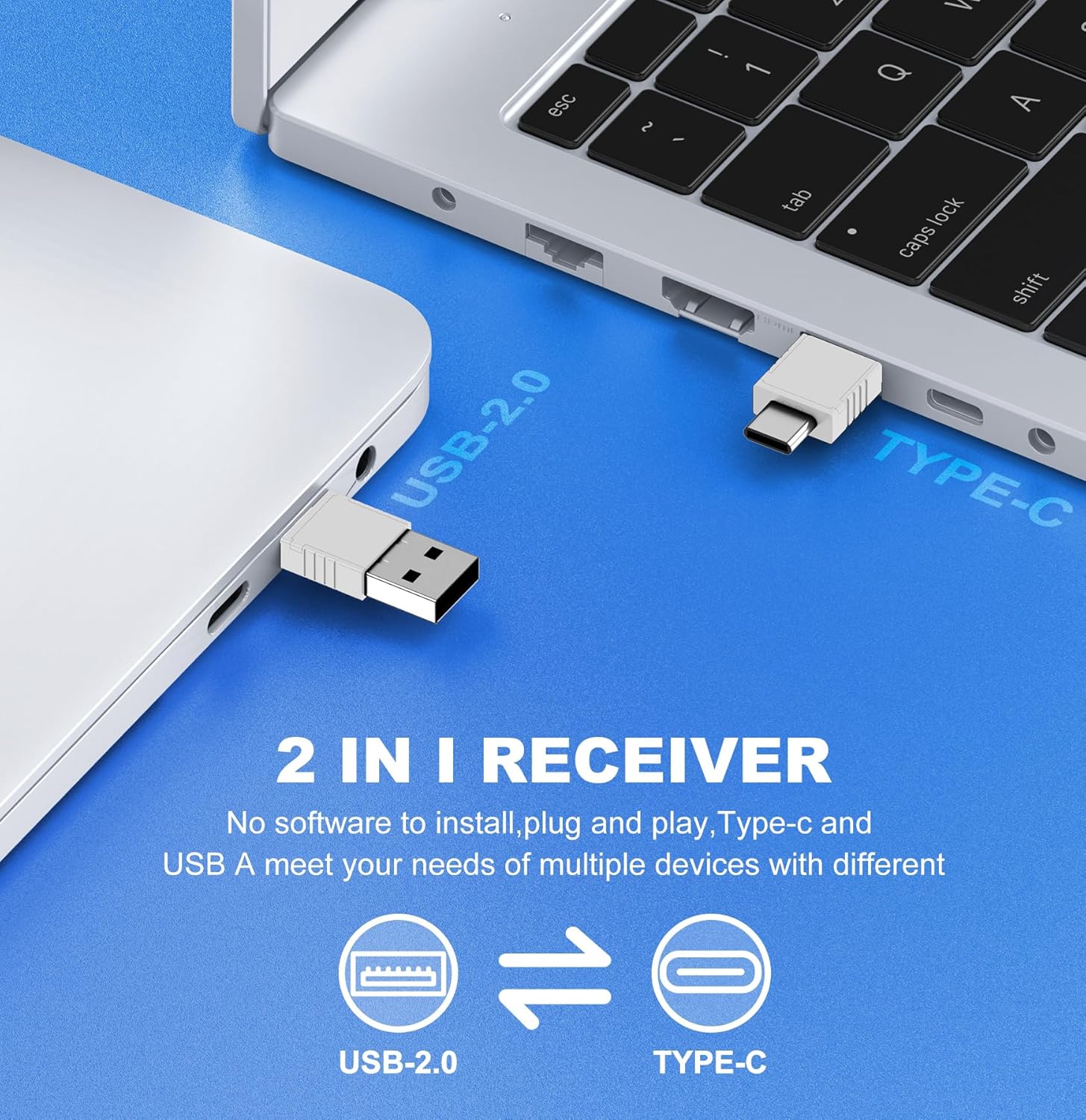
Figure 3: The versatile 2-in-1 USB receiver for USB-A and USB-C ports.
- Пультту күйгүзүү: Slide the ON/OFF switch on the side of the remote to the "ON" position. The remote is plug-and-play, requiring no additional software installation. Your computer should automatically recognize the device.
Иштөө нускамалары
The DinoFire Wireless Presentation Remote offers multiple functions to enhance your presentation experience. Familiarize yourself with the button layout and their corresponding actions.

Figure 4: Key functions of the DinoFire Air Mouse Presenter.
Баскыч функциялары:
- Light Control (Red Laser Pointer): Press the button with the red light icon to activate the red laser pointer. This is useful for highlighting specific points on your presentation screen.
- Page Up (Single Press): басыңыз ^ button to move to the previous slide or page.
- Full Screen / Black Screen (Press and Hold): басып, кармап туруңуз ^ button to toggle between full-screen mode and a black screen during a presentation.
- Page Down (Single Press): басыңыз v button to advance to the next slide or page.
- Black Screen (Press and Hold): басып, кармап туруңуз v button to activate a black screen.
- Чычкандын сол баскычы: The button with the mouse icon acts as the left mouse click.
- Үнүн жогорулатуу (+): Press the '+' button on the side to increase the system volume.
- Үнүн төмөндөтүү (-): Press the '-' button on the side to decrease the system volume.
- ON/OFF Mouse (Single Press): The button with the mouse icon and a circle (below the left mouse button) toggles the air mouse functionality on and off. This allows you to pause cursor movement when not needed.
Air Mouse Functionality:
The integrated air mouse allows you to control your computer's cursor by moving the remote in the air. This is particularly useful for interacting with hyperlinks, playing videos, or navigating web pages directly from your presentation. Ensure the "ON/OFF Mouse" button is activated for air mouse control.

Figure 5: Air Mouse functionality for interactive presentations.
Шайкештик:
The DinoFire WP102 is widely compatible with various operating systems and presentation software:
- Системалар: Windows 2003/XP/Vista/7/8/10 or above, Mac OS, Linux, Android.
- Программалык камсыздоо: PowerPoint, Excel, Prezi, iWork (Keynote & Numbers & Pages), Web browsers, and more.
The 2.4GHz RF technology provides a long control range, allowing you freedom of movement up to 100 feet (30 meters) from your computer.
Техникалык тейлөө
- Заряддоо: Recharge the built-in 300mAh battery when the LED indicator shows low power. Use the provided USB-C cable. Avoid overcharging for extended battery life.
- Сактагыч: When not in use, store the USB receiver inside the remote's magnetic compartment to prevent loss. Store the remote in a cool, dry place away from direct sunlight and extreme temperatures.
- Тазалоо: Пультту жумшак, кургак чүпүрөк менен сүртүңүз. Суюк тазалоочу каражаттарды же абразивдүү материалдарды колдонбоңуз.
- Батареяга кам көрүү: If the device will not be used for an extended period, charge it periodically (e.g., every 3 months) to maintain battery health.
Проблемаларды чечүү
| Көйгөй | Мүмкүн себеп | Чечим |
|---|---|---|
| Remote not responding / No cursor movement. |
|
|
| Red laser pointer not working. |
|
|
| Buttons not performing expected actions (e.g., page up/down). |
|
|
Техникалык шарттар
- Модель номери: WP102
- Байланыш: RF 2.4 ГГц зымсыз
- Алуучу түрү: 2-in-1 USB-A / USB-C
- Батарея: Камтылган 300mAh кайра заряддалуучу батарея
- Заряддоо порту: USB-C
- Башкаруу диапазону: 100 фут (30 метр) чейин
- Лазердик түрү: Кызыл жарык
- Өлчөмдөрү: Болжол менен 6.3 x 1.61 x 1.18 дюйм (16 x 4.1 x 3 см)
- Салмагы: Болжол менен 1.76 унция (50 грамм)
- Шайкештик: Windows 2003/XP/Vista/7/8/10+, Mac OS, Linux, Android; PowerPoint, Excel, Prezi, Keynote, etc.
- Өндүрүүчү: Shenzhen Qixun Space Technology Co., Ltd
Кепилдик маалымат
Specific warranty details for the DinoFire Wireless Presentation Remote (Model WP102) are typically provided at the point of purchase or within the product packaging. Please refer to the documentation included with your product or contact the seller/manufacturer directly for information regarding warranty coverage, terms, and conditions.
Кардарларды колдоо
For technical assistance, troubleshooting beyond this manual, or inquiries regarding your DinoFire Wireless Presentation Remote, please contact the seller through the platform where you purchased the product. You may also visit the official DinoFire brand store for additional resources and contact information.
Ask a question about this manual
Ask about setup, troubleshooting, compatibility, parts, safety, or missing instructions. Manuals+ will review the question and use this page’s manual context to help answer it.