
KTC H27P6
KTC 27 дюймдук 4K оюн монитору H27P6 колдонуучунун колдонмосу
Model: H27P6
1. Киришүү
Thank you for choosing the KTC 27 Inch 4K Gaming Monitor H27P6. This manual provides essential information for setting up, operating, and maintaining your monitor. Please read this manual thoroughly before use to ensure proper functionality and to prevent damage.
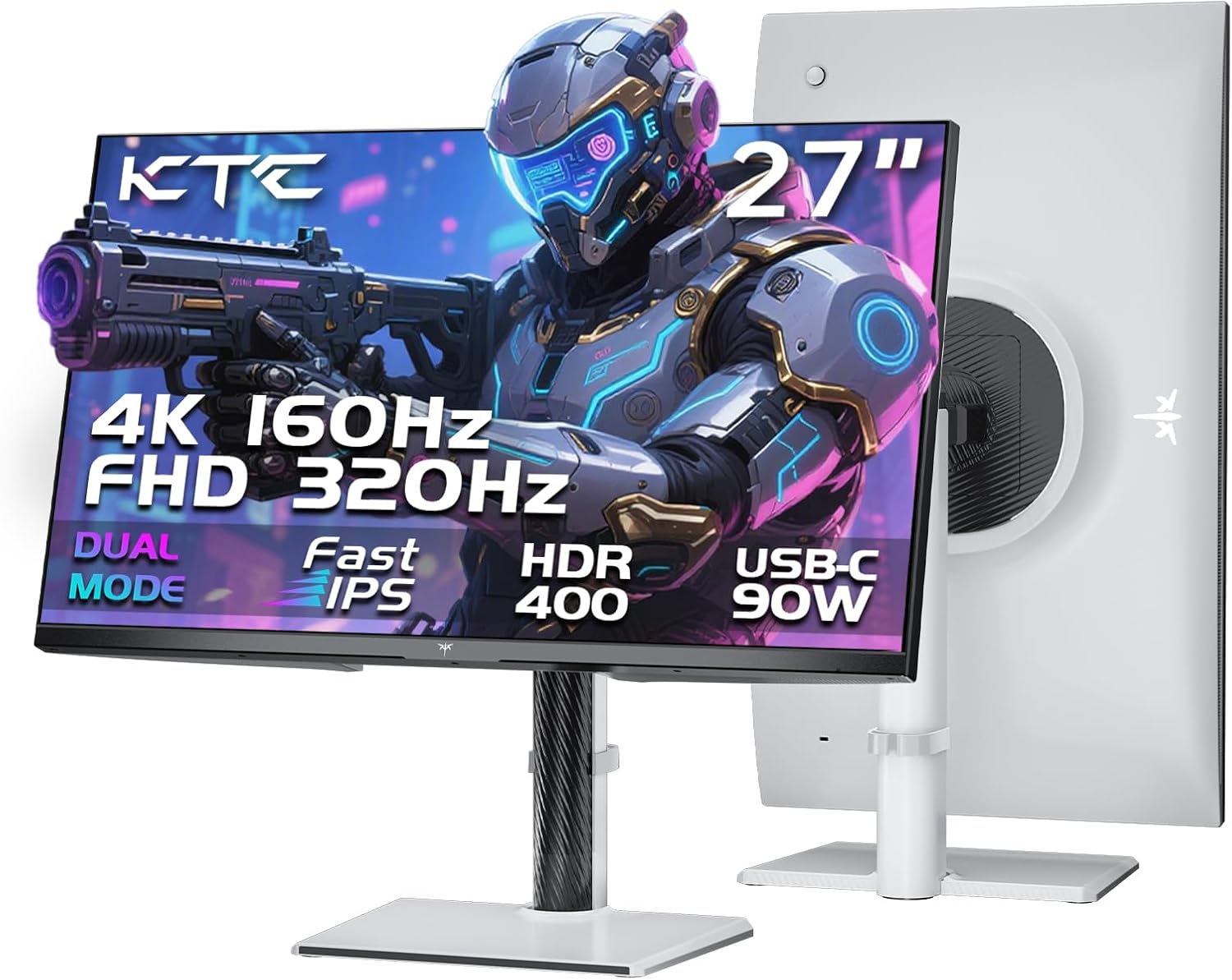
Сүрөт 1.1: Алдыңкы жана арткы view of the KTC 27 Inch 4K Gaming Monitor H27P6.
2. Коопсуздук маалыматы
- Өрт же шок коркунучун болтурбоо үчүн мониторду жамгырга же нымга тийгизбеңиз.
- Мониторду ачпаңыз casinг. Ичинде колдонуучу тейлей турган бөлүктөр жок. Бардык тейлөөлөрдү квалификациялуу кызматкерлерге тапшырыңыз.
- Мониторду туруктуу, тегиз бетке коюңуз.
- Монитордун айланасында туура желдетүүнү камсыз кылыңыз. Вентиляция тешиктерин жаап албаңыз.
- Өндүрүүчү тарабынан берилген кубат адаптерин жана кабелдерин гана колдонуңуз.
- Чагылганда же узак убакыт бою колдонбогондо мониторду розеткадан сууруп алыңыз.
3. Пакеттин мазмуну
Пакетте бардык буюмдар бар экенин текшериңиз:
- 27" Dual Mode Monitor (1 unit)
- Monitor Stand (1 unit)
- Quick Start Guide (QSG) (1 unit)
- DP Cable (1 unit)
- Адаптер (1 даана)
- Электр шнуру (1 даана)
4. Чогултуу жана орнотуу
4.1. Monitor Stand Assembly
Follow the instructions in the Quick Start Guide to attach the monitor stand to the display panel. Ensure all screws are securely fastened.
4.2. VESA орнотуу
The monitor supports 100x100mm VESA mounting for alternative mounting solutions (e.g., wall mounts, monitor arms). Remove the stand before attaching a VESA-compatible mount.
4.3. Эргономикалык тууралоо
The monitor stand allows for various adjustments to optimize viewсооронуч:
- Бийиктигин тууралоо: Монитордун бийиктигин 130 ммге чейин тууралаңыз.
- Пивот: Rotate the screen 90° (portrait mode).
- Айлануучу: Rotate the screen horizontally by ±45°.
- Россия: Экран бурчун -5°тан 20°ка чейин тууралаңыз.

Image 4.1: Multi-angle adjustment capabilities and VESA mounting points.
4.4. Туташтыруучу кабельдер
Connect the necessary cables to the monitor and your computer or other devices. Ensure the monitor is powered off before connecting or disconnecting cables.
- Күч: Кубат адаптерин монитордун туруктуу ток киргизүүсүнө, андан кийин розеткага туташтырыңыз.
- DisplayPort (DP 1.4): For high refresh rate and resolution, connect the provided DP cable to the monitor's DP port and your graphics card's DP port.
- HDMI (HDMI 2.1): Connect an HDMI cable to one of the monitor's HDMI 2.1 ports and your device's HDMI port.
- USB Type-C (90W PD 3.1): Connect a USB-C cable for video, data transfer, and up to 90W power delivery to compatible laptops.
- USB 3.0 хабы: Connect the USB-B (upstream) cable from the monitor to your computer to enable the monitor's USB 3.0 (downstream) ports.
- Наушник: Connect headphones or external speakers to the earphone jack.

Сүрөт 4.2: Бүттүview of the monitor's various input and output interfaces.
5. Иштөө нускамалары
5.1. Power On/Off and OSD Navigation
The monitor features a single joystick control located on the back for power and On-Screen Display (OSD) navigation. Push the joystick in to power on/off the monitor. Move the joystick up, down, left, or right to navigate the OSD menu and adjust settings.
5.2. Кош режимди которуу
The monitor supports dual display modes:
- 160 Гц жыштыгында 4K UHD (3840x2160): Provides high resolution for detailed visuals.
- FHD (1920x1080) at 320Hz: Offers a higher refresh rate for competitive gaming.
Switch between these modes via the monitor's OSD settings or your graphics card control panel.

Image 5.1: Visual representation of the monitor's dual mode display capabilities.
5.3. Adaptive-Sync Technology
Adaptive-Sync technology synchronizes the monitor's refresh rate with your graphics card's frame rate, reducing screen tearing and stuttering for smoother gameplay. Enable this feature in the monitor's OSD and your graphics card settings.
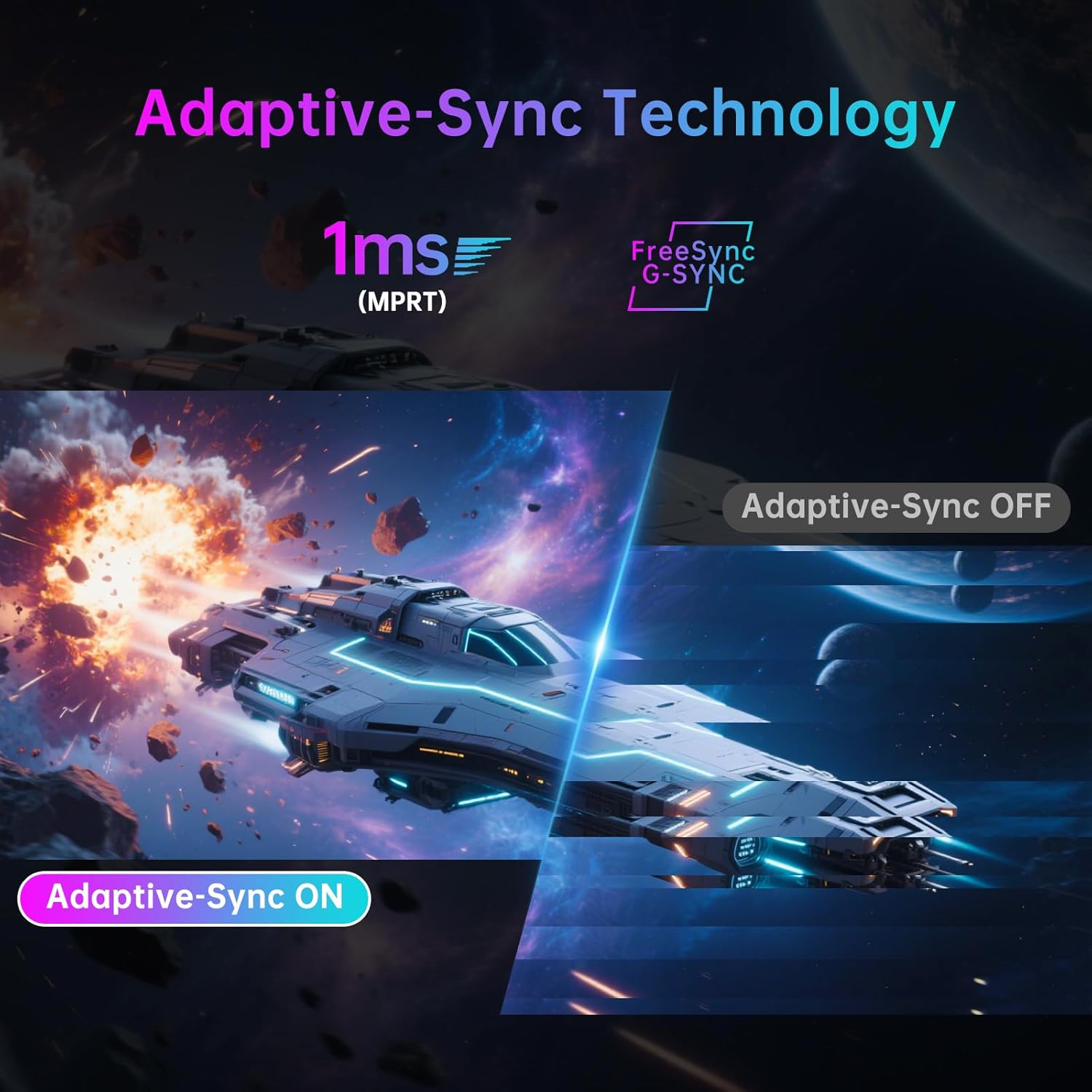
Image 5.2: Demonstration of Adaptive-Sync technology reducing screen tearing.
5.4. Display and Color Settings
The monitor features a Fast IPS panel and supports HDR400, providing accurate colors and contrast.
- Түс тактыгы: Factory-calibrated with ΔE<2 for 97% DCI-P3 and 99% sRGB coverage.
- HDR400: Enhances contrast and color depth in compatible content.
- Жарыктык: 400 кд/м² (типтүү).
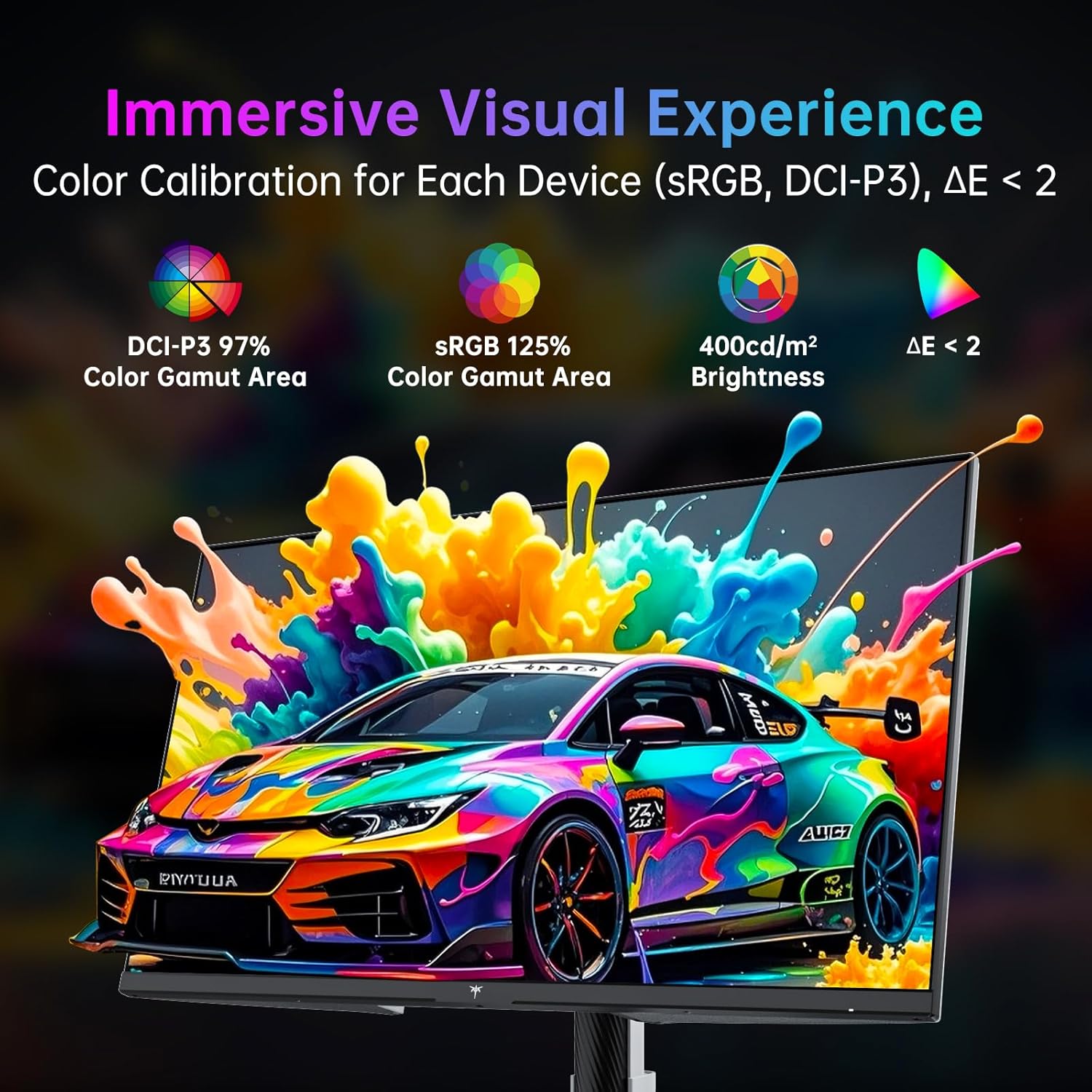
Image 5.3: Details on color calibration and display specifications.

Image 5.4: Visual difference with HDR400 enabled.
5.5. Game Plus Features
Access various gaming-specific features through the OSD:
- Таймер: Оюндагы окуяларды көзөмөлдөө үчүн экрандагы таймер.
- Кроссшер: Customizable on-screen crosshairs for improved aiming.
- FPS эсептегич: Displays the current frames per second.

Image 5.5: Game Plus features for enhanced gaming experience.
5.6. KVM Support
The monitor includes KVM (Keyboard, Video, Mouse) switch functionality, allowing you to control multiple computers with a single set of keyboard and mouse connected to the monitor's USB ports. Switch between connected computers via the OSD.
5.7. Low Blue Light Mode
Activate the Low Blue Light mode in the OSD to reduce blue light emissions, which can help minimize eye strain during prolonged use.

Image 5.6: Visual explanation of hardware low blue light technology.
6. Техникалык тейлөө
6.1. Мониторду тазалоо
- Тазалоодон мурун ар дайым мониторду сууруп коюңуз.
- Жумшак, түксүз кездемени жеңил колдонуңуз dampсуу же жумшак, абразивдүү эмес экран тазалагыч менен иштетиңиз.
- Тазалоочу каражатты түз экранга чачпаңыз.
- Бензолду, эриткичти, аммиак негизиндеги тазалоочу каражаттарды же абразивдүү материалдарды колдонуудан алыс болуңуз.
6.2. Сактоо
If storing the monitor for an extended period, disconnect all cables, pack it in its original packaging, and store it in a cool, dry place away from direct sunlight and extreme temperatures.
7. Кыйынчылыктарды
| Көйгөй | Мүмкүн себеп | Чечим |
|---|---|---|
| Күч жок | Электр кабели туташкан эмес; Розетка бузук; Монитор өчүк. | Ensure power cable is securely connected. Test power outlet. Press joystick to power on. |
| Сигнал жок | Видео кабель туташкан эмес; Туура эмес киргизүү булагы тандалып алынган; Компьютер сигнал чыгарбай жатат. | Check video cable connections. Select correct input source via OSD. Ensure computer is on and outputting video. |
| Сүрөттүн жыпылыктап же бурмаланып турушу | Loose video cable; Graphics card driver issue; Interference. | Secure video cable. Update graphics drivers. Check for nearby electronic devices causing interference. |
| Түстөр туура эмес көрүнөт | Color settings misconfigured; Cable issue. | Reset color settings in OSD. Check video cable. |
| USB порттору иштебейт | USB жогорку агым кабели туташкан эмес. | Connect the USB-B (upstream) cable from the monitor to your computer. |
8. Техникалык шарттар
| Өзгөчөлүк | Деталь |
|---|---|
| Бренд | KTC |
| Модель номери | H27P6 |
| Screen Size | 27 дюйм |
| Резолюция | 4K UHD 2160p (3840 x 2160 пиксел) |
| Жаңыртуу ылдамдыгы | 160Hz (4K UHD), 320Hz (FHD) |
| Панел түрү | Ыкчам IPS |
| HDR колдоо | HDR400 |
| Түс гаммасы | 97% DCI-P3, 99% sRGB |
| Жарыктык | 400 Кандела (кд/м²) |
| Аспект катышы | 16:9 |
| Screen Surface | Мт |
| Байланыш | 2x HDMI 2.1, 1x DP 1.4, 1x USB Type-C (90W PD 3.1), 1x USB 3.0 (upstream), 2x USB 3.0 (downstream), Earphone Jack |
| VESA шайкештиги | 100x100мм |
| Эргономика | Height Adjustment (±130mm), Pivot (±90°), Swivel (±45°), Tilt (-5° to 20°) |
| Продукциянын өлчөмдөрү | 8 x 24 x 21 дюйм |
| Элемент Салмагы | 19.56 фунт |
9. Кепилдик жана колдоо
For warranty information and technical support, please refer to the warranty card included with your product or visit the official KTC webсайт. Сатып алуу квитанциясын кепилдик дооматтары үчүн сатып алуунун далили катары сактаңыз.
Сиз да зыярат кылсаңыз болот KTC Store on Amazon кошумча продукт маалымат жана колдоо ресурстар үчүн.
10. Продукт видеолору
No official seller videos in the specified m3u8 format were found for embedding in this manual.
Ask a question about this manual
Ask about setup, troubleshooting, compatibility, parts, safety, or missing instructions. Manuals+ will review the question and use this page’s manual context to help answer it.