
KTC H24B9S
KTC H24B9S 23.8-inch FHD 144Hz IPS Monitor User Manual
Model: H24B9S
1. Киришүү
This manual provides essential information for the proper setup, operation, and maintenance of your KTC H24B9S 23.8-inch FHD 144Hz IPS Monitor. Please read this manual thoroughly before using the product to ensure optimal performance and safety.
The KTC H24B9S monitor features a 23.8-inch Full HD (1920x1080) IPS panel, offering a 144Hz refresh rate for smooth visuals, Adaptive-Sync technology to reduce screen tearing, and a wide color gamut for accurate image reproduction. It also includes eye care technologies to minimize strain during extended use.
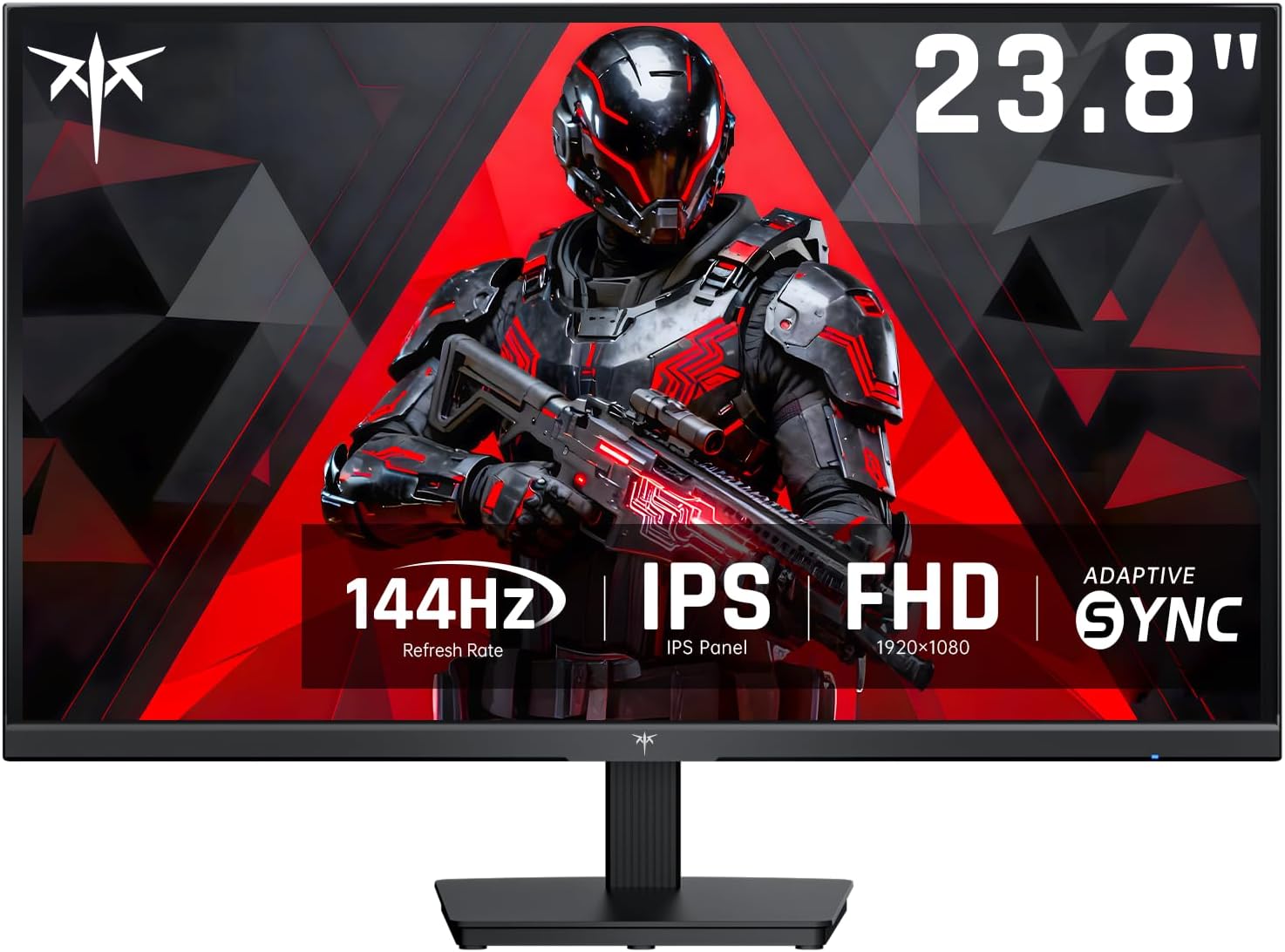
Сүрөт 1.1: Алдыңкы view of the KTC H24B9S monitor, highlighting its 23.8-inch display, 144Hz refresh rate, IPS panel, FHD resolution, and Adaptive-Sync feature.
2. Пакеттин мазмуну
Verify that all items listed below are present in your product package. If any items are missing or damaged, please contact customer support.
- KTC H24B9S 23.8" FHD 144Hz Monitor (x1)
- Монитор стенди (x1)
- Тез баштоо боюнча колдонмо (QSG) (x1)
- HDMI кабели (x1)
- Кубат адаптери (x1)
3. Орнотуу
3.1 Стендди чогултуу
- Мониторду жана стенд компоненттерин таңгактан этияттык менен алып салыңыз.
- Тургучтун негизин тирөөчтүн мойнуна бекитип, аны берилген бурама менен бекитиңиз.
- Align the assembled stand with the mounting slot on the back of the monitor and firmly attach it. Ensure it clicks into place or is secured with screws if applicable.
3.2 Мониторду туташтыруу
Мониторду компьютериңизге же башка түзмөктөргө тиешелүү кабелдерди колдонуп туташтырыңыз.
- Кубат туташуу: Кубат адаптерин монитордун электр киргизүү портуна туташтырыңыз, андан кийин адаптерди розеткага сайыңыз.
- Видео туташуу: Use the included HDMI cable to connect your computer's HDMI output to the monitor's HDMI 1.4 port. Alternatively, use a DisplayPort cable (not included) to connect to the monitor's DP 1.2 port for higher refresh rates and Adaptive-Sync functionality.
- Аудио туташуусу: If desired, connect headphones or external speakers to the earphone port on the monitor.

Figure 3.1: ашыкview of the monitor's connectivity options, including HDMI 1.4, DisplayPort 1.2, and an earphone jack.
3.3 Баштапкы күйгүзүү
- Аны күйгүзүү үчүн монитордогу кубат баскычын басыңыз.
- Turn on your computer. The monitor should automatically detect the input signal. If not, you may need to manually select the input source using the OSD menu.
3.4 Adjusting the Monitor Angle
The monitor supports tilt adjustment from -5° to 15° (±3°). Gently hold both sides of the monitor and tilt it to your preferred viewбурчту бузуңуз. Ашыкча күч колдонбоңуз.

Figure 3.2: Diagram illustrating the monitor's physical dimensions and its tilt adjustment capability.
4. Мониторду иштетүү
4.1 Экрандагы дисплей (OSD) менюсу
The OSD menu allows you to adjust various monitor settings. Typically, a joystick or buttons located on the back or bottom of the monitor are used to navigate the OSD.
- Press the OSD button/joystick to activate the menu.
- Use the navigation controls to browse through options.
- Press the select button to confirm a setting or enter a sub-menu.
- OSD менюсун жабуу үчүн чыгуу баскычын басыңыз.
4.2 Refresh Rate and Adaptive-Sync
The KTC H24B9S monitor supports a 144Hz refresh rate, providing a smoother visual experience, especially in fast-paced content like gaming. Ensure your graphics card and operating system are configured to output at 144Hz.

Figure 4.1: Visual representation of the difference between 144Hz and 60Hz refresh rates, demonstrating reduced image lag and blur at higher refresh rates.
Adaptive-Sync: This technology synchronizes the monitor's refresh rate with your graphics card's frame rate, eliminating screen tearing and stuttering. Activate Adaptive-Sync through the monitor's OSD menu and ensure it is enabled in your graphics card's control panel.

Figure 4.2: Illustration of Adaptive-Sync in action, showing how it prevents screen tearing, along with additional gaming features like Crosshair, Timer, FPS, and RTS modes.
4.3 Color Settings and Image Quality
The IPS panel offers a wide color gamut (103% sRGB and 96% DCI-P3) and a 1500:1 contrast ratio, with a factory-calibrated ΔE<2 color accuracy for professional-grade image quality.
- Жарыктык/Контраст: Adjust these settings in the OSD menu to suit your environment and preference. The monitor has an image brightness of 300 Candela.
- Түс температурасы: Select from preset color temperatures (e.g., Warm, Cool, User) or customize RGB values for precise color calibration.
- Сүрөт режимдери: The OSD may offer various picture modes optimized for different content (e.g., Standard, Game, Movie, Text).
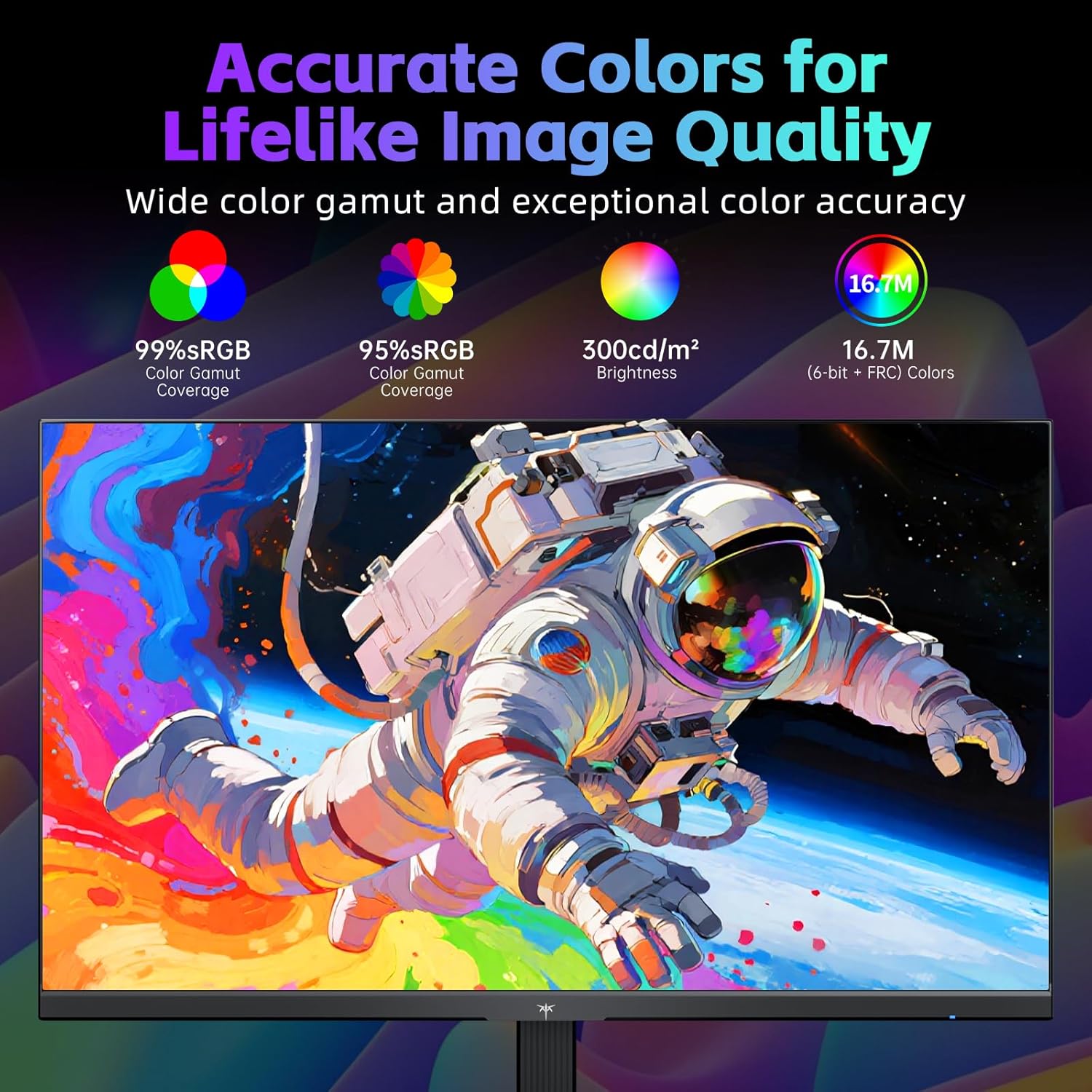
Figure 4.3: Details on the monitor's color performance, including sRGB and DCI-P3 coverage, brightness, and color depth.
4.4 Көзгө кам көрүү технологиясы
The monitor incorporates low-blue light technology and is flicker-free to reduce eye strain during prolonged use. These features can be enabled or adjusted via the OSD menu.
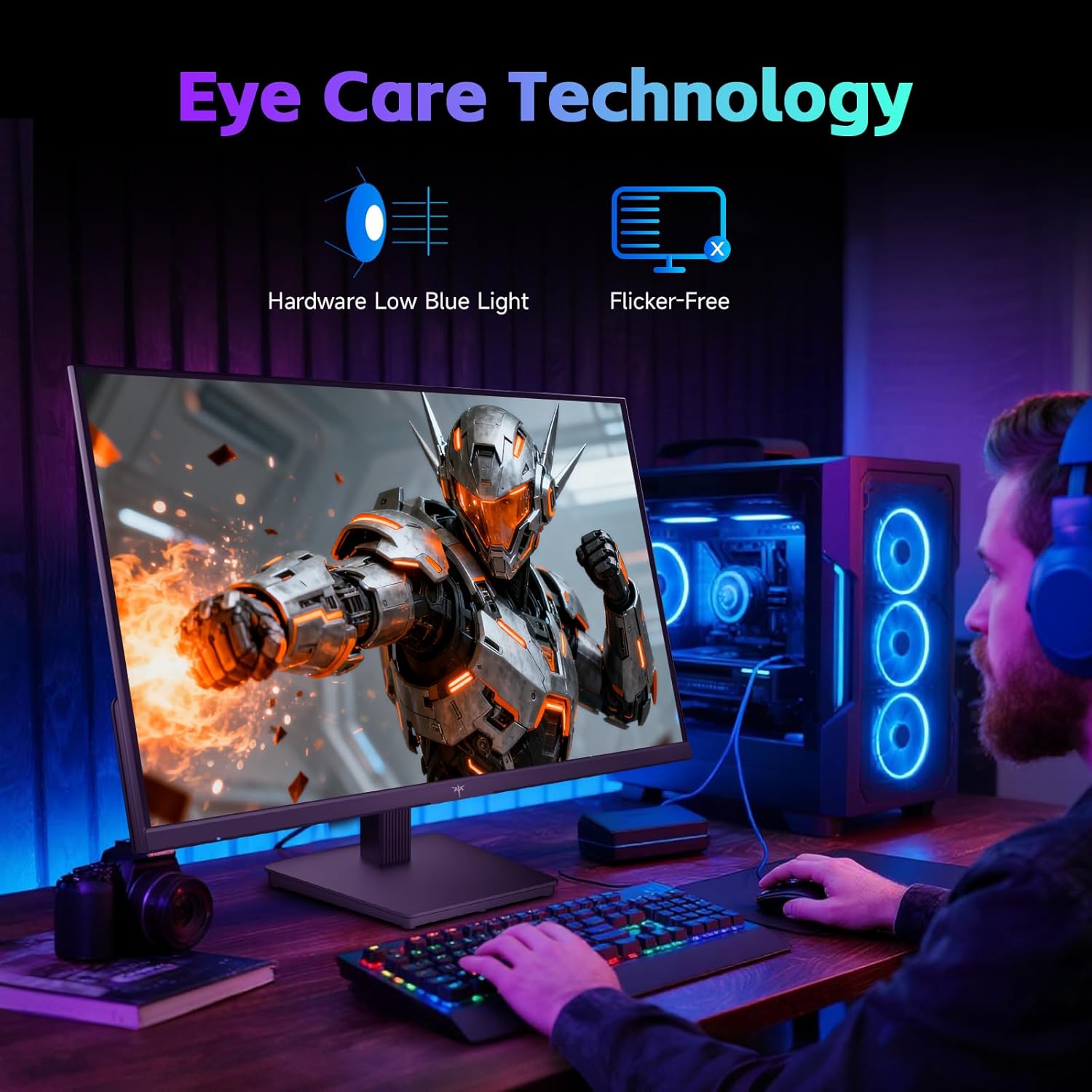
Figure 4.4: Visual representation of the monitor's eye care technologies, including hardware low blue light and flicker-free operation.
5. Техникалык тейлөө
5.1 Мониторду тазалоо
- Тазалоодон мурун мониторду дайыма электр розеткасынан сууруп алыңыз.
- Жумшак, түксүз кездемени жеңил колдонуңуз dampсуу же абразивдүү эмес экран тазалагыч менен иштетиңиз.
- Тазалоочу каражатты түз экранга чачпаңыз.
- Бензол, суюктук, аммиак негизиндеги тазалагычтарды же абразивдик материалдарды колдонуудан качыңыз, алар экрандын бетине зыян келтириши мүмкүн.
5.2 Сактоо
If storing the monitor for an extended period, place it in its original packaging or a suitable protective container to prevent dust accumulation and physical damage.
6. Кыйынчылыктарды
Мониторуңузда көйгөйлөргө туш болсоңуз, төмөнкү жалпы көйгөйлөрдү жана чечимдерди караңыз:
| Көйгөй | Мүмкүн себеп | Чечим |
|---|---|---|
| Экранда сүрөт жок | Monitor is off; Power cable loose; Video cable loose or incorrect input selected. | Ensure monitor is powered on. Check power and video cable connections. Select correct input source via OSD. |
| Сүрөт бүлбүлдөгөн же туруксуз | Video cable loose or damaged; Graphics card driver issue; Refresh rate mismatch. | Check video cable. Update graphics drivers. Ensure refresh rate is set correctly in OS display settings. |
| Түстөр туура эмес көрүнөт | Color settings in OSD or OS are misconfigured. | Reset color settings in OSD to default. Adjust color temperature or RGB values. |
| Adaptive-Sync not working | Not enabled in OSD; Not enabled in graphics card settings; Using incompatible cable/port. | Enable Adaptive-Sync in monitor OSD and graphics card control panel. Use DisplayPort connection. |
| No audio from earphone port | Volume too low; Audio output not selected. | Adjust monitor volume. Ensure monitor is selected as audio output device in OS. |
If the problem persists after attempting these solutions, please contact KTC customer support for further assistance.
7. Техникалык шарттар
Detailed technical specifications for the KTC H24B9S monitor:
| Өзгөчөлүк | Спецификация |
|---|---|
| Модель номери | H24B9S |
| Screen Size | 23.8 дюйм |
| Панел түрү | IPS |
| Резолюция | 1920 x 1080 (FHD 1080p) |
| Аспект катышы | 16:9 |
| Жаңыртуу ылдамдыгы | 144Hz |
| Контраст катышы | 1500:1 |
| Сүрөттүн жарыктыгы | 300 Кандела |
| Түс гаммасы | 103% sRGB, 96% DCI-P3 |
| Түс тактыгы | ΔE<2 |
| Viewбурч | 178° (горизонталдуу/вертикалдуу) |
| Байланыш | 1x HDMI 1.4, 1x DisplayPort 1.2, 1x Earphone Jack |
| Өзгөчөлүктөр | Adaptive-Sync, Bluelight Filter, Flicker-Free, Tilt Adjustable (-5° to 15° ±3°) |
| Продукциянын өлчөмдөрү (стенд менен) | 7.52 x 21.29 x 16 дюйм (191 x 541 x 407 мм) |
| Элемент Салмагы | 8.2 фунт |
| Тtage | 12 вольт (ток) |
8. Кепилдик жана колдоо
8.1 Кепилдик маалыматы
KTC products are manufactured to high quality standards. For specific warranty terms and conditions, please refer to the warranty card included with your product or visit the official KTC webсайт. Сатып алуу квитанциясын кепилдик дооматтары үчүн сатып алуунун далили катары сактаңыз.
8.2 Кардарларды колдоо
If you have any questions, require technical assistance, or need to report a problem, please contact KTC customer support. Contact information can typically be found on the official KTC webсайтында же Ыкчам баштоо колдонмосунда.
When contacting support, please have your monitor's model number (H24B9S) and purchase information readily available.
Ask a question about this manual
Ask about setup, troubleshooting, compatibility, parts, safety, or missing instructions. Manuals+ will review the question and use this page’s manual context to help answer it.