
1. Киришүү
This manual provides detailed instructions for the setup, operation, and maintenance of your KYSONA Jupiter SE Wireless Gaming Mouse. Please read this manual thoroughly before using the product to ensure optimal performance and longevity.

Image 1.1: KYSONA Jupiter SE Wireless Gaming Mouse (White and Black variants shown).
2. Пакеттин мазмуну
Продукцияңыздын таңгагында бардык элементтер бар экенин текшериңиз:
- KYSONA Jupiter SE Wireless Gaming Mouse
- USB 2.4G Wireless Receiver
- USB-C - USB-A заряддоо/дата кабели
- Колдонуучунун Колдонмосу (бул документ)
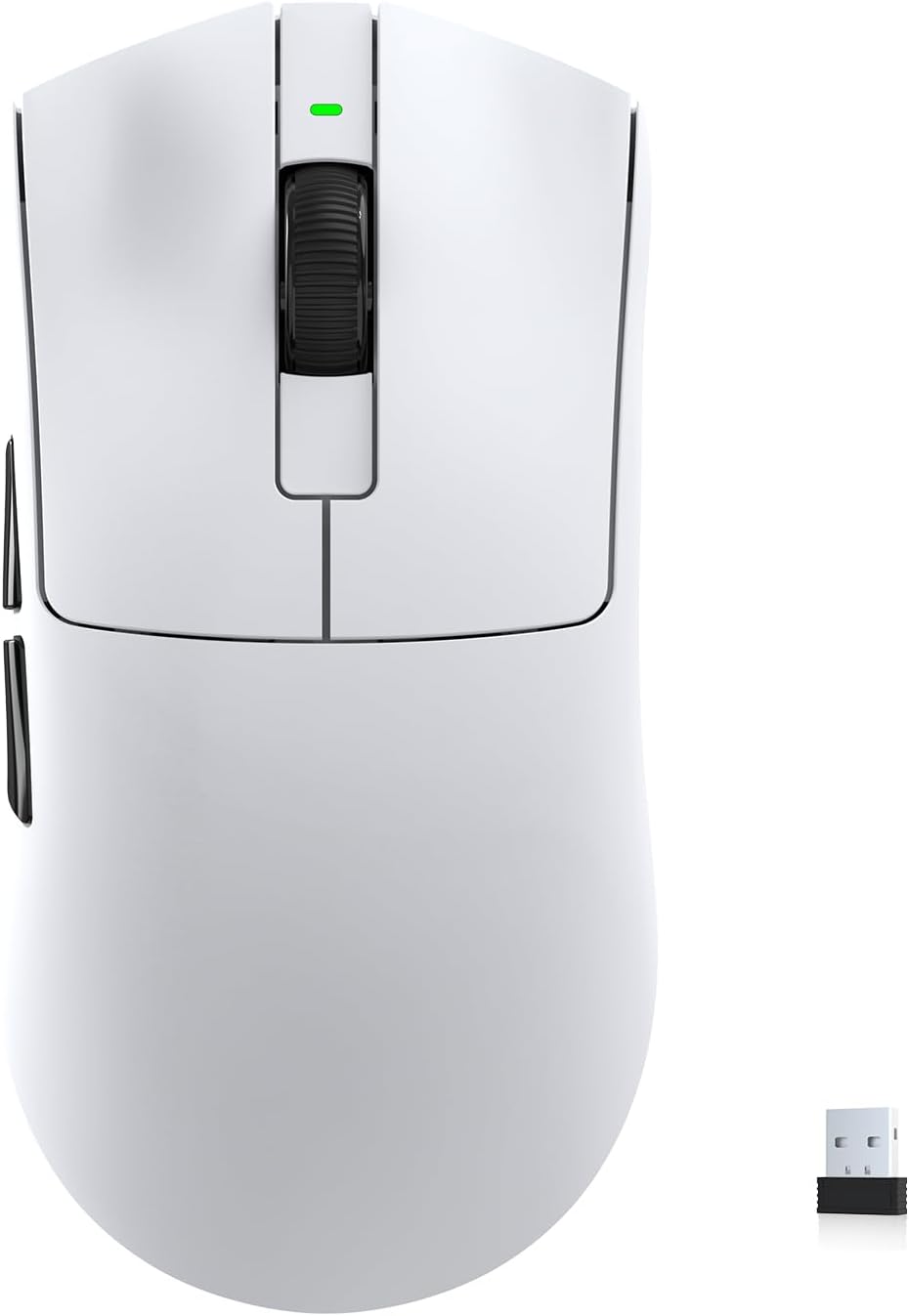
Image 2.1: KYSONA Jupiter SE Wireless Gaming Mouse and USB Receiver.
3. Продукциянын өзгөчөлүктөрү
The KYSONA Jupiter SE Wireless Gaming Mouse is designed for high-performance gaming and productivity, featuring:
- PixArt 3311 Optical Sensor: Provides precise tracking with up to 24,000 DPI and a 1000Hz polling rate.
- Ультра жеңил дизайн: Weighs approximately 49g for enhanced speed and control during extended use.
- Узартылган батареянын иштөө мөөнөтү: Up to 300 hours of continuous use on a single charge, with intelligent sleep mode.
- Tri-Mode туташуу: Supports 2.4G wireless, Bluetooth, and USB-C wired connections for versatile use.
- Программалануучу баскычтар: Six customizable buttons for macros, hotkeys, and complex commands.
- Ice-Feeling Coating: A superfine, wear-resistant, and sweat-proof coating for a comfortable and secure grip.
- Кеңири шайкештик: Compatible with Windows, MacOS, Linux, and Android operating systems.

Image 3.1: Ultralight 49g design with internal structure.

Image 3.2: Ice-feeling coating for enhanced grip and comfort.
4. Орнотуу
4.1 Алгачкы заряддоо
Before first use, it is recommended to fully charge the mouse. Connect the USB-C end of the charging cable to the mouse and the USB-A end to a powered USB port on your computer or a wall adapter. The LED indicator on the mouse will show charging status.
4.2 Чычканды туташтыруу
The Jupiter SE offers three connectivity options:
- 2.4G зымсыз режими:
- Locate the USB 2.4G wireless receiver. It is typically stored in a compartment on the underside of the mouse.
- Ресиверди компьютериңиздеги жеткиликтүү USB портуна сайыңыз.
- Switch the mode selector on the underside of the mouse to '2.4G' mode.
- The mouse should automatically connect. If not, press the pairing button (if available, refer to the diagram on the mouse's underside) to initiate pairing.
- Bluetooth режими:
- Switch the mode selector on the underside of the mouse to 'BT' mode.
- Компьютериңизде же түзмөгүңүздө Bluetooth жөндөөлөрүнө өтүп, Bluetooth'ду иштетиңиз.
- The mouse should appear as 'KYSONA Jupiter SE' in the list of discoverable devices. Select it to pair.
- Зымдуу режим:
- Connect the USB-C to USB-A cable to the mouse and your computer.
- Чычкан зымдуу түзүлүш катары иштейт жана бир эле учурда заряддалат.

Image 4.1: Tri-Mode Connectivity options.

Image 4.2: Underside of the mouse with mode selector.
5. Иштөө нускамалары
5.1 Негизги операция
Once connected, the mouse will function immediately. Move the mouse to control the cursor on your screen. The left and right click buttons perform standard actions, and the scroll wheel allows for vertical scrolling.
5.2 DPI жөндөө
The Jupiter SE mouse features adjustable DPI settings. Typically, a button on the top or underside of the mouse allows you to cycle through preset DPI levels. Refer to the manufacturer's website for specific software to customize these levels.
5.3 Программалануучу баскычтар
The mouse includes six programmable buttons. To customize these buttons, download the official KYSONA software from the manufacturer's website. The software allows you to assign macros, hotkeys, and other functions to each button.
6. Кубаттоо жана батареяны башкаруу
The KYSONA Jupiter SE mouse is equipped with a high-efficiency power system providing up to 300 hours of battery life. When the battery is low, the LED indicator will typically flash red. Connect the mouse using the USB-C cable to charge. The mouse can be used while charging in wired mode.
To preserve battery life, the mouse features an intelligent sleep mode that activates after a period of inactivity. Move the mouse or click a button to wake it up.
7. Техникалык тейлөө
7.1 Тазалоо
To clean your mouse, use a soft, dry cloth. For stubborn dirt, lightly dampen the cloth with water or a mild electronic cleaner. Avoid using harsh chemicals or abrasive materials, as these can damage the mouse's surface and coating.
7.2 Сактоо
When not in use for extended periods, store the mouse in a cool, dry place away from direct sunlight and extreme temperatures. Ensure the mouse is turned off to conserve battery.
8. Кыйынчылыктарды
- Чычкан жооп бербей жатат:
- Чычкандын заряддалганын текшериңиз.
- Check the connectivity mode switch (2.4G, BT, Wired) on the underside of the mouse.
- 2.4G үчүн, USB кабыл алгыч бекем сайылганын текшериңиз. Башка USB портун колдонуп көрүңүз.
- Bluetooth үчүн, түзмөгүңүздө Bluetooth иштетилгенин жана чычкан жупташтырылганын текшериңиз. Кайра жупташтырып көрүңүз.
- Зымсыз көйгөйлөрдү болтурбоо үчүн чычканды зымдуу режимде туташтырып көрүңүз.
- Курсордун кыймылы туруксуз же так эмес:
- Чычкандын астындагы оптикалык сенсорду тазалаңыз.
- Чычканды ылайыктуу жерде (мисалы, чычкан аянтчасында) колдонуп жатканыңызды текшериңиз.
- Check for any wireless interference if using 2.4G or Bluetooth.
- Баскычтар иштебейт:
- Чычкан туура туташтырылганын текшериңиз.
- If using custom button assignments, check the KYSONA software settings.
9. Техникалык шарттар
| Өзгөчөлүк | Деталь |
|---|---|
| Модел | Jupiter SE |
| Сенсор | PixArt PAW3311 оптикалык сенсор |
| DPI | 24,000 XNUMX DPI чейин |
| Добуш берүү көрсөткүчү | 1000 Гц |
| Салмагы | Approximately 49g (46g stated in some materials) |
| Байланыш | 2.4G зымсыз, Bluetooth, USB-C зымдуу |
| Батареянын иштөө мөөнөтү | 300 саатка чейин |
| Buttons | 6 Программалануучу баскычтар |
| Каптоо | Ice-feeling coating |
| Шайкештик | Windows, MacOS, Linux, Android |
| Өлчөмдөр | 128 x 64 x 40 mm (approximate, based on Jupiter Series table) |
Image 9.1: Internal structure and weight detail.
10. Кепилдик жана колдоо
For warranty information, technical support, or to download the latest software and drivers, please visit the official KYSONA webсайт. Сатып алуу квитанциясын кепилдик дооматтары үчүн сатып алуунун далили катары сактаңыз.
For additional assistance, you may contact KYSONA customer support through their official channels.