
1. Киришүү
This manual provides essential information for the setup, operation, maintenance, and troubleshooting of your siaviala S8 PRO 14-inch Ultra-Thin 1080P FHD IPS Triple Screen Laptop Monitor Extender. Please read this guide thoroughly before use to ensure optimal performance and longevity of your device.
2. Продукциянын өзгөчөлүктөрү
- Ultra-Thin & Ultra-Light Design: Features a 4.5mm panel and weighs approximately 1kg, crafted from CNC-machined aerospace aluminum with a matte anti-fingerprint coating.
- 1080P FHD IPS Display: Two 14-inch screens with 1920×1080 resolution at 60Hz, 300cd/m² brightness, and 180° wide viewing angles. Anti-glare surface for reduced eye strain.
- Plug & Play туташуусу: Simple connection with USB-C and/or HDMI cables, eliminating the need for extra drivers.
- Өндүрүмдүүлүктү жогорулатуу: Supports Extended Mode, Mirror Mode, and Portrait Mode to improve multitasking efficiency.
- Жогорку шайкештик: Compatible with MAC, Windows, Android, Linux, Switch, and Chrome OS devices.
- Тескери заряддоо: USB-C interface supports PD100W for quick charging of connected devices.
3. Пакеттин мазмуну
Продукт пакети төмөнкү элементтерди камтыйт:
- Laptop Screen Extender x 1
- USB-Cден USB-C кабелине x 2
- USB-Aдан USB-C кабелине x 1
- HDMI to Type-C Cable x 2
- Колдонуучунун колдонмосу x 1
- Ташуу сумкасы x 1

Image: All items included in the siaviala S8 PRO package.
4. Орнотуу колдонмосу
4.1. Орнотуу кадамдары
- Pull up the device to the right as shown in Figure 1.
- Open both screens as illustrated in Figure 2.
- After extending the portable monitor, place it against the back of the laptop screen and clamp it, ensuring that the slots on both sides of the stand fit securely against the screen edges and are positioned on top of the laptop screen.
- Insert the adjustable stand into the back of the portable monitor, open and adjust it properly to provide additional support for the portable monitor.
- Connect one end of a necessary cable to the portable monitor and the other end to the laptop.

Image: Visual guide for attaching the screen extender to your laptop.
4.2. Туташуу ыкмалары
The siaviala S8 PRO offers flexible connection options depending on your laptop's available ports:
- Two Full-Featured Type-C Ports: If your laptop has two fully functional Type-C ports, you only need two USB-C to USB-C cables to connect.
- One Full-Featured Type-C and One HDMI Port: If your laptop has one fully functional Type-C port, you need one USB-C to USB-C cable and one HDMI cable.
- No Full-Featured Type-C Ports: If your laptop does not have a fully functional Type-C port, you need two HDMI cables to connect. In this scenario, the product must be powered by an external 5V/2A or higher specification adapter (adapter not included).

Image: Diagrams illustrating various cable connection methods.
4.3. Дисплей режимдери
The monitor extender supports three primary display modes to enhance your workflow:
- Кеңейтилген режим: Expands your desktop across all screens, allowing for more workspace.
- MirrorMode: Duplicates your main laptop screen onto the extended monitors.
- Портрет режими: Rotates the extended screens to a vertical orientation, ideal for coding or document viewing.
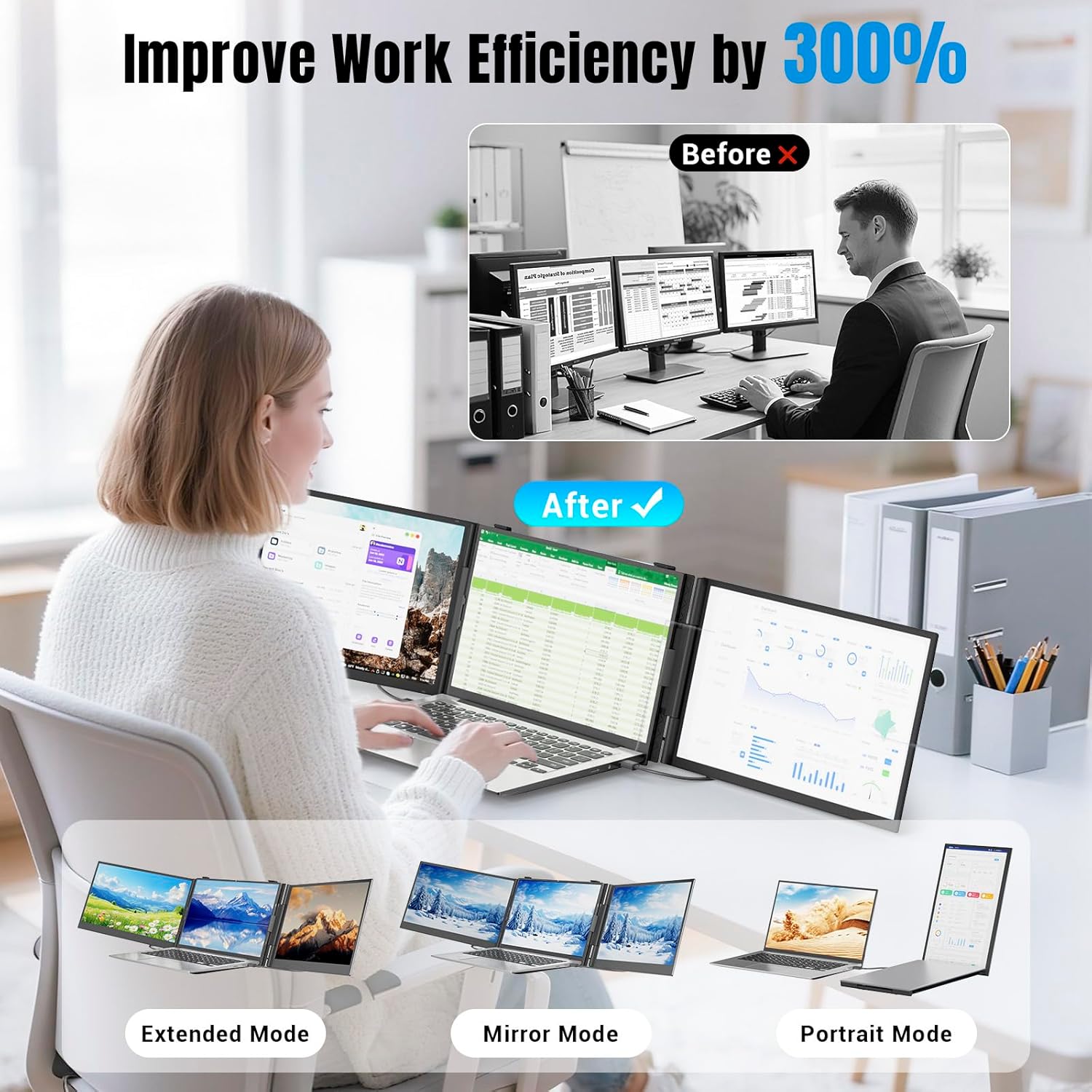
Image: Visual representation of Extended, Mirror, and Portrait display modes.
5. Иштөө нускамалары
Once connected, your operating system (Windows/macOS) should automatically detect the external displays. You may need to adjust display settings within your OS to configure the screens to your preference (e.g., arrangement, resolution, brightness).
5.1. Экранды тууралоо
Each extended screen has independent controls for brightness, contrast, and other display settings. Refer to the on-screen display (OSD) menu accessible via the physical buttons on the monitor to fine-tune each screen individually.
5.2. Тескери заряддоо
When the portable laptop monitor's Type-C interface is connected to an external PD power supply, it can quickly charge the computer device with reverse PD100W.
6. Техникалык тейлөө
- Clean the screen with a soft, lint-free cloth. Avoid using harsh chemicals or abrasive materials.
- Handle the device with care to prevent damage. Avoid dropping or subjecting it to strong impacts.
- Store the device in its carrying bag when not in use or during travel to protect it from scratches and dust.
7. Кыйынчылыктарды
If you encounter issues with your siaviala S8 PRO, please refer to the following common problems and solutions:
- Сигнал жок: Ensure all cables are securely connected. Verify that your laptop's Type-C port supports video output (DisplayPort Alt Mode). If using HDMI, ensure the external power adapter is connected if your laptop does not have a full-featured Type-C port.
- Экран күйбөйт: Check the power supply and cable connections. Ensure the external power adapter is providing sufficient power (5V/2A or higher) if required.
- Display Issues (Flickering, Incorrect Resolution): Adjust display settings in your operating system. Ensure your graphics drivers are up to date.
For further assistance, please contact siaviala customer support.
8. Техникалык шарттар
| Өзгөчөлүк | Спецификация |
|---|---|
| Продукциянын өлчөмдөрү | 0.8 x 13.58 x 8.15 дюйм |
| Элемент Салмагы | 5.24 фунт |
| Screen Size | 14 дюйм (x2) |
| Резолюция | 1920 x 1080 (FHD 1080p) |
| Аспект катышы | 16:9 |
| Сүрөттүн жарыктыгы | 300 candela/m² |
| Screen Surface Description | Жылтырак |
| Жалпы USB порттору | 1 |
| Элемент моделинин номери | S8 PRO |
9. Кепилдик жана колдоо
If you encounter any problems with your siaviala S8 PRO, please contact us promptly for assistance. Refer to the user guide for contact information or visit the official siaviala webколдоо булактары үчүн сайт.