
1. Киришүү
This manual provides detailed instructions for the setup, operation, maintenance, and troubleshooting of your Jectse WiFi 6 4G/5G CPE LTE Router. Please read this manual carefully before using the device to ensure optimal performance and safety.
Негизги өзгөчөлүктөрү:
- Жогорку аткаруу: Connects up to 32 devices simultaneously, covering an area of approximately 300 square meters. Ideal for home or small office environments.
- Comprehensive 4G LTE Support: Compatible with a wide range of 4G LTE bands including FDD (B1, 3, 5, 7, 8, 20), TDD (B38, 40, 41), and WCDMA (B1, 5, 8), ensuring stable connectivity across various network providers.
- 6 Antenna Design: Equipped with six antennas for enhanced signal coverage and faster network speeds, providing a stable and consistent internet experience.
- Fast Internet Speeds: Achieves 4G download speeds up to 150 Mbps, upload speeds up to 50 Mbps, and wireless transfer rates up to 300 Mbps for smooth streaming, gaming, and browsing.
- Оңой орнотуу: Simply insert a standard SIM card to convert 4G LTE into a WiFi hotspot, allowing multiple devices to connect without complex installations.
2. Пакеттин мазмуну
Сураныч, пакетте төмөнкү нерселерди текшериңиз:
- Jectse WiFi 6 4G/5G CPE LTE Router
- Кубаттуу адаптер
- Ethernet кабели
- Колдонуучунун Колдонмосу (бул документ)

Image: Package contents including the router, power adapter, and Ethernet cable.
3. Продукт бүтүп калдыview
Алдыңкы жана үстү View:
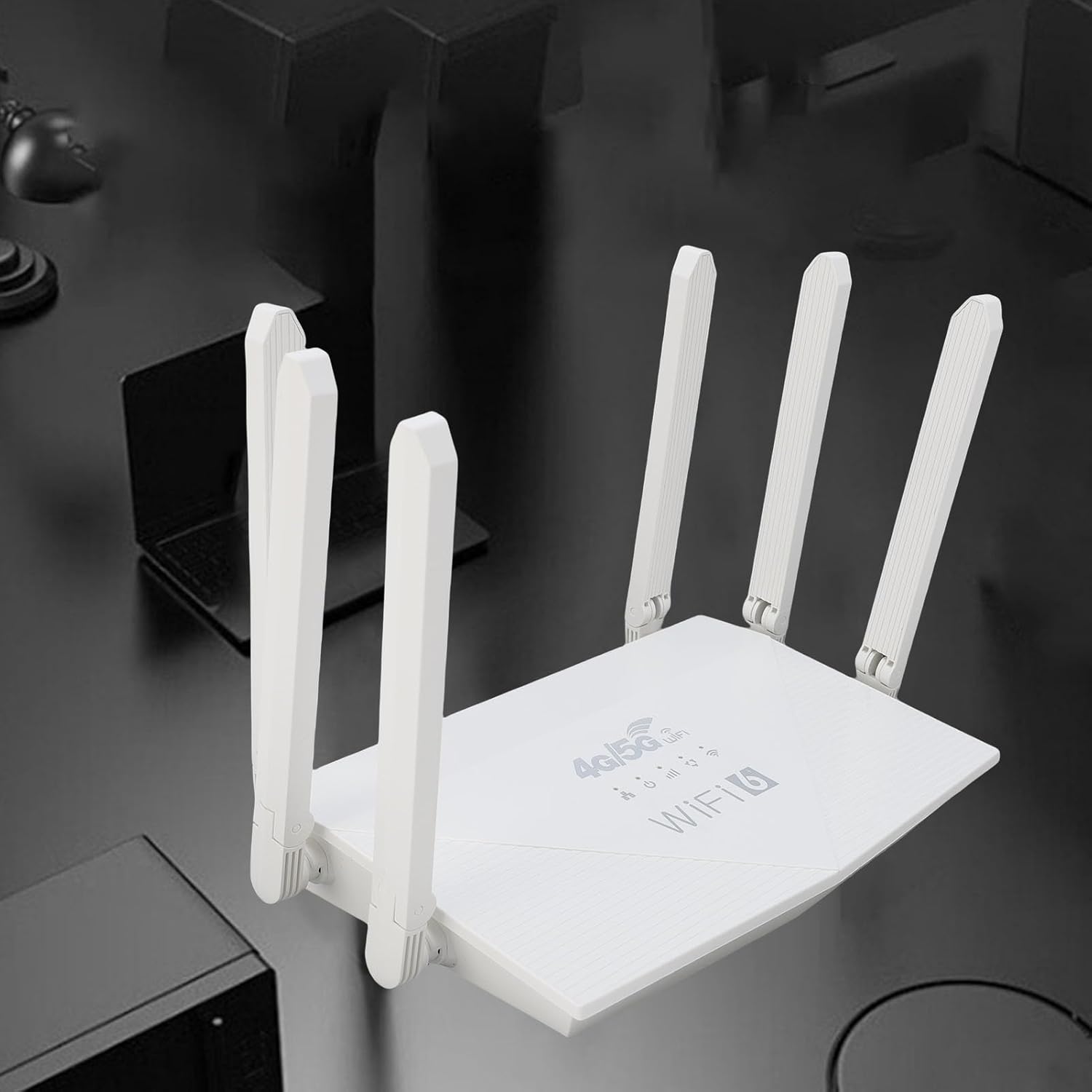
Сүрөт: Жогорку view of the router, showing the '4G/5G LTE WiFi 6' branding and six external antennas.
Арткы панель жана порттор:

Сүрөт: Арткы view of the router, displaying the various ports and antenna connections.
- Калыбына келтирүү баскычы: Заводдук жөндөөлөрдү калыбына келтирүү үчүн колдонулат.
- Тип-C Port: For power input (if applicable, check power adapter type).
- Электр порту: DC кубат киргизүү.
- SIM карта слоту: For inserting a standard 4G/5G SIM card.
- ETH1-ETH4 Ports: Four Ethernet LAN ports for wired connections.

Image: Close-up of the reset button, Type-C port, power port, and SIM card slot.

Image: Close-up of the four Ethernet LAN ports (ETH1, ETH2, ETH3, ETH4).
Bottom Label:
The bottom label contains important information such as the default WiFi name, WiFi key, IP address, and login credentials.

Image: Bottom label of the router with essential network details.
4. Орнотуу нускамалары
- SIM картаны салыңыз: Locate the SIM card slot on the rear panel. Gently insert a standard-sized 4G/5G SIM card until it clicks into place. Ensure the SIM card is correctly oriented.
- Туташуу кубаты: Connect the provided power adapter to the router's power port and then plug the adapter into a power outlet.
- Күйгүзүү: The router will automatically power on. Wait for the indicator lights to stabilize, which typically takes a few minutes.
- Түзмөктөрдү туташтыруу:
- Зымсыз туташуу: On your device (smartphone, tablet, laptop), search for available Wi-Fi networks. Select the network name (SSID) found on the router's bottom label. Enter the default Wi-Fi key (password) also found on the label.
- Зымдуу туташуу: Connect one end of the Ethernet cable to any of the ETH1-ETH4 ports on the router and the other end to the Ethernet port on your computer or other wired device.
- Мүмкүнчүлүк Web Интерфейс (милдеттүү эмес): ачуу а web browser and enter the default IP address (e.g., 192.168.0.1) found on the bottom label. Use the default username and password (e.g., admin/admin) to log in and configure advanced settings.
5. Иштөө нускамалары
Тармакка туташуу:
Once the router is powered on and the SIM card is active, your devices can connect to the internet:
- Wi-Fi: Use the SSID and password printed on the router's bottom label to connect your wireless devices.
- Ethernet: Connect devices directly to the ETH ports for a stable wired connection.
Managing Router Settings:
To customize your network, such as changing the Wi-Fi name or password, or configuring advanced features:
- Түзмөгүңүз роутерге туташкандыгын текшериңиз (Wi-Fi же Ethernet аркылуу).
- ачуу а web browser and enter the router's IP address (e.g., 192.168.0.1).
- Log in using the username and password from the bottom label.
- Navigate through the interface to adjust settings as needed.
6. Техникалык тейлөө
- Тазалоо: Роутерди таза жана чаңсыз кармаңыз. Жумшак, кургак чүпүрөктү колдонуңуз. Суюк тазалоочу каражаттарды колдонбоңуз.
- Вентиляция: Роутердин ысып кетишине жол бербөө үчүн жакшы желдетилген жерге коюлганын текшериңиз. Желдетүүчү тешиктерди жаппаңыз.
- Программалык камсыздоонун жаңыртуулары: Мезгил-мезгили менен өндүрүүчүнүн текшерүү website for firmware updates. Keeping your router's firmware up-to-date can improve performance and security.
- Кайра иштетилүүдө: Эгерде сиз тармак көйгөйлөрүнө туш болсоңуз, кубат адаптерин сууруп, 10 секунд күтүп, андан кийин кайра сайып, роутерди өчүрүп-күйгүзүп көрүңүз.
7. Кыйынчылыктарды
Интернет байланышы жок:
- SIM карта туура салынганын жана активдүү экендигин текшериңиз.
- Verify that the router's indicator lights are stable.
- Роутерди жана туташкан аппаратты өчүрүп күйгүзүңүз.
- Ensure your SIM card has an active data plan.
- Маршрутизаторго кириңиз web interface to check the network status and APN settings.
Жай Интернет ылдамдыгы:
- Ensure the router is placed in an open area, away from obstructions and interference sources.
- Туташкан түзмөктөрдүн санын же өткөрүү жөндөмдүүлүгүн талап кылган аракеттерди азайтыңыз.
- Check your 4G/5G signal strength in the router's web интерфейс.
- Contact your mobile network provider to inquire about network congestion or data plan limits.
Маршрутизатор орнотууларына кирүү мүмкүн эмес:
- Түзмөгүңүз роутердин тармагына туташып турганын текшериңиз.
- Verify you are entering the correct IP address (e.g., 192.168.0.1) in your browser.
- Confirm the username and password are correct (check the bottom label).
- Башкасын байкап көрүңүз web браузер же браузериңиздин кэшин тазалаңыз.
- If all else fails, perform a factory reset by pressing the reset button for 5-10 seconds (note: this will erase all custom settings).
8. Техникалык шарттар
| Өзгөчөлүк | Description |
|---|---|
| Бренд | Jectse |
| Модель номери | Jectse7yitc28aer |
| Түс | Ак |
| Операция системасы | RouterOS |
| Байланыш технологиясы | LTE, Wi-Fi |
| Өзгөчөлүктөр | Integrated firewall, full 4G LTE support, fast internet speeds |
| Шайкеш түзмөктөр | Smartphone, tablet, computer |
| Жыштык тилкесинин классы | Жалгыз тилкелүү |
| Зымсыз байланыш стандарты | 802.11b, 802.11g, 802.11n |
| Сунушталган Колдонуулар | Үй, кесиптик |
| 4G Жүктөө ылдамдыгы | 150 Мбит/сек чейин |
| 4G жүктөө ылдамдыгы | 50 Мбит/сек чейин |
| Wireless Transfer Rate | 300 Мбит/сек чейин |
| Максималдуу туташкан түзмөктөр | 32 |
| Камтуу аймагы | 300㎡ |
| Колдоого алынган LTE тилкелери | FDD (B1, 3, 5, 7, 8, 20), TDD (B38, 40, 41), WCDMA (B1, 5, 8) |
| Антенналар | 6 Тышкы антенналар |
9. Кепилдик жана колдоо
Кепилдик маалыматы:
This Jectse router comes with a 2 жылдык өндүрүүчүнүн кепилдиги. Кепилдик дооматтары үчүн сатып алганыңыздын далилин сактап коюңуз. Кепилдик нормалдуу колдонуудагы материалдардагы жана жасалгадагы кемчиликтерди камтыйт.
Кардарларды колдоо:
If you encounter any issues or have questions not covered in this manual, please contact Jectse customer support or your retailer for assistance. You may find contact information on the product packaging or the official Jectse webсайт.