
1. Киришүү
The Akko Mineral 02 is a high-performance QMK/VIA compatible aluminum mechanical keyboard designed for versatility and customization. Featuring tri-mode connectivity (wired, 2.4GHz wireless, and Bluetooth), hot-swappable switches, and customizable RGB lighting, this keyboard offers a premium typing and gaming experience. This manual provides essential information for setting up, operating, maintaining, and troubleshooting your Akko Mineral 02 keyboard.
2. Пакеттин мазмуну
Сураныч, пакетте төмөнкү нерселерди текшериңиз:
- Akko Mineral 02 QMK/VIA Aluminum Mechanical Keyboard
- USB-C Cable
- Assembly/Disassembly Tools (Switch Puller, Keycap Puller)
- 2.4 ГГц зымсыз алуучу
- Колдонуучунун Колдонмосу (бул документ)
3. Продукт бүтүп калдыview
The Akko Mineral 02 keyboard combines robust aluminum construction with advanced features for a customizable user experience.
Негизги өзгөчөлүктөрү:
- Tri-Mode туташуу: Seamlessly switch between Wired (USB-C), 2.4GHz Wireless, and Bluetooth connections.
- QMK/VIA Support: Full programmability for key remapping, macros, and lighting customization.
- Hot-swappable Switches: Механикалык өчүргүчтөрдү ширетпестен оңой алмаштырыңыз.
- Настройкаланган RGB жарыктандыруу: Per-key RGB and unique corner lighting effects.
- Aluminum Case: Durable and premium build quality.
- Прокладка орнотулган дизайн: Provides a flexible and comfortable typing feel with improved acoustics.
- 8000 мАч Батарея: Extended wireless usage.
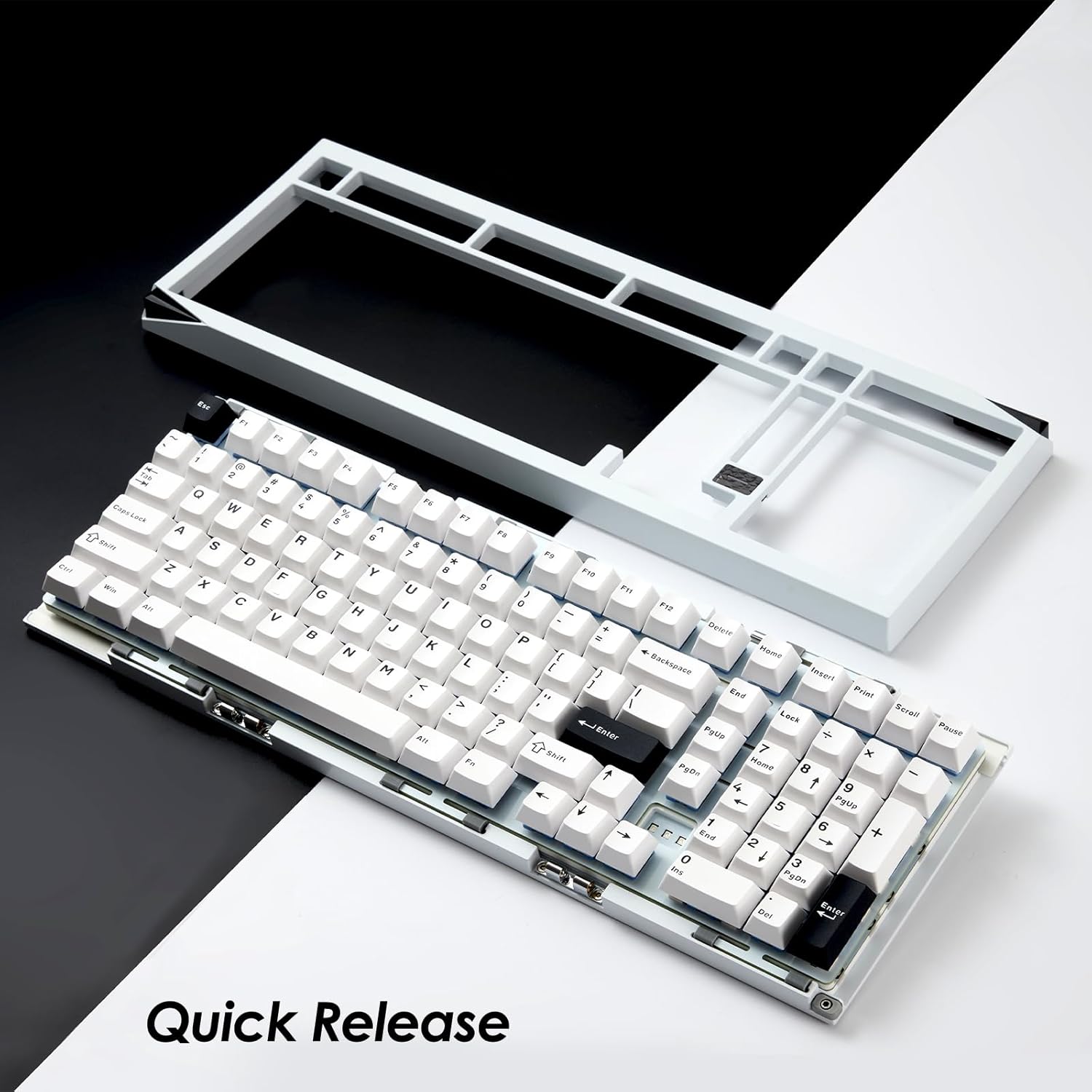
Image: Akko Mineral 02 keyboard with its top case detached, illustrating the quick release design for easy customization and maintenance.

Image: Detail of the hot-swappable sockets on the Akko Mineral 02 keyboard, allowing for easy switch replacement without soldering. RGB lighting is visible through the sockets.

Image: Visual representation highlighting the 8000mAh battery capacity of the Akko Mineral 02 keyboard, indicating long wireless usage.
4. Орнотуу
4.1 Алгачкы заряддоо
Before first use, connect the keyboard to a USB power source using the provided USB-C cable to ensure it is fully charged. The charging indicator (usually an LED near the USB port or a specific key) will show charging status and turn off or change color when fully charged.
4.2 Connecting via Wired Mode
- Ensure the keyboard's mode switch (usually located on the back or side) is set to 'Wired' or 'USB'.
- Connect the USB-C cable to the keyboard's USB-C port and the other end to an available USB port on your computer.
- Клавиатура сиздин операциялык системаңыз тарабынан автоматтык түрдө таанылат.

Image: The USB-C port located on the Akko Mineral 02 keyboard for wired connection and charging.
4.3 Connecting via 2.4GHz Wireless Mode
- Locate the 2.4GHz wireless receiver in your package.
- 2.4 ГГц ресиверди компьютериңиздеги жеткиликтүү USB портуна сайыңыз.
- Set the keyboard's mode switch to '2.4G'.
- Баскычтоп автоматтык түрдө туташуу керек. Болбосо, басыңыз fn+4 (or the designated key for 2.4G pairing) to initiate pairing.
4.4 Connecting via Bluetooth Mode
- Set the keyboard's mode switch to 'BT' (Bluetooth).
- Компьютериңизде же түзмөгүңүздө Bluetooth иштетип, жаңы түзмөктөрдү издеңиз.
- Баскычтопто басып, кармап туруңуз fn+1, fn+2, же fn+3 Bluetooth түзмөгү 1, 2 же 3 үчүн жупташтыруу режимине өтүү үчүн 3-5 секунд басыңыз. Индикатор жарыгы тез күйүп-өчөт.
- Select 'Akko Mineral 02' from the list of available Bluetooth devices on your computer/device.
- Once paired, the indicator light will stop flashing. You can pair up to three Bluetooth devices.

Image: The Akko Mineral 02 keyboard demonstrating its tri-mode connectivity options: Type-C wired, 2.4GHz wireless, and Bluetooth, connecting to various devices.
5. Иштөө нускамалары
5.1 Негизги ачкыч функциялары
The Akko Mineral 02 features a standard 1800 compact layout. Refer to the keycap legends for primary functions. Secondary functions are typically accessed using the Fn key in combination with other keys (e.g., Fn + F1-F12 for media controls).
5.2 RGB жарыкты башкаруу
The keyboard features customizable RGB lighting. Basic lighting effects can be cycled through using specific Fn key combinations (refer to your keyboard's specific key legends or a quick start guide). For advanced customization, including per-key lighting and dynamic effects, use the VIA software.
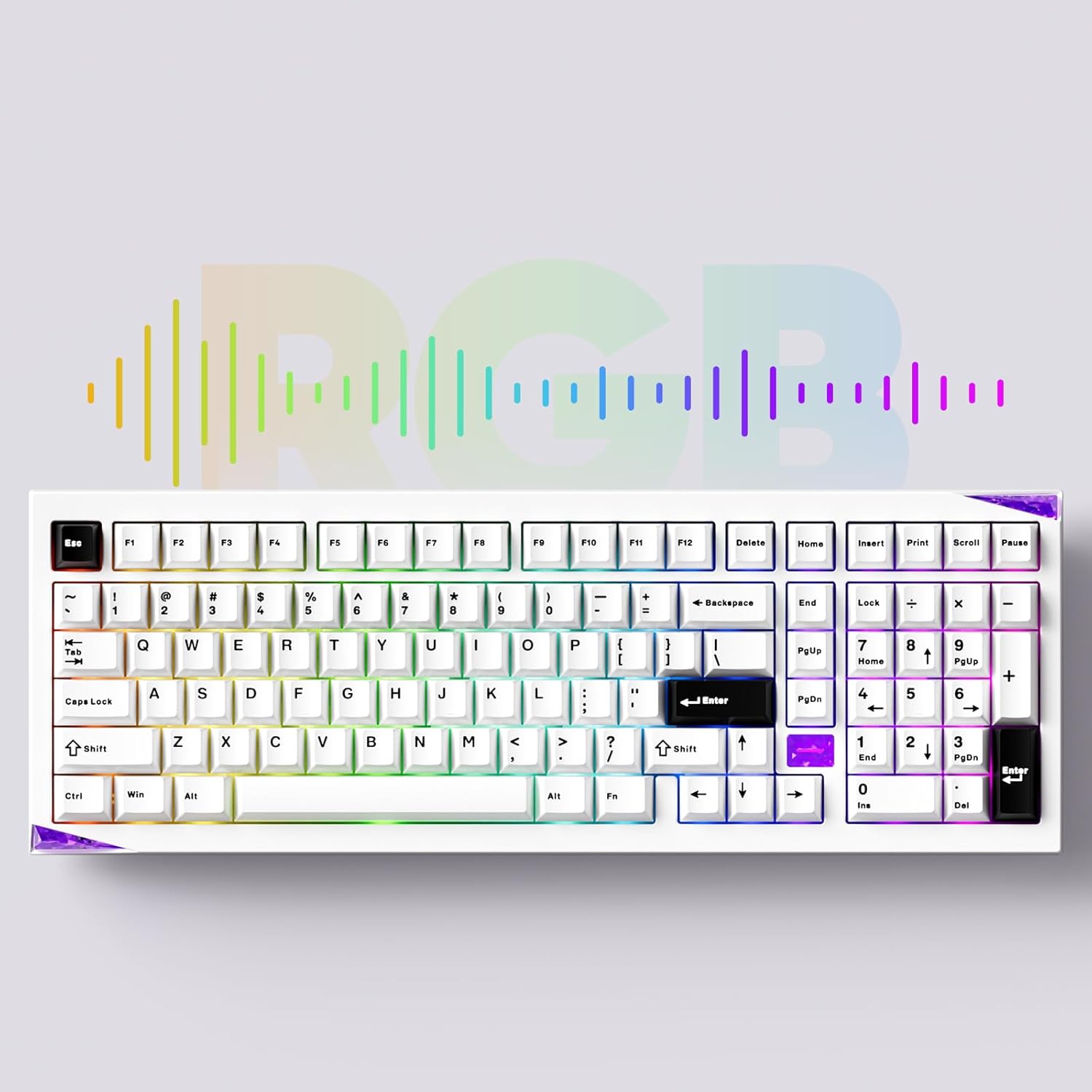
Image: The Akko Mineral 02 keyboard illuminated with various RGB lighting patterns, showcasing its customizable backlighting.
5.3 QMK/VIA Software Usage
The Akko Mineral 02 supports QMK firmware and VIA software for advanced customization. VIA allows you to remap keys, create macros, and adjust RGB lighting in real-time without flashing firmware. To use VIA:
- Download the VIA software from the official Akko website or the VIA webсайт.
- Connect your keyboard in wired mode.
- Launch the VIA software. It should automatically detect your keyboard.
- Use the intuitive interface to customize key assignments, layers, and lighting effects.

Image: A visual representation of the VIA software interface, demonstrating its capabilities for key remapping and customization.
5.4 Операциялык системанын режимдерин которуу (Windows/Mac)
To switch between Windows and Mac operating system layouts, locate the dedicated switch or key combination. Some Akko keyboards use Fn + Caps Lock to toggle between modes. Refer to your keyboard's specific documentation for the exact method.
6. Техникалык тейлөө
6.1 Баскычтопту тазалоо
- Компьютериңизден клавиатураны ажыратыңыз.
- Кылдат тазалоо үчүн баскычтоптун капкактарын алып салуу үчүн баскычтоптун капкактарын тартуучу каражатты колдонуңуз.
- Кысылган абаны өчүргүчтөрдүн ортосундагы чаңды жана калдыктарды тазалоо үчүн колдонуңуз.
- Wipe keycaps with a damp cloth and mild soap solution, then dry thoroughly.
- Clean the keyboard case with a soft, dry cloth. Avoid harsh chemicals.
6.2 Ыстык алмаштыруучу которгучтар
The Akko Mineral 02 features hot-swappable sockets, allowing you to change switches without soldering.
- Баскычтопту ажыратыңыз.
- Каалаган баскычтоптун капкагын алып салуу үчүн берилген баскычтоптун капкагын тартуучу каражатты колдонуңуз.
- Use the provided switch puller to gently grip the switch from the top and bottom, then pull it straight up to remove.
- Жаңы өчүргүчтүн төөнөгүчтөрүн платадагы тешиктер менен тегиздеңиз. Төөнөгүчтөрдүн түз экенин текшериңиз.
- Gently push the new switch into the socket until it clicks into place. Do not force it.
- Баскыч капкагын алмаштырыңыз.

Сүрөт: деталдуу view of an Akko Mirror Switch, illustrating the component that can be hot-swapped in the keyboard.
7. Кыйынчылыктарды
7.1 Баскычтоп жооп бербейт
- Зымдуу режим: USB-C кабели клавиатурага жана компьютерге бекем туташып турганын текшериңиз. Башка USB портун же кабелин колдонуп көрүңүз.
- 2.4 ГГц зымсыз: Ensure the 2.4GHz receiver is plugged in and the keyboard is in 2.4G mode. Re-pair by pressing fn+4Батареянын деңгээлин текшериңиз.
- Bluetooth режими: Ensure Bluetooth is enabled on your device and the keyboard is in BT mode. Re-pair by holding Fn + 1/2/3Батареянын деңгээлин текшериңиз.
- Батарея: Баскычтопту толук заряддаңыз.
7.2 RGB жарыктандыруу маселелери
- Баскычтоп күйгүзүлгөнүн текшериңиз.
- Check if RGB lighting is disabled via Fn key combinations.
- Use the VIA software to verify and adjust lighting settings.
7.3 Ачкычтар катталбайт
- Remove the keycap and switch for the affected key.
- Өчүргүчтүн төөнөгүчтөрүнүн ийилген жерлерин же бузулган жерлерин текшериңиз. Эгер ийилген болсо, акырын түздөңүз.
- Ажыраткычты розеткага бекем кайра салыңыз.
- Test with a different switch if the issue persists.
8. Техникалык шарттар
| Өзгөчөлүк | Деталь |
|---|---|
| Бренд | Акко |
| Модел | Минералдык 02 |
| Байланыш технологиясы | Bluetooth, 2.4 ГГц зымсыз, USB-C зымдуу |
| Шайкеш түзмөктөр | Компьютер, планшет, смартфон |
| Keyboard Description | Эргономикалык, механикалык |
| Өзгөчөлүктөр | Tri-Mode, Hot-swappable, RGB Lighting, QMK/VIA Support, Gasket Mount |
| Материал | Алюминий (корпус) |
| Камтылган компоненттер | USB-C Cable, Assembly/Disassembly Tools |
| Power Source | Зымсыз жана зымдуу |
| Ачкычтардын саны | 104 (1800 Compact Layout) |
| Которуу түрү | Механикалык |
| Mechanical Keyboard Switch Model | Mirror Switch (Pre-lubed) |
| Батарея сыйымдуулугу | 8000mAh |
9. Кепилдик жана колдоо
Akko products come with a standard manufacturer's warranty. For specific warranty terms, duration, and support inquiries, please refer to the warranty card included with your product or visit the official Akko webсайт. Кепилдик дооматтар үчүн сатып алганыңыздын далилин сактаңыз.
For technical support, troubleshooting assistance, or further information, please contact Akko customer service through their official channels.