
1. Киришүү
This manual provides detailed instructions for the setup, operation, and maintenance of your DinoFire RF 2.4GHz Wireless Presentation Clicker. This device is designed to enhance your presentations by offering seamless control over slides and a convenient green laser pointer.
2. Продукциянын өзгөчөлүктөрү
- Plug & Play туташуусу: No software or drivers required. Simply plug the USB receiver into your computer.
- Green Laser Pointer: A bright green laser for clear highlighting of presentation content.
- Кайра заряддалуучу батарея: Built-in 300mAh battery, fully rechargeable in approximately 2.5 hours, providing weeks of use.
- Essential Presentation Controls: Intuitive buttons for page up/down, full screen, and black screen functions.
- Эргономикалык дизайн: Comfortable to hold with clearly spaced buttons for confident operation.
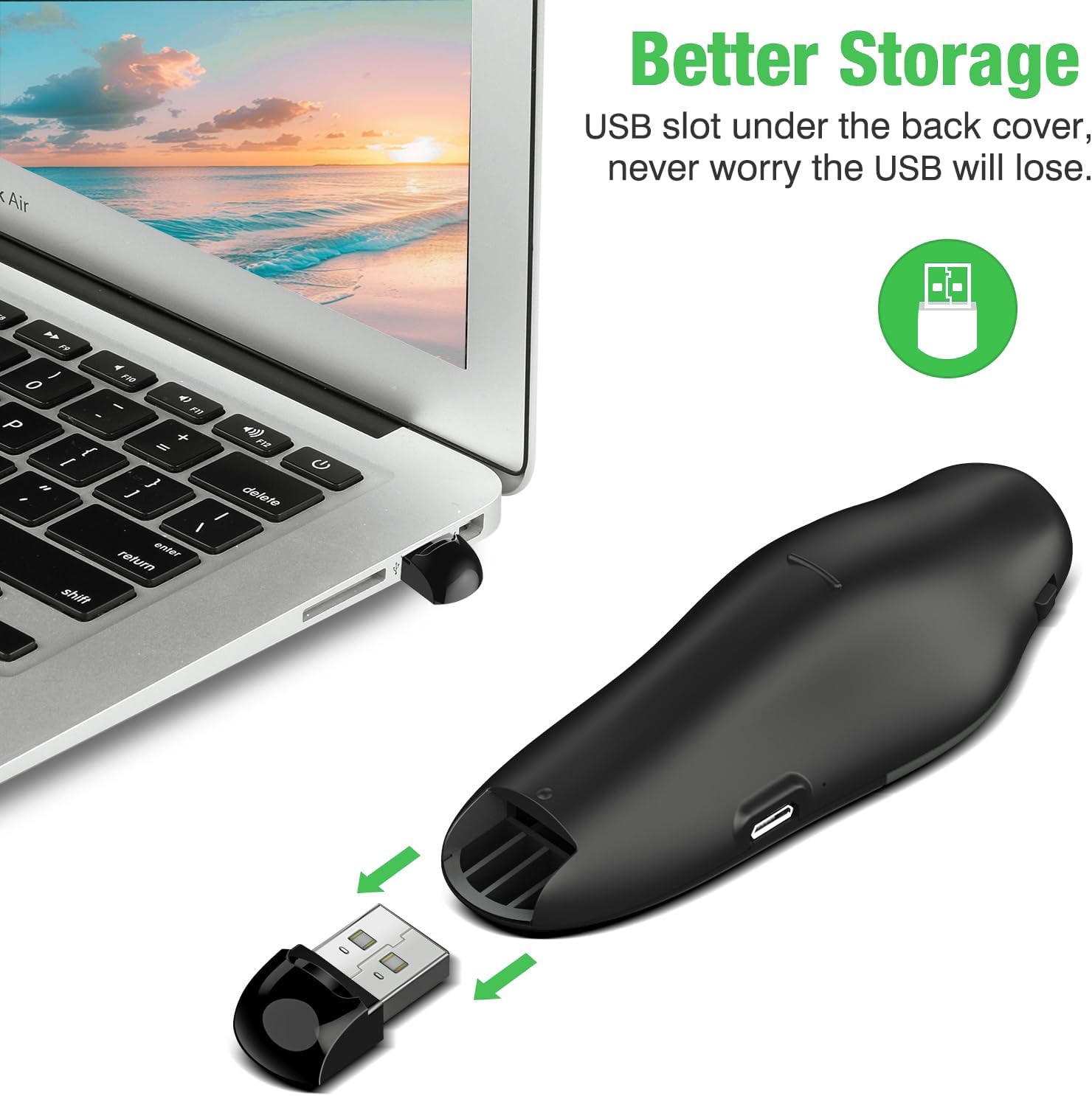
- Интегралдык USB кабылдагычтын сактагычы: The USB receiver stores securely inside the remote to prevent loss.
- Зымсыз диапазон: 2.4GHz wireless connection offers a control range of up to 115 feet (approximately 35 meters).
3. Орнотуу нускамалары
- Charge the Presenter: Before first use, ensure the presentation clicker is fully charged. Connect the clicker to a USB power source using the provided Micro USB cable. A full charge takes approximately 2.5 hours.
- USB кабылдагычты алуу: Open the battery compartment or the designated storage slot on the back of the clicker to retrieve the USB receiver.
- Алуучуну туташтыруу: Plug the USB receiver into an available USB port on your computer or laptop. The system will automatically detect and install the necessary drivers.
- Күйгүзүү: Locate the power switch on the side of the clicker and slide it to the 'ON' position.
4. Иштөө нускамалары
Once the USB receiver is connected and the clicker is powered on, you can begin controlling your presentation.
- Барак өйдө/төмөн: Use the arrow buttons (usually left/right or up/down arrows) to navigate through your presentation slides.
- Green Laser Pointer: Press and hold the central button (often marked with a triangle or laser icon) to activate the green laser pointer. Release the button to turn off the laser.
- Full Screen/Black Screen: The clicker features dedicated buttons for entering full-screen mode or blacking out the screen to redirect audience attention. Refer to the button icons for specific functions.

5. Батарея жөнүндө маалымат жана заряддоо
The DinoFire Presentation Clicker is equipped with a long-lasting 300mAh rechargeable battery.
- Заряддоо: Connect the clicker to any standard USB port using the included Micro USB cable. The charging indicator light will show the charging status.
- Заряддоо убактысы: Толук кубаттоо адатта 2.5 саатка созулат.
- Батареянын иштөө мөөнөтү: A fully charged battery can last for several weeks, depending on usage.

6. Техникалык тейлөө жана сактоо
- Тазалоо: Use a soft, dry cloth to clean the surface of the clicker. Avoid using harsh chemicals or abrasive materials.
- Сактагыч: When not in use, turn off the clicker to conserve battery life. Store the USB receiver securely within the clicker's designated compartment to prevent loss. Keep the device in a cool, dry place away from direct sunlight and extreme temperatures.

7. Кыйынчылыктарды
- Түзмөк жооп бербейт:
- USB кабыл алгычтын иштеген USB портуна бекем сайылганын текшериңиз.
- Check if the clicker is powered on.
- Verify the clicker's battery level and recharge if necessary.
- Порт көйгөйлөрүн болтурбоо үчүн USB кабыл алгычты башка USB портуна же башка компьютерге сайып көрүңүз.
- Laser Pointer Not Working:
- Ensure the clicker is powered on and fully charged.
- Press and hold the laser button firmly.
- Чектелген диапазон:
- Ensure there are no significant obstructions (e.g., walls, large metal objects) between the clicker and the USB receiver.
- Move closer to the computer if possible.
- Avoid using the clicker near other 2.4GHz wireless devices that might cause interference.
8. Техникалык шарттар
| Өзгөчөлүк | Деталь |
|---|---|
| Бренд | DinoFire |
| Байланыш технологиясы | Radio Frequency (RF 2.4GHz) |
| Шайкеш түзмөктөр | Ноутбук, компьютер |
| Өзгөчө өзгөчөлүк | Lightweight, Rechargeable, Green Laser |
| Колдоого алынган түзмөктөрдүн максималдуу саны | 1 |
| Элемент Салмагы | 2.08 унция |
| Пакеттин өлчөмдөрү | 4.72 x 2.4 x 1.26 дюйм |
9. Кепилдик жана колдоо
For warranty information and customer support, please refer to the product packaging or contact DinoFire customer service directly. Keep your purchase receipt for warranty claims.