
1. Киришүү
This manual provides essential information and instructions for setting up, operating, and maintaining your H3C AX5400 WiFi 6 Router (NX54). The NX54 is designed to deliver high-speed, low-latency wireless internet connectivity, supporting multiple devices simultaneously for demanding applications like 4K/8K streaming, online gaming, and video conferencing. Please note: This router functions as a wireless access point and must be connected to your Internet Service Provider's (ISP) equipment (modem) to provide internet access.
2. Продукт бүтүп калдыview
2.1 Негизги өзгөчөлүктөрү
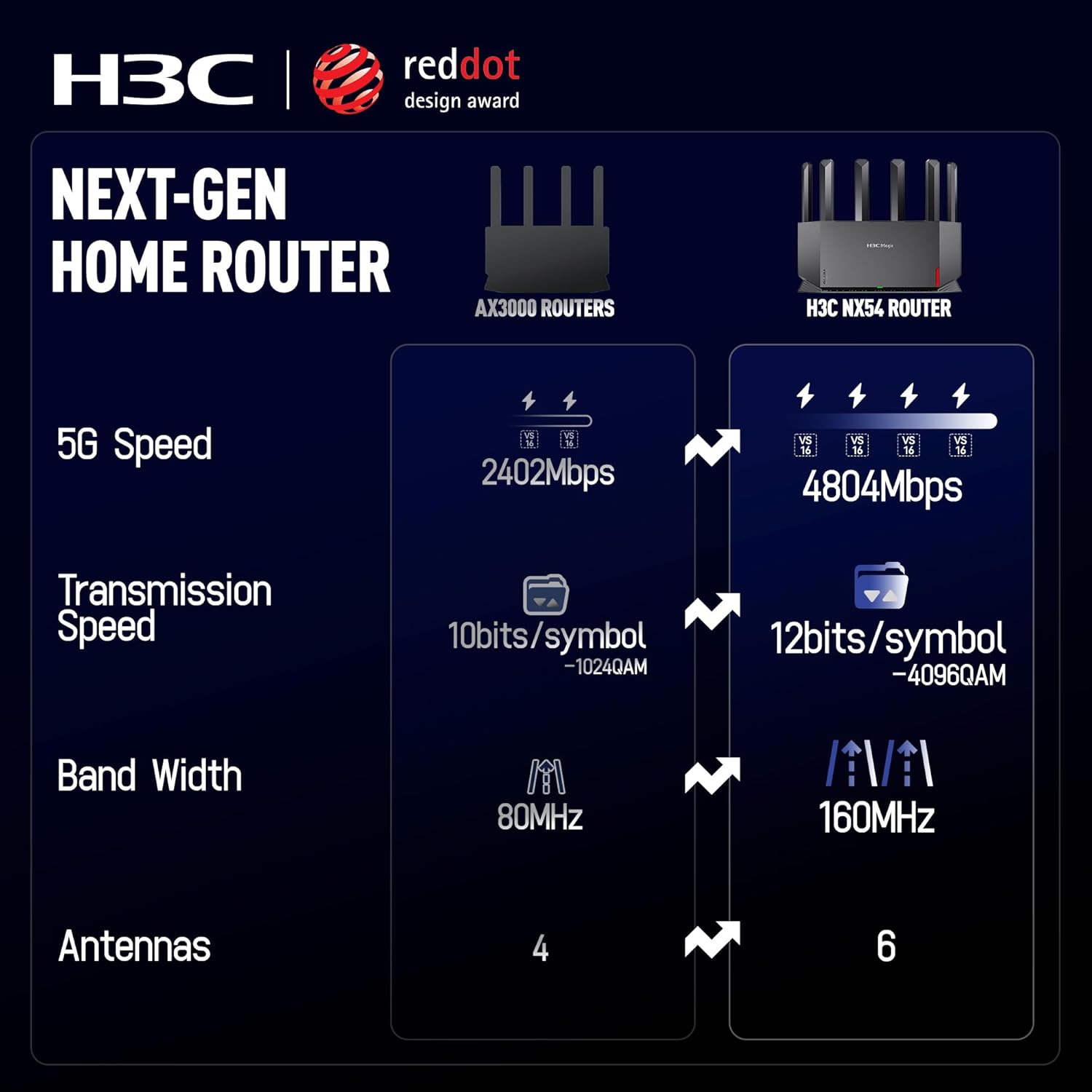
- Blazing-Fast WiFi 6 Technology: Supports up to 4804 Mbps on the 5GHz band with 4K QAM modulation and a 160MHz channel for enhanced speed and network efficiency.
- Smooth Multi-Connections: Features a dedicated NPU, 4T4R antenna structure, and True MU-MIMO technology to manage stable and responsive connections for numerous devices.
- Total & Balanced Coverage: Equipped with 6 high-gain external antennas, strategically positioned for optimal signal distribution across 2000+ sq.ft, supporting over 80 devices.
- Lifetime Parental Controls: Subscription-free parental controls include customizable WiFi Schedules, Internet Usage Monitoring, and URL Filtering for online safety.
- Оңой орнотуу жана башкаруу: User-friendly mobile application allows for quick setup and convenient management of network settings.
- Comprehensive Network Security: Includes built-in security features like isolated Guest WiFi, WPA3 protocol, IPv6, and VPN support.
2.2 Кутуда эмне бар
- H3C AX5400 WiFi 6 Router (NX54)
- Кубаттуу адаптер
- Ethernet кабели
- Quick Start Guide

Сүрөт 1: Алдыңкы view of the H3C AX5400 WiFi 6 Router (NX54).
3. Орнотуу нускамалары
3.1 Физикалык байланыш
- Маршрутизаторду жайгаштырыңыз: Place the router in a central location in your home, away from obstructions and electronic devices that may cause interference. Ensure the antennas are extended for optimal signal.
- Кубатка туташуу: Plug the power adapter into the router's power port and then into a wall outlet. The LED indicator on the router will light up.
- Модемге туташуу: Use the provided Ethernet cable to connect the WAN port on the H3C NX54 router to your ISP's modem or gateway.
2-сүрөт: Артка view of the H3C AX5400 WiFi 6 Router with port labels.
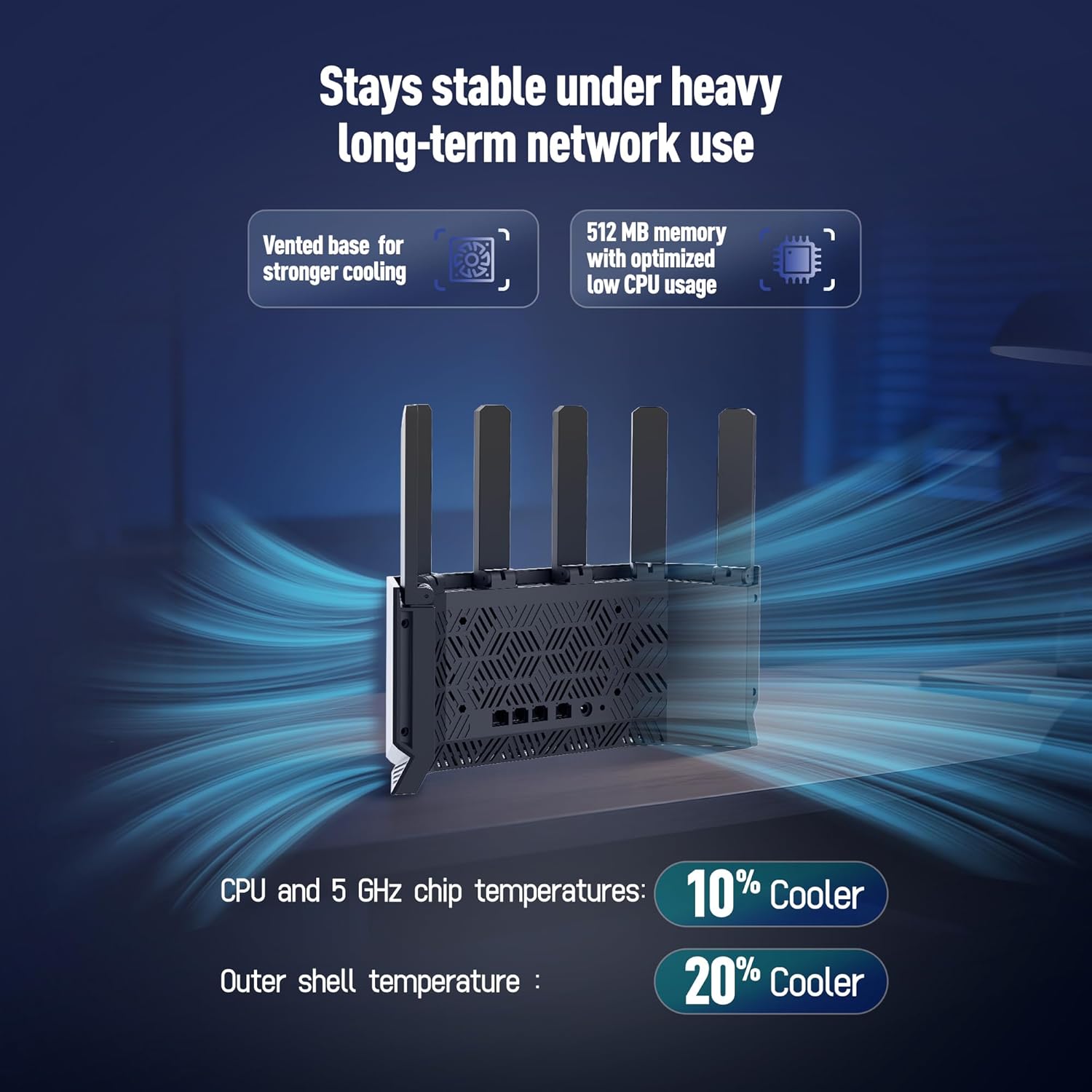
Figure 3: H3C AX5400 WiFi 6 Router with antennas extended for optimal coverage.
3.2 Initial App Setup
- Колдонмону жүктөп алыңыз: Download the "H3C Magic" mobile application from your device's app store (available on Google Play and Apple App Store). You can also scan the QR code found on the router's label or in the Quick Start Guide.
- Демейки Wi-Fi'га туташуу: On your smartphone, connect to the router's default Wi-Fi network (SSID and password are on the product label).
- Launch App & Configure: Open the H3C Magic app. Follow the on-screen instructions to complete the initial setup, including setting your preferred Wi-Fi network names (SSIDs) for 2.4GHz and 5GHz bands and creating a strong Wi-Fi password.

Figure 4: H3C Magic App interface for easy setup and access to customer service.
3.3 Видеону орнотуу
Video 1: H3C NX54 Quick Start Guide. This video demonstrates the physical connection and initial app setup process for the router.
4. Иштөө нускамалары
4.1 Mobile App Management
The H3C Magic app provides a centralized interface for managing your router and network settings. After initial setup, you can use the app to:
- Monitor real-time download and upload speeds.
- View туташкан түзмөктөр жана алардын абалы.
- Access various network optimization tools.
4.2 Wi-Fi орнотуулары
- Dual-Band Configuration: Manage separate 2.4GHz and 5GHz Wi-Fi networks or enable unified 2.4G/5G settings for automatic band steering.
- Коноктор тармагы: Create an isolated guest Wi-Fi network with a temporary password for visitors, ensuring your main network remains secure.
- EasyMesh: Expand your Wi-Fi coverage by adding compatible H3C Magic devices to create a seamless mesh network throughout your home.
4.3 Ата-эненин көзөмөлү
The router includes comprehensive, subscription-free parental control features:
- Wi-Fi Schedules: Set custom schedules to automatically pause internet access during specific times (e.g., bedtime, study hours).
- Internet Usage Monitoring: Track online activity for connected devices.
- URL Чыпкалоо: Орунсуз мазмунга кирүүнү бөгөттөө webсайттар.

Figure 5: H3C Magic App interface for managing parental controls.
4.4 Тармактын коопсуздугу
The H3C NX54 router offers robust security features to protect your home network:
- WPA3 Коопсуздук: Supports the latest Wi-Fi Protected Access 3 protocol for stronger encryption and enhanced network security.
- IPv6 колдоосу: Compatible with the latest internet protocol for improved efficiency and security.
- VPN колдоо: Allows for secure remote access and encrypted connections.
- Anti-WiFi Piggyback: Helps prevent unauthorized access to your network.
- реалдуу убакыт мониторинг: Provides continuous monitoring of network activity for potential threats.

Figure 6: H3C Magic App interface displaying network security features.
5. Техникалык тейлөө
- Түзмөктү кайра иштетүү: If you experience network issues, you can restart the router directly from the H3C Magic app. This process typically takes 2-3 minutes.
- Орнотулган программаны жаңыртуу: Regularly check for and install firmware updates via the app to ensure optimal performance, security, and access to new features.
- LED башкаруу: The app allows you to turn the router's LED indicator lights on or off, which can be useful in bedrooms or other light-sensitive environments.
- Тармакты оптималдаштыруу: Utilize the network optimization feature in the app to automatically improve your Wi-Fi environment and increase internet speed by minimizing external wireless interferences.
6. Кыйынчылыктарды
- Интернет байланышы жок: Ensure the router's WAN port is correctly connected to your ISP's modem. Verify that your modem is working correctly and receiving an internet signal. Restart both the modem and the router.
- Жай Wi-Fi ылдамдыгы: Try repositioning the router to a more central location. Use the network optimization feature in the H3C Magic app. Ensure your devices are connected to the appropriate 2.4GHz or 5GHz band.
- Wi-Fi'га туташуу мүмкүн эмес: Double-check your Wi-Fi password. Ensure the router's Wi-Fi is enabled (check LED indicator). Restart the router and your device.
- Router Not Found by App: Ensure your smartphone is connected to the router's default Wi-Fi network during initial setup. If already configured, ensure your phone is connected to the router's active Wi-Fi network.
7. Техникалык шарттар
| Продукциянын өлчөмдөрү | 12.56 x 6.97 x 3.78 дюйм |
| Элемент Салмагы | 1.66 фунт |
| Элемент моделинин номери | NX54 |
| Бренд | H3C |
| Өзгөчө өзгөчөлүк | Beamforming, Guest Mode, Internet Security, Parental Control, QoS |
| Жыштык тилкесинин классы | Кош тилкелүү |
| Зымсыз байланыш стандарты | 802.11ax (WiFi 6) |
| Шайкеш түзмөктөр | Gaming Console, Personal Computer, Printer, Smart Television, Smartphone |
| Продукт үчүн сунушталган колдонуу | Үй |
| Байланыш технологиясы | Wi-Fi |
| Түс | Кара |
8. Кепилдик жана колдоо
For technical assistance or warranty inquiries, please contact H3C customer support:
- Электрондук почта: Pub.magic@h3c.com
- Телефон: 888-987-2006
H3C is dedicated to providing comprehensive after-sales support.
Video 2: H3C NX54 AX5400 WiFi 6 Dual-Band High Performance Router Overview. This video highlights key features and benefits of the router.