
plimpton P2
plimpton PlimPad P2 Android 15 Tablet User Manual
1. Продукт бүтүп калдыview
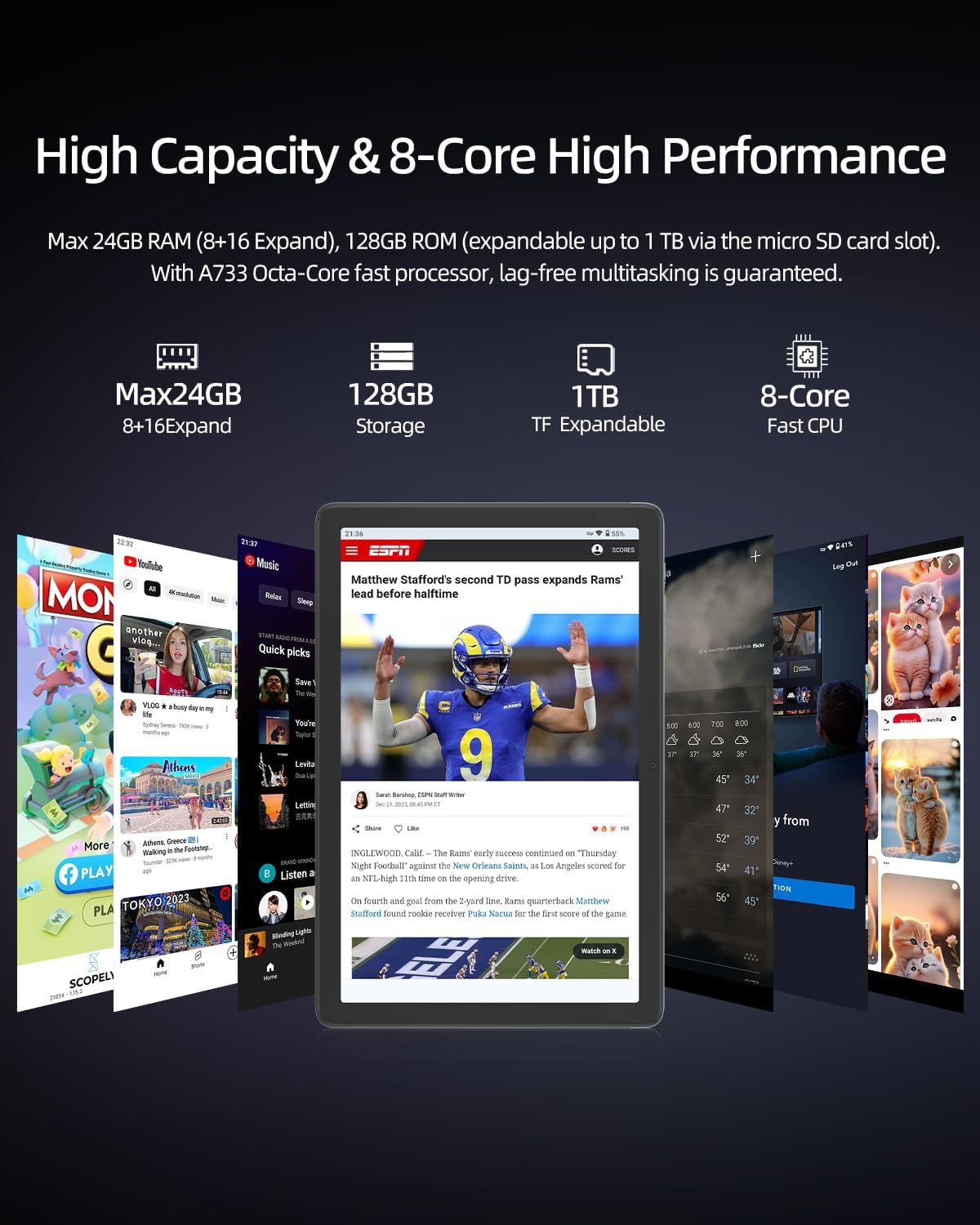
The plimpton PlimPad P2 is a 10-inch Android 15 tablet designed for work, study, and entertainment. It features a powerful 8-core CPU, 24GB RAM (8GB physical + 16GB virtual), and 128GB of UFS 3.1 internal storage, expandable up to 1TB via an external memory card. Equipped with a long-lasting 7500mAh battery, AI-powered gesture control, Wi-Fi 6, and Bluetooth 5.4, the PlimPad P2 offers a smooth, efficient, and intuitive user experience.
Негизги өзгөчөлүктөрү:
- Операция системасы: Latest Android 15 for enhanced performance and security.
- Процессор: Powerful 8-core CPU for smooth multitasking and gaming.
- Эстутум жана сактоо: 24GB RAM (8GB + 16GB expandable) and 128GB UFS 3.1 storage, expandable to 1TB.
- Батарея: 7500mAh long-lasting battery for extended use.
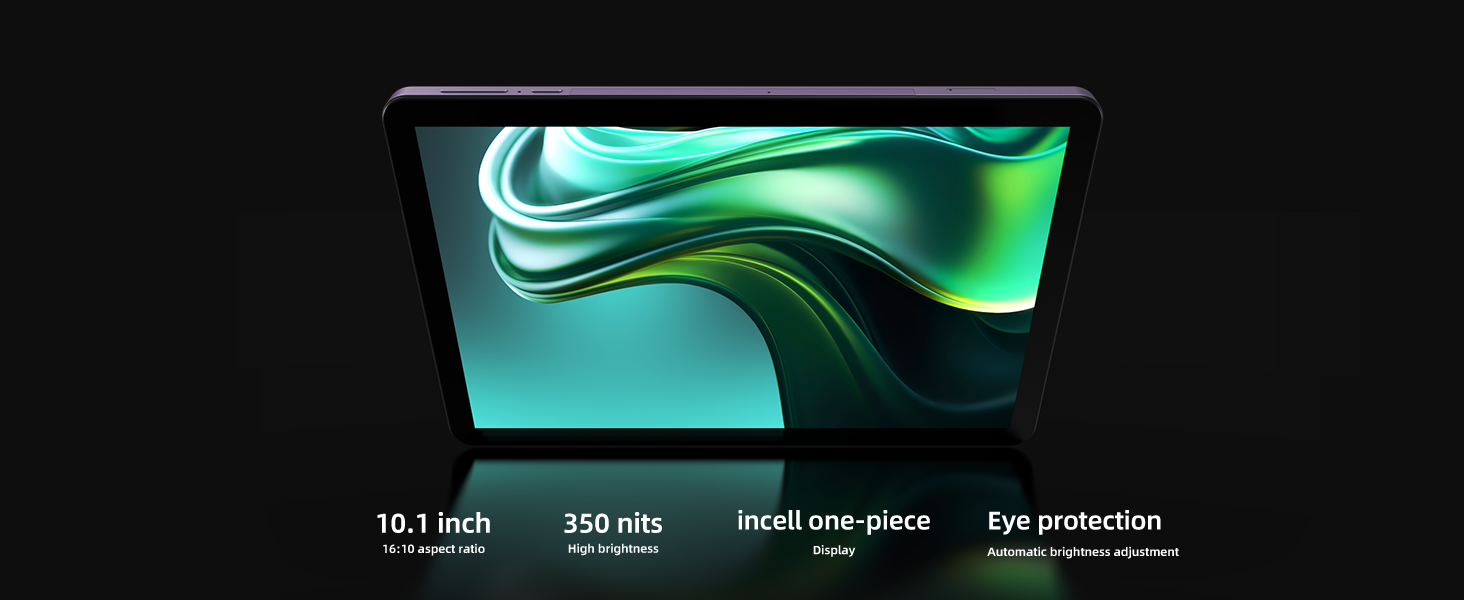
- Дисплей: 10.1-inch screen with AI-adjusted eye protection mode.
- Байланыш: Wi-Fi 6 and Bluetooth 5.4 for fast and stable connections.
- AI өзгөчөлүктөрү: AI-powered gesture control, smart screen adjustment, and optimized power consumption.
- Дизайн: Durable and reliable aluminum alloy body for better heat dissipation and longevity.
2. Кутуда эмне бар
Your plimpton PlimPad P2 package includes the following items:
- 1 x plimpton PlimPad P2 Android 15 Tablet
- 1 x USB-A дан Type-C кубаттоо кабели
- 1 х AC кубат адаптери
- 1 x User Manual
- 1 x SIM карта чыгаргыч төөнөгүч
3. Орнотуу колдонмосу
3.1 Күйгүзүү/өчүрүү
- Күйгүзүү үчүн: Press and hold the Power button (located on the side) until the plimpton logo appears on the screen.
- Өчүрүү үчүн: Кубат баскычын басып, кармап туруңуз, андан кийин пайда болгон параметрлерден "Өчүрүү" дегенди тандаңыз.
- Кайра баштоо үчүн: Кубат баскычын басып, кармап туруңуз, андан кийин параметрлерден "Кайра баштоо" тандаңыз.
3.2 Баштапкы конфигурация
Планшет биринчи жолу күйгүзүлгөндө, ал сизге баштапкы орнотуу процессин көрсөтөт:
- Каалаган тилиңизди тандаңыз.
- Wi-Fi тармагына туташыңыз.
- Google аккаунтуңуз менен кириңиз же жаңысын түзүңүз.
- Follow on-screen prompts to set up security, privacy, and other preferences.
3.3 MicroSD картасын салуу
Сактагычты 1 ТБ чейин кеңейтүү үчүн:
- SIM/MicroSD карта лотогун планшеттин капталынан табыңыз.
- Insert the provided SIM ejector pin into the small hole next to the tray to open it.
- Place the MicroSD card into the designated slot on the tray.
- Табакты акырын кайра планшеттин ичине чыкылдатмайынча түртүңүз.
3.4 Планшетти заряддоо
Use the provided USB-A to Type-C cable and AC power adapter to charge your tablet. The reversible Type-C port allows for easy connection.
4. Иштөө нускамалары
4.1 Негизги навигация
The PlimPad P2 features a responsive touchscreen for intuitive interaction:
- таптаңыз: Select items, open apps, or activate functions.
- Серпүү: Scroll through pages, menus, or home screens.
- Чымчып-кичирейтүү: Экрандагы мазмунду чоңойтуңуз же кичирейтиңиз.
4.2 AI-Powered Gesture Control
Enhance your interaction with the tablet using AI gesture control. These features allow for hands-free operation:
- Enable Gestures: багыттоо Орнотуулар > Система > Жаңсоолор to customize and enable specific gestures.
- Жылдыруу: Use specific hand movements (e.g., waving hand up/down) to scroll through content without touching the screen.
- Скриншоттор: A two-finger swipe gesture can capture a screenshot.
- Selfie Camera Activation: Certain hand signals can activate the front-facing camera for selfies.
4.3 Display Settings & Eye Protection
Сиздин жекелештирүү viewтажрыйба жана көздү коргоо:
- Жарыктыкты жөндөө: барыңыз Орнотуулар > Дисплей > Жарыктык to manually adjust or enable adaptive brightness.
- AI-Adjusted Eye Protection Mode: This mode minimizes blue light and reduces eye strain, ideal for long reading or work sessions. It automatically adjusts based on ambient light. Enable it under Settings > Display > AW Reading Mode.
- Black-White Mode: For a monochrome display, activate this feature under Settings > Display > Black-White Mode.
4.4 Бөлүнгөн экран менен көп тапшырмалуулук
The PlimPad P2 supports split-screen functionality, allowing you to run two applications simultaneously:
- Колдонгуңуз келген биринчи колдонмону ачыңыз.
- Swipe up from the bottom of the screen to access recent apps.
- Tap and hold the icon of the first app, then select 'Split screen'.
- Акыркы колдонмолоруңуздан экинчи колдонмону тандаңыз же экрандын экинчи жарымын толтуруу үчүн колдонмолордун суурмасын тандаңыз.
4.5 Байланыш (Wi-Fi 6 жана Bluetooth 5.4)
Connect to networks and devices:
- Wi-Fi: Мүмкүнчүлүк Орнотуулар > Тармак жана Интернет > Wi-Fi to connect to available networks. Wi-Fi 6 ensures super-fast and stable internet connections.
- Bluetooth: барыңыз Орнотуулар > Туташкан түзмөктөр > Bluetooth to pair with Bluetooth 5.4 compatible devices like headphones or speakers.
4.6 Камераны колдонуу
The tablet features dual cameras (front and rear) for photos and video calls:
- Үй экранынан же колдонмо суурмасынан Камера колдонмосун ачыңыз.
- Экрандагы сүрөтчө менен алдыңкы жана арткы камералардын ортосунда которулуңуз.
- Сүрөткө тартуу же видео жаздырууну баштоо/токтотуу үчүн жапкыч баскычын басыңыз.
4.7 Сактагычты башкаруу
The PlimPad P2 utilizes UFS 3.1 storage for faster app loading and file transfers. You can manage your storage via Орнотуулар > Сактагыч.
4.8 Parental Controls & Digital Wellbeing
Manage usage and set limits for a balanced digital life:
- Мүмкүнчүлүк Жөндөөлөр > Санариптик бакубаттуулук жана ата-эненин көзөмөлү.
- Жайгашуу Фокус режими to pause distracting apps.
- Конфигурациялоо App limits for individual applications.
- колдонуу Heads Up feature to receive reminders to look up from your tablet while walking.
5. Техникалык тейлөө
5.1 Планшетти тазалоо
- Экранды жана денени тазалоо үчүн жумшак, түксүз чүпүрөктү колдонуңуз.
- Катуу химиялык заттарды же абразивдүү материалдарды колдонуудан алыс болуңуз.
5.2 Программалык камсыздоо жаңыртуулары
Ensure your tablet is running the latest software for optimal performance and security. Check for updates via Орнотуулар > Система > Системаны жаңыртуу.
5.3 Батареяга кам көрүү
- Ашыкча температурадан сактаныңыз.
- Батареяны бат-баттан толук зарядсыздандырбаңыз.
- Берилген заряддагычты гана колдонуңуз.
5.4 Физикалык кам көрүү
The PlimPad P2 features a durable aluminum alloy body and reinforced internal structure for enhanced longevity and heat dissipation. While designed to be robust, avoid dropping the device or exposing it to excessive force.
6. Кыйынчылыктарды
6.1 Жалпы маселелер жана чечимдер
- Түзмөк күйбөй жатат: Батарея заряддалганын текшериңиз. Заряддоо түзүлүшкө туташып, кайра күйгүзүү аракетинен мурун бир нече мүнөт күтө туруңуз.
- Wi-Fi туташуу көйгөйлөрү: Жөндөөлөрдө Wi-Fi иштетилгенин текшериңиз. Роутериңизди жана планшетиңизди өчүрүп-күйгүзүңүз. Тармакты унутуп, кайра туташыңыз.
- Колдонмолор бузулуп же катып жатат: Колдонмону жаап, кайра ачыңыз. Колдонмонун кэшин тазалоо (Орнотуулар > Колдонмолор > [Колдонмонун аты] > Сактагыч > Кэшти тазалоо). Ensure the app is updated.
- Жай аткаруу: Керексиз фондо колдонмолорду жабыңыз. Кэшти жана убактылуу тазалоо files. Consider expanding storage with a MicroSD card if internal storage is full.
6.2 Заводдук абалга кайтаруу
If you encounter persistent issues, a factory reset may resolve them. Эскертүү: Бул планшетиңиздеги бардык дайындарды жок кылат. Улантуудан мурун маанилүү маалыматтардын камдык көчүрмөсүн сактаңыз.
- барыңыз Орнотуулар > Система > Параметрлерди кайра орнотуу.
- Тандоо Бардык дайындарды өчүрүү (дескриптке кайтаруу).
- Тандооңузду ырастап, экрандагы нускамаларды аткарыңыз.
7. Техникалык шарттар
| Өзгөчөлүк | Деталь |
|---|---|
| Бренд | plimpton |
| Модель аты | P2 |
| Операция системасы | Android 15 |
| Screen Size | 10.1 дюйм |
| Display Resolution | 1280x800 пиксел |
| Орнотулган RAM эс тутуму | 8 ГБ (24 ГБ чейин кеңейтүүгө болот) |
| Эстутум сактоо сыйымдуулугу | 128 ГБ (1 ТБ чейин кеңейтүүгө болот) |
| Процессордун сүрөттөлүшү | 8-Core ARM |
| Батарея сыйымдуулугу | 7500 миллионamp Саат |
| Батареянын орточо иштөө мөөнөтү | 10 саат |
| Зымсыз технология | Wi-Fi 6 (802.11ax), Bluetooth 5.4 |
| Камера сүрөттөмөсү | Алдыңкы, Арткы |
| Элемент Салмагы | 800 грамм |
| Түс | Кызгылт көк |
8. Кепилдик жана колдоо
plimpton officially provides lifetime technical support and a 1-year free replacement warranty for non-human factor damage. For any questions or assistance, please feel free to contact us through the official plimpton webсайт же сатуучуңуздун колдоо каналдары.
Ask a question about this manual
Ask about setup, troubleshooting, compatibility, parts, safety, or missing instructions. Manuals+ will review the question and use this page’s manual context to help answer it.