
Introduction
This manual provides detailed instructions for the Hexgears X2 TKL Wireless Mechanical Gaming Keyboard. Please read this manual thoroughly to ensure proper setup, operation, and maintenance of your device. This keyboard features dual-mode connectivity, durable Kailh BOX linear switches, PBT keycaps, and a magnetic wrist rest for enhanced comfort.

Сүрөт: бүттүview of the Hexgears X2 TKL Mechanical Gaming Keyboard highlighting its key features such as PBT Double-Shot Keycaps, 2.4GHz/USB-C connectivity, Magnetic Wrist Rest, Ergonomic Design, Kailh Box Switches, White Backlighting, Full N-key Rollover, and Multimedia Keys.
Пакеттин мазмуну
Пакетиңизде бардык буюмдар бар экенин текшериңиз:
- 1 x Hexgears X2 TKL Mechanical Keyboard
- 1 x Magnetic Wrist Rest
- 1 x USB Type-C кабели
- 1 x 2.4 ГГц зымсыз донгл
- 1 x Баскыч капкагын тарткыч
- 1 x Которгуч тарткыч
- 1 х Колдонуучунун колдонмосу (бул документ)

Image: The Hexgears X2 TKL keyboard displayed alongside its included accessories: a magnetic wrist rest, USB-C cable, 2.4 GHz dongle, keycap puller, and user manual.
Жайгашуу
1. Баскычтопту туташтыруу
The Hexgears X2 TKL supports two connection modes: 2.4GHz wireless and USB-C wired.
- 2.4 ГГц зымсыз режими:
- Locate the 2.4 GHz wireless dongle in the package.
- Донглди компьютериңиздеги жеткиликтүү USB портуна сайыңыз.
- Ensure the keyboard's power switch (usually on the side or back) is set to wireless mode. The keyboard should automatically connect.
- USB-C зымдуу режими:
- Connect one end of the provided USB Type-C cable to the keyboard's USB-C port.
- Кабелдин экинчи учун компьютериңиздеги жеткиликтүү USB портуна туташтырыңыз.
- Баскычтоп зымдуу режимде иштеп, бир убакта заряддалат.
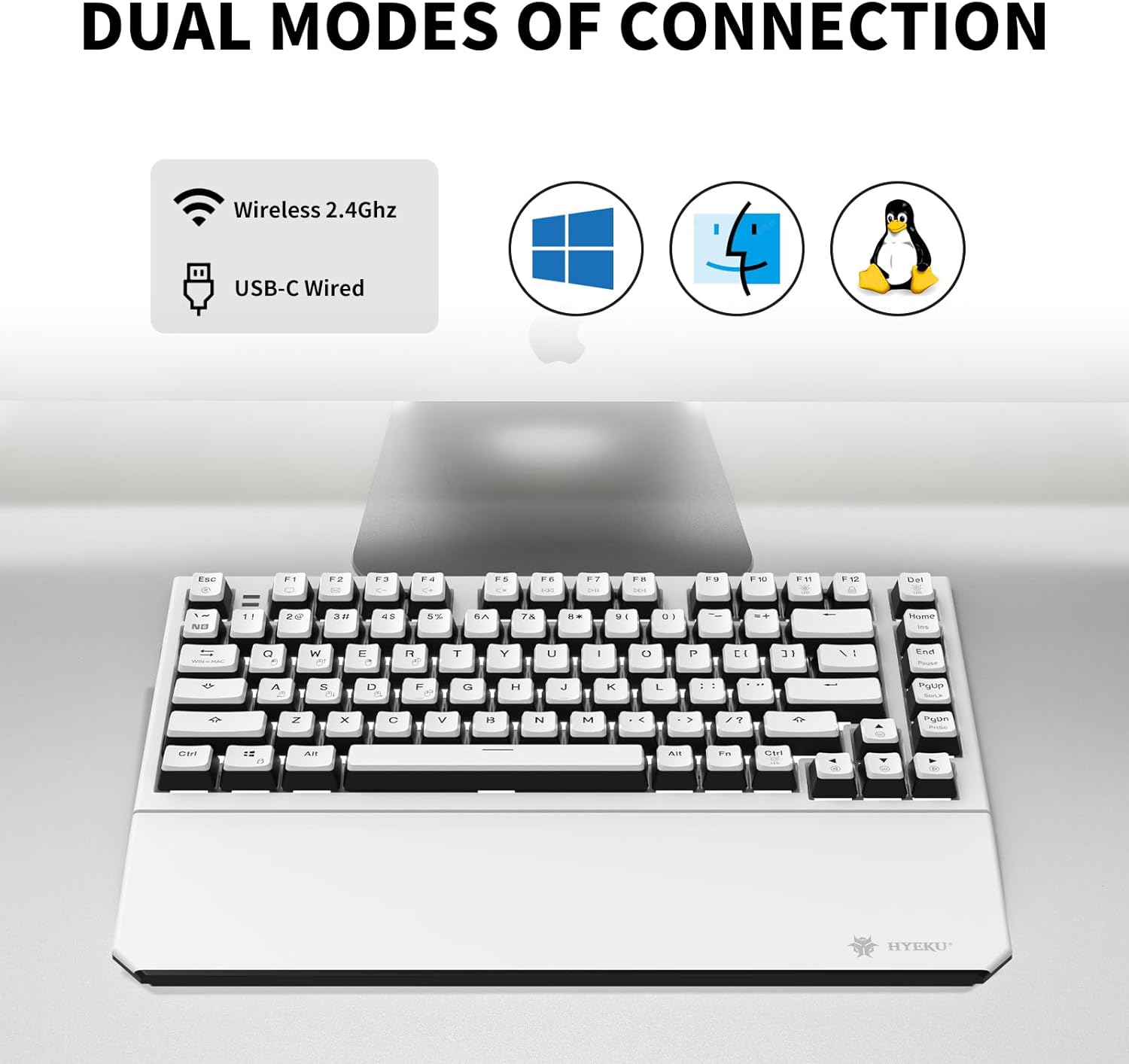
Image: The Hexgears X2 TKL keyboard illustrating its dual connection capabilities: Wireless 2.4GHz and USB-C Wired, compatible with Windows, Mac, and Linux operating systems.
2. Attaching the Magnetic Wrist Rest
The included wrist rest attaches magnetically to the front edge of the keyboard. Simply align the wrist rest with the front of the keyboard; the magnets will secure it in place. This provides ergonomic support during extended use.

Image: The Hexgears X2 TKL keyboard with its detachable magnetic wrist rest, demonstrating the magnetic attachment points for ergonomic comfort.
3. Баскычтоптун жантайышын тууралоо
The keyboard features two-level adjustable feet on the underside. Flip out the feet to achieve your preferred typing angle and prevent fatigue during long sessions.

Сүрөт: бир тарап view of the Hexgears X2 TKL keyboard, highlighting its foldable kickstands and two-level adjustable feet for customizing the tilt angle (e.g., 6 degrees) for a comfortable typing experience.
Иштөө нускамалары
1. Арткы жарыкты башкаруу
The Hexgears X2 TKL keyboard features a white LED backlight with 16 different lighting modes. Use the function keys to cycle through modes and adjust brightness:
- Fn + [Ачкыч]: Specific key combinations will control backlight effects. Refer to the keyboard's key legends for exact functions (e.g., Fn + Ins, Home, PgUp, PgDn for mode changes; Fn + Arrow keys for brightness/speed).
2. N-Key оодарылып кетүү (NKRO)
The keyboard supports N-Key Rollover (NKRO), allowing all keys to be registered simultaneously without ghosting. This is particularly beneficial for fast typing and gaming. In wired mode, full NKRO is active. Some wireless modes may default to 6-Key Rollover (6KRO) for power efficiency.
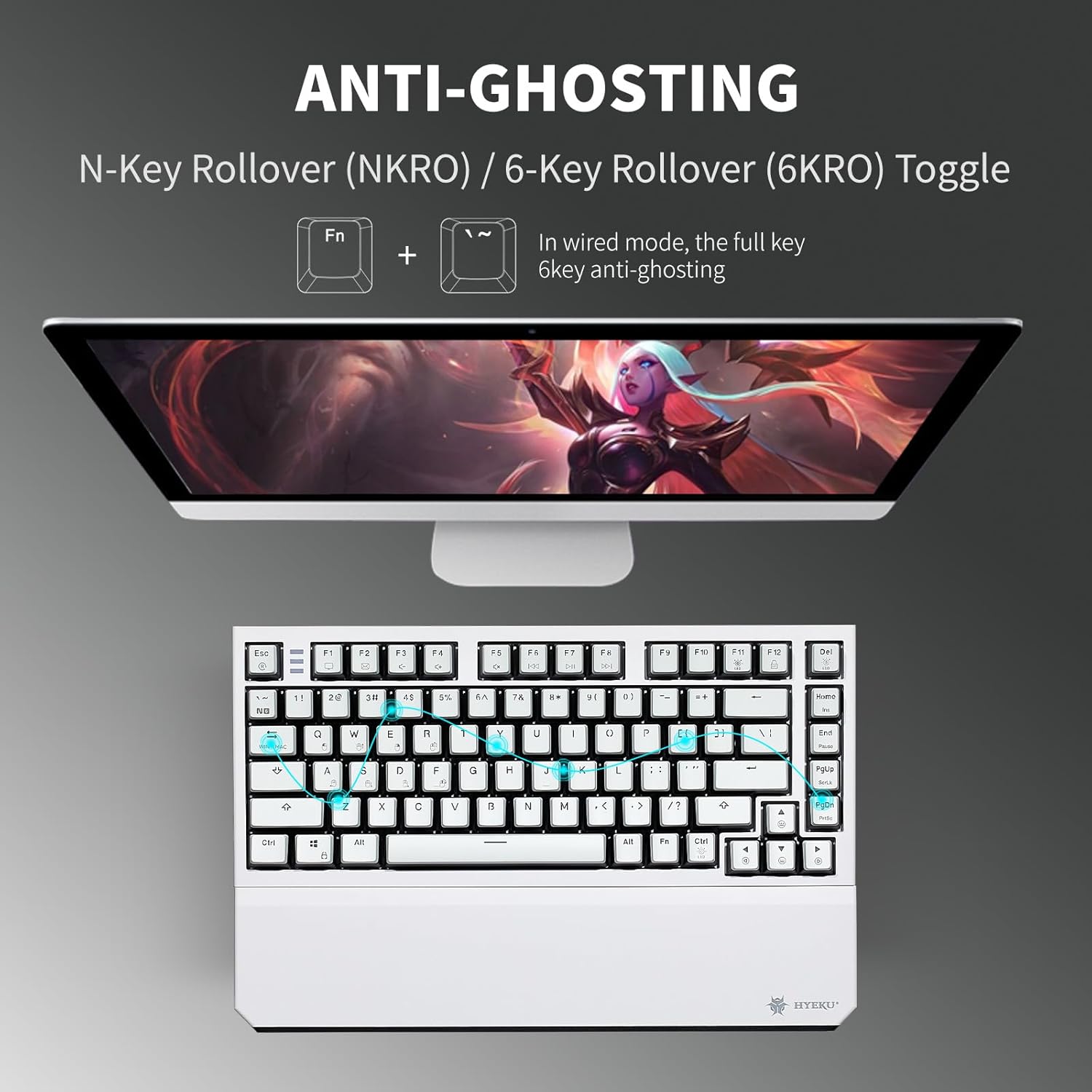
Image: The Hexgears X2 TKL keyboard illustrating the Anti-Ghosting feature with N-Key Rollover (NKRO) and 6-Key Rollover (6KRO) toggle. It shows that in wired mode, full key anti-ghosting is active.
3. Мультимедиа ачкычтары
Access multimedia functions by pressing the 'Fn' key in combination with the designated F-keys (F1-F12). These functions are typically indicated by icons on the keycaps.
Техникалык тейлөө
1. Баскычтопту тазалоо
Клавиатураңызды тазалоо үчүн аны компьютериңизден ажыратыңыз. Жумшак, түксүз чүпүрөктү бир аз сүртүңүз.ampened with water or a mild cleaning solution. For keycaps, a small brush or compressed air can remove dust and debris between keys. Avoid excessive moisture.
2. Клавиатураны жана которгучту алмаштыруу
The Hexgears X2 TKL features a hot-swappable PCB, allowing for easy replacement of 3-pin mechanical switches without soldering. The PBT keycaps are also removable.
- Баскыч капкактарын алып салуу: Use the included keycap puller. Gently hook the puller onto the keycap and pull upwards.
- Которгучтарды алып салуу: After removing the keycap, use the included switch puller. Squeeze the tabs on the top and bottom of the switch and pull it straight up.
- Которгучтарды орнотуу: Align the pins of the new 3-pin switch with the holes on the PCB. Press down firmly until the switch clicks into place. Ensure pins are not bent.
- Баскыч капкактарын орнотуу: Баскычтын капкагын которгучтун сабы менен тегиздеп, бекемделгенге чейин акырын басыңыз.

Сүрөт: деталдуу view of the Hexgears X2 TKL keyboard's hot-swappable PCB, showing how switches can be removed and replaced. It highlights the Rose Red Linear switch specifications and the hot-swap sockets.

Image: Close-up of the Hexgears X2 TKL keyboard demonstrating its double-shot PBT keycaps, emphasizing their durability and fade-resistant finish.
Проблемаларды чечүү
- Баскычтоп жооп бербей жатат:
- Баскычтоп кубатталганын же USB-C аркылуу туташтырылганын текшериңиз.
- For wireless mode, check that the 2.4GHz dongle is securely plugged in and the keyboard is switched to wireless mode.
- Компьютериңизди өчүрүп күйгүзүп көрүңүз.
- Катталбаган ачкычтар же эки жолу терүү:
- Жабыркаган баскычтоптун астын тазалаңыз.
- If using hot-swappable switches, try reseating the switch or replacing it with a spare.
- Арткы жарык иштебейт:
- Баскычтоптун жетиштүү кубаттуулугу бар экенин текшериңиз.
- Use the Fn key combinations to adjust brightness or cycle through modes.
- Зымсыз байланыш көйгөйлөрү:
- Move the keyboard closer to the 2.4GHz dongle.
- Башка зымсыз аппараттардын кийлигишүүсүн болтурбаңыз.
- Донглду башка USB портуна сайып көрүңүз.
Техникалык шарттар
| Модел | Hexgears X2 TKL |
| Байланыш | 2.4 ГГц зымсыз, USB-C зымдуу |
| Которгучтар | Kailh BOX Linear Switches (Pre-lubed) |
| Баскыч капкактары | Frosted-finish PBT Double-Shot |
| Арткы жарык | White LED Backlit (16 modes) |
| Макет | TKL (Tenkeyless) / 82 Keys |
| N-Key Rollover | Full NKRO (Wired Mode) |
| Билек эс алуу | Magnetic, Detachable |
| Жөнгө салынуучу буттар | 2-деңгээл |
| Шайкеш түзмөктөр | Laptop, MAC, PC, Tablet, Xbox |
| Элемент Салмагы | 2.07 фунт |
| Батареялар | 2 литий-иондук батарейкалар (кошумча) |
Кепилдик жана колдоо
For warranty information and customer support, please refer to the official Hexgears website or contact your retailer. If you require assistance with your Hexgears X2 TKL keyboard, you can reach out to customer support through the following methods:
- Онлайн колдоо: Visit the Hexgears official webКөп берилүүчү суроолор жана колдоо булактары үчүн сайт.
- Чекене колдоо: If purchased through Amazon, you can contact the seller directly via your order history.

Image: A visual guide detailing steps to contact customer support through Amazon, including navigating to the Hexgears product page, selecting the seller, and sending a message before or after placing an order.