
1. Киришүү
This manual provides essential information for the proper setup, operation, and maintenance of your NIMO 15.6 inch Laptop Computer. Please read this manual thoroughly before using your device to ensure optimal performance and longevity. Keep this manual for future reference.
2. Продукт бүтүп калдыview
2.1. Ноутбук компоненттери
The NIMO 15.6 inch Laptop features a Full HD display, a backlit keyboard, and an integrated fingerprint reader for secure access. It is powered by an AMD Ryzen 5 3500U processor and runs on Windows 11.

Сүрөт 2.1: Алдыңкы view of the NIMO 15.6 inch Laptop, showcasing анын дисплейи жана клавиатурасынын жайгашуусу.
2.2. Порттор жана туташтыргычтар
Your NIMO laptop is equipped with various ports for comprehensive connectivity, allowing you to connect peripherals and external devices.

Figure 2.2: Expanded Connectivity Options. This image illustrates the location and type of ports available on the laptop, including Type-C (Charge Only), USB 3.0, HDMI, Type-C (Full Function), Charge LED, Micro SD Reader, USB 2.0, USB 3.0, Headphone Combo, and Kensington Lock.
- Type-C (Charge Only): Кубат киргизүү үчүн.
- USB 3.0: жогорку ылдамдыктагы маалыматтарды берүү үчүн.
- HDMI: Тышкы дисплейлерге туташуу үчүн.
- Type-C (Full Function): Supports Power Delivery (PD), DisplayPort (DP), and data transfer.
- Кубат LED: Заряддоо абалын көрсөтөт.
- Микро SD окугуч: For reading Micro SD cards.
- USB 2.0: Стандарттык USB түзмөктөр үчүн.
- USB 3.0: жогорку ылдамдыктагы маалыматтарды берүү үчүн.
- Headphone Combo: For audio output and microphone input.
- Кенсингтон кулпусу: Физикалык коопсуздук үчүн.
3. Орнотуу
3.1. Баштапкы заряддоо
Before first use, connect the laptop to a power outlet using the provided 65W PD Type-C charger. The Charge LED indicator will illuminate. Allow the battery to charge fully.

Figure 3.1: Type-C 65W PD Charger. This image highlights the versatility of the 65W Power Delivery charger, capable of charging the laptop, tablets, and smartphones, reducing cable clutter.
3.2. Күйгүзүү
Open the laptop lid. Press the power button located on the keyboard deck. The laptop will boot up, and you will be guided through the Windows 11 initial setup process.
3.3. Windows 11 орнотуу
Follow the on-screen instructions to configure your Windows 11 operating system. This includes selecting your region, language, connecting to a Wi-Fi network, and setting up your user account.
4. Иштөө нускамалары
4.1. Баскычтоп жана киргизүү
The laptop features a backlit keyboard for comfortable typing in various lighting conditions, a responsive touchpad, and a numeric keypad for data entry.

Figure 4.1: Effortless Typing in Any Environment. This image demonstrates the backlit keyboard, touchpad, fingerprint reader, and numeric keypad, enhancing user experience and productivity.
- Арткы жарык клавиатура: басыңыз Fn key and the appropriate function key (usually F3 or F4, indicated by a keyboard icon) to adjust the backlight brightness or turn it on/off.
- Сенсордук такта: Use the touchpad for navigation. Supports multi-touch gestures for scrolling, zooming, and other functions.
- Сандык баскычтоп: Provides dedicated number keys for efficient data entry.
4.2. Манжа изин таануу
The integrated fingerprint reader allows for secure and quick login. Set up your fingerprint in Windows Settings under 'Sign-in options'.
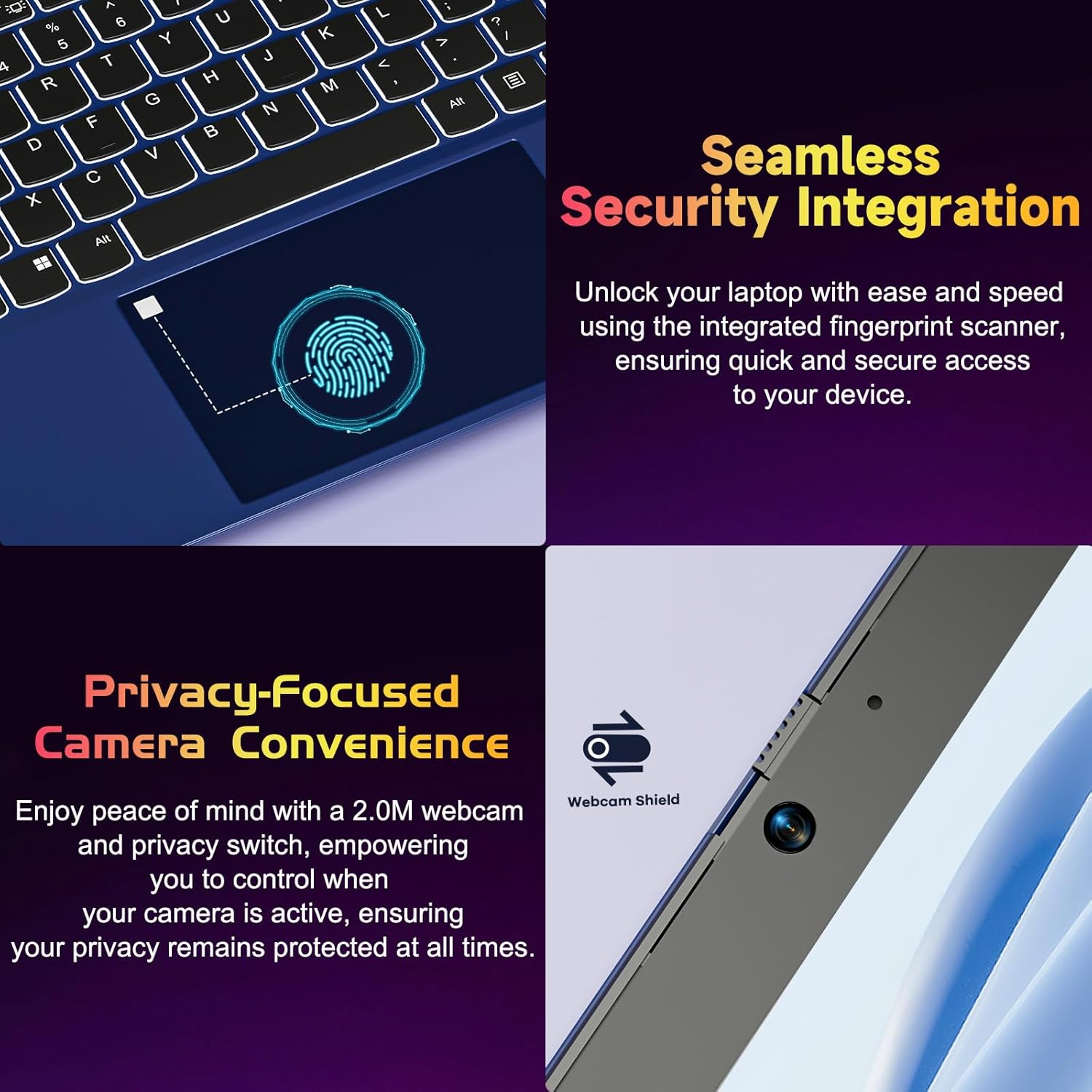
Figure 4.2: Seamless Security Integration and Privacy-Focused Camera. This image highlights the fingerprint scanner for quick and secure access, and the 2.0MP webcam with a physical privacy switch for enhanced user privacy.
4.3. Дисплей өзгөчөлүктөрү
The 15.6 inch Full HD (1920 x 1080 Pixel) IPS display offers vivid visuals and a wide viewing angle. The 180° lay-flat hinge allows for flexible screen positioning, ideal for sharing content.

Figure 4.3: Vivid Full HD Display. This image emphasizes the laptop's 15.6-inch Full HD (1920x1080) IPS display, offering bright visuals and eye protection.

Figure 4.4: 180° Lay-Flat Hinge. This image illustrates the laptop's ability to lay flat, expanding usage scenarios and facilitating content sharing.
4.4. Webcam Privacy
The laptop includes a 2.0MP webcam with a physical privacy switch (Webcam Shield). Slide the switch to cover the camera lens when not in use to ensure your privacy.
5. Техникалык тейлөө
- Тазалоо: Экранды жана сыртын тазалоо үчүн жумшак, мамыксыз чүпүрөктү колдонуңуз. Өжөр тактар үчүн бир аз сүртүңүзampчүпүрөккө суу же экран тазалоочу каражат. Катуу химиялык заттардан алыс болуңуз.
- Батареяга кам көрүү: Батареянын иштөө мөөнөтүн узартуу үчүн, батареяны тез-тез толук зарядсыздандырбаңыз. Эгерде ноутбук көпкө колдонулбаса, аны салкын, кургак жерде сактаңыз.
- Программалык камсыздоо жаңыртуулары: Оптималдуу иштөө жана коопсуздукту камсыз кылуу үчүн Windows операциялык тутумуңузду жана драйверлериңизди үзгүлтүксүз жаңыртып туруңуз.
- Сактагычты кеңейтүү: The laptop supports dual DDR4 SO-DIMM slots and M.2 NVMe SSD for memory and storage expansion. Consult a qualified technician for upgrades.
6. Кыйынчылыктарды
6.1. Power Issues
- Ноутбук күйбөйт: Ensure the laptop is charged. Connect the charger and wait a few minutes before attempting to power on again.
- Батарея кубатталбай жатат: Verify the charger is properly connected to both the laptop and the power outlet. Try a different outlet.
6.2. Маселелерди көрсөтүү
- Экран бош: Check if the laptop is powered on. Try adjusting screen brightness using the function keys. If an external monitor is connected, ensure it is properly configured.
6.3. Ишти аткаруу маселелери
- Ноутбук жай иштеп жатат: Close unnecessary applications. Check for background processes consuming high resources. Ensure sufficient free storage space. Consider performing a system scan for malware.
6.4. Байланыш маселелери
- Wi-Fi туташпай жатат: Wi-Fi күйгүзүлгөнүн текшериңиз. Роутериңизди жана ноутбугуңузду өчүрүп-күйгүзүңүз. Windows'тогу тармак жөндөөлөрүн текшериңиз.
7. Техникалык шарттар
| Өзгөчөлүк | Деталь |
|---|---|
| Бренд | NIMO |
| Модель аты | NIMO N152R |
| Screen Size | 15.6 дюйм |
| Screen Resolution | 1920 x 1080 пиксел (Full HD) |
| Процессор | AMD Ryzen 5 3500U (3.7 GHz, 4 Cores, 8 Threads) |
| RAM | 8 GB DDR4 (Upgradable) |
| Memory Speed | 3200 МГц |
| Катуу диск | 256 GB SSD (Upgradable M.2 NVMe) |
| Графикалык сопроцессор | AMD Integrated graphics (Vega) |
| Операция системасы | Windows 11 |
| Зымсыз түрү | 802.11abg |
| USB порттору | 1x USB 2.0, 2x USB 3.0, 2x USB-C (1x Charge Only, 1x Full Function) |
| HDMI порту | Ооба |
| Micro SD Reader | Ооба |
| Батареянын орточо иштөө мөөнөтү | 5 саат |
| Элемент Салмагы | 3.8 фунт (1.72 кг) |
| Продукциянын өлчөмдөрү | 14.07 x 8.98 x 0.76 дюйм |
| Түс | Rose |
| Арткы Webcam Resolution | 2 депутат |
8. Кепилдик жана колдоо
Your NIMO laptop comes with a 2-year warranty, covering manufacturing defects and hardware malfunctions under normal use. Additionally, a 90-day free return policy is provided.

Figure 8.1: After-Sales Support. This image outlines the 2-year warranty, 90-day return policy, and professional customer service available for NIMO products.
8.1. Колдоо кызматы менен байланышуу
For technical assistance, warranty claims, or product-related questions, please contact the NIMO U.S.-based support team. Contact information can typically be found on the official NIMO webсайт же продукт таңгак.
9. Коопсуздук маалыматы
Түзмөгүңүзгө зыян келтирбөө же жаракат алуунун алдын алуу үчүн төмөнкү коопсуздук чараларын сактаңыз:
- Ноутбукту экстремалдык температурага, түз күндүн нуруна же жогорку нымдуулукка дуушар кылбаңыз.
- Ноутбукка оор нерселерди коюудан алыс болуңуз.
- Use only the provided charger or a compatible 65W PD Type-C charger.
- Ноутбукту өз алдынча бөлүүгө же оңдоого аракет кылбаңыз. Квалификациялуу тейлөө кызматкерлерине кайрылыңыз.
- Электр тогуна урунуп же бузулуп калбаш үчүн ноутбуктан суюктуктарды алыс кармаңыз.
- Ноутбукту колдонуп жатканда, ысып кетүүдөн сактануу үчүн жакшы желдетүүнү камсыз кылыңыз.